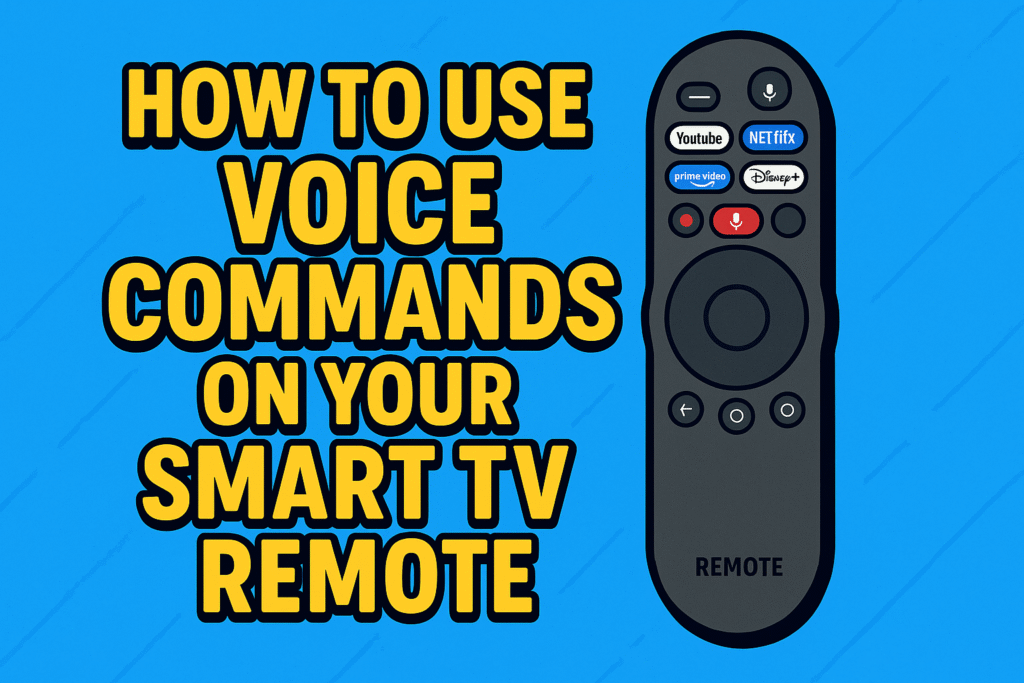
Smart TVs today are not only about high-quality screens or access to popular streaming apps. One of the most exciting and useful features they now include is voice commands. With just a press of a microphone button on your smart TV remote, you can tell your TV what to do instead of clicking through long menus or typing with an on-screen keyboard. This makes watching TV faster, simpler, and more enjoyable for everyone in the family.
If you’re completely new to the world of remotes, you can start with this complete TV remote controls guide, which acts as a hub for everything related to remote functionality, setup, and troubleshooting.
In this guide, we’ll explore how to use voice commands on smart TV remote , how to set them up properly on your smart TV remote control, and the wide range of things you can control using your voice. We’ll also look at different voice assistants such as Google Assistant, Amazon Alexa, Apple Siri, and Samsung Bixby, which make these features possible. Finally, you’ll find answers to some common questions and useful tips to improve your everyday experience.
What Is Smart TV Voice Control?
Smart TV voice control is a feature that lets you control your television using spoken commands through a microphone built into your remote or TV.
It works with voice assistants such as:
-
Amazon Alexa
-
Google Assistant
-
Samsung Bixby
-
Apple Siri
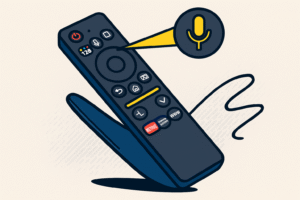
When you press the mic button and speak, your TV processes the command and performs the requested action.
How Do Voice Commands Work?
Behind the scenes, the process of using voice control may seem complicated, but it feels effortless to the user. Here’s how it works in simple steps:
- The microphone in your smart TV remote captures your voice.
- Your request is sent through the internet to a cloud-based service like Google Assistant or Amazon Alexa.
- The service translates your speech into text, understands it, and sends a command back to the TV.
- The TV follows the instructions, such as opening an app, adjusting the volume, or displaying search results.
This is why Wi-Fi is usually required. Without an internet connection, most advanced voice commands will not function. However, some TVs may allow very simple offline commands like “volume up” or “channel down.”
Benefits of Using Voice Commands on Smart TVs
One of the biggest reasons people enjoy voice commands is the extra convenience. Instead of scrolling through endless menus or typing with an on-screen keyboard, you can simply say what you want. For example, saying “Play Stranger Things on Netflix” saves you from several steps of searching and clicking.
Here are some of the main benefits:
- Convenience: No need to type long titles, app names, or search terms. Just say it out loud.
- Accessibility: For seniors, kids, or people with disabilities, voice control removes the challenge of tiny buttons and complicated menus.
- Speed: Speaking a command is almost always faster than navigating manually.
- Hands-free experience: Some setups even allow full hands-free control if your TV is linked to a smart speaker like an Echo or Google Nest device.
For many households, using voice commands on a smart TV has become as normal as pressing the power button.
How to Use Voice Search on Your TV Remote Control
Voice search is one of the most popular features of smart TV remotes because it allows you to find movies, shows, and apps instantly without typing.
To use voice search:
-
Press and hold the microphone button on your TV remote.
-
Speak clearly into the remote.
-
Release the button once your command is complete.
Example voice searches you can try:
-
“Search for action movies.”
-
“Find comedy shows on Netflix.”
-
“Play nature documentaries on YouTube.”
-
“Search for Tom Hanks movies.”
Within seconds, your TV will display results from supported streaming apps.
Voice search works best when your TV is connected to Wi-Fi and linked to your preferred voice assistant.
The Best Voice Control for Television: Comparing Assistants
Not all systems are created equal. Depending on your brand, your smart tv voice control setup and configuration will vary:
| Voice System | Best For… | Key Smart TV Voice Command Examples |
| Google Assistant | Search & YouTube | “Find 4K nature videos on YouTube.” |
| Amazon Alexa | Smart Home Control | “Alexa, dim the lights and play Bosch.” |
| Samsung Bixby | Deep TV Settings | “Bixby, change picture mode to Movie.” |
| Apple Siri | Privacy & Ecosystem | “Siri, what did he say?” (Rewinds 15s with captions). |
Samsung TV Remote Voice Commands: A Master List
Samsung users have access to some of the most robust samsung tv remote voice commands. To get the most out of your samsung tv voice control, try these phrases:
-
Content Search: “Find action movies starring Tom Cruise.”
-
Settings Control: “Set a sleep timer for 30 minutes” or “Switch to HDMI 1.”
-
App Navigation: “Open Discovery Plus” or “Search for workout videos on YouTube.”
-
Smart Home: “Show me the front door camera.”
Using samsung tv remote voice commands significantly reduces the time spent typing on a clunky on-screen keyboard.
Which Voice Assistants Work with Smart TVs?
Not every smart TV brand uses the same assistant. Different companies integrate different systems, each with its own strengths.You can also explore LG Smart TV voice command help page for additional setup and compatibility details.
- Google Assistant – Commonly found on Sony, TCL, Philips, and other Android TV or Google TV devices. If you prefer a single controller that supports multiple devices, check out our list of the best universal remotes for Samsung TVs. Known for excellent search results and easy integration with Google apps like YouTube, Calendar, or Google Photos.
- Amazon Alexa – Built into Fire TVs and also available on select Samsung, LG, and Sony models. Works very well for controlling smart home devices like lights, plugs, and thermostats.
- Samsung Bixby – Found in Samsung Smart TVs. Works best if you already use Samsung phones or other Samsung appliances.
- Apple Siri – Available through Apple TV and links perfectly with iPhones, iPads, and other Apple devices using AirPlay and HomeKit.
Understanding which voice assistant your TV uses helps you know what kind of features and integrations you can expect.
Comparison Table – Voice Assistants for Smart TVs
| Voice Assistant | Compatible Brands | Key Features | Limitations |
| Alexa | LG, Samsung, Sony, Fire TV | Smart home integration, skills | Needs internet connection |
| Google Assistant | Sony, TCL, Philips, Chromecast | Strong search, YouTube integration | Setup required |
| Bixby | Samsung TVs | Works with Samsung devices | Limited outside Samsung |
| Siri | Apple TV | Strong Apple ecosystem support | Only works with Apple devices |
This variety means you should check what your TV supports before deciding which voice assistant to use.
Step-by-Step Checklist for Setting Up Voice Control
- Check compatibility: Make sure your smart TV model supports voice commands. Older TVs may not have this option, while newer ones usually do.
- Look for the mic button: Most smart TV remotes include a small microphone icon that activates the voice assistant when pressed.
- Connect your TV to Wi-Fi: Since most voice recognition systems need the internet, a stable Wi-Fi connection is essential.
- Sign in: Log in with a relevant account such as a Google account, Amazon account, or Samsung account, depending on your TV brand. This step links your TV to the voice assistant platform.
- Pair devices if needed: Some TVs require pairing your remote control with the TV before voice features work.
- Test commands: Hold the mic button and say something simple like “Open YouTube” or “What time is it?” to confirm it’s working.
- Adjust settings: Go into the TV’s settings menu to choose your preferred language, region, or voice assistant preferences.
Once these steps are complete, you’re ready to enjoy the hands-free experience of a voice remote.
Popular Voice Commands You Can Try
After setup, it’s helpful to test different voice commands to see what your TV can do. Common examples include:
- “Turn the volume up.”
- “Switch to HDMI 2.”
- “Find action movies.”
- “Pause the video.”
- “Launch Disney Plus.”
- “Show me the weather.”
These commands cover everything from basic controls to content searches, saving you from scrolling through menus or typing with an on-screen keyboard.
Advanced Tips to Get the Most from Smart TV Voice Commands
While voice control on smart TVs is simple to use, a few adjustments can make it work more smoothly:
- Speak clearly: Avoid rushing your words or mumbling.
- Reduce background noise: Loud music or chatter can confuse the voice assistant.
- Keep firmware updated: Regular software updates improve voice recognition accuracy and fix bugs.
- Try different phrases: If “Play music” doesn’t work, try “Start music.”
These small steps can greatly improve the reliability of your voice commands, making your smart TV remote a powerful everyday tool.
What Features Should I Look for in a Smart TV Remote?
Safety and Privacy Concerns with Voice Commands
As helpful as voice assistants are, they also raise important privacy and security concerns. Since smart TV remotes use built-in microphones and connect to the internet, it’s natural for users to worry about how their data is handled. Here are a few things to consider:
- Always-listening microphones: Some smart TVs have microphones that are always active unless turned off. This can feel uncomfortable for users who value privacy.
- Voice recordings: Many voice recognition systems store recordings temporarily to improve accuracy. While this helps the system learn, it also means your voice data may be saved in company servers.
- Settings control: Fortunately, most smart TVs allow you to manage privacy. You can usually disable the microphone, limit what data is collected, or delete stored voice recordings.
If privacy is a concern, regularly review your TV privacy settings. Disable the microphone when it’s not in use, clear stored data, and only enable voice control when you need it. You can also lock or unlock parental controls on your TV remote for extra security. Taking these steps gives you better control over your voice assistant while still enjoying the benefits.
Troubleshooting Smart TV Voice Control Problems
Voice control makes TV navigation easier — but when it stops working, it can be frustrating. If your smart TV isn’t responding to voice commands, try the solutions below.
1. Remote Not Pairing
If your voice remote is not pairing with the TV, follow these steps:
-
Remove the batteries and wait at least 30–60 seconds before reinserting them.
-
Restart your TV by unplugging it from the power source for one minute, then plug it back in.
-
Re-pair the remote using your TV’s pairing instructions (usually holding the Back + Play/Pause buttons or the Home button for a few seconds, depending on the brand).
If the remote still won’t pair, move closer to the TV to avoid Bluetooth signal interference.
2. Microphone Button Not Responding
If pressing the mic button does nothing:
-
Check the battery level — weak batteries are the most common cause. Replace them with new alkaline batteries.
-
Reset the remote by removing the batteries and holding the Power button for 10 seconds before reinserting them.
-
Update your TV firmware through Settings → Support → Software Update. Outdated software can cause voice recognition issues.
Also make sure you are holding the mic button while speaking, as most remotes only listen when the button is pressed.
3. Alexa or Google Not Connecting
If your TV says it can’t connect to your voice assistant:
-
Re-link your account in the TV’s voice assistant settings.
-
Check your Wi-Fi connection — unstable internet can prevent voice services from working.
-
Sign out and sign in again to your Amazon or Google account.
You can also restart your router to refresh the network connection.
4. Voice Assistant Keeps Turning Off
If the voice assistant disables itself automatically:
-
Update your TV software to the latest version.
-
Factory reset voice settings (not the entire TV unless necessary).
-
Make sure parental controls or privacy settings are not disabling voice services.
If problems continue, perform a full TV restart by unplugging it for 1–2 minutes.
Most voice control problems are caused by low batteries, pairing issues, or internet connection errors. In many cases, a simple restart or re-pairing process resolves the issue within minutes.
The Future of Voice-Activated TVs
The technology behind voice-activated smart TVs is still developing, and the future looks even more promising. We can expect several improvements that will make voice control even more natural and useful:
- More natural conversation – Instead of giving short, robotic commands, you’ll be able to talk to your TV like you would to a person. For example, instead of saying “Open YouTube”, you might casually say “I feel like watching cooking videos.”
- Multilingual support – Future smart TVs will likely let you switch languages instantly. This is useful for bilingual households or people learning a new language.
- Voice + gesture combination – Developers are working on blending gesture control with voice recognition. Imagine raising your hand to pause a video while saying, “Play next episode.”
- Personalized responses – Advanced AI-powered smart TVs may be able to recognize different family members’ voices. That way, when you say “Play my playlist”, it knows which account to pull from.
These improvements show that voice technology in smart TVs is moving toward a more human-like, interactive experience. In the near future, your voice remote could feel more like a personal assistant that understands you, adapts to your preferences, and makes your smart home even smarter.
Frequently Asked Questions (FAQ)
Q: What is the best voice control for television in 2026?
A: It depends on your needs. For smart home integration, Amazon Alexa is king. For the most accurate search results and YouTube integration, Google Assistant is the top-rated choice.
Q: Can I use samsung tv voice commands without the original remote?
A: Yes! You can control your TV without a remote using the Samsung SmartThings app on your smartphone to send samsung tv remote voice commands directly to your television over Wi-Fi.
Q: My smart tv voice command isn’t working. What should I do?
A: Check your batteries first—Bluetooth voice transmission uses more power than standard buttons. If batteries are fine, re-pair the remote to the TV in the settings menu.
Q: Why is my smart tv voice command not working?
A: Most often, this is due to a Bluetooth pairing issue or low batteries. Voice remotes require Bluetooth (not just IR) to transmit audio. Check your TV’s Remotes & Accessories menu to ensure the remote is “Connected.” Also, ensure your TV is connected to the internet, as most smart tv voice control systems require the cloud to process speech.
Q: How do I turn off the “voice that talks back” on my Samsung TV?
A: This is a common confusion between samsung tv voice commands and the Voice Guide (an accessibility feature). To stop the TV from narrating every menu move, go to Settings > General > Accessibility > Voice Guide Settings and toggle Voice Guide to Off.
Q: Can I use smart tv voice control without the original remote?
A: Yes. Most top-rated brands allow you to use a smartphone app (like SmartThings for Samsung or SmartCast for Vizio) as a virtual remote. You can also link your TV to a smart speaker to enable hands-free smart tv voice control via Amazon Alexa or Google Assistant.
Q: What are the best voice control for television brands in 2026?
A: Currently, Sony (Google TV) and Samsung (Bixby/Alexa) offer the most top-rated voice control options for tvs. Google TV is praised for its search accuracy, while Samsung is considered the best tv voice control system for deep integration with other home appliances and smart devices.
Q: Is my smart tv with voice control remote always listening to me?
A: Most smart tv remote voice commands only activate when you physically press the microphone button. However, if your TV supports “Wake Words” (like “Hey Google”), the TV’s internal mic is in a low-power listening mode. You can disable this in the Privacy or Voice Settings for total peace of mind.