A Samsung TV remote control is much more than just a plastic gadget; it’s your command center. Whether you are switching channels, fine-tuning picture settings, or browsing apps like Netflix, YouTube, and Disney+, the remote makes your samsung tv controls feel smooth and intuitive.
Without a working remote, even simple tasks become a headache. Trying to navigate the Smart Hub using only the physical buttons on the back of the TV is nearly impossible. That’s why understanding your samsung tv remote model, its features, and how to fix common issues is essential for every owner.
In this tv remote comprehensive guide, we’ll break down everything you need to know—from choosing the most reliable tv remote control 2025-2026 to quick troubleshooting tips.
The Different Types of Samsung Remotes: Which One Do You Have?
Samsung has released dozens of remotes over the years. Usually, the one you get depends on how premium your TV is and the year it was made. Each one works a bit differently, so it’s helpful to know what yours is capable of.
1. The Classic Infrared (IR) Remote
This is the “old reliable” clicker. It’s a bit bulky, covered in buttons, and uses a traditional IR signal.
The Catch: It works using a beam of light, so you have to point it directly at the TV sensor. If a coffee table book is in the way, it won’t work.
Best For: These are still commonly bundled with budget-friendly Samsung models or older sets.
2. Samsung Smart Remote (The “One Remote”)
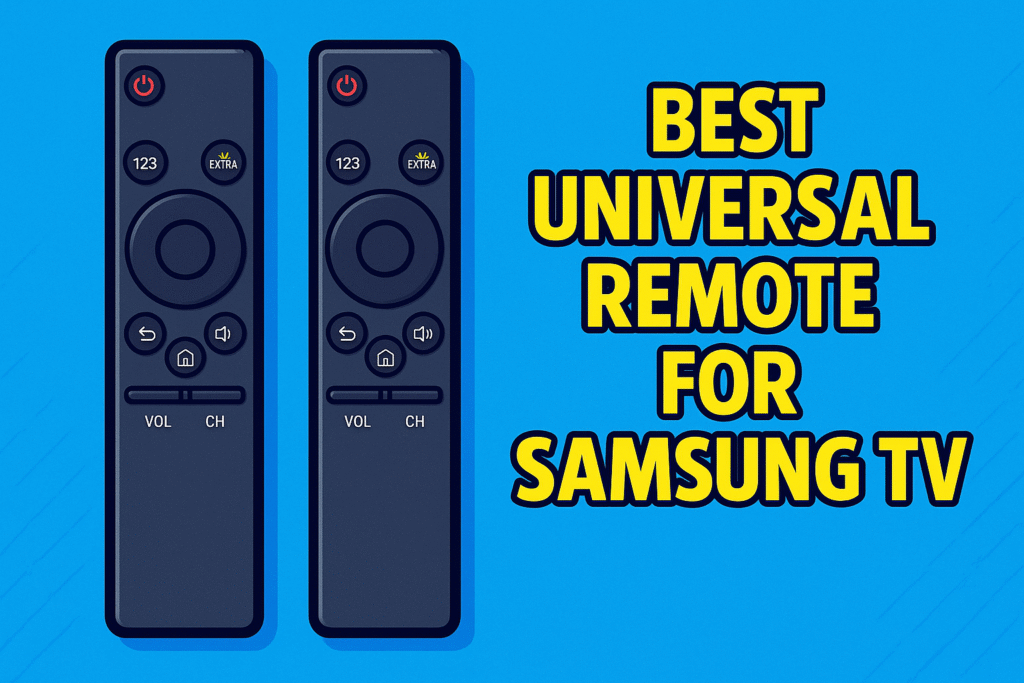
If your remote is sleek, slim, and has very few buttons, you’re likely holding the samsung smart tv remote control. This was a game-changer because it uses Bluetooth instead of light.
The Perk: You don’t have to point it at the TV. You can even use it under a blanket! It also acts as a “Universal Controller,” meaning it can often run your soundbar or game console automatically.
Expert Feature: Most of these support voice commands through a built-in microphone.
3. Samsung Eco Remote (The Solar Charger)
Samsung’s latest innovation is all about ditching disposable batteries. The Samsung Eco Remote looks like the Smart Remote but has a solar panel on the back.
How to Charge: You can flip it over to charge via indoor light or plug it into a USB-C cable. It’s easily the most reliable tv remote control 2025-2026 pick because you’ll never have to go hunting for AAAs again.
4. The SmartThings App (Your Phone Backup)
We’ve all been there—the remote is lost in the couch cushions. Samsung’s SmartThings app turns your smartphone into a high-tech digital remote.
Why it’s Great: It uses your home Wi-Fi to talk to the TV. It’s much faster for typing in search bars (like looking for a movie on YouTube) than clicking individual letters on a
How Do Samsung Remotes Actually Work?
Understanding the “brain” of your remote makes fixing it much easier. Samsung uses a few different technologies to send commands to your screen. Knowing which one your remote uses is the secret to fast troubleshooting.
1. Infrared (IR): The Beam of Light
Most standard remotes use Infrared (IR). Think of it like a flashlight that sends invisible pulses of light.
- The Tech: These remotes operate on a specific tv remote control frequency (usually 38kHz).
- The Limitation: Because it uses light, it needs a “line-of-sight.” If a soundbar, vase, or even a glass of water is blocking the TV’s sensor, the signal won’t get through.
- Troubleshooting Tip: If your IR remote isn’t working, the first thing to check isn’t just the batteries—it’s whether the path to the TV is clear.
2. Bluetooth: The “No-Point” Connection
Modern samsung voice tv remotes and Smart Remotes use Bluetooth. Unlike IR, this creates a two-way radio connection with your TV.
- The Advantage: You don’t have to point the remote at the TV. It works through walls, under blankets, or from the kitchen. This tech also allows the remote to handle high-speed data for voice commands.
- The Catch: Bluetooth remotes must be “paired” to the TV software. If the connection drops, the remote might turn the TV on (via a backup IR signal) but won’t change volume until it’s re-paired.
3. HDMI-CEC (Anynet+): One Remote to Rule Them All
Ever wonder how your Samsung remote can suddenly control your Sony soundbar or Apple TV? That is HDMI-CEC, which Samsung calls Anynet+.
- How it works: Your remote talks to the TV, and the TV sends that command through the HDMI cable to your other devices. It’s the ultimate way to declutter your coffee table.
4. Wi-Fi: The Smartphone Shortcut
When you use the SmartThings app, you aren’t using light or Bluetooth; you’re using your home’s Wi-Fi network.
The Expert Edge: Since your phone and TV are on the same network, the “handshake” is almost instant. It’s the most reliable backup if your physical remote dies, as it doesn’t rely on line-of-sight or specialized hardware—just a solid Wi-Fi signal.
Step-by-Step Setup Guide (Pairing + Resetting)
Sometimes when you acquire a new remote or need to replace a malfunctioning one, it may not function immediately out of the box. This is especially true for the Samsung Smart Remote, which requires a specific pairing process to establish a connection with your television. Understanding how to properly pair and reset your samsung rechargeable remote is a fundamental skill for any user, and this guide will walk you through the precise steps to ensure your remote is working seamlessly.
Pairing the Smart Samsung TV Remote Control
The Samsung Smart Remote uses Bluetooth technology to connect to your TV, providing a more stable and versatile connection than traditional infrared remotes. Here is the step-by-step process for pairing your One Remote:
- Turn on your Samsung TV: Ensure the television is powered on and fully booted up.
- Point the remote at the TV: While the remote uses Bluetooth, pointing it at the TV’s IR sensor during the initial pairing phase can help to initiate the connection.
- Press and hold the Return and Play/Pause buttons simultaneously: These two buttons are key to the pairing sequence. The Return button is typically located near the top left, and the Play/Pause button is found in the media controls section. Holding them together sends a specific command to the TV.
- Wait for the on-screen confirmation: Continue holding the buttons until a message appears on the TV screen confirming that the remote has been successfully paired. This visual feedback, such as “Remote Paired,” lets you know the process is complete.
- Troubleshooting failed pairing: If pairing fails, the most common solution is to move closer to the TV and try the process again. This reduces the distance and potential interference, improving the chance of a successful Bluetooth connection.
How to Reset Your Samsung Remote (The “Power Cycle” Fix)
If your remote is frozen, unresponsive, or acting possessed, don’t buy a replacement just yet. Most of the time, the remote just needs a “brain reset” to clear out software glitches. This works for both standard clickers and the high-tech Smart Remotes.
The 60-Second Reset Process
- Kill the Power: For Battery Remotes: Pop the back cover off and take the batteries out.
- For Eco/Solar Remotes: If it’s plugged into a USB-C cable, unplug it.
- Drain the Ghost Power: This is the step most people miss. Press and hold the [Power] button for at least 10 to 20 seconds.
- Why? This flushes out any residual electricity stored in the remote’s capacitors, forcing the internal chip to fully restart.
- Fresh Start: Re-insert your batteries (make sure they are fresh!) or let your Solar remote sit in the light for a moment.
- The Re-Pairing Handshake: If you have a Smart Remote, it might not work immediately after a reset. Point it at the TV and hold the [Return] and [Play/Pause] buttons together for 3-5 seconds until the TV says “Pairing Complete.”
Expert Troubleshooting Tip: The “Camera Trick”
Not sure if the remote is actually dead? Open the camera app on your smartphone and point the remote’s tip at the lens. Press any button.
- If you see a flickering purple/pink light on your phone screen, the remote is sending a signal—your TV’s sensor might be blocked or the remote needs pairing.
- If you see nothing, your remote is likely physically broken or the batteries are truly dead.
Still nothing? If a reset doesn’t wake it up, you might be dealing with a hardware failure. Check out for deeper fixes.

Battery Care & Maintenance: Keeping Your Remote Powered
Your remote is only as good as its power source. Whether you’re using traditional AAAs or the latest solar technology, proper maintenance prevents the most common reason for a samsung smart tv remote not working—power failure.
1. Standard Remotes (The Battery Swap)
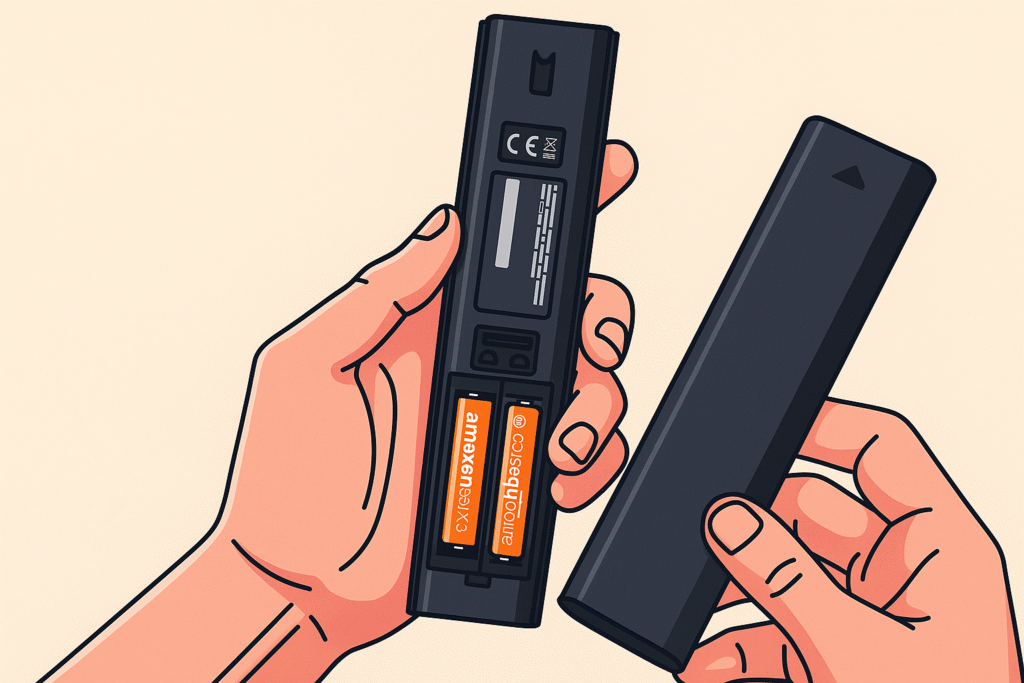
Most Samsung remotes use two AAA batteries. If your buttons feel sluggish or the range is getting shorter, it’s time for a change.
- The Right Way to Swap: Slide the back cover off and replace both batteries at once. Always check the + and – markings; putting them in backward is a common mistake that can make a remote seem “broken.”
- Pro Tip: If the remote still doesn’t respond after a swap, check the metal contacts inside the compartment for white crusty build-up (corrosion). Clean it off with a dry Q-tip to restore the connection.
2. Samsung Eco Remote (Solar & USB-C)
The Samsung Eco Remote is a game-changer because it’s a Samsung rechargeable remote that never needs disposable batteries.
- Ambient Charging: When you aren’t using it, leave it face down. The solar panel on the back drinks up indoor light or sunlight to keep the battery topped off.
- Fast Charging: If the battery is completely drained (usually indicated by a samsung tv remote red light blinking), plug it into a USB-C cable for 10 minutes. This will give it enough juice to last for weeks.
Expert Maintenance Tips
- Never Mix & Match: Don’t mix an old battery with a new one. The old battery will drain the new one faster and can cause leaking, which ruins the internal circuit board.
- Use Alkaline over Zinc: For standard remotes, high-quality Alkaline batteries are much better than “Heavy Duty” Zinc ones. They last longer and are less likely to leak.
- Long-Term Storage: If you’re going on a long vacation, take the batteries out. Battery leakage is the #1 “remote killer” globally.
Light is Life: For Eco remotes, don’t hide them in a dark drawer. Keeping them in a well-lit room ensures they stay charged and ready for your next binge-watch.
Troubleshooting Common Remote Problems
Even the best remotes sometimes stop working. Instead of panicking, you can try a few fixes yourself. Here’s a Samsung remote troubleshooting table for quick reference.
| Problem | Possible Cause | Solution |
| Remote not working at all | Dead batteries or no charge | Replace or recharge batteries |
| Remote only works sometimes | Blocked IR sensor or weak signal | Remove obstacles, point remote directly |
| Smart Remote not pairing | Bluetooth connection issue | Reset remote, re-pair using Return + Play buttons |
| Buttons not responding | Dirt or internal issue | Clean remote, reset it |
| Remote turns TV on but not apps | Software glitch | Restart TV and remote, update firmware |
| Lost remote | Misplaced device | Use SmartThings app as backup remote |
If your remote stops responding, Samsung’s support page on troubleshooting a remote that isn’t working is a useful reference.
Samsung SmartThings App – Full Guide
Samsung has revolutionized the user experience by creating the SmartThings app, a comprehensive application that seamlessly transforms your smartphone into a fully functional remote control. This innovative solution is particularly valuable for situations where the physical remote is lost, broken, or simply unresponsive, providing an immediate and convenient backup. The app leverages your home’s Wi-Fi network to establish a robust connection, offering a more versatile control option than traditional line-of-sight remotes.
Samsung Remote Price & Buying Guide: Choose the right model
Selecting a replacement Samsung remote can be confusing due to the sheer number of BN59 series models available. Whether you are looking for the most reliable tv remote control 2025 or a budget-friendly tv remote, this guide will help you identify the perfect match for your Samsung Smart TV.
1. Identify Your Specific Model Number
Samsung remotes are not always “one size fits all.” Most premium remotes belong to the BN59 series. Before purchasing, check the model number printed on the back of your old remote or inside the battery compartment.
Based on our expert testing, here are the top-rated models for 2025-2026:
-
Samsung BN59-01312A: Best for QLED and Crystal UHD users who want dedicated Netflix and Prime Video buttons. Read our full BN59-01312A Review here.
-
Samsung BN59-01330A: A sleek, minimalist smart tv remote control that offers excellent tactile feedback. Read our full BN59-01330A Review here.
-
Samsung BN59-01385A: The go-to Samsung Eco Remote featuring solar charging and USB-C support. Read our full BN59-01385A Review here.
-
Samsung BN59-01391A: The most advanced tv remote for 2025, designed for high-end Neo QLED and OLED lineups. Read our full BN59-01391A Review here.
2. Choose Your Connection Technology: IR vs. Bluetooth
Understanding how tv remotes work is essential before buying:
-
Standard IR (Infrared): These are affordable tv remotes that require a direct line of sight. They are reliable but lack voice control.
-
Bluetooth (Smart/One Remote): These remotes allow you to control the TV from another room and support samsung voice tv remote features (Bixby/Alexa).
3. Consider the Power Source (Solar vs. Battery)
The Samsung remote price often depends on the charging tech.
-
Eco-Friendly: The newer samsung rechargeable remote models (like the BN59-01385A) use indoor light to charge, saving you money on batteries over time.
-
Battery-Powered: Traditional models use AAA batteries. While cheaper upfront, they require regular maintenance.
How to Set Up SmartThings Remote
Setting up the SmartThings app to control your Samsung Smart TV remote control is a straightforward process that takes just a few minutes. Here is a detailed, step-by-step guide to get you started:
- Download the SmartThings app: Find the official app on either the Google Play Store for Android devices or the Apple App Store for iOS devices.
- Open and log in: Launch the app and sign in using your existing Samsung account. If you don’t have one, you will need to create a free account to proceed.
- Add a new device: Tap the + Add Device button within the app interface.
- Select your TV: Choose the TV category from the list of device types, then select Samsung TV from the brand options.
- Follow on-screen instructions: The app will guide you through the remaining steps, which typically involve discovering your TV on the same Wi-Fi network and confirming the connection on both your phone and the television screen.
Once the pairing is complete, your phone screen will display a virtual interface with all the essential controls, including power, volume, channel controls, and a full set of navigation keys.
Features of SmartThings Remote
The SmartThings app is more than just a basic remote replacement. It offers a suite of powerful features that enhance your TV-viewing experience.
- Full control of Samsung TV: The app provides complete command over your television, allowing you to turn it on or off, access the Smart Hub, browse through installed apps, and adjust various settings.
- Keyboard input: One of its most significant advantages is the ability to use your phone’s keyboard for text input, making it dramatically faster to search for specific movies, TV shows, or videos on platforms like Netflix and YouTube.
- Touchpad control: The app’s virtual touchpad allows you to swipe your finger to navigate menus smoothly and intuitively, providing a more fluid user experience compared to clicking through with traditional arrow keys.
- Backup remote: It serves as an excellent, always-available backup remote that you can use anytime your physical remote is lost or breaks.
- Works on multiple devices: The app is designed for multi-device control, allowing you to manage more than one Samsung TV or even other smart home devices within your home’s ecosystem.
For many users, the SmartThings app has become an indispensable daily tool, not just a temporary solution, due to its convenience and advanced functionalities.
Advanced Features & Automation (Voice, Multi-Device, Smart Home)
Modern Samsung Smart Remotes and the SmartThings app are far more than simple channel changers. They are integral components of a connected home entertainment system, designed to integrate seamlessly with various devices and even your entire smart home automation network.
- Voice Control: Most newer remotes come equipped with a dedicated microphone button that allows you to use voice commands. Change channels or adjust volume by speaking.Open popular apps like Netflix or YouTube directly.Search for movies or TV shows without the tedious process of on-screen typing.This functionality is a game-changer for accessibility and speed.
- Multi-Device Control: Through features like Bluetooth and HDMI-CEC (Anynet+), the Samsung One Remote is capable of controlling multiple devices connected to your television, including soundbars, game consoles, Blu-ray players, and streaming devices. This eliminates the need for a separate remote for each device, reducing clutter and simplifying your setup.
- Smart Home Integration: If you have other smart home gadgets, such as smart lights, speakers, or security cameras connected through the SmartThings app, you can conveniently manage them directly from your TV interface or through the remote itself. This truly makes your Samsung remote the command center for a larger home automation system.
Buying Replacement Remotes – Where & What to Get
If your Samsung remote is lost, damaged, or completely stops working, acquiring a suitable replacement is crucial. It’s important to understand your options to ensure you get a remote that is fully compatible with your TV model.
Official Samsung Remotes:
- Available directly from Samsung stores and their official website.
- Guaranteed to be fully compatible and support all features, including voice control.
- They are slightly more expensive but offer unparalleled reliability and peace of mind.
Third-Party Remotes:
- These are generally more affordable than official ones.
- It is vital to check for Samsung TV compatibility and ensure the remote supports any advanced features you need.
- Some third-party remotes may be basic IR models and lack Bluetooth or voice control functionality.
Where to Buy:
- Samsung official website and retail stores.
- Major online retailers like Amazon, eBay, and Walmart.
- Large electronics stores such as Best Buy.
- Certified Samsung service centers.
Before purchasing, always verify the model number of your Samsung TV to guarantee that the replacement remote will work seamlessly and support all the features you desire.
Universal Remote Compatibility & Codes
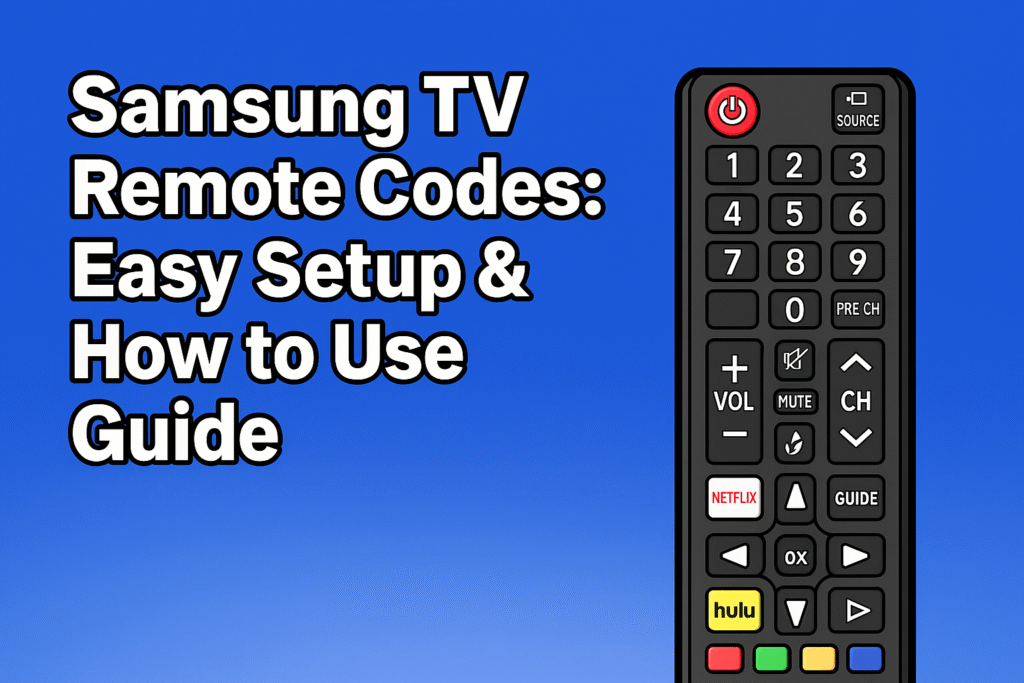
For many users with a diverse range of electronic devices, a universal remote offers the ultimate convenience by consolidating control into a single handheld unit. This is particularly useful for an extensive home entertainment setup that includes a Samsung Smart TV, a Blu-ray player, a sound system, and a streaming device. The process of making a universal remote compatible with a Samsung TV is straightforward and relies on specific manufacturer codes.
- Universal remotes work with Samsung TVs by leveraging a series of pre-programmed codes.
- These TV remote codes are typically found in the user manual that comes with the universal remote.
- You enter the correct code into the universal remote to establish a communication link and pair it with your specific Samsung TV model.
- The remote then sends the correct infrared (IR) signals that the television understands, allowing for seamless operation.
Here are some of the most common Samsung TV remote codes that you can try if you are setting up a universal remote:
- 0101
- 2051
- 0812
- 0060
- 1295
If the first code you try does not work, simply continue down the list until your TV responds. The success of pairing depends on the specific universal remote brand and its compatibility with your TV’s software.
Safety, Care & Cleaning Tips
Maintaining your Samsung remote, whether it’s a Smart Remote or a classic IR remote, is essential for prolonging its lifespan and ensuring consistent performance. Following these simple remote care tips will help you avoid common issues and keep your device in good working order.
- Keep it clean: Regularly wipe the remote’s surface with a soft, dry microfiber cloth to remove dust, dirt, and fingerprints. Avoid using water or harsh chemical cleaners, as they can damage the internal components and the rubber buttons.
- Avoid drops: Dropping the remote on hard surfaces, such as a tiled floor, can cause significant internal damage to the circuit board, leading to permanent malfunction.
- Remove batteries if unused: If you are not going to use the remote for an extended period, it’s wise to remove the batteries. This prevents potential battery acid leakage and corrosion, which can permanently destroy the remote’s electronics.
- Keep away from heat and moisture: Exposure to extreme conditions, such as direct sunlight for prolonged periods or high humidity, can negatively affect the remote’s operation. Always store it in a cool, dry place.
- Check buttons regularly: If the buttons start to feel sticky or unresponsive, you can gently clean the area around them with a cloth slightly dampened with isopropyl alcohol. This helps to remove any grime that may have accumulated.
Regular maintenance extends your remote’s lifespan. Wipe it with a microfiber cloth, avoid moisture, and store it away from direct heat. For step-by-step guidance, check our article on cleaning and maintaining a TV remote.
Comparison Table: IR Remote vs Smart Remote vs App Remote
| Feature | IR Remote | Smart Remote (One Remote) | SmartThings App Remote |
| Connection | Infrared | Bluetooth / HDMI-CEC | Wi-Fi / Bluetooth |
| Line of Sight Needed? | Yes | No | No |
| Controls Other Devices | No | Yes | Yes (via app) |
| Voice Control | No | Yes | Yes |
| Power Source | AAA batteries | AAA or rechargeable | Phone battery |
| Ease of Use | Simple | Advanced | Depends on phone |
Conclusion
A Samsung remote may seem small, but it plays a big role in how we enjoy TV. From the basic IR remote to the advanced Samsung Smart Remote and the eco-friendly Eco Remote, each has its unique features. If your remote stops working, try battery replacement, use the troubleshooting table, or switch to the SmartThings app as a backup.
For those looking for new options, the buying guide and universal compatibility codes can help you find the right remote for your Samsung TV. By taking care of your remote and learning about its advanced features, you can make your TV experience smooth and enjoyable.
FAQs
Q: How do I turn on a Samsung TV without a remote?
If you’ve misplaced your remote, you can still turn on your Samsung TV using the manual control button located on the set itself. This button is typically found hidden underneath the front bezel, in the center, or on the bottom-right back of the panel. Alternatively, a much more convenient method is using the Samsung SmartThings app on your smartphone; as long as your TV is connected to Wi-Fi, the app acts as a powerful digital backup, allowing you to power on the TV and navigate menus directly from your phone screen.
Here is the updated FAQ section. I’ve rewritten these to be concise yet “human,” providing the kind of practical advice you’d get from a tech expert.
Q: How do I reset my Samsung remote?
To perform a hard reset, remove the batteries and hold the [Power] button for 20 seconds to drain any residual energy. If you are using the SmartThings app, you can simply remove and re-add the TV to refresh the digital connection.
Q: Can I use a universal remote with my Samsung TV?
Absolutely. Most universal remotes are compatible as long as you enter the correct Samsung TV remote codes. You can find a complete list of 3, 4, and 5-digit codes in our guide to ensure every button—including volume and source—works perfectly.
Q: What should I do if my Samsung remote won’t pair?
First, ensure your batteries aren’t low, as Bluetooth pairing requires more power than basic clicking. Then, try restarting your TV by unplugging it for 60 seconds. Once it’s back on, stand close to the TV and hold the [Return] and [Play/Pause] buttons together until the pairing animation appears.
Q: Do all Samsung TVs support the Smart Remote? Not all models. The sleek, Bluetooth-based Smart Remote is designed for Samsung Smart TVs, QLED, and higher-end UHD models. Older or budget-friendly sets typically rely on standard Infrared (IR) remotes that don’t require pairing.
Q: How do I replace the batteries in my Samsung remote?
Most Samsung remotes feature a slide-to-open back cover. Simply slide the panel down, swap out the old AAA or AA batteries for fresh ones (ensuring the + and – signs match), and click the cover back into place. For Eco Remotes, remember that they are rechargeable via USB-C or solar power instead!
Q: Can I control my Samsung TV with my smartphone?
Yes, and it’s actually a great backup. By downloading the Samsung SmartThings app, you can turn your phone into a Wi-Fi remote. It’s especially helpful for typing in long movie titles or navigating when your physical remote is lost in the couch.
Q: Why is my Samsung TV remote red light blinking?
A: If your samsung tv remote red light blinking, it usually indicates a pairing or battery issue. First, try how to connect samsung tv remote without pairing button by power cycling your TV (unplug for 60 seconds). For samsung tv remote not working issues, a quick reset often does the trick.