A Samsung TV remote is an everyday-use product. This is the product that everyone picks up and presses the power button to turn on the TV. People also change the volume, which TV shows, and also open different types of apps on their Smart TV. The Samsung TV Remotes are very comfortable, classy, and user-friendly products.
What do you do if your TV Remote stops working? Maybe you press the remote buttons to activate, or maybe your remote keeps flashing, but your TV does not work. People also see that some buttons of the remote are working, but others don’t.
In this case, people throw away the remote or buy a new one. But a simple reset format can fix your Remote issue. If you reset your Samsung remote, you can clear your small issues. So if you face small errors, like some buttons not working or having trouble changing channels, reset your TV remote.
In this article, we will go step by step through the process of resetting different types of Samsung remotes. We will explain the difference between the Standard IR Remote, the Samsung Smart Remote, and the Samsung One Remote, and how each of them can be reset. We’ll also talk about what to try before you reset, what to do after resetting, and how to know if the problem is with the remote or the TV.
Understanding Samsung TV Remotes
Samsung released different types of TV Remote models . Every remote has a different reset setup, so you have to know which remote you are using.
Standard Infrared (IR) Remote
- This is one of the oldest models.
- This remote has a little red light on the top of the remote for sending signals.
- Pointing the remote directly is important; if you don’t, the TV will not respond
- All this remote has different types of buttons, like numbers, volume menu, settings, etc.
Samsung Smart Remote (Bluetooth Remote)
- To support the remote to your TV, this Smart remote needs a Bluetooth connection.
- It works even if you are not pointing it directly at the TV.
- It usually has fewer buttons and may have a microphone button for voice commands.
- This type of remote comes with most Samsung Smart TVs.

Samsung One Remote
- This is a newer and more advanced remote.
- This remote can control multiple devices, ike soundbars, DVD players, or gaming consoles, not only the TV.
- This remote is a powerful and useful remote that uses infrared and Bluetooth.
- The remote looks simple, clean, and has fewer buttons.
When you know your remote type, you can follow the correct reset method.
You can learn more about Samsung One Remote on the official site.
When Should You Reset a Samsung Remote?
“Reset” is not something that you need to do every day. But when you feel an issue in your remote, resetting is important and helpful.
-
- When pressing the remote buttons, it does not respond.
- The TV does not recognize the remote even when you try to pair it.
- Some buttons do not work properly.
- If the remote work slows down when you press the remote buttons
- Still not working after putting new batteries.
- disabled to control the TV, but the remote’s red light sis till blinking.
If you have this kind of issue in your remote control, then a reset can give you a fresh start. For detailed tips, Samsung also provides a troubleshooting guide.

Difference Between Reset vs. Pairing vs. Factory Reset
Resetting a remote means removing the batteries, holding the power button for some seconds, and reinserting the batteries. Resets clear all the small errors, and it is needed after changing batteries. There are two types of reset: factory reset and quick reset. Factory reset works differently. It will take the remote or the TV to its original settings and wipe out. The quick reset works for small problems, but a factory reset is for big issues.
Samsung Remote Reset vs. TV Reset
Here’s a simple comparison between the two:
| Type of Reset | What It Fixes | When to Use |
| Remote Reset | Remotes unresponsive buttons, slow response, and lost connection. | When the TV is fine, but the remote is not working properly |
| TV Reset | Software issues, System errors, and app issues | If the TV is freezing or is not responding to a working remote. |
Basic Troubleshooting Before Reset
Before resetting, it is important to check out some simple things. Because sometimes the problem is not a big issue, it doesn’t need a full reset.
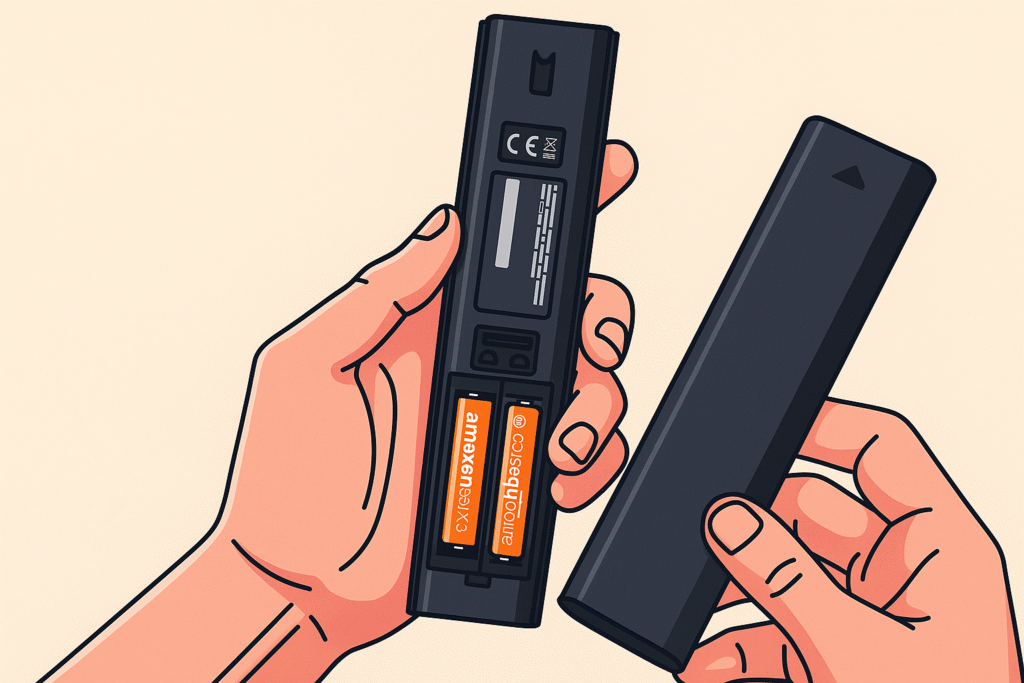
Check the batteries
- Make sure the batteries are placed correctly (positive + and negative –).
- Try to replace batteries in TV remote with a brand-new set. Weak batteries are often the cause of remote problems.
Check for obstacles
- If you have an IR remote, make sure nothing is blocking the TV’s IR remote sensor. Even something small in front of the TV can stop the signal.
Restart the TV
- Unplug the TV’s power cable from the wall.
- Wait for 30 seconds.
- Plug back in and turn on the TV.
- Sometimes the TV has an issue, not the remote control.
Test the remote’s signal
- For an IR remote, point it at your phone’s camera and press a button.
- If the remote’s small red light is blinking, that is a sign that the remote is working.
- But if you don’t see the light, that means the remote is not sending signals to the TV.
If all these steps are not working, then this is the time to reset the remote control.
How to Reset a Standard Samsung IR Remote
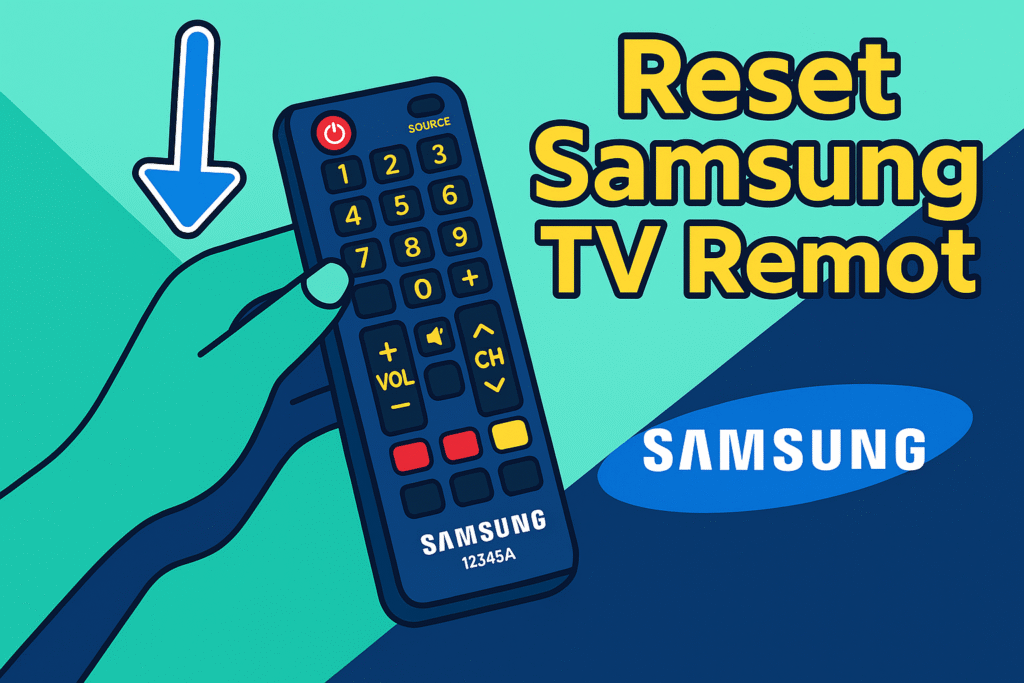
The Standard IR Remote is the simplest to reset. Here’s how you do it:
- Take out the batteries from the back.
- Press and hold the Power button on the remote for 10–15 seconds.
- Release the button.
- Put the batteries back in.
- Try the remote again.
This clears leftover electrical charge and small errors. With this simple reset, your remote will start working again.
How to Reset a Samsung Smart Remote (Bluetooth)
Samsung Smart Remote needs a Bluetooth connection to work. Also, the smart remote has different features. The reset steps are also different.
- Remove the batteries.
- The back button and play/ pose button hold together; it will take seconds.
- Wait for the TV’s pairing notification.
- If nothing happened, then put the batteries back and try again.
This reset forces the remote into pairing mode and refreshes the connection.
How to Reset a Samsung One Remote
The Samsung One Remote is more advanced, but resetting it is also simple:
- At the same time, press the Play/Pause button and the Return button together.
- Hold it for 5 to 10 seconds.
- A message will come to the TV screen that the remote is pairing.
- If it is still not working, then remove the batteries and put them back to try again.
These steps clear the remote memory and reconnect with the TV.
When to Replace Instead of Reset
If the remote has visible issues like buttons that are cracked, water exposure, or the sensor not working properly, that means your remote needs replacement. Because not every problem can be solved by resetting. A reset can solve manual problems like slow response or some buttons not working properly. But for visible damage, Replacement will be the best option.
How to Re-Pair a Samsung Remote with the TV
After reset, the Samsung Remote needs to re-pair. Because after resetting, the remote is like a new one.
Steps for how to reconnect a Samsung remote:
- The first step is turning the TV on.
- The next step is ensuring that the remote is pointing at the TV.
- Now press the Back button and the Play/Pause button at the same time.
- Then the TV will confirm that the pairing is now complete.
Pairing only takes a few seconds and ensures the remote and TV are connected properly.
Resetting a Universal Remote for Samsung TVs
Some people don’t use the original Samsung remote and instead use a universal remote. To reset it:
- Remove the batteries.
- Press and hold the Power button for about 10 seconds.
- Put in new batteries.
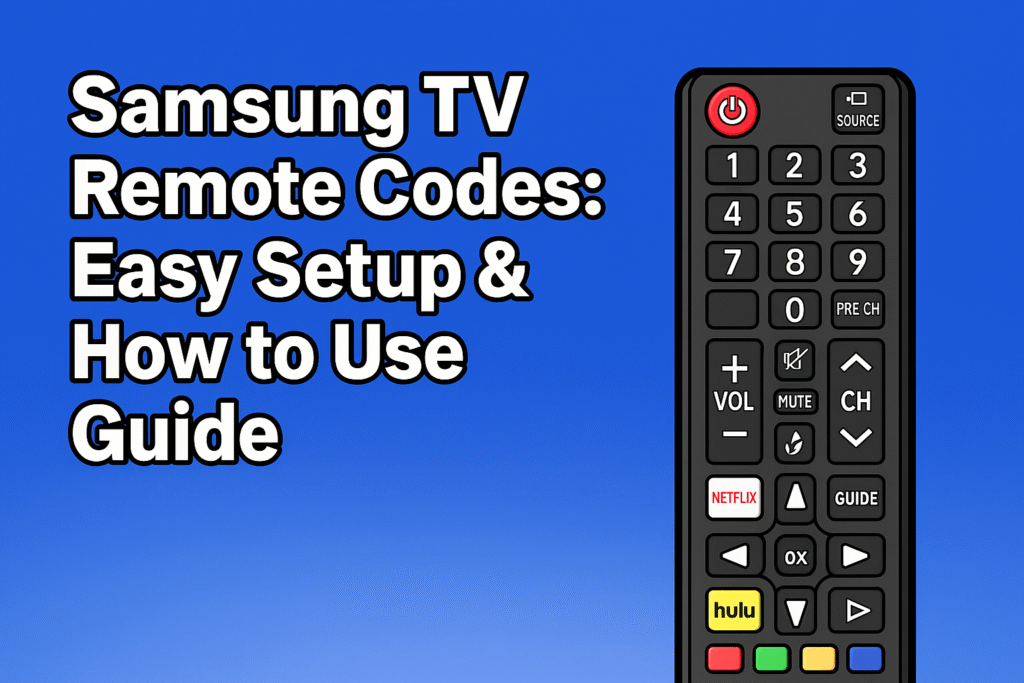
- Reprogram the remote using the correct Samsung TV remote codes.
A Universal remote needs a code to work with the TV. There are different types of codes: 3-digit, 4-digit, or 5-digit codes. All these codes depend on the remote brand. What If Reset Doesn’t Work?
If Reset doesn’t solve your remote issue, then you can try this:
- Update the TV software:
Go to Settings > Support > Software Update and install updates. - Reset Samsung Smart Hub:
This option clears apps and can fix connection problems. - Try another remote:
After checking if there is another Samsung remote, test the remote with your TV - Use the SmartThings app:
You can use your smartphone as a remote, using Samsung’s official SmartThings app - Contact Samsung Support:
Is there any hardware issue you can contact Samsung Support
Physical Damage Troubleshooting
Before buying a new remote, check the Physical issues. Clean gently around the buttons and remove any dust or debris. Clean properly with a dry cloth or cotton sanitize TV remote. Also, check the remote sensor area to ensure that nothing blocks it. But if the remote was dropped and internal components were damaged, then replacement will be the best solution.
Buying a Replacement Samsung Remote
When you try to fix the remote, but all fixes fail, then buying a new one is the last option. Samsung has different types of official remotes that match most of their TVs. Samsung ensures full compatibility, and the Samsung remotes are user-friendly. You can also use Universal remotes. But you have to make sure that they support Samsung codes and functions like Smart Hub or voice commands.
You can also use the Samsung SmartThings app. Using this app, you can control your Samsung smart TV. This app is handy, but most people prefer a physical remote for everyday use. If you want to purchase the Samsung Remote, a Samsung official or a trusted retailer will be the safe choice.
Tips to Avoid Remote Problems in the Future
You can keep your remote working longer by following some simple care tips:
- Always choose new, fresh, and quality batteries
- Don’t replace one battery; replace both batteries at the same time.
- Always try to keep the battery dry and avoid using liquid things.
- Avoid pressing or holding the button too hard.
- Update your TV software regularly.
- Keep the remote in a safe place, and clean the remote gently with dry cloths
To avoid any issues while set up, check out our complete Samsung remote setup guide.
Conclusion
Samsung TV remote has an easy reset setup. By resetting, you can fix most problems like slow response, channel-changing issues, or unresponsive buttons.
No matter which remote you have, Standard IR Remote, Samsung One Remote, or the Samsung Smart Remote, all remotes have a quick and easy reset system.
If you want long-lasting service, then you have to take care of your Samsung remote. Do not use old batteries because safe storage will keep your remote longer. Always hold and press the remote button gently.
Frequently Asked Questions (FAQ)
How to reset the Samsung remote?
If you want to reset the remote, then remove the batteries. Some new Samsung remotes allow resetting with button combinations. But I think removing batteries is more reliable
What is the reason for the Samsung remote blinking red light?
When the Samsung remote loses the connection with the TV or has low batteries. In this situation, the Samsung remote starts blinking red.
Does resetting affect my TV settings?
No, resetting erases remote settings, not the TV settings. The TV apps and settings will stay the same.
How can I find the remote problem?
You can check the remote using your phone camera. If the remote light is flashing, that means the remote is still working. The problem is maybe the TV’s IR sensor.
What is the reason my Samsung TV is not responding to my remote?
Remove the batteries and add fresh ones. Also, unplug your TV for 5 minutes. If you use a universal or app-based remote, verify correct pairing procedures.