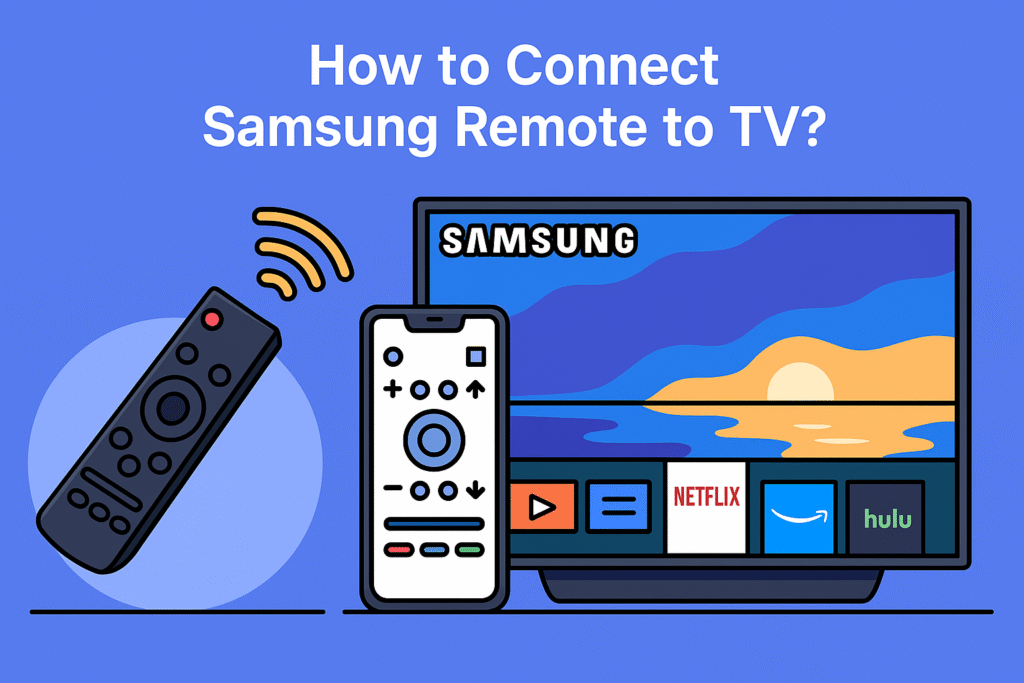
Managing every smart gadget in the house feels hard to control. One app for the lights, another for the TV, and multiple remotes. I kept switching between them until I found Samsung’s SmartThings Remote. It not only solves every smart-home problem, but it also really makes things easier. You can control your Samsung TV, smart lights, plugs, or other connected devices. Simply, just open the app and connect your smart devices. Now control your devices without any extra hassle.
We will discuss everything about Samsung SmartThings Remote, its setup, function, troubleshooting, future trends, and so on.
What exactly is the Samsung SmartThings Remote?
Samsung SmartThings Remote is a digital remote under the SmartThings app. You can use your phone or tablet to open your TV or control other devices without searching for physical remotes. You just need one click to switch your Samsung TV, on/off lights, or adjust the room temperature easily.
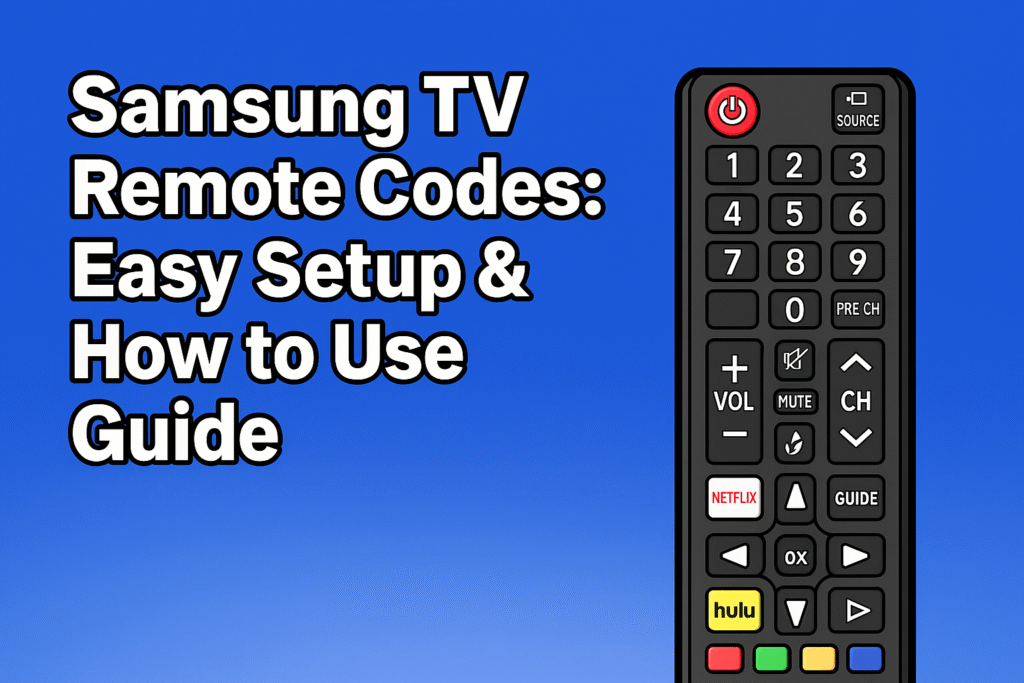
Some people still like the feel of a real remote, and I get that. You can pair the app with Samsung’s physical remotes or scene buttons if you want both. I do that at home; sometimes it’s faster to grab the remote than unlock my phone. The mix just works.
What does the SmartThings Remote do?
A SmartThings Remote can control your TV, smart refrigerators, AC, and other smart home devices like lights, CCTV cameras, smart plugs, robot vacuums, and so on. The mobile remote allows you to set routines and scenes from one place. So you don’t need multiple remotes.
Features and Specifications
SmartThings App Remote :
- Control TVs, lights, plugs, cameras, and other smart devices from your phone.
- On-screen buttons for power, volume, channels, apps, and TV menus.
- Use Bixby voice commands from the remote.
- Allow move or remove buttons and choose light or dark mode.
- Quick access on Galaxy phones from the lock screen or notifications.
What is the benefits of using the SmartThings Remote?
Core benefits of using a SmartThings Remote:
- Control all your devices in one place.
- Makes managing a smart home simple.
- Run multiple devices at the same time with scenes.
- Use voice commands for easy control.
- Access your home devices from anywhere with the internet.
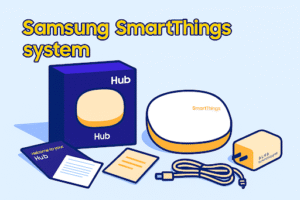
Samsung SmartThings system
Samsung SmartThings systems connect your smart devices through SmartThings app or hub device.
This system works through Wi-Fi, Zigbee, or Z-Wave. This integration makes things easier. You can check out what’s happening at your home when you are in the office or outings, or set automatic routines. You can fully control your devices from one app.
Which devices are compatible with SmartThings Remote?
You can control lots of devices with the SmartThings remote. Check out the table to confirm which device and brand are compatible with SmartThings Remote:
| Device Type | Brand or model | Notes |
| TV or Projector | Samsung, Neo QLED, UHD, The Frame | Works with mobile remote appears in the SmartThings app. |
| Smart bulbs | Nanoleaf, Philips Hue | Works via Zigbee, Matter, or cloud bridges |
| Smart plugs | Samsung or Third-party plugs | Control on/off and scheduling |
| Cameras | Samsung SmartCam, Arlo | Live view and alerts via app. |
| Thermostats | Ecobee, Nest | Works via SmartThings hub integration. |
Understanding the SmartThings Hub
The hub connects directly and allows automation and communication through Zigbee, Z-Wave, Thread, Wi-Fi, and BLE devices. Your devices can run automatically and quickly, even without the internet.
Role in automation
The hub runs routines, schedules, and scenes without always using the internet. This makes lights, plugs, and TV controls faster..
Supported protocols
The SmartThings Hub Supports Zigbee, Z-Wave, Wi-Fi, Bluetooth Low Energy (BLE), and Thread/Matter. It depends on the hub model.
You can check out the hub specifications to find out exact supported protocols.
How can I control multiple devices at once?
You may control multiple devices at one click by creating scenes, schedules, or routines in your Samsung SmartThings app.
I made one setup called Movie Night—press it once, and the lights dim while the TV wakes up. Simple, right? You can also set little routines that fit your day. Mine shuts the lights and locks the doors when it’s bedtime..
How do I set up my Samsung SmartThings Remote?
To set up the SmartThings Remote, you may follow these steps:
- Install the SmartThings App – Download from Google Play or Apple App Store.
- Pair Devices – Add Samsung TVs, appliances, and other devices to the app. For this, just follow your screen instructions.
- Test Functionality – test each device and confirm they responds to the remote controls.
How do I connect the remote to multiple devices?
You can link multiple devices to the SmartThings Remote through the SmartThings app. To connect the device, follow the instructions below:
- Open the SmartThings app and tap Add Device. Then select the device brand and model and follow the pairing instructions.
- Ensure each device is online and within Wi-Fi or hub range.
How do I update firmware or maintain the remote?
To update TV firmware, first enable automatic updates in SmartThings app settings. Then manually update all devices from the app. Try manual updates once in a month for better performance. Updates will keep the SmartThings app and connected devices secure and functional.
Why is my SmartThings Remote not working?
Problems with the SmartThings Remote usually happen because of pairing, connection, firmware, or button issues. Following simple troubleshooting steps can help you to fix them.
- Restart the SmartThings app and devices
- Confirm the device is on and in pairing mode
- Reset device network settings if pairing fails repeatedly
- Add the device in the SmartThings app again
Solution of connectivity problems
Here’s the solution for how to fix the Samsung TV remote not working :
| Problem | Cause | Solution |
| Device not responding | Wi-Fi network issues | Restart router; ensure device is in network range |
| App shows offline | Hub or device firmware is outdated | Update firmware; reboot hub and device |
| Partial device control | Interference from other Zigbee/Z-Wave devices | Relocate hub or device; reduce interference sources |
Smart Home Automation and Remote Control
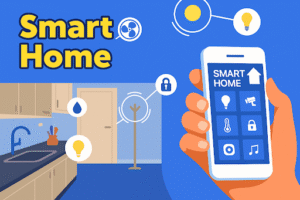
The SmartThings Remote allows you to create automated routines and schedules for your smart home. This makes the smart home easy to manage.
How do I create automation routines and scenes?
Automation routines and scenes control multiple devices with a single action. To make a routine or scene, open the app, and go to the Automations tab. Then tap the + icon, and choose Create Routine for automatic actions or create Scene. You have to select a trigger to create a routine. And to create a scene you have to set a list of devices and their state.
For Example you can set routines like:
- Lights: Turn on the living room lights at sunset
- TV: Start “Movie Night” scene, dim lights, close blinds, turn on TV
- Plugs: Switch off all kitchen appliances at midnight
Table: Example Routines and their trigger
| Routine | Trigger | Action |
| Movie Night | Press SmartThings Button | Dim lights, close blinds, turn on TV |
| Good Morning | 7:00 AM schedule | Turn on lights, start coffee maker |
| Away Mode | Leave home detected | Turn off lights, lock doors, and adjust temperature |
How do I schedule devices and timers?
Device scheduling allows automated actions at specific times. Like, you can schedule bedroom lights to turn on at 6:30 AM or set outdoor lights to switch off at sunrise. To turn on device scheduling, follow the steps-
- Open the SmartThings app → Devices tab
- Select the device → Tap Automations → Add Schedule
- Set time → Save
- Test device response
Energy Efficiency and Convenience
SmartThings automation improves energy use and home convenience.
- Reduce energy consumption by up to 20% via automated light and plug control ([Samsung study, 2024])
- Centralized control avoids multiple remotes and redundant manual actions
- Routine alerts improve safety, e.g., auto-off lights, water sensors notifications
How does SmartThings Remote compare to other remotes?
SmartThings remote offer flexibility compared to other remotes. There are lots of alternative options for SmartThings Remote. For example, GE Universal Remote, Amazon Fire TV Remote (with smart hub integration), Broadlink RM Pro+, Logitech Harmony Elite etc. These remotes may control fewer smart home devices. But they lack automation flexibility compared to SmartThings. Here’s the comparison between Samsung SmartThings Remote vs Logitech Harmony:
| Feature | SmartThings Remote | Harmony Remote | Notes |
| Device Support | Samsung + hundreds of SmartThings-compatible devices | TVs, audio, home devices | Harmony has broader legacy device support |
| Automation | Scenes, schedules, routines via app | Limited to programmed sequences | SmartThings app offers continuous updates |
| Mobile App | Full on-screen control | Companion app needed | SmartThings app centralizes control |
| Voice Integration | Alexa, Google Assistant, Bixby | Alexa, Google Assistant | SmartThings supports multiple voice assistants |
| Hub Required | Optional for Zigbee/Z-Wave devices | Yes | Hub expands device connectivity |
Why choose Samsung SmartThings Remote over competitors?
The SmartThings Remote mainly works through the app. It assures maximum flexibility and centralized smart home management.
Pros:
- Ensure single app control for Samsung and other allowed devices
- Features to create automation routines, scenes, and schedules
- Voice assistant integration (Alexa, Google Assistant, Bixby)
- Optional physical buttons and scene controllers for easy use
Cons:
- Requires app setup for initial configuration
- Some advanced devices may need additional integration
- Dependence on the hub for Zigbee/Z-Wave automation
Advanced Tips and Best Practices
Advanced tips help users maximize the functionality, reliability, and convenience of the SmartThings Remote within the smart home ecosystem.
What are some advanced automation ideas?
Advanced automation allows multi-device sequences and conditional routines for convenience and energy savings.
- “Morning Routine”: Turn on lights, start coffee maker, open smart blinds
- “Movie Night”: Dim lights, close blinds, power on TV, adjust sound system
- “Away Mode”: Lock doors, turn off lights, enable security cameras
- Conditional automation: Motion detection triggers lights only if after sunset
How to use voice commands most effectively?
Voice commands maximize hands-free control of devices while reducing errors.
Heres, some voice commands for smart TV:
| Command | Device / Routine | Example Usage |
| Turn on living room lights | Smart bulbs | Lights respond immediately |
| Start Movie Night scene | Multi-device sequence | Lights dim, blinds close, TV powers on |
| Set thermostat to 22°C | Smart thermostat | Adjusts temperature automatically |
| Lock all doors | Smart locks | Secures home in one command |
Tip: Group devices by room and label them clearly in the app for faster voice recognition.
The Future of SmartThings Remote
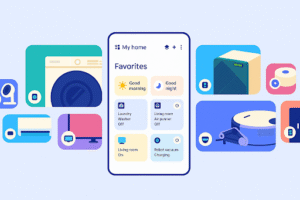
You can’t imagine how fast smart homes are changing. A few years ago, most people felt that their TV was connected to Wi-Fi without issues. Now, we can dim lights, start washing machines, or check our door locks with one app. SmartThings is right at the center of that shift, and the Remote is slowly becoming the heart of it all.
What’s next for SmartThings remotes?
The next wave of updates seems to be all about making things feel natural. Instead of you setting every command, SmartThings might start learning your habits quietly in the background. Maybe your lights turn low when you start a movie, or your coffee machine warms up right before you wake up. These little things make daily life smoother without you even asking.
Another exciting part is that Samsung is opening the doors for more brands. You’ll be able to connect gadgets from all companies. Not just Samsung devices and still control them all in one place. That means less app switching and more time just… living.
Security and energy savings are getting more attention too. New updates might warn you if something’s using too much power or help you lock up your house automatically when you leave.
Working with future smart IoT devices
SmartThings isn’t only about TVs or bulbs anymore. It’s control over smart IoT devices like appliances, sensors, and even security systems. Your fridge can send you a notification if the door is open. Your washing machine could text when its washing is done. Sensors might adjust the lights or AC depending on how many people are in the room.
And because AI is slowly being built into everything. So, SmartThings will use it to make your routines smoother. In the future, they will work by predicting what you want, not just reacting to what you press.
FAQs
Is SmartThings Remote a physical remote or app-based?
No. SmartThings Remote is not a physical remote. This Remote is an on-screen remote in the SmartThings mobile app. It’s a feature of the SmartThings app.
Can I use voice assistants with SmartThings Remote?
Yes. You can use voice assistants like Alexa, Bixby or Google Assistant with SmartThings Remote. Just make sure your devices use the same Wi-Fi network. Then say things like, “Hey Google, turn on the living room lights,” or “Alexa, start Movie Night.
What should I do if my SmartThings Remote is not responding?
If your SmartThings Remote is not responding, first check device power and Wi-Fi connection. Then update the app and restart devices. This will fix the problem.
How do I maintain the SmartThings Remote and accessories?
To maintain the SmartThings Remote and accessories, keep the app and devices updated. You have to replace weak batteries and try to place the hub in an open space for a better signal. For better performance, remove unused devices.
Does SmartThings remote work with other brands?
Yes. SmartThings remote works with hundreds of other smart devices. Among them some brands need an extra setup in their own app first. But after that, they’ll all appear together in SmartThings.
Conclusion
Managing your smart home with the Samsung SmartThings Remote makes you feel relaxed. You don’t need multiple remotes or open a bunch of apps. You just need your phone to control lights, TVs, plugs, and other devices from one place.
Take time to set it up properly. Keep devices updated, and set automation which can make your daily life easier. SmartThings remote also saves energy and time. And make sure your smart home is ready for new gadgets and features in the future.