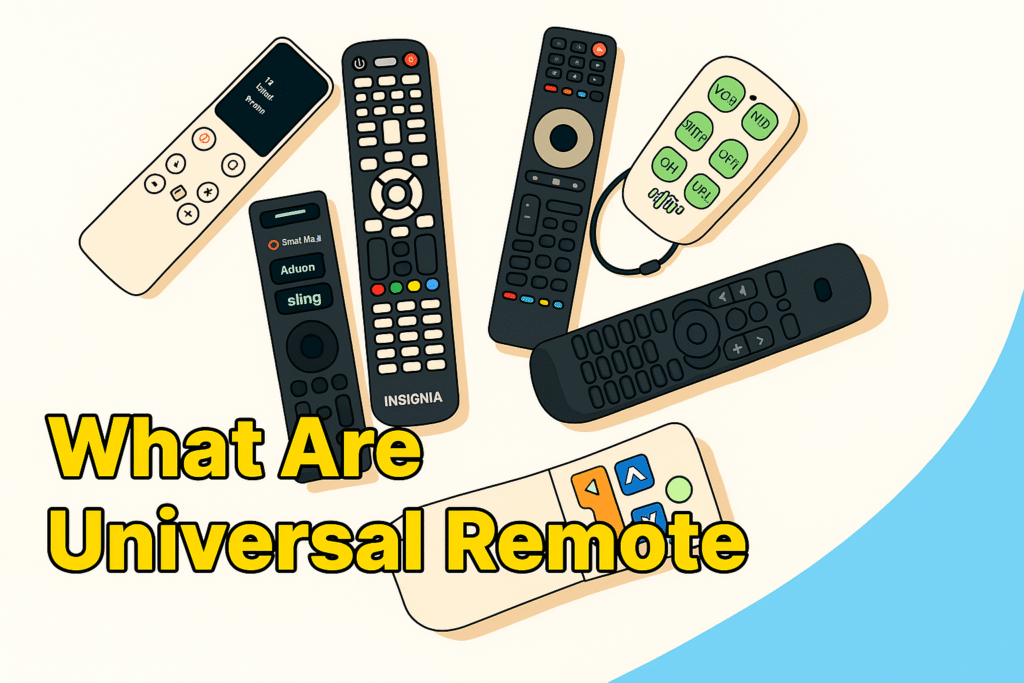
A universal remote can connect to a TV without a code by using automatic search or learning mode with the TV’s signal. Code-free setup skips the need to enter codes manually. It makes connecting devices faster. Universal remotes like GE, RCA, and One For All can control TVs, streaming devices, and sound systems with one remote. In this guide, we will discover how code-free setup works, which TVs it supports, and why auto‑pairing makes using multiple devices easier.
What Is a Universal Remote and How It Works Without Code
A universal remote is a programmable device which controls multiple electronic systems such as TVs, set‑top boxes, and sound systems from one controller. Universal remotes are not like brand-specific remotes. It communicates using a broad library of infrared (IR) and radio frequency (RF) signals.
A code‑free universal remote uses an auto search or learning mode to detect a television’s signal automatically. This feature checks stored device profiles to find the right one, so you don’t need to enter a code manually. Most modern remotes also have microprocessors that update signals for new models, so they work with more devices over time.
How Code‑Free Pairing Works (Auto Search & Learning Mode)
Code‑free pairing works by transmitting a sequence of test signals from the universal remote to the TV until it responds. When the TV responds, like turning on, changing volume, or muting, the remote saves that signal and can control the TV from then on. This process normally takes 15–60 seconds depending on the remote’s library size.
Advanced models support learning mode, where the universal remote listens to an existing remote’s commands and saves them to memory. This allows the remote to control devices which are not in its preloaded list, like rare brands or older TVs.
Which TVs Are Compatible with Universal Remotes?
Most universal remotes work with TVs that use infrared (IR) signals. Major brands like Samsung, LG, Sony, Panasonic, and TCL all use IR. These remotes work best with TVs made in the last ten years. Because their signals or IR protocols match the current remote’s library.
Code-free pairing may not work with special signal types, like RF (Radio Frequency) or Bluetooth-only systems in some premium TV models. In these cases, using the learning mode or a remote that works with both IR and RF can make it useful.
What Can a Universal Remote Do?
A universal remote controls many devices with one tool. You can use it for your TV, soundbar, streaming box, or DVD player. Popular brands like Logitech Harmony, GE, and RCA even support several devices at once. With one remote, you can switch channels, change volume, move between inputs, or play and pause shows. It reduces clutter in the room and makes daily use easier.
Here’s how people use a universal remote:
- Switch devices quickly: Jump from TV to streaming box to soundbar without reaching for another remote.
- Volume control: Adjust all audio outputs together for consistent sound.
- Input management: Flip HDMI or AV inputs instantly without extra buttons.
- Media Button: Allows you to play, pause, rewind, or fast-forward with one press.
- One-button setup: One button can turn on the TV, soundbar, and set the streaming device ready.
Benefits of Using Universal Remotes vs Standard Remotes
Universal remotes save up to 90% of setup time compared to using multiple brand-specific controllers. Here, we understand the actual benefits of using universal remote vs standard remote:
| Feature | Universal Remote | Standard Remote |
| Allowed Device | Works with multiple brands like Samsung, LG, Sony, TCL etc. | Works only with its brand TV or device |
| Number of Devices Controlled | 5–15 devices depending on library and memory | Usually 1 device |
| Setup Time | 1–3 minutes via auto search or learning mode | 5–10 minutes per device with codes |
| Customizable Buttons | Programmable custom buttons and shortcuts | No customization |
| Clutter Reduction | Replaces 5–10 remotes with one device | Multiple remotes remain in use |
| Smart System Integration | Compatible with Alexa, Google Home, and streaming devices | Rarely compatible |
| Durability | Reduces wear on device buttons and original remotes | Original remote may wear faste |
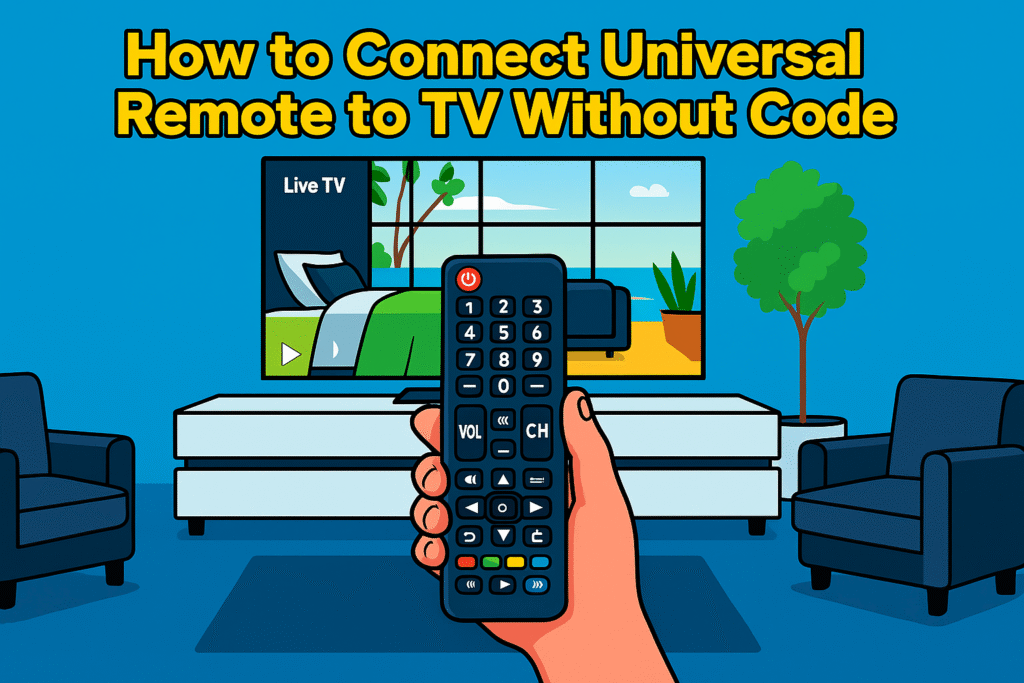
How Do You Connect a Universal Remote to a TV Without Code?
For pairing universal remote to TV follow these steps :
Step 1: Keep your devices ready
Turn on your TV. Make sure nothing blocks the remote signal. Sometimes other electronic devices can cause problems, so keep the area clear.
Step 2: Set up your remote
Insert fresh batteries. Then press and hold the setup button til the LED LIGHT blinks (need 3–5 seconds). As the remote blinks, that means your remote is ready.
Step 3: Start auto search or learning mode
Point the remote at the TV. Press the auto search or learning button. Wait patiently; some TVs respond immediately, others take a few seconds.
Step 4: Save the signal
When the TV reacts (volume flickers or power toggles), press OK or Enter. The remote stores this code for future use.
Step 5: Test functions
Try volume, channels, and input buttons. Sometimes this take more time for older devices.
Step 6: Add other devices
Repeat the process for soundbars or streaming boxes. Usually, each device takes 1–2 minutes depending on the remote and device model.
On average, this setup takes 1–2 minutes per device, depending on the remote’s library and device age.
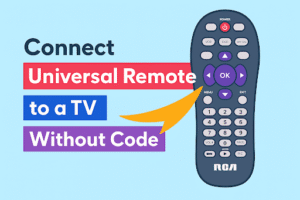
Using Setup and Power Buttons Naturally
The setup button puts the remote in pairing mode, and the power button tests whether the signal works.
Instead of thinking mechanically: press setup, then power, then OK. Try it as a little experiment. For pairing, press the setup, notice the LED blink, and then point at the TV. To test the remote, press the power once, wait for the TV to blink or respond. Then press OK. If you can’t see any signals, give it a moment and try again. Some older soundbars or streaming boxes may take a second attempt.
Connecting universal remote to Samsung, LG, or Sony TVs
For brand-specific TVs, many universal remotes allow you to select the brand before starting auto search. This makes the connecting process faster. Here, some connecting methods for different brands:
- Samsung: To use a universal remote with Samsung TV, first press the setup button, hold the power, and wait for the LED. Then start auto search until the TV responds.
- LG: Press setup, choose LG, watch for response, press OK to save.
- Sony: Select Sony in the remote menu, use auto search or learning mode, and store the response.
It’s helpful to remember that older models may respond more slowly, so patience pays off.
Pairing Streaming Devices and Soundbars
Universal remotes can also control streaming boxes and soundbars. The procedure is similar but requires testing the buttons: volume, mute, power.
- For streaming boxes: point the remote, run auto search, and see if play/pause commands work.
- For soundbars: test power or mute. If they respond, store the code.
Common troubleshooting: Why won’t my Universal Remote connect to my TV?
Sometimes your universal remote stops working. It’s frustrating. Most of the time, the cause is simple. The batteries may be weak. So, first the signal may be blocked Or the remote may not be in setup mode. You press a button, but the TV does not respond. That is normal. Make sure nothing is in front of the TV. Bright sunlight, shiny surfaces, or other electronics can block the signal.
TV Doesn’t Respond or Remote Won’t Sync
If the remote or TV does not respond, check three things first:
- Batteries — Replace batteries in TV remote with fresh ones.
- Distance — hold the remote about two feet from the TV.
- Angle — tilt it slightly left or right.
Watch carefully. Some TVs respond after a few seconds. If nothing happens, wait and try again. Most connection issues are solved this way.
LED Light Isn’t Blinking
The LED shows when the remote is ready to pair. If it does not blink, hold the setup button a little longer. Some LEDs blink faintly. Weak batteries can make the light dim. Watching the LED tells you if the remote is “listening.”
Resetting Your Universal Remote
Resetting universal remote removes old codes and restores the remote to its original settings.
For resetting, take out the batteries. Press some buttons for a few seconds. Then, input the batteries again. Press and hold the setup button. The LED may blink steadily. After resetting, connect the remote to the TV again.
Universal Remote vs Smartphone Remote Apps
A universal remote controls devices with IR signals. But smartphone apps use Wi-Fi or Bluetooth to send signals. Now let’s discover which is better universal remote or smartphone apps:
| Feature | Auto Search Remote | Manual Code Entry Remote | Smartphone Remote Apps |
| Setup Type | Automatic scanning | Manual code input | Need Wi-Fi or Bluetooth |
| Allowed Device | TVs, soundbars, streaming boxes, older devices | Specific brand TVs | Only supported brands |
| Speed | 15–60 seconds | Instant if code known | 10–30 seconds depending on network |
| Internet Required | No | No | Yes |
| Ease of Use | High | Medium | Medium to High |
| Extra Features | Learning mode, macros | None | Schedules, macros |
How Can You Make Code-Free Setup Easier?
You can make Code-free setup faster by preparing devices, keeping remotes charged, and positioning them clearly. Place the TV, soundbar, or streaming box in a visible line of sight. Fresh batteries and unobstructed signals improve response during auto search or learning mode.
Pairing multiple devices step by step can also make the process easier. First connect with the TV, add the soundbar, then the streaming box. Use learning mode for older devices. Keeping each device powered on ensures paired commands are remembered, saving time for multi-device households.
Use custom buttons and shortcuts for quick access. Assign volume, input, or app shortcuts. For example, one button can switch to HDMI 2 or launch Netflix. Each button can store multiple commands and make code-free operation smoother and more efficient.
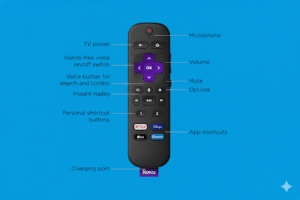
The Future of Code-Free Remote Technology
Remote technology is moving toward full automatic recognition and AI-based learning.
New models detect devices instantly and suggest optimal setups. Some use infrared plus Bluetooth to connect TVs, soundbars, and smart lighting simultaneously. AI integration predicts common actions, such as turning on the TV and soundbar together. These innovations make code-free setup faster and more intuitive.
FAQs
Can I connect any universal remote to any TV without code?
No, you can’t. Because not all universal remotes connect with every TV. Older TVs or rare models may need manual codes.
Do I need Wi-Fi for universal remotes?
Most universal remotes do not need Wi-Fi. They use Infrared or Bluetooth signals to control TVs, soundbars, and streaming boxes. Wi-Fi is only necessary for smart remotes that integrate with apps or home networks.
Which remote works instantly without setup?
Some code-free universal remotes work immediately using learning mode or auto search. Examples include Logitech Harmony, RCA, GE Smart, and Inteset models. They detect devices automatically without entering codes.
Conclusion
Universal remotes simplify multi-device control with code-free setup, auto search, and learning mode. Proper preparation, custom buttons, and step-by-step pairing make the operation smooth. These strategies improve convenience for TVs, soundbars, and streaming devices.
By following these methods, code-free setup becomes faster, reliable, and compatible with most modern electronics, making ‘universal remote’ and ‘code-free setup’ easier to use.