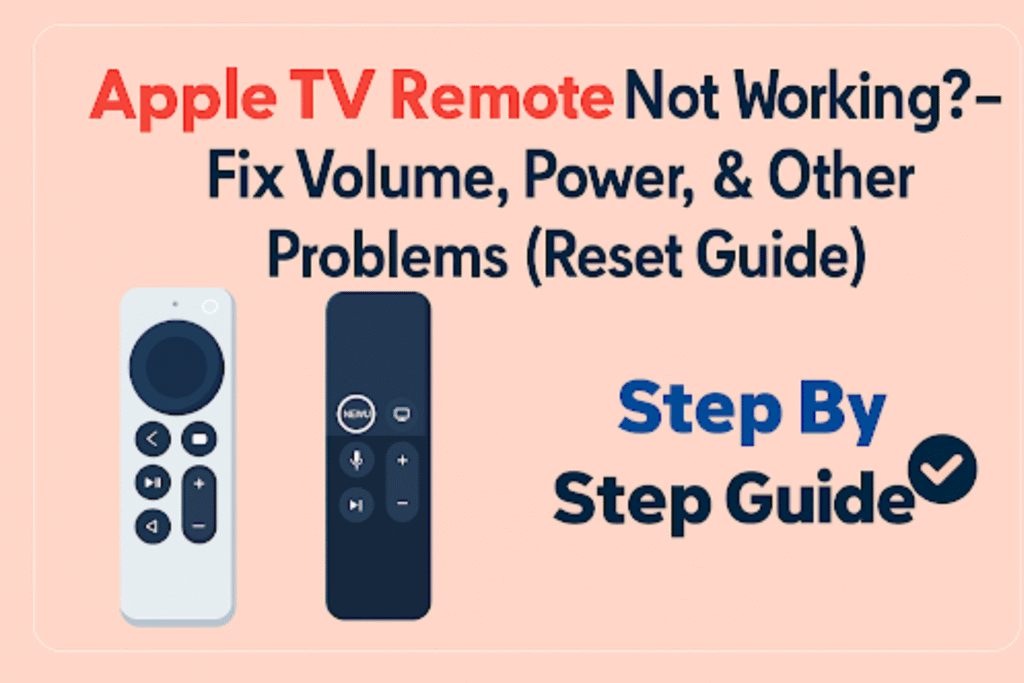
Sometimes your Apple TV remote stops navigation, playback, and volume control. This is frustrating. You can’t move between apps, change the volume, or even hit play. It usually happens, and the fix is simpler than it looks.
When you know the real cause and apply the right solution, you will easily fix your Apple TV remote. The solution is sometimes different in different Apple remote models. Some tips are simple. Others are tricks that most users don’t know.
This page explains causes and fixes for Siri Remote (1st, 2nd, 3rd gen), Apple TV 4K, and Apple TV HD. Read step-by-step checks, pairing steps, and hardware options. The focus remains on the Apple TV remote and practical fixes. By the end, you’ll be able to figure out why your remote stopped working and fix it without guessing.
Understanding How Apple TV Remotes Work
Apple TV remotes connect to the box using Bluetooth or infrared (IR). Modern Siri Remotes rely on Bluetooth for two-way control. But the older remotes use IR, which only works if the signal hits the TV sensor directly. Knowing the difference between IR control and Bluetooth control helps figure out why a remote stops responding. This section explains the two main signal types and model differences. Knowing these facts helps pick the correct fix path.
Overview of Siri Remote and Apple TV 4K Models
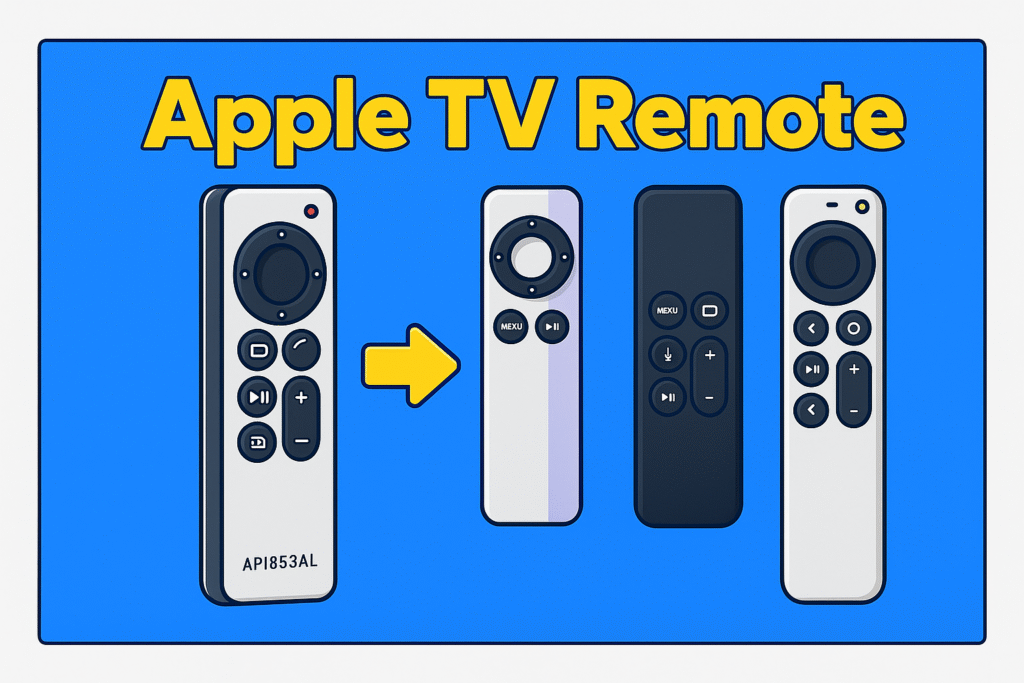
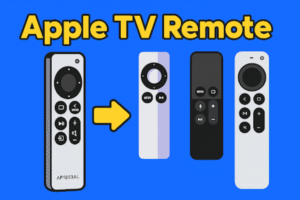
The Apple TV has three main Siri Remote generations. Here’s the short Remote control overview:
The first-generation has a glass touch surface and charges with a Lightning cable. The second generation came in 2021 with a circular click wheel, and Bluetooth works a bit faster. The third generation now uses USB-C for charging, with small internal improvements.
Apple TV 4K and Apple TV HD pair with Bluetooth through the tvOS settings. Many users notice that newer remotes keep their connection more reliably. For everyday use, the second and third generations are quicker when scrolling menus or opening apps.
Bluetooth and Infrared – How Communication Happens
Bluetooth connects the remote and Apple TV so that every button or swipe works instantly. Usually, it works up to about ten meters, but walls and other devices can make it shorter, sometimes just three to five meters.
Infrared works differently. An infrared signal sends flashes of light to the TV sensor. The remote has to point at the sensor, and you have to be pretty close- usually about ten feet or three meters. Furniture or devices in the way can block the signal. For example, putting the remote behind a soundbar can make volume controls stop working even if the Apple TV still responds.
Common Reasons Why the Remote Stops Working
Main causes are a drained battery, lost pairing, radio interference, physical damage, or outdated tvOS.
A drained battery prevents buttons and touch sensing from sending commands. Lost pairing happens after updates or power cuts. Sometimes Wi-Fi routers or many Bluetooth devices near the TV interfere with the remote connection. Physical damage in the remote stops the click wheel or buttons.
Pairing and Connectivity Troubleshooting
Sometimes the remote just loses its link. It happens usually – one day, it works fine, and the next, it feels like the Apple TV can’t “hear” it. Most times, it’s just a connection issue between the box and the remote. Let’s fix that.
How to re-pair your Apple TV remote
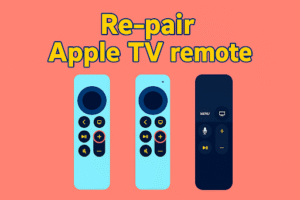
Hold the remote near your Apple TV. Press Back (or Menu) and Volume Up together for about five seconds. You’ll see a message pop up once it connects.
Keep the remote right next to the box. Just a couple of inches away works best. If a spinning icon or a “Connected” message pops up, you’re done.
If it still won’t pair, unplug the Apple TV for ten seconds and give it another go. The first-gen Siri Remote and the newer USB-C version both work the same way. Short range and a clear signal matter most.
Also, check the battery. If it’s almost dead, charge it for a few minutes first. A weak battery can mess up the pairing.
How to fix Bluetooth or Wi-Fi interference
Keep routers and other Bluetooth devices a few feet away, and switch unused ones off for a minute.
Routers, speakers, and even nearby controllers share the same airspace. If the Apple TV sits right beside a Wi-Fi router, the signal might get drowned out.
Try sliding the router about three feet away. Or move a smart speaker that sits right next to the box. Turning off other Bluetooth items for just a few minutes can make a difference.
If your router supports 5 GHz, use it. It keeps Apple TV’s Bluetooth remote control connection clearer. Many users report smoother response once they change the Wi-Fi band.
How to update tvOS to clear remote bugs
Go to Settings → System → Software Updates and install the latest tvOS version.
Apple releases subtle updates that quietly fix minor pairing glitches. If you haven’t updated in months, do it. Update TV firmware using remote-the process is quick: open Settings, tap System, then Software Updates. Choose “Update Software” if it shows one.
After the restart, give the remote a few seconds to reconnect. In most cases, the lag or unresponsive behavior vanishes right after an update.
How to reset Apple TV and remote connection
Hold the TV/Control Center button and Volume Down for 5–10 seconds until the status light blinks, then retry pairing.
If you’ve tried everything else, start fresh. Unplugging does a soft reset and clears temporary connection logs. But if the remote still acts dead, go for the full reset.
You’ll need your Apple ID and Wi-Fi info to set it up again. Once the setup screen appears, do the pairing step again – Back + Volume Up near the box.
Some people call this the “Sunday fix.” It’s the move that clears everything after hours of trying smaller tricks.
Volume or power still not working?
Check the TV’s HDMI-CEC setting and Apple TV’s “Control TVs and Receivers” option.
Volume buttons send commands through HDMI-CEC. Go to your TV’s settings and enable HDMI-CEC on the TV.
Now, go to the Apple TV: Settings → Remotes and Devices → Control TVs and Receivers. Turn it on.
That link lets your remote change volume and power across most brands. A few older receivers can block CEC signals. So if the volume won’t work, use the TV’s original remote to confirm the TV is listening.
When brands behave differently
Some TVs just have their own ways. A 2018 Samsung may respond instantly, while an older Vizio takes a second. You might see the volume bar move but hear no sound; that usually means the TV’s output is set to external audio.
If all else fails, use “Learn Remote” in Apple TV settings. It teaches the box to recognize another remote’s signals.
Quick Pairing Guide:
| Remote Type | Port | Pairing Action | Works With |
| Siri Remote Gen 1 | Lightning | Hold Menu + Volume Up | Apple TV HD, early 4K |
| Siri Remote Gen 2 | Lightning / Click Wheel | Hold Back + Volume Up | Apple TV 4K (2021) |
| Siri Remote Gen 3 | USB-C | Hold Back + Volume Up | Apple TV 4K (2022–23) |
Hardware and Advanced Fixes (plus alternate controls)
When quick fixes and pairing steps fail, the issue is often physical damage, a worn battery, or a deeper settings conflict. Physical faults often need service or replacement. If charging and pairing checks fail, prepare proof of purchase and your Apple TV serial, then contact Apple Support or an authorized repair shop. Keep your Siri Remote and Apple TV details handy for smoother service.
This part shows how to spot hardware faults, replace or service a Siri Remote, perform a factory reset as a last resort, and use other control methods.
Signs of physical damage or button failure
Cracked remote, damaged buttons, an unresponsive click wheel, or visible damage are clear signs of physical damage.
If the remote was dropped, check if you hear any rattling inside. When the click wheel sticks or the touchpad won’t swipe right, it’s usually something inside damaged. Check the charging port. Sometimes, pins bend or dust is packed in there. If you spot a whitish film or crust near the buttons, that’s water damage. Take a few quick photos before you bring it in.
Battery replacement or service options
Siri Remote batteries are not user-replaceable; Apple offers battery service or full replacement through support or an authorized repair provider.
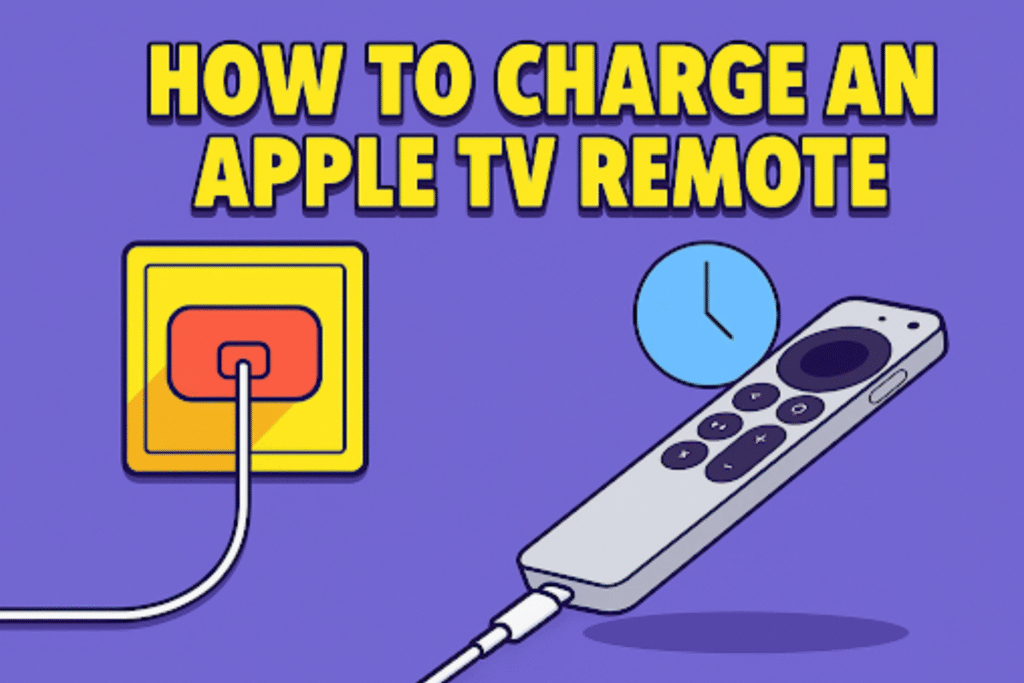
Older remotes recharge via Lightning. Newer units use USB-C. If charging no longer works with a known-good cable and adapter, the battery or internal charging circuit may be bad. Apple’s insert batteries in the TV remote correctly, replacing the power pack, or the whole remote. Expect a fee unless covered by AppleCare+. Local authorized service centers sometimes offer faster service than Genius Bar appointments.
Factory reset Apple TV (When all else fails)
Factory reset erases apps, data, and all remote pairings; use Settings → System → Reset only when repairs fail. Choose “Reset and Update” to reinstall the latest tvOS. After reset, re-pair the remote using the specific button combos for the Siri Remote or the IR remote. Back up any important Apple TV settings before doing this.
Handy Repair Options at a Glance (short list)
- Apple Support diagnostics online.
- Genius Bar battery service or replacement.
- Authorized repair center for faster turnaround.
- Universal remote or iPhone Remote as immediate alternatives.
FAQs:
Why is my Apple TV remote blinking but not working?
It’s usually just low on charge or has lost its link with the box.
Plug it in for a bit – 20, maybe 30 minutes. Then stand close to the Apple TV and try pairing again.
If it’s still blinking, restart the Apple TV. I’ve seen dust or gunk in the port cause this, too, so check that real quick.
How long does the Apple TV remote battery last?
Mine usually holds up for a few weeks, sometimes more.
If you use it a lot -like tons of scrolling or voice search — it drains faster. I just give it a short top-up every few days instead of waiting for it to die completely. Keeps it healthy longer.
Can I replace my Apple TV remote battery myself?
Nope, you can’t. Apple sealed it in.
If it stops charging even with a good cable and charger, just call Apple or drop by a service center. They’ll either swap the battery or hand you a new remote, depending on the model.
What’s the best universal remote for Apple TV?
Anything that works with HDMI-CEC or can learn IR commands will do.
I’ve had good luck with Logitech and Philips ones.
If yours is IR-only, go to Apple TV settings and use the “Learn Remote” thing to set it up. Don’t forget to switch on HDMI-CEC on both the TV and Apple TV.
Conclusion
When a remote stops responding, it feels small but ruins the mood fast. Most times, it’s something simple, a low charge, a blocked signal, or a brief connection slip. Keeping the battery topped up and clearing clutter near the TV helps more than you’d think.
Also, make it a habit to check for system updates once a month. Apple often slips in small fixes that quietly solve big problems.
If the remote ever gives up completely, don’t panic. The iPhone remote feature works almost instantly, and service centers can repair or replace faulty ones.
In short, a few small habits, charging right, keeping space clear, and updating on time, make your Apple TV setup smooth for years. You’ll spend your nights watching, not searching for what went wrong.
If you’re a Samsung TV user, check out our Samsung Remote Control Guide for a complete setup, button functions, and compatibility details across all models.