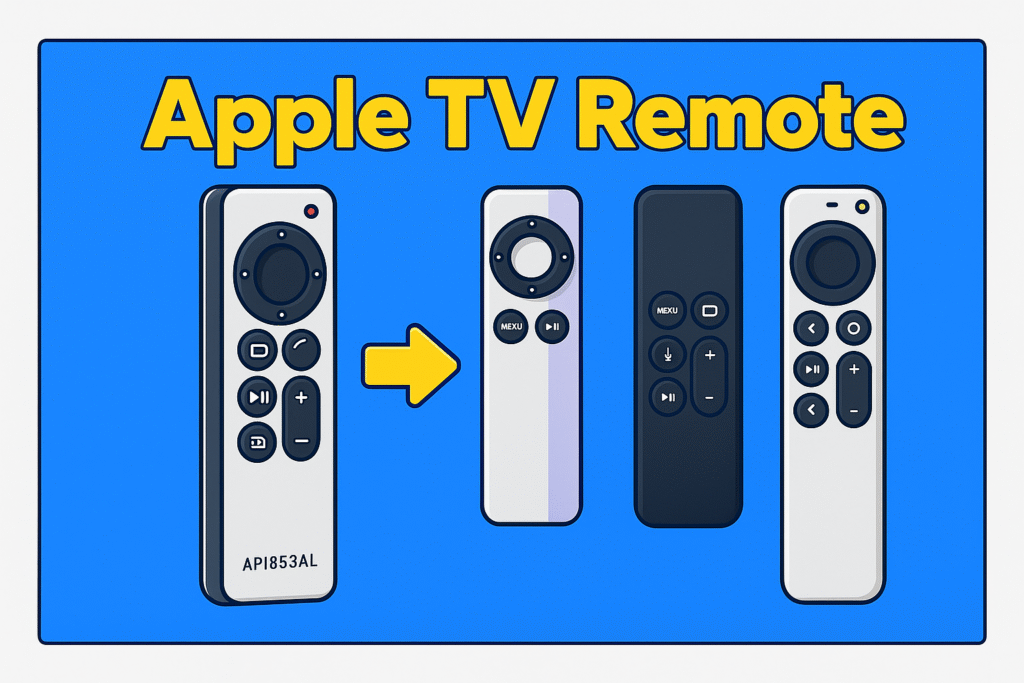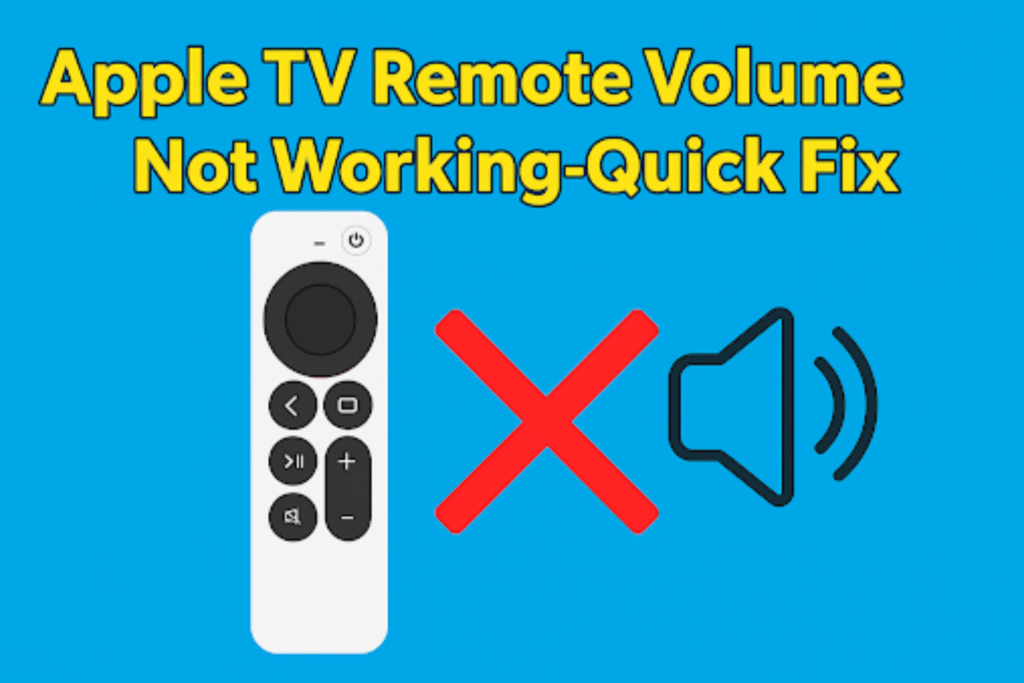
Your Apple TV Remote Volume Not Working when the signal between the remote and the Apple TV isn’t connected properly. There are several reasons for this loose connection. Common causes include pairing failure, drained battery, disabled HDMI-CEC/ARC, or audio routed through a receiver. It also happens from a CEC communication fault between the TV, soundbar, or receiver.
Many users notice a volume problem right after a tvOS update or when switching audio setups. Since Apple uses both infrared (IR) and HDMI-CEC for volume control, even one failed link can stop the sound adjustment. The steps in this guide walk through each cause in simple order – from remote pairing to full hardware recheck.
We start with quick fixes to solve most Apple TV volume problems immediately. Then, we check the basic problem and fix the immediately. If the basic fix can’t solve the volume issue, you do some advanced fix involving HDMI-CEC, ARC/eARC, and soundbar or receiver settings.
Each step stays factual, short, and proven-based on Apple’s real troubleshooting flow. The goal is simple: help your Siri Remote regain full volume control and keep it working reliably.
Quick Fixes – Short summary
Quick fixes resolve most cases within five minutes. Try these:
- Check the Siri Remote battery
- Unplug both the TV and the Apple remote for about ten seconds, then plug them back in.
- Re-pair the remote
- Turn on HDMI-CEC or ARC in your TV’s settings
- Use the iPhone Rem
Basic Diagnostic Flow and simple fix
Basic diagnostic identifies whether the issue comes from the Siri Remote, Apple TV pairing, HDMI, or remote signal output. Follow each short test in order to isolate the problem between the TV remote technology , Apple TV, and audio equipment.
How to check Siri Remote battery and charge level
Open Apple TV → Settings → Remotes and Devices → Battery Level..
Steps:
- Go to Settings → Remotes and Devices on tvOS.
- Note the numeric battery percent.
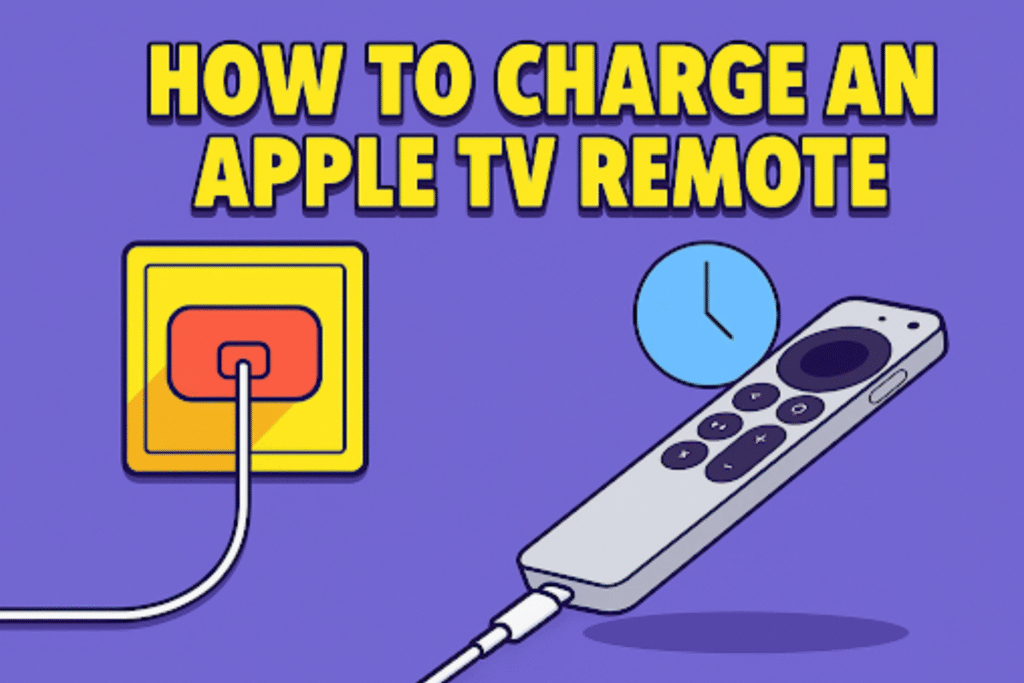
- If ≤20%, plug the cable and wait 30 minutes; then re-check.
Example: Apple TV 4K (2021) reports battery percent in whole numbers.
How to re-pair Siri Remote with Apple TV (exact button presses)
Hold Back/Menu and Volume Up together for 5–10 seconds until a pairing message appears.
Keep the remote 3–5 feet from the Apple TV during pairing. If no on-screen prompt shows, hold the remote 1 inch from the front of the Apple TV and repeat. For older remotes use Menu + Volume Up if Back is not present.
Steps:
- Point the remote at the Apple TV and press simultaneously.
- Watch for an on-screen “Pairing” dialog and a progress bar.
- If it times out, restart Apple TV and try again.
Real example: Re-pair often resolves button mapping errors after tvOS updates.
How to restart Apple TV and perform a cold power cycle
Unplug Apple TV and TV from power for 10 seconds; plug TV in first, then Apple TV; wait 30 seconds.
Cold power cycle clears HDMI-CEC/ARC connects. Use this exact sequence: TV power in → wait 10 sec → Apple TV power in → wait 30 sec. Test volume after both devices fully boot.
Steps:
- Power off and unplug the TV and Apple TV.
- Count 10 seconds, plug the TV back in.
- After the TV boots, plug the Apple TV in and wait 30 seconds.
Note: For AVR chains, power the AVR before the TV to ensure ARC connects in order.

How to test using Control Center (iPhone) to confirm Apple TV volume control
Open iPhone Control Center → tap Apple TV Remote → press volume buttons; observe TV or soundbar volume change.
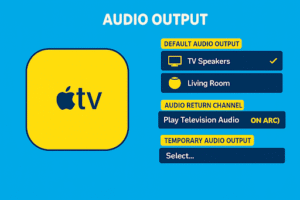
If the iPhone adjusts TV volume without a remote , Apple TV audio routing is working, and the problem is likely the Siri Remote. If the iPhone fails too, check Apple TV → Settings → Video and Audio → Audio Output.
Steps:
- On iPhone, open Control Center and select Remote.
- Select the target Apple TV if multiple devices appear.
- Press volume up/down and watch the on-screen volume HUD or speaker LEDs.
Example: iPhone remote uses Bluetooth; it confirms Apple TV audio control is right.
How to test whether the remote is sending commands (camera IR test & on-screen indicators)
Point the Siri Remote at a smartphone camera and press volume; visible IR blink or on-screen HUD confirms signal emission.
Older Siri Remotes use IR visible to the camera; newer ones use Bluetooth and show connection icons on the TV. If no blink and Apple TV shows Connected but no volume change, the remote hardware may fail.
Steps:
- Open the front camera on a phone and point the remote at the lens.
- Press volume buttons; look for a white/blue LED blink on older remotes.
- On Apple TV, watch for volume HUD or status text when pressing buttons.
Example: No camera blink plus no on-screen HUD indicates an internal button or logic fault.
Small troubleshooting checklist
- Check Battery Level (Settings → Remotes and Devices).
- Re-pair Remote (Back/Menu + Volume Up, 5–10s).
- Cold Power Cycle (unplug 10s; TV then Apple TV).
- Test with iPhone Remote (Control Center) to confirm Apple TV control.
- Camera IR check or on-screen HUD to confirm signal output.
Symptom / Quick fix:
Follow the quick fix for the exact cause.
| Symptom | Quick fix |
| No volume change, but remote connected | Re-pair the remote and restart the devices |
| Volume works via iPhone only | Replace the Siri Remote or test the hardware |
| TV ignores CEC | Enable HDMI-CEC/Anynet+/Bravia Sync in TV menu |
| Soundbar volume not following | Set AVR to ARC passthrough; update firmware |
| Remote battery low | Charge 30+ minutes via Lightning/USB-C |
| Intermittent control | Swap the HDMI cable; cold power cycle |
HDMI, ARC, and CEC Troubleshooting
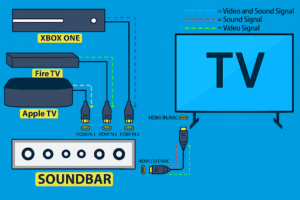
The Siri Remote can fail to change volume when the HDMI connection is not working correctly. CEC sends the remote’s commands through the HDMI cable. And ARC or eARC sends the TV’s sound back to your receiver or soundbar. If any of these links fail, your remote can’t change the volume. A few quick checks will tell you whether the block comes from Apple TV, the TV itself, or the receiver or soundbar.
What HDMI-CEC Does
CEC sends the “volume up” and “volume down” signals through the HDMI cable so the Apple remote can control your TV or soundbar.
Every brand calls it something different – Samsung uses Anynet+, LG says SIMPLINK, Sony calls it BRAVIA Sync , while TCL and Vizio just label it CEC. If the HDMI connection is off, the Siri Remote won’t change the volume.
How to turn on HDMI-CEC?
Open your TV settings →select Remotes & Devices → choose Home Theater Control → turn Control TVs and Receivers to ON. Exact HDMI-CEC connection setup menu paths differ by model year. Example: Samsung 2019: Settings → General → External Device Manager → Anynet+ → On. After enabling, do a full power cycle and restart so devices detect each other.
Enabling and checking ARC/eARC on TV + receiver
Use a regular HDMI port for Apple TV, then link the TV’s ARC/eARC port to the receiver’s port. Turn on ARC/eARC in both devices’ audio menus. On the TV, pick Receiver (ARC/eARC) or HDMI audio out. On the receiver, select the input that matches the TV. If it shows TV or a sound format like Dolby Atmos, the connection worked.
Checklist:
• Cable = HDMI 2.0 or higher
• Ports labeled ARC/eARC
• TV audio output set to receiver or passthrough
Power-cycle to refresh the connection
- Turn off Apple TV, TV, and receiver/soundbar.
- Unplug all of them.
- Reconnect the HDMI between the ARC/eARC ports.
- Power on the receiver first → wait 15 sec.
- Power on the TV → wait about 25 sec.
- Power on the Apple TV last.
- Try the Siri Remote volume buttons again.
Once you’ve checked CEC and ARC/eARC, you’ll know where the signal gets lost. After that, look at your receiver or soundbar setup, and you should have your Siri Remote controlling volume again.
Soundbar & Receiver Troubleshooting – short overview
An AVR (Audio/Video Receiver) is a box that handles sound and video from devices like Apple TV. Your Siri Remote often controls the volume through the AVR instead of the TV.
Soundbars and AV receivers can ignore HDMI-CEC volume when inputs, passthrough modes, or firmware block ARC/eARC control.
So, identify the soundbar and AV receiver issues that block Apple TV volume control. It shows how to confirm passthrough settings, install a TV software update , isolate the TV speaker, and verify input mapping so HDMI-CEC commands reach the speaker system.
Why a receiver or soundbar may ignore volume commands
The AVR or soundbar may be set to fixed volume, wrong input, or have disabled HDMI-CEC/ARC passthrough.
Many receivers default to fixed volume for direct digital inputs. Some soundbars require “TV” or “ARC passthrough” mode to accept external remote commands. Also, audio format mismatches can cause the device to mute remote volume responses.
How to set AVR to “TV” or “ARC passthrough” mode
Open AVR/Menu → Input Settings → HDMI/TV Control → enable ARC passthrough or set input source to TV/ARC.
Exact menu labels vary by brand and year. On Denon/Marantz, choose Input Assign → HDMI → set ARC On. On Yamaha, enable HDMI Control and ARC under System → HDMI. After changing, power-cycle the chain to re-negotiate the connections.
How to check input assignment and volume control mode on common AVR brands
Verify Input Assign and Volume Mode: ensure HDMI input is assigned to TV/ARC and volume mode is variable, not fixed.
The table shows common menu paths.
| Brand | Typical menu path to assign ARC | Notes |
| Denon/Marantz | Setup → Input Assign → HDMI → Set ARC = On | Also, check Volume Control set to Variable |
| Yamaha | Setup → System → HDMI → HDMI Control / ARC → On | Enable HDMI Control (CEC) |
| Onkyo | Setup → Hardware → HDMI → ARC Mode | Set ARC Mode to TV |
| Sony AVR | Settings → External Inputs → HDMI Settings → ARC | Confirm TV Audio Out is enabled |
How to test the HDMI cable and ARC port health quickly
Faulty HDMI cables can drop CEC or eARC packets. Use cables under 3 meters for stability. If swapping fixes the issue, replace the original cable and verify the AVR shows audio format on its front panel.
Confirm the AVR or soundbar accepts ARC/eARC and has HDMI-CEC active so Apple TV volume commands can pass through. Repeat the AVR checklist until the HDMI-CEC path is restored for Apple TV volume.
When to call Apple Support
- Remote fails to pair after two full resets and charging.
- Physical buttons are stuck or intermittently unresponsive.
- Apple TV shows firmware errors during pairing.
FAQs
Why won’t my Siri Remote change volume after a tvOS update?
Updates can change pairing states or CEC behavior; re-pair the remote and reboot all HDMI devices.
If re-pair and cold power cycle fail, test audio format and ARC/eARC settings.
Can Apple replace a lost Siri Remote without Apple TV?
Yes – Apple can supply replacement remotes, but may require Apple ID proof or device serial for compatibility. Confirm model compatibility before purchase.
Will a third-party remote control Apple TV volume reliably?
Some universal remotes work for volume, but full Siri functions and button mapping may be limited.
Is HDMI-CEC required for Siri Remote volume control?
Yes, for volume pass-through to soundbars/AVRs; without CEC, the remote cannot send volume commands over HDMI. If CEC is unavailable, use optical audio or a universal remote.
How do I prove a remote is defective before visiting support?
Document battery level, pairing attempts, iPhone Remote test, camera IR test, and any on-screen errors; save logs if possible. Bring this checklist to the store or include it in the support case.
What temporary audio options work immediately?
Use the iPhone Remote, switch to TV speakers, plug headphones to TV, or use a universal remote until replacement. These restore sound control while you fix the HDMI-CEC chain or replace the remote.
Final checks
Reconfirm these core items before closing: Siri Remote battery level, Apple TV pairing status, HDMI-CEC/ARC settings, and audio format. Keep the Apple TV serial and the log checklist handy when you contact support.
Apple TV volume issues commonly stem from pairing failure, low remote battery, or a broken HDMI-CEC/ARC link. Fix these in that order to restore Siri Remote volume control. If the issue isn’t solved, connect the new TV remote.