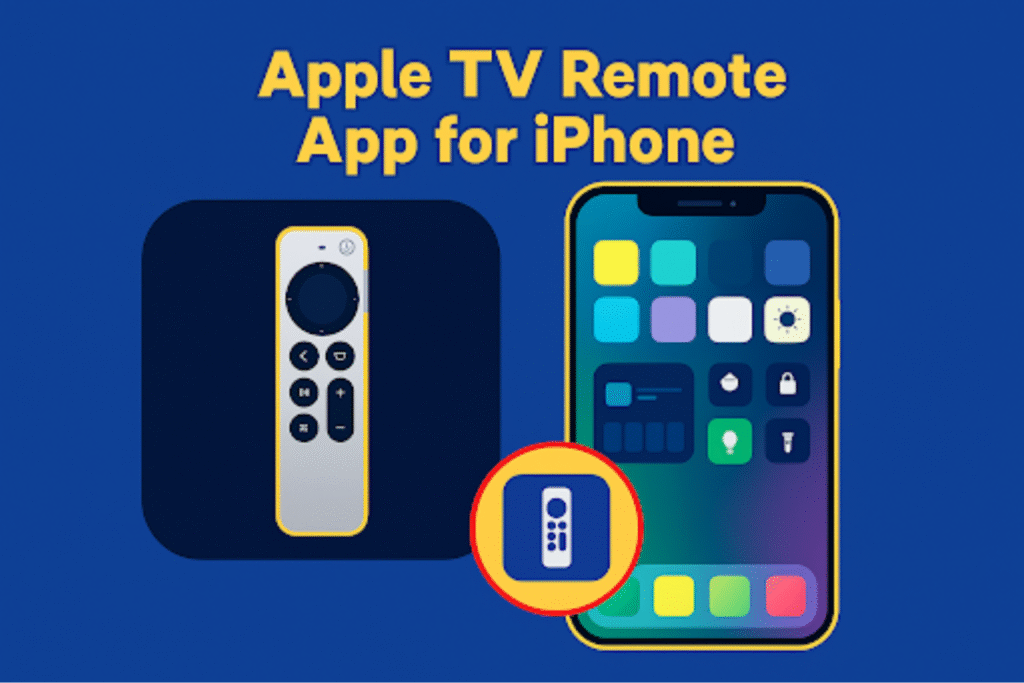
Using your iPhone as an Apple TV remote makes life a lot easier. You don’t always notice how much you rely on the Apple TV remote until it disappears. When you can’t find your Apple remote – your iPhone can save the day. Apple built a remote feature right into the iPhone. Once you try it, the old remote almost feels unnecessary.
Because it talks wirelessly instead of using infrared, you don’t have to aim at the screen – you can be across the room and it still responds. Its setup process is too simple. Install & access: Go to Settings → Control Center → Add Apple TV Remote. Then pair it. You can rename each Apple TV for easier switching and even handle sound through HDMI-CEC or AirPlay 2 speakers.
This guide covers real-world remote setup and pairing steps for your Apple TV. The instructions have been checked on current iOS and tvOS builds through 2024-2025. The goal is simple: keep your Apple TV Remote steady, quick, and ready whenever you’re about to stream something.
What the Apple TV Remote App Does
If you’ve ever lost the Apple TV remote, your iPhone can take over without missing a beat. The remote tool built into iOS works just like the physical one – you can swipe through menus, pause a show, adjust the volume, or type in search fields right from your phone. It gives you the same flexibility you get from advanced TV remot technology. After using it a few times, most people stop reaching for the old remote altogether.
What is the Apple TV Remote App on iPhone?
The Apple TV Remote app on iPhone is a built-in remote in the iPhone’s control center. It’s not really a separate app anymore. The remote lives inside the Control Center, where you’ll see a small Apple TV icon once it’s added. Tapping that icon opens a simple touch remote on your screen – it reacts fast, and it even supports voice commands. Your iPhone will work like a smart TV remote with voice control.
This built-in feature basically turns your iPhone into a smart remote. It works for both Apple TV devices and televisions that support AirPlay. Apple actually describes it as the preferred way to control Apple TV when you’re using an iPhone.
Which Apple TV Models and iOS Versions are compatible?
If your iPhone runs iOS 12 or later, it’s already compatible. Here’s a quick breakdown:
| Model / Device | iOS Version | Feature |
| Apple TV 4K | iOS 12+ | Full feature set. Some menu options may vary with tvOS updates. |
| Apple TV HD (4th Gen) | iOS 12+ | Works smoothly for browsing, typing, and playback. |
| Apple TV (3rd Gen) | iOS 12+ | Handles basic controls. A few newer functions aren’t available. |
| AirPlay-enabled Smart TVs | iOS 12+ | Just link your TV in the Home app, and control it over Wi-Fi – even volume. |
Key features and functions of the Apple TV Remote app
Control navigation, playback, the on-screen keyboard, Siri voice commands, and basic volume via AirPlay/HDMI-CEC.
Core functions break down like this:
- Navigation: Touch area supports swipe and tap gestures for menu navigation and selection.
- Typing: iPhone keyboard allows you to seach ot type anything on Apple TV.
- Playback controls: Play/pause, skip-you can do everything from the app.
- Siri: Press the Siri icon to speak commands (app launch, search, captions).
- Volume: Volume buttons can control AirPlay-configured speakers or TVs via HDMI-CEC- where supported.
Apple’s support pages list these capabilities and show the Control Center remote as the recommended iPhone method to control Apple TV.
Install & Setup
This part walks you through adding the Apple TV Remote to Control Center, pairing your iPhone with Apple TV, and handling more than one device on the same network. This setup is as simple as doing a new remote setup for the TV. Follow the order below carefully – small connection errors are often caused by skipping a step.
How to Add Apple TV Remote to Control Center
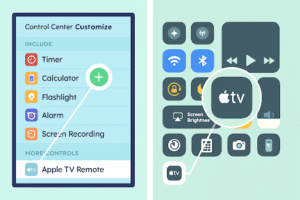
Go to Settings, select Control Center, and tap the Add button, then choose Apple TV Remote.
When you open Settings and open Control Center, scroll until you find the Remote tile in the list, then tap the green +. Once added, swipe down from the top-right corner (on iPhone X or later) or swipe up from the bottom (on older iPhones) to reveal Control Center – you’ll now see the Apple TV icon. This shortcut launches the remote instantly. Apple’s own documentation confirms the icon appears only after you manually add it.
- Settings → Control Center — highlight “Add a Control.”
- Controls gallery showing the Remote tile — circle the Remote option.
- Control Center view – mark the Apple TV icon and the swipe gesture.
After selecting your Apple TV from the iPhone – the next step is to connect your iPhone to the Apple TV.
How to Pair iPhone with Apple TV (Automatic Flow)
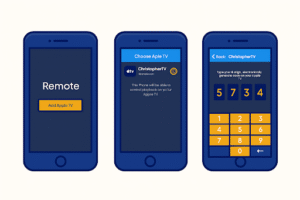
Open Control Center, tap Remote, then pick your Apple TV from the list. Follow the onscreen guide.
You’ll probably see a small guide pop up on the screen. Follow that – it’s short.
If your TV flashes a four-digit code, type that into your iPhone. Once you do, the Apple TV name should appear inside the Remote app – that’s how you’ll know it’s linked.
Now, sometimes the phone doesn’t find the TV right away. It happens. Check your iPhone’s Wi-Fi in Settings, then check the Network menu on your Apple TV. Reconnect both if needed. Usually, that alone fixes the issue.
Once you pair them, that’s it. The iPhone turns into a full remote — you can adjust volume, search shows, type without that clunky on-screen keyboard, all of it. It’s one of those small features that make the Apple ecosystem feel kind of effortless once you’ve tried it.
The pairing process is as same as pairing a Samsung remote without a receiver.
How to Set Up Multiple Apple TVs and Name Devices
First, you have to rename all Apple TVs. Go to Settings › General › About › Name.
Use short, descriptive names for all TV. Like Living Room Apple TV 4K, Bedroom HD, or Office TV. — so each Apple TV shows up clearly in the Remote list. This prevents controlling the wrong unit when several are online. And if you have several screens from different brands, you can even program a Samsung universal remote to manage them all from one device.
Setup Complete
You’ve now added the Apple TV Remote to Control Center, paired your iPhone (both automatically and manually), and labeled each Apple TV for quick access. Up next: learn to use the remote for navigation and typing with your iPhone keyboard.
How to Use the Remote App
This section explains gestures, typing, voice control, playback commands, and accessibility. Each H3 gives a short, factual answer first, then stepwise details and real examples using Apple TV Remote app, iPhone, Siri, iPhone keyboard, and AirPlay.
Navigating with the touchpad
The touch area maps to Apple TV navigation. Swipe left/right/up/down to highlight items. Tap once to select. Press and hold to open contextual menus or fast-scrub video. For precision, use short, light swipes; for fast scrolling, use longer swipes. Example: swipe right twice to jump between app tiles on tvOS Home. Test responsiveness by opening an app, then making three short swipes.
Using the iPhone keyboard to type on Apple TV
When a text field appears on Apple TV, the iPhone keyboard opens automatically for fast typing.
Tap any search or login field on Apple TV; the Control Center Remote prompts the iPhone keyboard. Type credentials, then press Return. This method reduces on-screen clicks and cuts input time by an order of magnitude compared with the Siri Remote. For password entry, verify the TV shows dots; use the keyboard’s emoji and numeric keys as needed.
Controlling playback, subtitles & audio
You can control everything while watching – play, pause, sound, and subtitles right from the screen. Tap play or pause whenever you need. To move through a movie or show, slide your finger across the touch area and lift to keep watching. You can even adjust TV volume without the remote if needed. Tap the “Audio” or “Subtitles” icon during playback to switch tracks or enable captions. For multi-language tracks, open the audio menu and choose the correct stream. If volume control uses HDMI-CEC, ensure the TV or receiver allows CEC commands.
Apple TV Remote App Interface Explained
This section breaks the on-screen layout into clear parts and shows how Dynamic Island and Shortcuts speed access.
Overview of on-screen layout
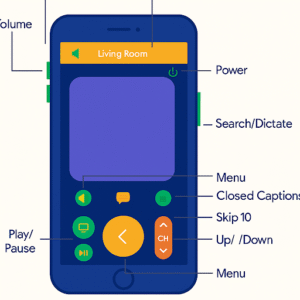
The remote UI shows a touchpad, Menu/Home, Play/Pause, and a small volume control area.
The top region contains a rectangular touchpad. Below, place the Menu and Home buttons side-by-side. Center the Play/Pause control and scrub bar. Volume controls appear as a small slider when the Apple TV or AirPlay speaker supports it. Use labels in images: “Touchpad,” “Menu,” “Home,” “Play/Pause,” and “Volume” for clarity.
Now Playing & Dynamic Island shortcuts
Now Playing provides quick playback controls; Dynamic Island shows playback status and a tap-to-open shortcut on supported iPhones.
While media plays, Now Playing surfaces in Control Center. On iPhone models, a compact live indicator appears and expands to reveal Play/Pause, skip, and app jump. Tap the Dynamic Island to open the full remote UI instantly. This saves two swipes and speeds up resume tasks during browsing or call activity.
Add Remote to Home Screen using Shortcuts
Create a Shortcuts action: Open App → Show Remote, then Add to Home Screen for one-tap access.
In Shortcuts, add the “Open App” action and select Shortcuts URL or a direct Control Center link if available. Name the shortcut “Apple TV Remote” and choose an icon. Tap the share button and pick “Add to Home Screen.” The shortcut creates a visible icon that opens the remote without swiping into Control Center.
These touchpad gestures, the iPhone keyboard, Siri controls, playback options, accessibility mapping, and the remote UI help you to use an iPhone properly as a remote. Keep the Apple TV Remote app and iPhone keyboard in mind when moving to Troubleshooting in the next section.
FAQs
How do I pair my iPhone after an iOS update?
Open Control Center → Remote → select Apple TV; enter the on-screen code if required.
If discovery fails, reboot both devices and check for iOS/tvOS updates.
Why won’t my keyboard show up?
Because the Apple TV text field isn’t focused or devices are on different networks.
Tap the text field on screen, then reopen the Remote on iPhone.
Can I control volume with the iPhone remote?
Yes, when the Apple TV uses AirPlay 2 speakers or HDMI-CEC supports volume commands.
Check TV or receiver settings for HDMI-CEC (often labeled CEC or SIMPLINK).
What happened to the old Apple TV Remote app?
Apple integrated remote functionality into Control Center; the standalone app was deprecated.
Control Center now provides the official, maintained remote interface.
Why is there a lag in navigation?
High network latency, router congestion, or interference causes navigation lag.
Move the router, switch bands, or reduce the number of active devices.