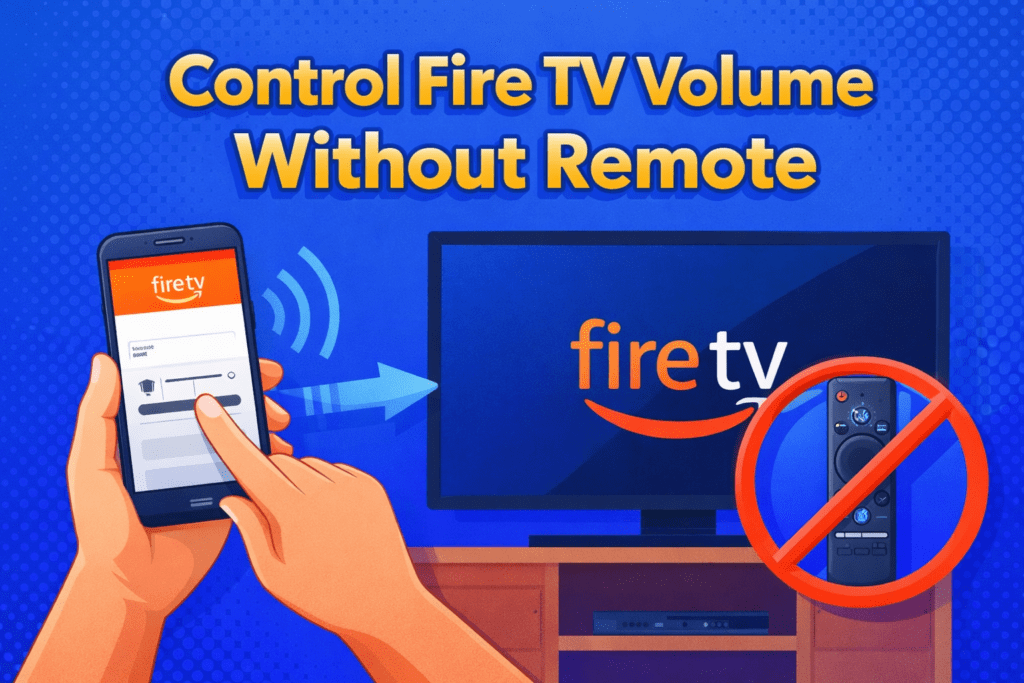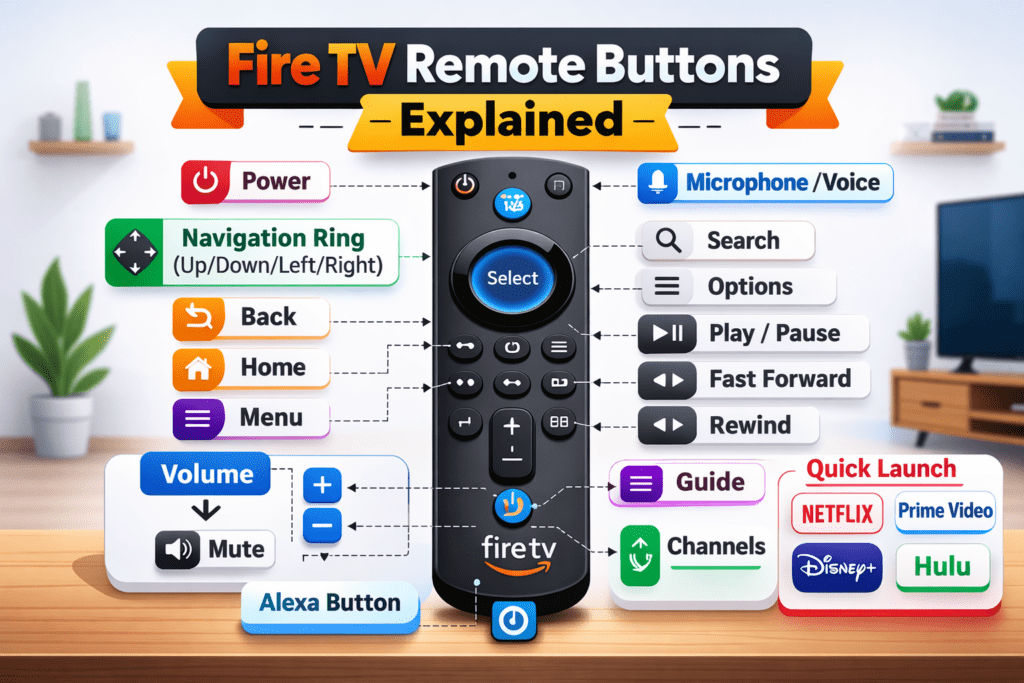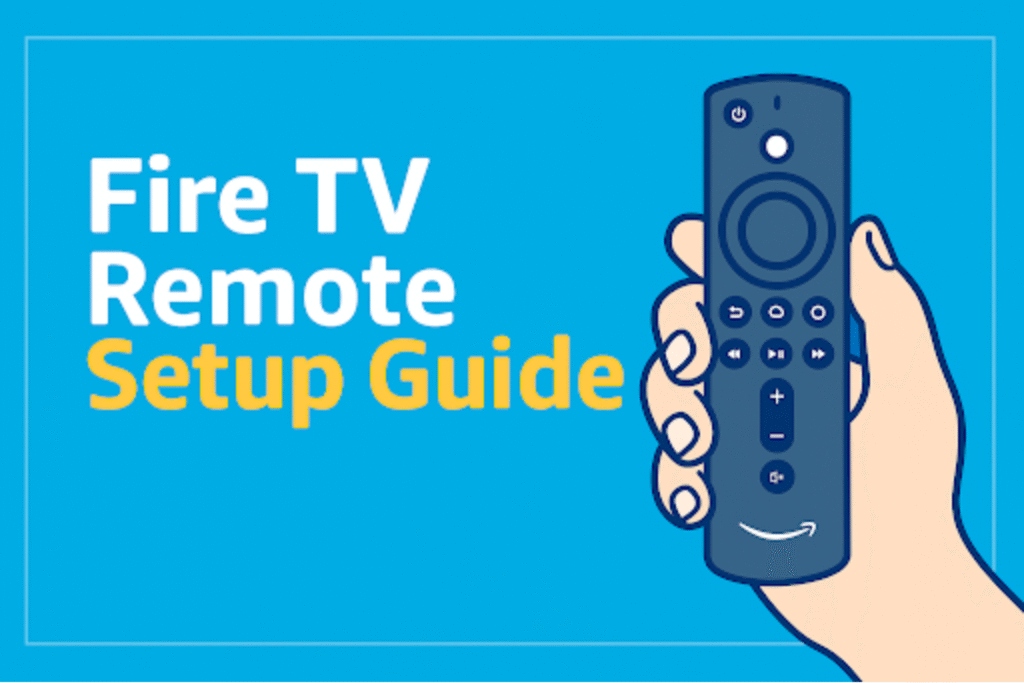
A Fire TV Remote is Amazon’s wireless control device for Fire OS streaming devices and Fire TVs. It sends Bluetooth commands for navigation and voice, and uses infrared (IR) for basic power and volume on compatible TVs.
However, Many users face setup problems when pairing fails, batteries lose charge fast, or the remote does not remain stable during use. A clean setup process prevents these issues from the first day. This Fire TV Remote Setup Guide explains the correct pairing flow, proper model match, troubleshooting steps, and technical conditions that keep the remote responsive on every Fire TV device.
Understanding Fire TV Remotes and Compatibility
Fire TV remotes combine Bluetooth and IR. Bluetooth handles pairing, navigation, and voice. IR controls TV power and volume.
What is a Fire TV Remote and how does it work?
A Fire TV Remote uses Bluetooth for pairing and control. And uses infrared for TV power/volume when supported.
Fire TV Remote hardware contains a Bluetooth radio, a microphone (on voice models), and an IR emitter. Bluetooth remote control creates a secure link to Fire OS devices. IR emits line-of-sight signals to TVs and audio receivers. Hybrid use allows button functions to work after Bluetooth pairing, while basic TV control works via IR or HDMI-CEC.
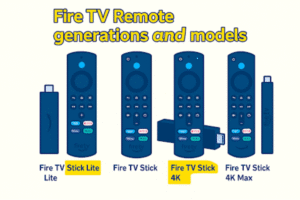
Fire TV Remote generations and models
Fire TV Remote has several remote models. Key models are Basic Edition, 2nd Gen, 3rd Gen, and Alexa Voice Remote Pro. Each model adds features like voice, rechargeable battery, or motion controls.
Below is a concise comparison table showing the Fire TV model names, main features, and broad compatibility.
| Model name | Main features | Voice mic | Power/Vol control | Notes |
| Basic Edition | Navigation buttons, no voice | No | Limited IR | Entry-level remote for legacy boxes and sticks. |
| 2nd Gen | Voice button, improved navigation | Yes | IR via setup | Standard remote for many Fire TV sticks. |
| 3rd Gen | Dedicated Alexa button, thinner profile | Yes | IR + programmable | Includes lost-remote locating in some bundles. |
| Alexa Voice Remote Pro | Rechargeable battery, haptics, motion | Yes, with wake word | IR + CEC | Best for power users; supports Find My Remote features. |
Use the table to match a remote to a device. Each remote may pair with multiple Fire TV devices. Brand bundles sometimes include region-specific variants. You can also cross-check the button design and layout using the Complete TV remote manual.
Device compatibility
Fire TV Remote Compatible devices include Fire TV Stick, Fire TV Stick 4K/4K Max, Fire TV Cube, and Amazon-branded Fire TVs; third-party TVs with Fire OS may vary.
Compatibility depends on Fire OS version and hardware. Fire TV Stick models pair with all official remotes. Fire TV Cube accepts voice and IR control and can act as an IR hub for other devices. Omni Series and Fire TVs with built-in Fire OS accept full remote features. Note region variants: some remotes exclude certain voice features or services outside the U.S.
Compact compatibility list
- Fire TV Stick (all current sticks) — full Bluetooth pairing.
- Fire TV Cube — full Bluetooth + hub capabilities.
- Amazon Fire TV sets (Omni, 4-Series) — native support for dedicated remotes.
- Third-party TVs running Fire OS — check manufacturer notes for voice support.
- Non-Fire devices — the remote may work as a basic Bluetooth controller only.
A Fire TV Remote blends Bluetooth pairing with IR fallback to control Fire OS devices and compatible TVs. Use the model comparison and compatibility list above to pick the correct remote and confirm device support. Remember: Fire TV Remote and compatibility are the core facts to check when setting up.
How do I set up a Fire TV remote step by step?
You can set up a Fire TV remote to the TV or its streaming device through Bluetooth pairing. Start with automatic pairing and use manual setup only if the first try doesn’t work.
Use automatic pairing first to pair the TV remote, then manual pairing if needed. Pairing makes the remote send commands to a specific Fire TV unit. Automatic pairing runs when the remote powers on near the device. Manual pairing uses the Fire TV settings menu to add a remote. Pairing restores voice control, media buttons, and TV control, where supported.
When a Fire TV device starts up, it searches for nearby remotes that send a Bluetooth signal. If both are close enough, the screen shows a short message confirming the link. Once connected, every button-including volume, voice, and app keys.
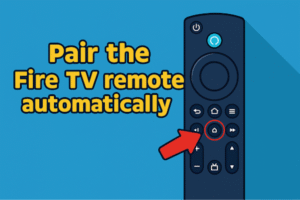
Method-1: How do I pair the Fire TV remote automatically?
Hold the Home button for 10 seconds with fresh batteries; pairing begins, and the Fire TV shows a confirmation message.
Power on the Fire TV device first. Insert two AA batteries or the remote’s rechargeable pack. Press and hold the Home button for ten seconds. Watch the TV screen for a “Remote Paired” message.
- Insert two new AAA batteries or charge the remote if it uses USB-C.
- Switch your television input to the Fire TV port.
- Keep the remote within one meter of the device.
- Hold Home for roughly 10 seconds.
- Wait for “Remote Connected” to appear on-screen.
Automatic pairing usually takes less than 1 min. If the notice doesn’t appear, move a bit closer and repeat the hold step once more.
Method – 2: How can I pair the Fire TV remote manually?
Open Settings → Controllers and Bluetooth Devices → Amazon Fire TV Remotes → Add New Remote, then press Home on the new remote until its name shows up.
Use this path when automatic pairing times out. The Fire TV scans for active Bluetooth signals and lists any new remotes it detects. Choose the correct one on-screen, confirm, and the device will finish linking in a few seconds. This method works well after battery changes or software resets.
Method -3: Reset and Reconnect a Fire TV Remote if it fails to connect
If you can’t set up your Fire TV remote with methods one and two – no worry. Now we will try to set up with method three.
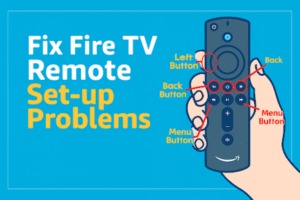
Hold Back + Menu + Left for around 12 to 15 seconds, take out the batteries, restart the Fire TV device, then put the batteries back in and press Home until you see the orange blink.
This reset wipes the old Bluetooth handshake and lets the Fire TV remote build a fresh link. Wait for the Fire TV screen to fully load before you try again. Stay within close range during this step, no metal block, no cabinet door closed. The orange flash means the Fire TV remote entered discovery mode.
Method- 4: Can I use my phone instead of the Fire TV remote?
Yes. Install the Amazon Fire TV app, sign in with the same Amazon account, connect to the same Wi-Fi, and pick your Fire TV from the list.
The app gives you a touchpad, a quick-type keyboard, and a voice key. It mirrors most physical remote buttons, making it handy if the remote battery dies or the controller is lost. The pairing code shown on the TV links the app instantly.
How do I connect a replacement or extra remote?
Put the spare remote in pairing mode and add it through the same settings menu; one Fire TV can remember up to seven remotes at once.
Hold Home for 10 seconds to start pairing mode. On the Fire TV, pick Add New Remote again. Once the name appears, select it. Families often keep several remotes paired so each person can use one in different rooms.
These steps cover every way to connect a Fire TV remote-automatic, manual, and by phone.
How to Fix Fire TV Remote Set-up or Connection Problems?
If your Fire TV remote won’t connect, start with the basics. Replace the batteries, stand closer to the TV box, and re-pair the remote.
Most connection issues come down to weak batteries or signal interference.
Quick fix list:
- Put in new batteries or charge the remote fully
- Move close to the Fire TV device
- Restart the Fire TV by unplugging it for 10 seconds
- Hold Home to start pairing again
These steps fix most unresponsive remotes in under a minute.
What Causes Pairing Failures and How to Fix Them
The most common reasons are weak batteries, Bluetooth problems, old software, or a blocked IR sensor.
- Weak batteries: Always replace both batteries at once. A low charge causes short signals or no response.
- Bluetooth signal problems: Keep other Bluetooth items five meters away. Routers or cordless phones can also interfere.
- Outdated software: Go to Settings → My Fire TV → About → Check for Updates. Running the latest update helps the remote connect faster. So, install the TV software update to fix it.
- Blocked sensor: The IR receiver on the TV should stay visible. A soundbar or TV frame can block it, stopping the power or volume buttons from working.
Once you fix one issue, try pairing again. You’ll usually see results right away.
Fire TV Remote Light Indicators
The small LED light tells you what’s happening. Blinking orange means it’s in pairing mode. A steady light means it’s already connected. No light at all means no power or a fault.
| Light Color & Pattern | What It Means | What To Do |
| Blinking orange | Pairing mode | Hold Home until the pairing screen appears |
| Quick flash | Button pressed | Try navigation buttons to confirm |
| No light | No power | Replace batteries or charge the remote |
| Fast blinking | Error or timeout | Restart Fire TV and retry pairing |
When the Remote Still Doesn’t Work
If the buttons still don’t respond, check with the Fire TV mobile app on your phone. If the app controls the TV normally, the remote itself may be faulty.
Try another remote if you have one. If that works, contact Amazon Support for a replacement. Keep your purchase receipt or order ID ready—they’ll need that to verify the warranty. It’s basically the same process as how to fix a Samsung TV remote not working.
Maintenance, Updates, and Best Practices
How do I keep my Fire TV remote updated and working well?
Check Fire OS updates once a month. Change batteries every 6-12 months, and keep the IR and buttons clean for steady control.
Fire TV remotes last longer when their firmware and power stay fresh. Updates inside Fire OS patch Bluetooth drops, wake delay, and audio control issues. Dust around the IR emitter lowers signal strength, especially for older Fire TV models that still rely on direct line of sight for volume and power. A simple light, clean TV remote control with a microfiber cloth keeps the sensor clear. A small routine like this prevents lag from building up over time and helps the remote respond instantly each time a user presses a button.
What are the exact steps to update Fire OS for remote compatibility?
Open Settings → My Fire TV → About → Check for Updates; install updates and restart the Fire TV device.
- Navigate to Settings on the Fire TV home screen.
- Select My Fire TV, then About.
- Choose Check for Updates.
- If an update appears, accept and install.
- Restart the Fire TV after install to apply new remote drivers.
Updating fixes Bluetooth and voice recognition issues tied to firmware versions.
How often should I change batteries or charge the remote?
Change alkaline AAA batteries every 6–12 months under normal use; recharge USB-C remotes every 1–3 months depending on use.
Here’s the compact table for battery check :
| Remote Type | Power | Typical Lifespan |
| Basic (AAA) | 2 × AAA alkaline | 6–12 months |
| Voice Remote (AAA | 2 × AAA alkaline | 4–8 months |
| Voice Remote Pro | Built-in USB-C | 1–3 months per charge |
When should I replace the remote vs request repair?
Replace if buttons fail or housing cracks; request repair or replacement under warranty within 12 months of purchase.
Check the warranty status in your Amazon orders. For an intermittent signal only, test with the Fire TV app and a spare remote before replacing. Hardware faults like a dead LED or a broken mic generally require replacement.
FAQs
How do I unpair a Fire TV remote?
Open Settings → Controllers & Bluetooth Devices → Amazon Fire TV Remotes → select the remote → Remove Device.
After removal, the remote stops sending commands to that Fire TV. To fully clear links, restart the Fire TV: Settings → My Fire TV → Restart. For a factory reset of a remote, remove batteries for 30 seconds after removing the device from the menu.
Can I use multiple remotes with one Fire TV?
Yes. A Fire TV accepts up to seven paired remotes simultaneously.
Each paired remote controls the same Fire TV account features. Pair additional remotes via Add New Remote in Settings. Test each remote for voice and volume functions after pairing to confirm Equipment Control and HDMI-CEC connection or behavior.
Why does my remote blink orange or blue?
Blinking orange signals pairing mode; fast blue blinks indicate voice or Bluetooth activity; no light usually means low or dead batteries.
If orange blinks, follow pairing steps. If blue blinks and voice commands fail, check Wi-Fi and the Amazon account link. If no LED, measure battery voltage; replace AA cells when the voltage is below 1.4 volts per cell or charge the built-in packs fully.
Conclusion
This guide showed how to pair, configure, and fix a Fire TV Remote and which devices accept each remote. Follow the pairing steps, troubleshooting checks, and configuration tips to keep control smooth. Remember to verify the Fire TV Remote model and compatibility before buying or troubleshooting.
If you are a Samsung user – you can follow this complete Samsung remote setup guide.