
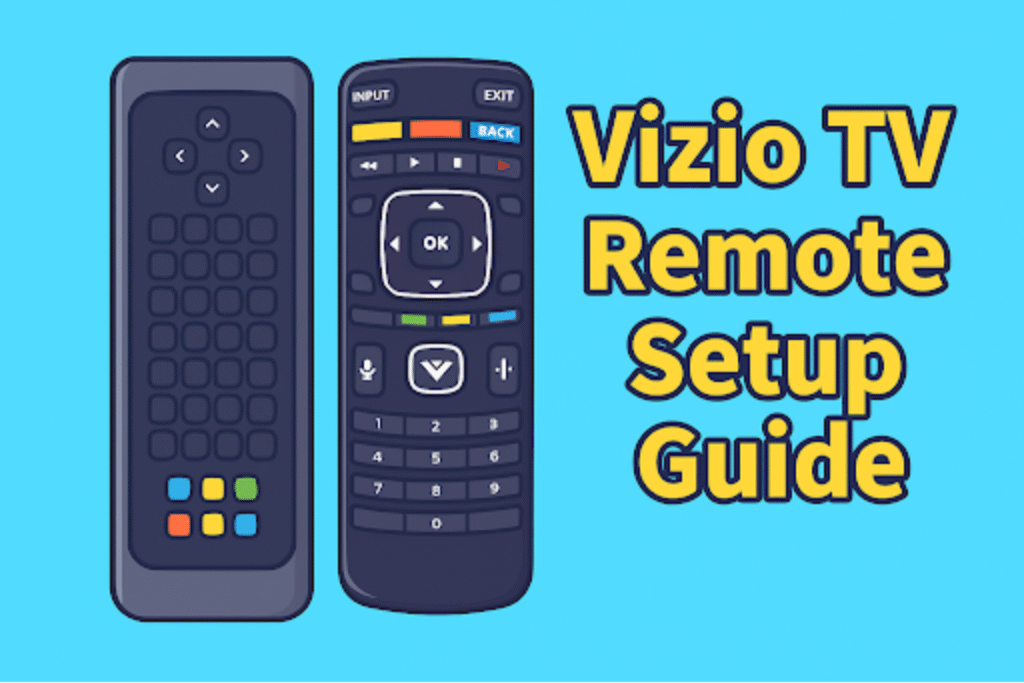
Vizio TVs are popular in lots of homes across the USA. People like them because the picture is clear, and SmartCast makes streaming easy. But sometimes controlling the TV can be confusing if you don’t know your remote.
In 2026, Vizio will have several remote types. There are the basic IR remotes, Bluetooth remotes, voice-enabled remotes, and universal remotes. You can also use the SmartCast app on your phone instead of the physical remote.
This guide explains how to identify Vizio TV Remote and how to pair them for the first time. It includes model examples, a small compatibility chart, a quick pairing HowTo, and the LED blink legend.
By the end, you will be able to set up your Vizio TV quickly. SmartCast and remote pairing are the main focus, so your TV works reliably every time.
What Types of Vizio Remotes Are Available Today?
Identification of remote control types and model series helps you to understand their exact pairing method-IR, Bluetooth, or voice). It uses specific model names and the SmartCast label to keep entity signals strong.
How do I identify whether my Vizio remote is IR, Bluetooth, or Voice-enabled?
Look at the remote back label and the model prefix: XRT = SmartCast/IR, DMPV = Bluetooth Voice.
Check the model code inside the battery compartment. Older XRT-prefixed models typically emit IR and support SmartCast pairing. Some newer models, like the XRT270, include Bluetooth technology and support voice commands. DMPV-prefixed models include a voice mic and Bluetooth radio.
What are the key differences between SmartCast, Voice, and Universal Vizio remotes?
SmartCast remotes pair with SmartCast OS; Voice remotes add a microphone and Bluetooth; Universal remotes use IR codes only.
SmartCast remotes send pairing signals to the TV and support app sync. Voice remotes include a mic and require Bluetooth or SmartCast link. Universal remotes send IR codes and need code programming.
Which Vizio remote models are compatible with 2025 SmartCast TVs?
Models with XRT and XRT3 prefixes and DMPV1 voice remotes list compatibility with 2025 SmartCast builds.
Newer XRT3xx-series remotes support UHD commands and SmartCast Pro features. DMPV1 supports voice features that rely on SmartCast cloud services if the TV firmware exposes voice APIs.
How do I check the model number of my Vizio remote?
Open the battery compartment and read the printed model label; match the prefix (XRT, DMPV) to compatibility charts.
The label shows a 6–7 character code. Note the prefix and digits. Record the full code for support calls or when ordering a replacement.
Compatibility chart (model → type → notable attribute → firmware hint)
| Model | Type | Notable attribute | Firmware hint |
| XRT140 | SmartCast / IR-Bluetooth | Basic SmartCast support | Verify SmartCast build before pairing |
| DMPV1 | Bluetooth Voice Remote | Microphone + Bluetooth | Requires voice-service-enabled build |
| XRT260 | SmartCast UHD/4K | UHD button layout | Best with SmartCast Pro builds |
| XRT302 | SmartCast Pro (2025) | Advanced shortcuts + Pro features | Target 2025 SmartCast Pro builds |
How Do You Pair a Vizio Remote to Your TV for the First Time?
First-time pairing and fallback steps are simple. When the pairing button is absent, there is another pairing method. Different types of Vizio remotes use different setup methods.
How to pair Vizio Voice Remotes (Bluetooth)?
Vizio voice remotes come with a small mic button and use Bluetooth to talk to the TV. Follow these steps to set it up from the start:
- Switch on your TV. Use the power button on the TV or another remote.
- Start pairing mode. Hold the Mic button for about three to five seconds until you see a note on the screen asking to pair.
- If nothing shows up, press the Menu button (gear symbol). Go to System → Voice Remote, then choose Pair New Remote.
- Confirm the link. Hold both the Mic and Mute buttons for about five to eight seconds until the light on the remote blinks.
- Wait for the TV message. When you see Remote paired successfully on the screen, the setup is complete.
Now test the remote. Press the mic key and say something like Open WatchFree Plus. If the TV reacts right away, pairing works.
Can I pair my Vizio remote without the pairing button?
Yes. Use the SmartCast app or perform an IR-based key sequence if the remote supports IR learning.
Open the SmartCast app on the same Wi-Fi network and follow Add Device → Remote. For IR-only remotes, point at the TV and press the power/volume sequence specified in the manual to register commands.
What do the LED light patterns mean during pairing? (Blink pattern → Meaning)
| Blink pattern | Meaning |
| Single blink | Button press registered |
| Two rapid blinks | Pairing accepted by TV |
| Three slow blinks | Pairing timeout or failed attempt |
| Continuous blink | Low battery or hardware fault |
How to use the SmartCast app as your Vizio remote?
Can I use my iPhone or Android phone as a remote for my Vizio TV?
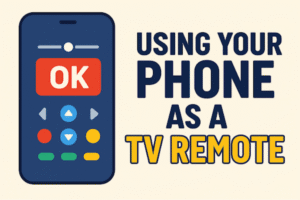
Yes. Use VIZIO SmartCast Mobile’s remote control after pairing. The app shows transport, navigation, and keyboard controls.
After pairing, the app presents a virtual remote layout with power, volume, navigation, and app-launch controls. The app also offers a text keyboard for login entry and a cast icon for streaming from Chromecast-enabled apps. Test on the same home Wi-Fi for stable control.
What features of the physical remote can the SmartCast app replicate or replace?
The app replicates power, input, navigation, playback, volume, and a keyboard; voice mic and hardware shortcuts remain on some physical remotes only.
Comparison details: the app supplies navigation arrows, OK, back, Home, volume and mute, and a text keyboard. Physical voice remotes include a microphone and dedicated shortcut buttons (e.g., Netflix). For voice input, link the TV to Alexa or Google Assistant; the app does not emulate a remote mic for direct voice capture on all TV models.
Set up voice control and smart assistants for your Vizio TV
You can enable voice on the remote and linking the TV to Amazon Alexa or Google Assistant with your Vizio remote. It has tested voice commands. When the mic does not respond, there are some common reasons for that. You can also explore how to use voice commands on a smart TV remote for smoother navigation.
How do I enable voice control on my Vizio remote?
Open TV Home → Extras → Voice or Amazon/Google setup, then follow on-screen prompts to register voice services.
Newer VIZIO TVs place voice and assistant options under Extras or Settings. Select the voice option, sign in to your myVIZIO account when prompted, and allow required permissions. The TV will link to the selected assistant and register the remote’s microphone for voice commands.
What voice commands work with SmartCast TVs? (examples)
Use short commands: power, volume, mute, play app name, or launch inputs; sample phrases listed below.
| Voice phrase (example) | Effect |
| Alexa, turn off the Living Room TV | Power off the TV |
| Hey Google, play Stranger Things on Netflix on the Living Room TV | Launch the app and play |
| Alexa, mute the Living Room TV | Mute audio |
| Hey Google, switch Living Room TV to HDMI 2 | Change input |
| Alexa, launch YouTube on Living Room TV | Open app |
These commands depend on the assistant’s skill/action and the TV’s supported apps. TV name must match the device name registered in the assistant app.
Why isn’t the voice responding when I press the mic button?
Check battery level, re-pair the remote, verify the TV shows the assistant as linked, and confirm the TV firmware supports remote voice.
A low battery reduces Bluetooth microphone power. Remove batteries for 10 seconds and reseat them to reset the remote. Confirm the TV lists the assistant as connected under Extras. Update TV firmware if voice services require a newer SmartCast build. If needed, recheck Bluetooth sync, similar to the process shown in Pairing Samsung remote via Bluetooth.
How do I disable or manage microphone permissions for privacy?
Open TV Settings → Privacy or Voice Services; turn off voice features or unlink assistant accounts in TV Extras.
To stop voice capture, remove the assistant link or disable voice features in the TV’s Privacy, Voice, or Extras menu. For Alexa or Google, open the assistant app, remove the Vizio skill/action, or delete the TV device. Unpair the remote if the mic must stop entirely
Program a universal remote to replace the Vizio remote
A universal remote can control Vizio TVs. It just needs a proper setup with a code. You can also use an HDMI-CEC connection setup to control an external device. It includes a short code-finding method and a common programming flow.
What is the simplest way to find universal remote codes for Vizio TVs?
Check the universal remote’s code list or use the auto-search feature. Code databases list 3–6 digit codes by TV brand.
Most universal remotes include a printed code list inside the manual or on the manufacturer’s site. If a manual code is missing, use the remote’s auto-search. Point at the TV, press the device key, then Start/Search, and wait until the TV responds.
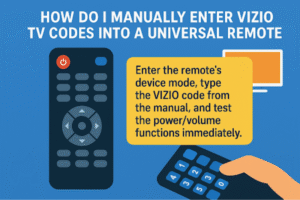
How do I manually enter Vizio TV codes into a universal remote?
Enter the remote’s device mode, type the Vizio code from the manual, and test the power/volume functions immediately.
Typical flow: press the device key (TV), hold Setup until a light appears, enter the numeric code, then press Power to test. If volume fails, repeat with the next code. Keep the manual codes list handy for rapid retries.
Can I use the auto-search method to program a universal remote to my Vizio TV?
Yes. Use the remote’s Search or Scan mode to cycle codes until the TV reacts; stop when power or volume responds.
Start with the TV turned on. Activate the remote’s Scan mode. When the TV turns off or changes volume during the scan, press Save or Enter to lock that code. Test keys across multiple functions before finalizing.
How do I verify that a replacement remote is genuine?
Match the remote’s model label, compare the button layout to your original, and confirm seller authorization or OEM part number.
Genuine remotes have a model sticker in the battery bay and packaging with Vizio branding. Counterfeit units may omit model codes or have different button legends. Contact Vizio support with the part number to confirm authenticity.
Buyer checklist: what to confirm before purchasing a remote
| Item | Why it matters |
| Exact model code (label in battery bay) | Ensures firmware and button compatibility |
| Seller authorization | Reduces the risk of counterfeit products |
| Learning mode support | Allows copying missing OEM buttons |
| Return policy (14+ days) | Provides safety if not compatible |
| Voice support listed | Required for voice-capable remotes (DMPV series) |
Common troubleshooting tips for the Vizio TV remote:
What’s the first thing to check if my Vizio remote stops responding?
Check battery voltage and line of sight; replace old AA/AAA cells and point directly at the TV IR window.
Fresh alkaline AA or AAA cells measure about 1.50 volts. Anything below 1.25 volts often causes intermittent commands. Remove batteries, use new cells, and test within 3 feet with clear sight to the TV’s IR receiver.
Why does my remote control power but not volume or input?
The TV accepts power via IR but blocks other commands due to mismatched protocol, CEC conflicts, or volume control routed to a soundbar.
If an external audio device uses HDMI-CEC or optical ARC, TV volume keys may pass through the receiver. Disable CEC (Settings → System → CEC) or switch sound output to TV speakers to restore direct volume control.
How can I test whether my remote’s IR emitter or Bluetooth radio is faulty?
Use a smartphone camera for IR checks and confirm Bluetooth pairing state in TV Settings; measure batteries with a multimeter for voltage verification.
Point the remote at a phone camera and press a button; a working IR emitter shows a faint pulsed light on the screen. For Bluetooth, open TV Home → System → Remotes to see paired devices.
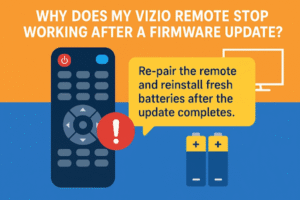
Why does my Vizio remote stop working after a firmware update?
Firmware updates may reset remote bindings or change voice/BT protocols; re-pair the remote and reinstall fresh batteries after the update completes.
After an update, the TV often clears cached pairings. Reboot the TV (unplug for 15 seconds), then run the pairing steps for the remote model. Check firmware notes in Settings → System → System Info for version-specific pairing changes.
Troubleshooting quick-reference table: symptom → likely cause → immediate fix → next step
| Symptom | Likely cause | Immediate fix (1–2 actions) | Next step if it persists |
| No response at all | Dead batteries or broken IR | Replace batteries with new AA/AAA; test via phone camera | Test with a multimeter; order a replacement remote if the IR is dead |
| Power only | Protocol mismatch or CEC | Disable CEC; test TV speakers | Re-program the universal remote or check the soundbar passthrough |
| Intermittent buttons | Low battery or hardware wear | Measure voltage (multimeter); reseat batteries | Clean contacts; replace the remote if mechanical failure |
| Pairing fails after update | Pairing data cleared | Reboot TV; perform model-specific pairing | Factory reset the TV if pairing repeatedly fails |
FAQs
What do different LED colors or blink patterns mean on a Vizio remote?
Green: command accepted; red: pairing failed; amber: low battery; blinking patterns indicate specific errors or pairing status.
Example: Two quick green blinks indicate a successful pairing. Three slow amber blinks suggest weak batteries. Continuous red blink signals repeated pairing failures. Reference the model label for exact blink sequences.
How do I decode pairing failure signals on newer Vizio remotes?
Check the LED blink sequence; compare with the model-specific table in the Vizio manual or online support.
XRT302 remotes: Two rapid red blinks indicate the wrong firmware version; three slow blinks indicate the TV missed the pairing attempt. Follow on-screen prompts to retry after battery replacement or TV reboot.
How do I check my current SmartCast firmware version?
Go to TV Settings → System → System Info → Firmware Version to view build number and release date.
Example: SmartCast Pro build 5.4.0.120 supports XRT302 voice remote features. Firmware updates appear as over-the-air notifications; note version numbers before pairing to ensure compatibility.
How can I revoke paired devices for security reasons?
Open TV Settings → Remotes → Remove or Forget Device to unpair previous remotes or app sessions.
Example: remove old SmartCast Mobile entries before selling the TV or replacing remotes. Confirm the remote is no longer recognized in System → Remotes → Active Devices list.
Can I disable the microphone entirely?
Yes. Navigate to Settings → Privacy → Voice or Microphone, then toggle off or unlink assistants.
Turning off the microphone disables Alexa/Google voice capture. Physical voice remotes (DMPV series) remain functional for Bluetooth pairing but stop registering voice commands until re-enabled.
How do I perform a soft reset vs a hard factory reset?
Soft reset: power cycle TV; Hard reset: full factory reset, deleting all apps, settings, and Wi-Fi data.
Soft reset solves temporary glitches. Hard reset restores the TV to its original defaults. After a hard reset, re-pair all remotes and reconnect the SmartCast Mobile app. Firmware version may need rechecking.
Can one Vizio remote control two TVs?
No. Each remote pairs to a single TV.
How do I confirm Vizio remote pairing?
TV shows paired status under Settings → Remotes.
Can I pair the Vizio Remote without Wi-Fi?
Yes, using the IR method or manual code entry.
Can I use my phone if the Vizio remote is lost?
Yes, the SmartCast Mobile app replicates remote buttons.
If you are a Samsung TV user, you can set up your Samsung TV remote manually or automatically through this Samsung Remote Control Guide.