A Samsung TV remote does more than you might think. The buttons for power, volume, apps, and inputs are all close together. When you know what each button does, using the TV is easier and you don’t have to guess.
The challenge is that Samsung changes its remote designs from one model to the next. One TV may have a clear Home button on the front, while another places it in a different spot. Even the keys for Smart Hub or switching sources can appear in new locations, which makes the layout feel unfamiliar each time.
This guide walks through the buttons in straightforward, everyday language. You will learn what each one controls, how it behaves on the screen, and how to move around the TV without trial and error.
Navigating the Samsung Remote Landscape
Samsung ships several remote designs. This causes layout and feature confusion across models. Differences matter for pairing, voice control, and compatibility. There are three main Samsung remote types
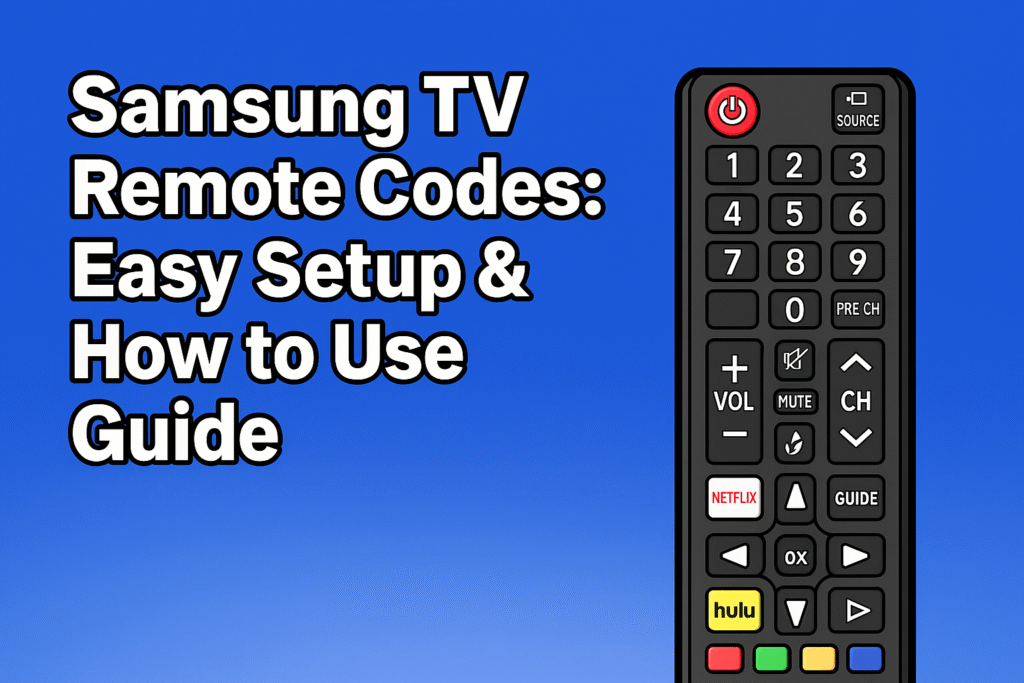
- Classic Standard Remote (full keypad) – in the standard remote, a full-button design with a numeric keypad, dedicated playback keys, and fixed shortcut buttons. It works by IR and often requires line-of-sight. This TV remote model is compatible with older and entry-level Samsung TVs and external set-top boxes.
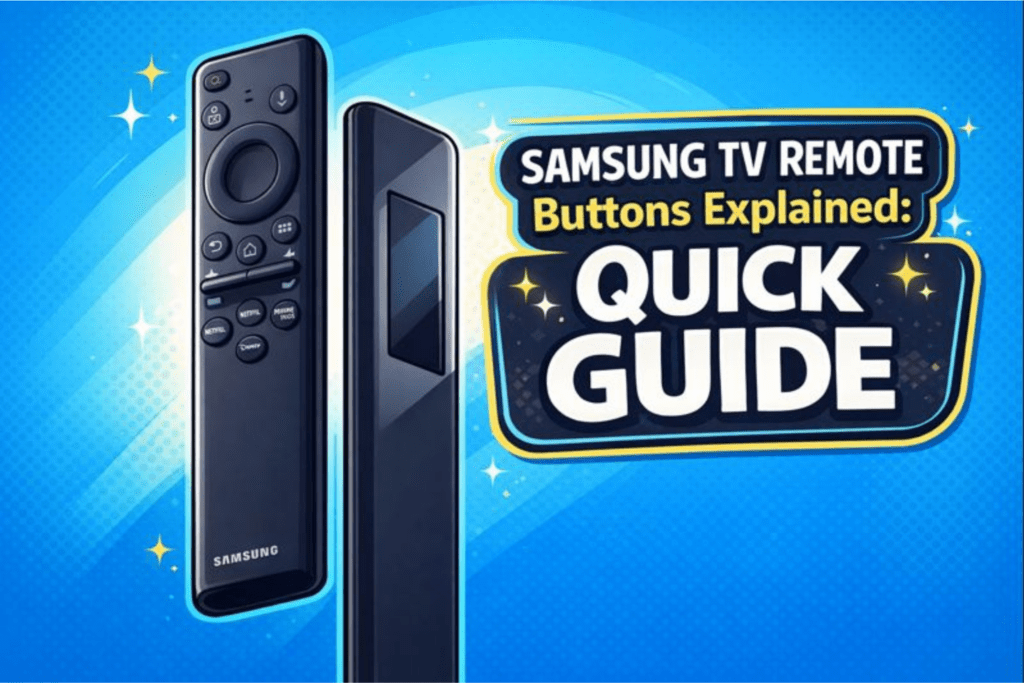
- Smart Remote / One Remote (minimalist) – Smart remote is a slim remote with a directional pad, a few fixed buttons, built-in Bluetooth pairing, and a microphone for Bixby and other voice assistants. It controls the TV and many HDMI-CEC devices without direct line-of-sight.
- Modern variants (SolarCell Remote and others) – These are rechargeable remotes that harvest light or use USB charging. They keep SmartThings integration and the same core buttons as the One Remote, but remove disposable batteries.

Quick Button Reference
Heres a quick overview of all samsung remote button-
| Button Name | Short Description | Shortcut Combos |
| Power | Turns the TV on or off; long press may trigger soft reset or power menu. | Long-press = power options |
| Home / Smart Hub | Opens Smart Hub to access apps, inputs, and recommendations on Samsung TV. | Double-press = last app |
| Input / Source | Switches active input between HDMI, USB, and Live TV; cycles through connected devices. | Hold = input menu |
| Volume + / − | Raises or lowers TV audio; press Mute briefly to silence speakers instantly. | Hold = rapid change |
| Channel + / − | Moves to next/previous broadcast channel or web guide entry. | Press number then Enter |
| Directional / OK (D-pad) | Navigate menus and confirm selections inside Smart Hub and app interfaces. | Long-press directional = fast nav |
| Back / Return | Returns one menu level or exits apps to the previous screen. | Double-press = exit to Home |
| Guide / Channel List | Opens electronic program guide or channel list for live TV scheduling and info. | Long-press = favorites |
| Mute | Instantly silences TV audio; preserves volume level for quick restore. | Press twice = audio menu |
| Voice / Mic | Activates Bixby or configured voice assistant via Bluetooth; supports speech search. | Hold-to-talk |
Essential Power and Menu Operation
Before you get into all the extra features, you need to know about the basic buttons of your Samsung TV remote. They’re basically your starting point. Once you get a feel for these simple controls, picking a source or changing a quick setting doesn’t feel confusing anymore, and the rest of the remote starts to make sense on its own.
So, learn the core controls that start and navigate the TV. Each control below pairs with the Samsung TV remote model type and the TV’s connectivity method, such as IR or Bluetooth.
Power Button
The Power button turns a TV on or off and offers a long-press menu on many models. On a Classic Standard Remote, a short press sends an IR signal to toggle power. On a One Remote short press uses Bluetooth or I,R depending on the pairing state. Hold the button for 3–5 seconds on modern QLED and Neo QLED models to show power options or to trigger a soft reboot sequence.
Home / Smart Hub Button
The Home or Smart Hub button opens the central app and input dashboard. Pressing it on a One Remote calls the Smart Hub interface within 1–2 seconds. Double-pressing on home button returns to the last-used app on firmware releases dated 2020 and later.
Return / Back Button
The Back (Return) button moves up one menu layer without changing app state. Use it to exit dialogs, close settings pages, or resume live playback. Repeated presses step back through nested menus until the Home screen appears. This button does not cancel background downloads or firmware updates.
Directional Pad (D-pad) + Select/OK
The Directional pad moves focus across menus; OK confirms selections. Single presses move one item. Hold a direction for 0.5–1.0 seconds to fast-scroll lists in Smart Hub or app stores. The D-pad interacts with on-screen keyboards and settings sliders. On remotes with a touch surface, swipes map to the same navigation verbs as the D-pad.
Volume, Channel, and Viewing Source Management
Volume, channels, and the viewing source are the buttons you end up using the most. They help you jump between shows, switch from cable to HDMI, or simply turn the sound up a bit. Once you know how these controls work together, it becomes much easier to settle in and watch without fiddling around every few minutes.
Volume Button
Use Volume + / − to raise or lower TV audio by one step per press. When a One Remote is paired to an Anynet+ device, volume commands route over HDMI to a soundbar or AVR. Press Mute to silence the sound while retaining the numeric volume level for later restoration.
Channel Button
Press Channel + / − to move through broadcast channels or the on-screen guide entries. Enter a 3-digit channel number with the numeric keys to jump directly. If the remote controls a cable box via universal setup, channel commands pass through to the box rather than the TV.
Source / Input Button
Press Input / Source to cycle inputs or hold to open the full input selector. The selector lists contain HDMI1, HDMI2, USB, and Live TV with device labels and connection status. Rename an HDMI port in Settings to match the connected device for faster navigation.
Specialized Media and Input Options
Learning media control button, the numeric keypad, and dedicated streaming shortcuts on the Samsung TV remote give you more advanced control . It shows when a control sends an IR signal, uses Bluetooth, or routes commands through HDMI-CEC (Anynet+).
123 / Numeric Keypad Button
The 123 / Numeric Keypad opens an on-screen keypad for direct channel entry, PIN input, and number fields.
Use the numeric keys to jump to a channel by typing 3 digits (for example, 105), then press OK. On Classic Standard Remote models, the keypad sends IR codes and on One Remote, it transmits via Bluetooth if paired.
Playback Controls – Play, Pause, Stop, Fast-forward, Rewind
Playback keys control local media apps and most set-top boxes. Press Play to resume the video and Pause to freeze it. In streaming apps, a single press sends a play/pause toggle to the app.
Contextual and Program-Specific Controls
Samsung TV remote also has some color buttons,Guide behaviors, Info, and the Settings shortcut. It explains short-press vs long-press differences and regional variations.
Color Buttons (Red, Green, Yellow, Blue)
Color buttons perform context-sensitive actions inside apps and menus.
For example, Red opens record or schedule options in a broadcast guide, Green toggles subtitles or options, Yellow opens audio tracks and lastly Blue shows teletext or app menus. App developers assign these buttons dynamically, so the same button may perform different tasks across installed apps and regional firmware.
Table – Typical Color Button Actions :
| Color | Typical Action (Broadcast) | Typical Action (Apps) |
| Red | Record / Schedule | Open app-specific menu |
| Green | Toggle subtitles | Quick settings or options |
| Yellow | Audio track select | Secondary menu or bookmarks |
| Blue | Teletext / Info | App shortcut or developer action |
Guide and Channel List – Short Press vs Long Press
A short press of Guide opens the current TV schedule and a long press opens favorites or scheduling tools.
Short-press displays the program grid and channel icons. Long press (hold 2–3 seconds) opens a deeper view, like recording, scheduling, or favorites, depending on the TV model and broadcast standard in the region.
Info Button
The Info button shows program metadata such as channel name, program time, and broadcast description.
Press once for a single overlay that includes date and runtime. Press again to expand subtitle and audio track details when available.
Settings / Cog Icon
The Settings (cog) shortcut opens the TV’s quick settings menu for picture and sound presets.
From quick settings, you can change Picture Mode, switch Sound Output between TV speakers and external devices, and access Network status.
Shortcuts
Below are concise, proven shortcuts for common tasks.
Three quick shortcuts :
- Hold the Input for 1.5–3 seconds to open the full input selector and rename an HDMI port.
- Double-press Home to return to the last app in firmware released since 2020.
- Long-press Play/Pause for ~1.5 seconds to open the Game Bar when the TV is in Game Mode.
Note: App behavior varies. Verify mappings inside Smart Hub or the app’s help screen.
Accessibility and Viewing Assistance
Samsung remote has some accessibility shortcuts, closed caption controls, and quick methods to enable audio description. Lets understand this feature.
Accessibility Menu Shortcut
Long-press the Volume button for 2–3 seconds to open the quick accessibility menu on many Samsung models.
The quick menu lists Voice Guide, high-contrast mode, and caption settings. From the menu, enable Voice Guide to read on-screen text aloud. Installers and care teams use this shortcut for fast setup for visually impaired users.
CC / VD Button – Closed Captioning & Video Description
Press CC/VD to toggle Closed Captions or start Video Description where broadcasts and apps supply it.
Closed captions follow broadcast or app metadata (CC/SDH). For streamed content, use the app’s audio/subtitle menu if CC/VD does not respond. To change caption language, open Settings → Accessibility → Subtitle Settings and select the preferred language and font size.
FAQs
What are the buttons on a Samsung TV remote?
Samsung remotes include Power, Home, Input, Volume, Channel, D-pad, Back, Guide, Mute, Voice, and numeric keys.
What do the colored buttons on Samsung TV remotes do?
Color buttons run context-specific actions assigned by apps, broadcast services, or regional firmware.
Examples: Red often opens recording options; Green toggles subtitles; Yellow selects audio tracks; Blue opens teletext or app menus. Developers assign functions inside Smart Hub or app frameworks.
What are the 123 buttons on a Samsung remote?
The 123 numeric keys provide direct channel entry, PIN input, and quick numeric input for forms.
Type a 2– or 3-digit channel number and press OK to jump directly. Numeric keys send IR on classic remotes and Bluetooth signals on paired One Remotes.
Why do Samsung remotes look different between models?
Samsung changes remote layouts by product line, year, and feature set to match TV capabilities and design priorities.
High-end QLED and Neo QLED models ship with One Remote and a voice mic; entry-level sets often include a Classic Standard Remote with a full keypad. SolarCell remotes add rechargeable hardware.
Which Samsung remote works with older and newer TVs?
Official Samsung One Remote and many Classic Standard remotes work across multiple Samsung models, but compatibility depends on TV firmware and connectivity (IR vs Bluetooth).
If a TV supports Bluetooth pairing, a One Remote usually pairs. For older TVs without Bluetooth, use a Classic IR remote or a universal remote programmed with Samsung IR codes.