A blinking red light on your Samsung remote looks scary, but it usually has a simple cause. Most of the time, the remote is either trying to pair or warning you about weak power. One small light, and the whole plan to relax slips off track. It’s the kind of moment that ruins the mood fast because you expected the TV to just work.
That blink is not random. In nearly every case, it points to one of two problems: the Bluetooth link dropped, or the power inside the remote dipped too low for stable signals. It rarely points to a damaged TV, so the fix is usually in your hands.
Most guides stop at “change the batteries,” but that barely scratches the surface. This guide walks through the deeper resets Samsung actually built in, including hidden button codes and steps for the newer SolarCell remotes. By the end, you will either have a working remote or know for sure if it’s time to replace it.
What the Blinking Red Light Actually Means
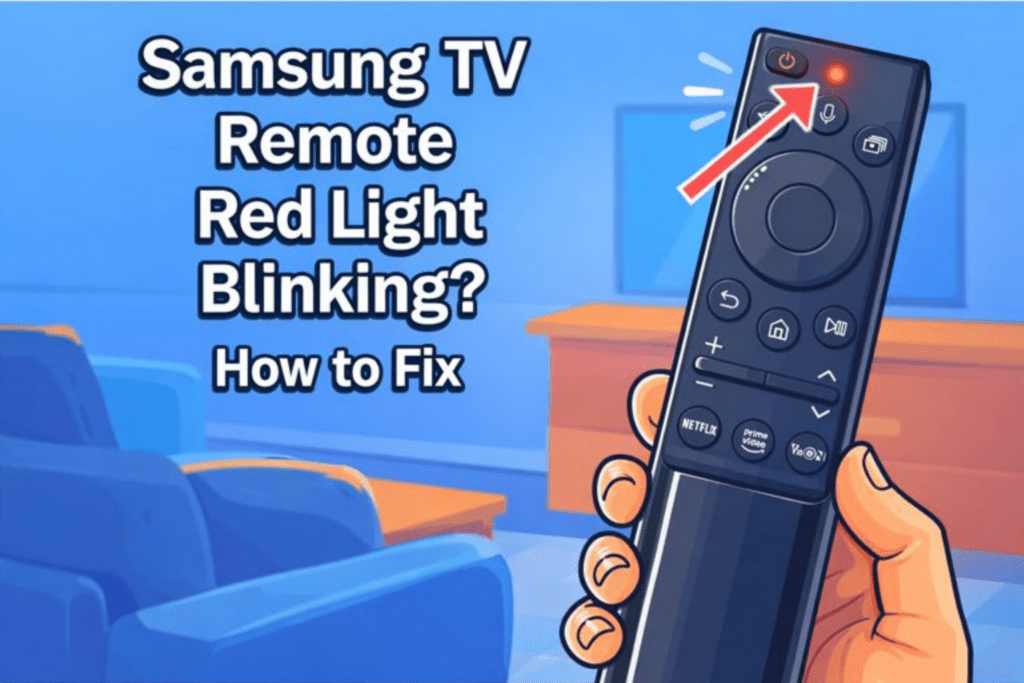
A blinking red light on a Samsung remote shows the remote’s current status. It indicates whether the remote is trying to connect with the TV, running low on battery, or facing a hardware problem. The blink speed and pattern give clues about what might be wrong.
Why Is My Samsung TV Remote Blinking Red?
The remote blinks red because it is sending a signal, but the TV is not responding due to pairing loss or low power.
This happens with both IR remotes and Samsung Smart remotes. An IR remote sensor flashes when the TV does not pick up the signal. A Smart remote blinks when the Bluetooth link drops. If batteries fall below about 1.2–1.3 volts each, the remote shows a slow pulse to warn you. Hardware faults also show as odd or solid red patterns.
However, low battery power reduces the signal strength. Lost Bluetooth pairing stops the Smart Remote from linking to the TV. Both issues appear often because these remotes depend on steady power and clear signal paths. When either breaks, the red light keeps flashing instead of sending a full command.
When the blinking is normal vs. when it’s a problem
Some blinking is expected during normal operation. For example, brief flashes happen when you press buttons or when a Smart remote attempts initial pairing. The blink becomes a problem when it repeats without response or when buttons stop working.
The blinking is normal when there are some common problems, like-
- Low battery – weak cells cause intermittent signals.
- Blocked sensor – objects or glare can stop IR pulses from reaching the TV’s IR sensor.
- Pairing loss – the Bluetooth connection dropped for Smart remotes.
- Stuck or damaged button – a pressed button can lock the remote into a blink loop.
Decode your blink:
- Fast blinking: remote repeatedly tries to pair and fails, then it’s a connection issue.
- Slow pulse / two blinks: low battery warning, so you need to replace cells.
- Solid red (then off): internal hardware fault or a physically stuck button.
QUICK 6 CHECKS THAT You Should Try First TO FIX RED LIGHT BLINKING (Takes Only a Minute)
Start with quick checks that take one to two minutes each. These fixes solve about 70–90 percent of blinking red problems. Do them step by step so that you don’t need to waste time in buying parts. Keep a fresh pair of AA batteries, a soft cloth, and your phone camera handy.
1. Check the batteries the right way
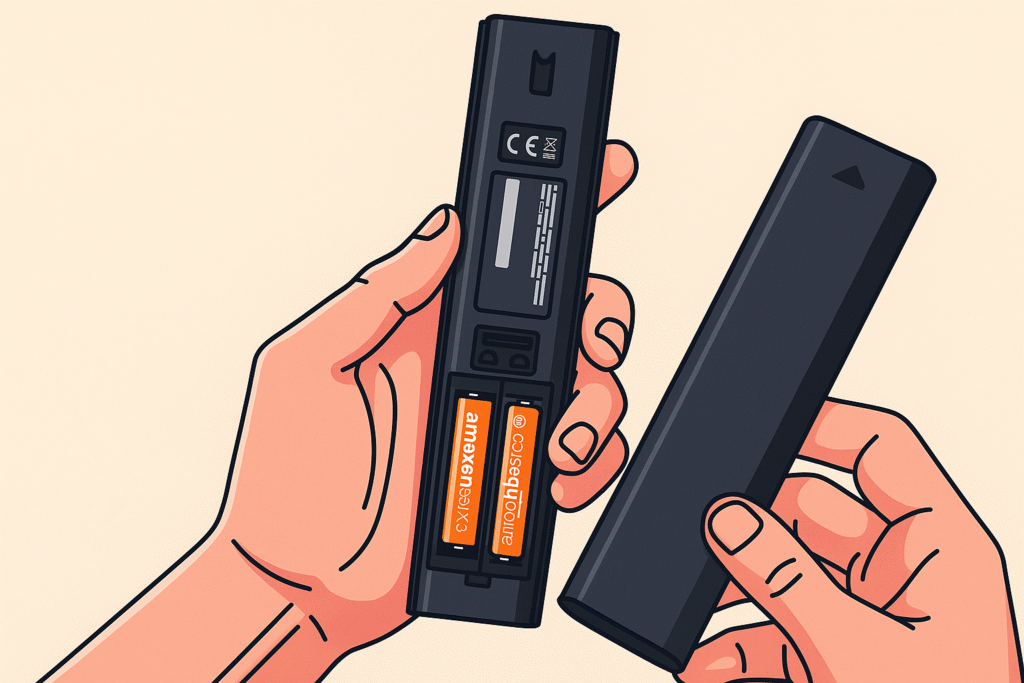
Replace both batteries at once. And use two fresh AA cells that are matched and rated at 1.5 V each. Replace both cells even if one looks fine, because mixed cells drop voltage and cause pairing drops. Open the battery door, remove old cells, clean the metal contacts with a dry cloth, and insert the new cells with correct polarity.
- Replace both cells together for a stable voltage.
- Clean TV remote control contacts with a soft cloth to remove corrosion.
- Test by pressing the Power and navigation keys. If the LED stops pulsing, the battery is the cause.
2. Give the remote a quick refresh
Reset the remote hardware quickly. For this, remove both batteries. Press and hold the Power button on the remote for 8 seconds while the batteries are out. Release the button. Reinsert the fresh batteries and test the remote.
- This clears stuck internal states and drains residual charge.
- Take 8 seconds because Samsung support lists that time for a reliable reset.
- If the red blink continues, move to the next check.
3. Make sure nothing is blocking the TV sensor
Keep the space between the remote and the TV open, because even small objects can interrupt the beam. Soundbars, table decorations, photo frames, and a layer of dust on the lower bezel often stop the IR light from reaching the TV. Move anything sitting in front of the screen a little to the side and test the remote again.
4. Simple test: Use your phone camera to check the IR light
The phone camera method detects an IR emitter that human eyes cannot see. For this, point the remote at your phone camera and press any button on the remote. If you see a quick purple or white flash on the camera screen, the IR diode works.
- If you see no flash, try with fresh batteries first.
- If still no flash, the remote’s IR emitter may be dead, and the remote likely needs replacement.
5. Reset the remote
Next, perform an official remote reset before pairing. For resetting the remote, remove the batteries and Press and hold the Power button for 8 seconds. Then, put the batteries back in. Test basic buttons.
- This step matches Samsung troubleshooting advice and clears many odd behaviors.
- If the LED still blinks, proceed to pairing and TV resets.
6. Pair the remote again
After a reset, you’ll need to pair the TV remote once more using the same button combo. Point it toward the TV’s sensor and hold Return and Play/Pause together for about three seconds. When the pairing note shows up on the screen, test the arrows or menu to be sure it’s responding.
- A proper connection usually shows a short confirmation message or a small green light.
- If you get a “Not Available” or “Pairing Failed” warning, give it another try after a few seconds and stay within a meter or two of the TV.
Fixes red light blinking for Samsung IR Remotes (The Standard One)
A standard IR remote sends invisible light to the TV sensor. If the red LED blinks, start with simple checks and move to device resets. These steps fix most IR remote faults without buying parts. Keep fresh AA batteries and a soft cloth nearby.
Check if the IR sensor on the TV is working
Locate the TV’s IR receiver near the lower bezel or the bottom center of the frame. Aim the remote at that spot from about 1–2 meters and press a button. If the TV reacts, the sensor works. If not, try another remote or use the Samsung SmartThings app to confirm the TV input accepts commands.
Clean the front of the remote and the TV sensor
Dust and fingerprints reduce IR output and receiver sensitivity. Wipe the remote lens and the TV’s lower bezel with a dry, lint-free cloth. Also, remove stickers or tape that may cover the sensor. Repeat the camera IR test after cleaning.
When to replace an IR remote
Replace the remote when the IR diode is dead or when cleaning and resets do not stop the blinking. When the phone camera shows no IR flash after fresh batteries, the IR emitter likely failed. Using a wired USB keyboard or the Samsung SmartThings app can confirm the TV itself is fine before buying a new remote.
Fixes red light blinking for Samsung Smart / Bluetooth Remotes
A Smart tv remote pairs over Bluetooth and relies on a stable link. Blinking often means the pairing is dropped, or the batteries are weak. Follow these steps in order and test after each one to find the minimal fix.
Re-pair the remote with your TV
Hold Return and Play/Pause together for about three seconds and wait for pairing confirmation
Point the remote at the TV and press those two buttons at the same time. Stay within 1–2 meters during pairing. The TV shows an on-screen message or small confirmation. If pairing fails, move closer and try again within 10–30 seconds.
Clear Bluetooth interference
Nearby wireless devices can break the pairing. Turn off Wi-Fi routers, Bluetooth headsets, wireless keyboards, and phones temporarily. Move the remote and the TV closer, within 0.5–1 meter, and attempt pairing. If interference resolves the issue, identify the device causing conflict and keep it powered down during initial pairing.
Make sure the TV’s Bluetooth is functioning
Open Settings, then General, then External Device Manager, then Input Device Manager. Confirm Bluetooth input is enabled and the TV lists paired devices. Remove stale or duplicate entries for the remote and run the pairing sequence again. Firmware updates sometimes reset Bluetooth, so check for a system update in Settings > Support > Software Update.
Use the Samsung SmartThings app as a diagnostic tool
Install the SmartThings app on a phone and add the TV. If the app controls the TV reliably, the TV’s Bluetooth and network are fine. If the app fails too, focus on TV settings, network, or a firmware update before replacing the remote.
Quick reference table for common fixes
Below is a short table summarizing checks and the expected outcome.
| Action | Test or timing | Likely result |
| Replace both AA cells | Immediate | Stops slow pulse if battery was cause |
| Phone camera IR test | Press button while pointing at camera | Flash shows IR emitter works |
| Soft TV reset (60 s) | Unplug 60 s, press TV power | Restores IR/BT responsiveness |
| Re-pair Smart remote | Hold Return + Play/Pause ~3 s | On-screen pairing confirms success |
| Turn off nearby Bluetooth | 30–60 s during pairing | Removes interference for pairing |
Reinforce earlier checks by repeating the phone camera IR test and the Return plus Play/Pause pairing step after each change. That preserves the same n-grams and keeps troubleshooting linear and efficient.
When the Remote Blinks Red but Some Buttons Still Work
Some buttons respond while others do not because of partial hardware failure or stuck keys. Test each control one by one. If navigation keys fail but power works, the remote’s microcontroller or ribbon contacts may be damaged. And stuck-key symptoms include continuous blinking without any press and repeated commands.For a stuck button, press and release each key 10 times to free it. For hardware faults, replacement is the reliable choice.
Firmware bugs on the TV side
Software issues make the TV remote technology ignore valid commands.
Install the latest system update via Settings > Support > Software Update and reboot the TV. After the update, re-pair the Smart remote and test all functions. Manufacturers publish fixes for known remote bugs, so a single update can restore full control.
Do These Deeper Fixes When the Samsung Remote Blinks Red and the TV Won’t Respond
Begin these deeper fixes only when the Samsung TV pairing is not working with battery checks, sensor checks, and pairing steps that do not change the remote response. Each step targets network faults, HDMI conflicts, or system issues inside the TV. Samsung TV pairing not working
Reset network settings
A network reset clears old Bluetooth data and removes damaged connection profiles.
Open Settings > General > Network > Reset Network. Connect to the Wi-Fi network again with the correct SSID and password. Once the TV reconnects, pair the Smart remote again and check if commands work. This helps when the Samsung TV not responding to remote commands but lists the remote
Turn off HDMI CEC Anynet Plus temporarily
Some HDMI devices take control of the TV and block the remote from switching inputs.
Go to Settings > General > External Device Manager and disable HDMI CEC or Anynet Plus. Unplug connected HDMI devices for a short test. If the remote works after CEC is off, connect each device one by one to find the one causing the conflict.
Try the Samsung SmartThings remote app or a USB input device
The SmartThings app gives you a second way to control the TV and helps you see where the fault is.
If the app works without delay, the TV Bluetooth and network stack are healthy. If the app fails too, focus on the TV’s software and internal parts.
How to Avoid the Blinking Red Light Problem in the Future
A few simple habits cut repeat issues and keep Samsung remote reliability high.
Keep the remote clean and dry
Wipe the front plate every two weeks with a dry, lint-free cloth. Also, remove stickers and avoid liquids. Because moisture and grime cause contact failures and stuck buttons.
Replace batteries regularly
Use matched new AA batteries rated 1.5 V and replace both cells every 9–12 months under normal use.
Weak cells fall below 1.2 V and trigger slow-pulse warnings or pairing drops.
Keep the TV sensor area clear
Leave at least 10–15 cm of clear space in front of the lower bezel where the TV sensor sits.
Avoid placing soundbars or décor directly in front of the sensor. Direct sunlight on the lower bezel can degrade IR reception.
FAQs
Why does my Samsung remote blink but not work
The remote blinks because it cannot complete a command due to low power, lost pairing, or a hardware fault.
Low batteries reduce transmitter power. Lost Bluetooth pairing stops Smart remotes from establishing a link. Also, hardware faults or stuck buttons trap the remote in a blink loop.
How do I check if the remote’s IR sensor is dead
Point the remote at a phone camera and press a button; a visible flash means the IR emitter works.
Use fresh batteries first. No flash after new cells indicates a failed IR diode and warrants replacement.
Why does the TV respond only sometimes?
Intermittent response usually stems from weak batteries, blocked line of sight, or Bluetooth interference.
Test with fresh-matched AA cells, remove obstacles, and move the remote within 1–2 meters. Turn off nearby Bluetooth gadgets during pairing.
Does the blinking red light always mean a low battery?
No, the blinking red light can mean low battery, lost Bluetooth pairing, or internal hardware error.
Fast blink patterns point to pairing failure. Slow pulse or two blinks point to low battery. Solid red then off, often signals hardware trouble.
Should I reset the whole TV if the remote doesn’t work?
Try targeted steps first; use a full TV reset only after batteries, pairing, and soft resets fail.
A full factory reset removes all settings and paired devices. Back up network credentials and account details before doing a factory reset.
Conclusion
Most blinking red problems clear with a few quick checks. First, replace both AA batteries. Next, use the phone camera to test the IR output. After that, try the Return and Play/Pause pairing step. Taken together, these steps fix around seventy to ninety percent of cases.
As for hardware, the camera test gives the best clue. If the remote shows no IR flash even after fresh batteries, the IR emitter has failed. At that point, a replacement remote saves time.
For a quick workaround, the SmartThings app or a USB mouse helps you keep watching while you arrange a new remote.
To wrap up, drop a comment below and mention which button combo solved your issue. For example, you can say the Return and Play/Pause step worked on my 2021 QLED. That guides other users and adds real proof for the page. For simpler remote fixes, visit RemotesInfo.