Many people end up jumping from one code list to another and try to make their universal remote respond to a Samsung TV. But the whole setup depends on one small 4-digit code, yet finding the exact match can feel harder than it should be.
We get it. Most guides offer outdated, generic lists and neglect the crucial difference between older TVs and modern Samsung Smart Hub setups. That guesswork ends here.
So, stop wasting time on code that doesn’t work. Treat the code as a remote language match that improves control accuracy and reduces device interference.
In this ultimate guide, you will find your perfect 4-digit code and master the programming in under five minutes. Let’s get your remote paired instantly.
What Samsung TV Remote Codes Are and Why They Matter
A code maps each remote button to a TV command so the remote controls power, volume, and source reliably. Many universal remote libraries use 3-digit, 4-digit, and 5-digit entries, and the code length ties to the remote firmware and device family. And older Samsung HDTV models commonly use 4-digit codes, while recent Smart TV models running Tizen accept auto pairing or app-based pairing for remotes that support Bluetooth or WiFi.
What does a 4-Digit Samsung TV Code do?
A 4-digit code tells the remote which IR protocol and which command set the Samsung TV uses. The remote then maps each button to the TV functions and avoids sending unrelated device commands. This reduces false power-offs and fixes mismatched volume controls.
Code Length Compatibility and When You Need the Code?
Three-digit libraries date back to legacy device families, while 4-digit entries cover most mid-era TVs, and 5-digit entries expand compatibility for newer universal models. If a remote supports multiple lengths, enter the shortest supported code first, then try longer codes when the TV does not respond.
When Should You Use a Universal Remote Instead of the Original One?
A universal remote helps most when your main remote goes missing or breaks. It also helps if you’re tired of juggling three or four remotes for different devices.
The only thing you must check is whether the universal remote actually lists Samsung in its library and allows 4-digit entry or auto-scan. If it does, setup usually finishes in a minute.
Complete 4-Digit Samsung TV Code List, Most Accurate and Updated
A correct code saves a lot of frustration. Once you enter the right one, the main buttons like power, volume, inputs respond without delay. Because Samsung split models by year and region. So, the right code may differ from one home to another.
Most Common Codes (0101, 0019, 0056, 0060…)
Some codes appear again and again because they match a very large group of Samsung TVs.
0101, 0019, 0056, and 0060 often work on mid-era models and usually give full control right away. Most people start with these because they cover so many TVs without any fine-tuning.
Codes for QLED, UHD, LED, and Older Plasma Units
Newer display lines, plus the older premium plasma units, often accept 0101, 0056, 0060, or 1004. These codes keep the remote steady and avoid missing button presses. When you try a code, point the remote straight at the IR sensor so the TV picks it up cleanly.
Code for different categories
Below is a compact code table that lists common Samsung entries and sample mappings for older and newer TV types. Enter each code using your universal remote manual and test power, then volume.
| Category | Example 4-digit codes |
| Most common Samsung codes | 0101, 0019, 0056, 0060 |
| Older Samsung HDTVs | 1004, 0052, 0012, 0192 |
| Smart TV Tizen models | 0056, 0600, 0060, 0702 |
| QLED UHD LED Plasma | 0101, 0056, 0060, 1004 |
| Region-specific variants | Refer to the model manual or the region code map |
Brand-Specific Codes for All Major Universal Remotes
Different universal remote brands store Samsung entries in their own code libraries so brand lookup speeds programming and reduces guesswork. Checking the remote brand first narrows the code list and cuts trial time.
GE Universal Remote Samsung Codes
For many GE remotes try 0101, 0019, 0056, and 1004 in that order. Start with the most common code and test power then volume. If those four fail use the remote manual to run an auto-scan sequence and record the code that matches the TV.
RCA Universal Remote Samsung Codes
On RCA units common working entries include 0056, 0060, 0101, and 0702. Enter codes sequentially and verify menu navigation after power and volume work.
Philips Universal Remote Samsung Codes
Philips remotes often respond to 0019, 0056, 0060, and 0192. Use direct code entry when available and follow up with an input and channel test. Philips models sometimes save codes under a device type labeled TV Samsung so search that label first.
One For All Samsung Codes
One For All remotes maintain large libraries and common Samsung codes are 0101, 0056, 0060, and 1004. One For All units usually include a fast auto-search button so use that when manual entry does not yield results quickly.
Samsung TV Codes by Universal Remote Brand with TV Compatibility
| Remote Brand | Common Samsung Codes (4-digit unless noted) | Typical TV Compatibility | Notes / Tips |
| GE Universal Remote | 0001, 0101, 0251, 0261, 0331, 0351, 0531, 0571, 0711, 0781, 1004, 3301, 3321, 3471, 3561, 4011, 4941, 4961, 5471, 5521, 5791, 5801 | Older LCD, LED, mid-era QLED, 2005–2015 HDTVs | Works for many older and mid-era Samsung TVs; start with 0101 for quick setup |
| RCA Universal Remote | 1004, 1009, 1012, 1013, 1014, 1015, 1025, 1046, 1056, 1065, 1069, 1078, 1083, 1102, 1103, 1104, 1123, 1124, 1194, 1205, 1207 | Older HDTVs, mid-era LED, Plasma, 2007–2016 models | Covers legacy TVs and some Smart TVs with manual 4-digit entry |
| Philips Universal Remote | 0002, 0012, 0102, 0103, 0112, 0209, 0212, 0302, 0309, 0437, 0502, 0512, 0609, 0802, 0818, 0895, 3301, 5791, 5801 | Mid-era LED, Plasma, Smart TV Tizen 2010–2018 | Ideal if Philips remote supports manual code entry; start with 5791 for most mid-era models |
| One For All Remote | 0030, 0056, 0060, 0093, 0178, 0208, 0226, 0264, 0508, 0556, 0587, 0618, 0812, 1208, 1249, 1619, 2051 | Mid-era LED, UHD, Plasma, 2010–2017 | Often works across different Samsung series; includes legacy and mid-era sets |
| ADB / STB-style Remotes | 0009, 0019, 0032, 0037, 0056, 0060, 0618, 0625, 0644, 0702, 0812, 0821, 0156, 0178, 0208, 0217, 0226, 0290, 0329, 0370, 0448, 0482, 0519, 0587 | Mid-era LED, Plasma, UHD, 2010–2018 | Useful when you have a set-top box remote controlling multiple devices |
| Amino Remote | 2448 | Older Samsung LCD, Plasma, 2005–2010 | Rare, but sometimes listed for specific mid-era Samsung TVs |
How to Program a Universal Remote to a Samsung TV
Programming uses either direct code entry or an automatic search and both succeed when you follow a clear sequence. Keep fresh batteries and point the remote at the TV during each step.
Manual Code Entry Method
Begin by powering the TV on then press the remote device key for TV and hold the setup key until the LED blinks. Enter the 4-digit code and wait for the LED to blink twice. Test power first then volume and input controls. If buttons misbehave retry with the next code from the brand list.
Auto-Scan Method (When You Don’t Know the Code)
Put the remote into search mode and point it at the TV while the unit cycles through codes. Stop when the TV responds to power or volume. Record the code shown in the manual or on the remote display so you can reuse it later. Auto-scan works best within 3 meters and with a clear line of sight.
Quick Test Checklist After Programming
Check these items after programming
- Power toggles the TV on and off
- Volume changes level and mutes correctly
- Source or input cycles through connected devices
- Menu and navigation buttons open and move without lag
Troubleshooting Common Issues
When a universal remote fails, there’s a simple cause like batteries, distance, or the wrong code. So, first work through basic checks and then move to device-specific fixes. This helps you to avoid needless changes of remotes or cables.
Follow this quick flow:
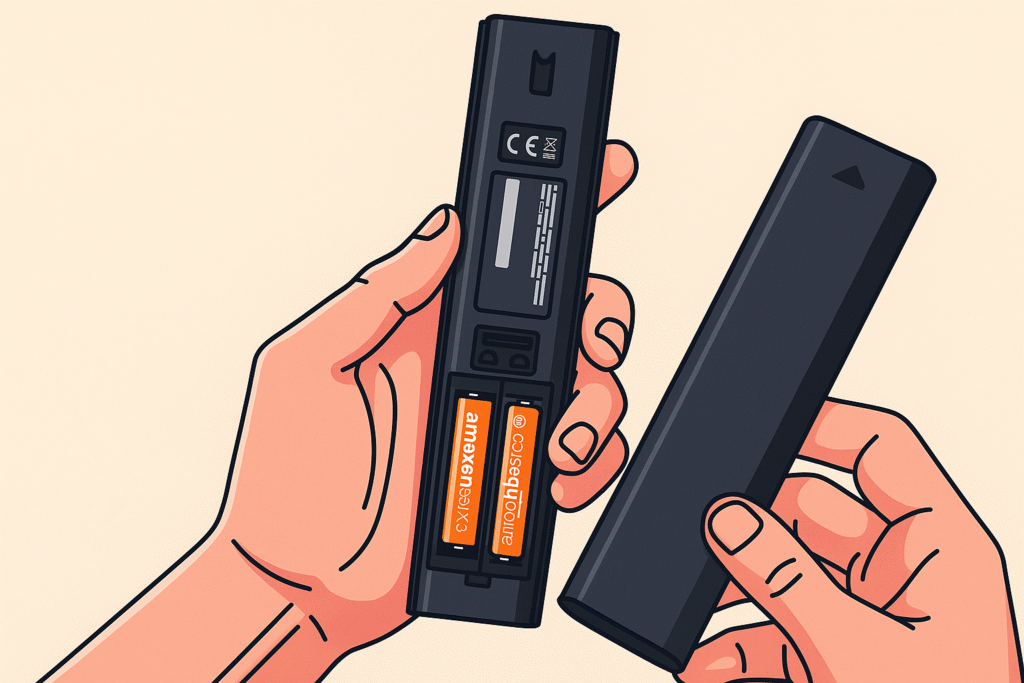
1 Replace batteries, then test power
2 Checkthe line of sight and move within three meters
3 Try common 4-digit codes from the lookup table
4 Run auto-scan on the remote if manual codes fail
5 Reset the remote and repeat steps when mappings are partial
This sequence narrows the fault fast and avoids unnecessary replacement of remotes or cables.
Why isn’t my Samsung TV responding to any universal remote code?
Check batteries, line of sight, and then try auto-scan with fresh batteries installed.
Start by replacing both batteries because low voltage changes the IR pulse shape and causes missed commands. Point the remote directly at the TV and stand within three meters while testing. If nothing works, run the remote auto-scan so the remote cycles through codes automatically, and watch for any change when the TV reacts to power or volume.
Why do only a few buttons work after entering the Samsung code?
The code mapped only core functions, so try the next code or remap buttons in the remote settings.
Some codes match power and volume but not menus or input controls, because the remote library uses partial command sets for certain models. Try the next code in the brand list, then test menu navigation and input. If the remote supports manual button mapping, update the navigation and input keys. Otherwise, use auto-scan to find a fuller match.
When should I reset my universal remote while setting it up with a Samsung TV?
Reset the remote after five failed code attempts or when the remote behaves erratically during programming.
Resetting clears stored codes and returns the remote to factory mode so that you can start fresh. This method helps when partial mappings persist. Follow the remote manual sequence for reset, then use fresh batteries, point at the TV, and run manual entry or auto-scan again.
Advanced Issue About Samsung TV Codes
Advanced issues often touch on protocol history, hardware differences, and future trends. But there are quick solutions for those issues:
Why Samsung Uses 4-Digit Codes Instead of 5-Digit?
Samsung uses a 4-digit code because four-digit codes match legacy IR protocol groups, while five-digit systems expand for larger remote libraries.
Early universal remotes and older TV lines used compact 3 or 4-digit libraries to save memory and keep lookups fast. But modern universal remotes adopted 5-digit formats to cover more brands and newer models. The choice reflects remote firmware design and the balance between backward compatibility and extended coverage.
Does Auto Scan Work Better Than Manual Codes
Auto-scan is faster for unknown models, while manual codes give more precise control when a compatible list exists.
Use auto-scan when you lack brand codes or when the TV is not clearly identified. And use manual entry when you have a verified code list for your remote brand. Because manual codes often map more functions correctly. Combining auto-scan first and then confirming the detected code manually gives the best results.
FAQs
Do Samsung TVs use the same 4-digit code for every universal remote?
No – most Samsung TVs do not share a single universal code across all remotes
Different remote brands use distinct code libraries so a code that works on one universal remote may fail on another. Always check the remote brand list and try the most common Samsung codes first.
Why does my remote work for volume but not for power?
The remote likely matched a partial command set rather than the full protocol
Some codes map only core functions like power and volume while leaving out menu or input commands. Try the next code in the brand list or use auto-scan to find a fuller match.
How close should I be to the TV when programming the remote?
Stand within three meters and point directly at the IR sensor for best results
IR needs a clear line of sight and a narrow angle so being close and centered increases success when entering codes or running auto-scan.
Can wrong codes damage my TV or remote?
No wrong codes cannot damage hardware they simply fail to control the device
Incorrect entries only produce mismatched behavior so you can try codes safely without risk. If the remote behaves oddly, reset it and try another code.
What do I do if none of the Samsung codes work on my universal remote?
Try fresh batteries, run auto-scan, check remote compatibility, and consult the remote brand guide
If those steps fail the remote may not support your Samsung model or the TV could need a firmware update to fix IR handling. Consider a brand-specific remote or a Bluetooth/WiFi pairing solution.
Conclusion
You have successfully navigated the complexities of universal remote programming. By prioritizing the high-success codes like 0060 and understanding the specific programming nuances for your GE or RCA remote, you’ve moved past the frustration and achieved full control.
Don’t let this knowledge live in a browser tab. Bookmark this page as your permanent Samsung Code Lookup Table and share it with others facing the same headache. If you still have partial functionality, jump back to the Code Cycling technique to perfect your remote’s performance. Your remote control solution is now guaranteed.