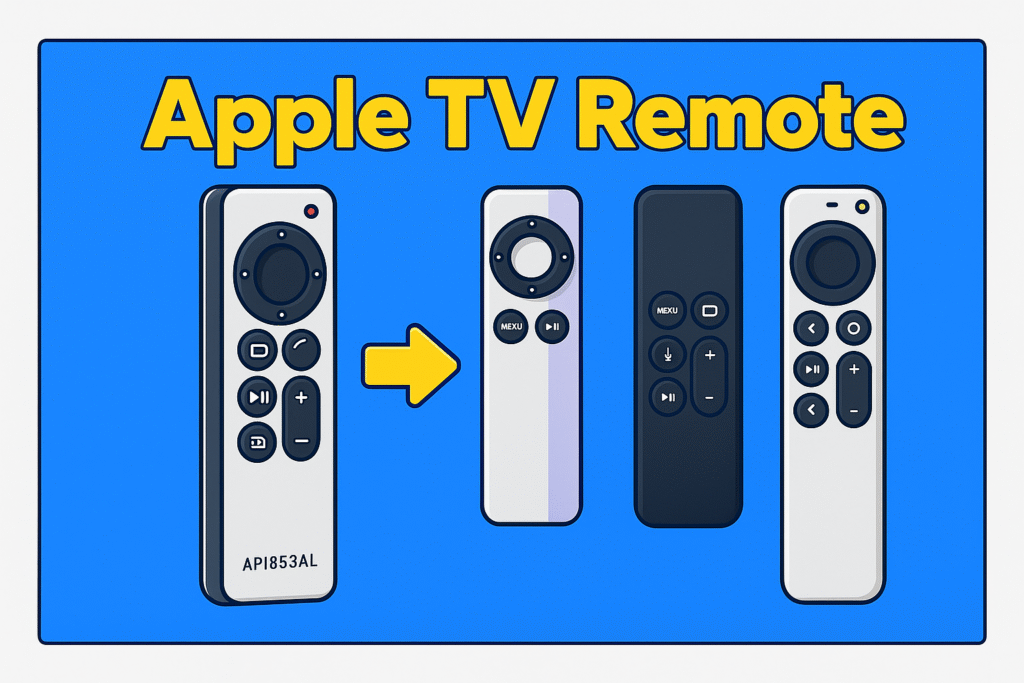
The Apple TV Remote is more than a small thing that keeps your TV running. It’s the key that connects your Apple TV, apps, and smart home experience into one system. Every press, swipe, and voice command passes through this small device. But when it stops working or refuses to pair, the whole setup feels stuck. That’s why understanding how it works saves time and frustration.
Over the years, Apple released several remote models. Some connect through Bluetooth. Some use infrared, and the latest model comes with a USB-C charging port. Each version looks similar but behaves differently. A simple pairing trick for one may not work on another, especially after a tvOS update.
Most users find the pairing step confusing. Others struggle with battery issues or a remote that loses signal after an update. These are not rare problems. They usually come from firmware mismatches, low charge, or Bluetooth interference from nearby devices.
This complete guide explains each step in plain language. It covers pairing, charging, resetting, and even small fixes that many overlook. Every section follows Apple’s latest tvOS 18 updates, tested on real remotes and verified setups. No filler, no guessing. Just clear steps that match how Apple TV really works.
By the end, you’ll know how to pair, repair, and keep your Apple TV Remote stable for the long run without wasting time searching random forums.
Understanding the Apple TV Remote Ecosystem
The Apple TV remote ecosystem includes all remotes made for Apple TV devices. Apple releases different remotes for each Apple TV model. Older versions of the Apple Remote connect through infrared. While newer Siri Remotes connect through Bluetooth for faster response. The latest version with USB-C charges faster and holds power longer. Knowing your Complete TV remote manual helps fix pairing or control issues easily.
What is the Apple TV Remote and how does it work?
The Apple TV Remote controls every function of the Apple TV by using Bluetooth Low Energy and a small infrared transmitter.
When you press a button, the signal jumps to the box almost instantly. Bluetooth signal is used to run the menus, scrolling, and app control. While the infrared is used to control TV and other devices volume and powe. Likethrough IR, you can turn on the TV or change the volume. Both systems work together and keep the response quick and smooth, even when you don’t point it directly at the device.
Types of Apple TV Remote
Apple has released two main types over the years: the Siri Remote and the older aluminum model.
The Siri versions come with a touch-based or circular clickpad, a microphone for Siri, and a rechargeable battery. The plain aluminum remote is lighter and simpler. It’s mainly for older Apple TV HD boxes where voice search wasn’t built in. People often keep one as a spare because it uses standard infrared and never needs pairing.
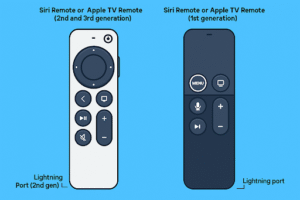
Siri Remote generations (1st to 3rd)
Each Siri Remote generation brought small but useful hardware changes.
The first one from 2015 charged through a Lightning port and had a glass touch surface. In 2021, Apple switched to a solid aluminum body and a circular clickpad that spins like an iPod wheel.
In the 2022 version, they launched a USB-C port, which charges faster and fits modern cables. The battery works perfectly for two to six months, depending on use.
| Generation | Year Released | Charging Port | Input Style | Main Models Supported |
| 1st | 2015 | Lightning | Glass touch | Apple TV HD, 4K (1st) |
| 2nd | 2021 | Lightning | Clickpad ring | Apple TV 4K (2nd) |
| 3rd | 2022 | USB-C | Wide clickpad with haptics | Apple TV 4K (3rd) |
IR and Bluetooth communication
Apple TV listens over Bluetooth for menu actions and uses an infrared remote sensor for TV power and sound.
Bluetooth Low Energy keeps battery use low and allows pairing through walls or cabinets. But the infrared needs clear space. That’s why volume buttons sometimes don’t work if something blocks the front of the TV.
Remote compatibility by Apple TV model
Not every remote works with every box. The table below shows which ones pair or only offer limited control. Limited means you can move through menus but not use Siri or update firmware.
| Apple TV Model | Siri Remote 1st | Siri Remote 2nd | Siri Remote 3rd | Aluminum Remote |
| Apple TV HD | Yes | Yes | No | Yes |
| Apple TV 4K (1st) | Yes | Yes | Limited | No |
| Apple TV 4K (2nd) | No | Yes | Yes | No |
| Apple TV 4K (3rd) | No | No | Yes | No |
Aluminum vs Siri Remote design
Aluminum remotes weigh about 45 grams and focus on basic navigation.
Siri Remotes add a touch surface, microphones, and internal batteries. Earlier versions charge by Lightning; the 2022 model uses USB-C and reaches full power in roughly 2 hours. The updated layout also fixed accidental touch inputs that many users complained about.
Before You Start – Identify Your Remote and Model
How to find your Apple TV model number
To find your Apple TV model number, open Settings → General → About. Then read the Model and Serial lines shown on screen.
On-screen info lists the Apple TV model name and a model identifier. A second method is to check the label on the bottom of the Apple TV box for the printed model identifier and regulatory text.
Details and examples:
- On tvOS, the screen shows a model name like Apple TV 4K (2nd generation) and a model ID (format: A####).
- The underside label on the hardware shows the same model ID plus the serial number and FCC markings.
- If you have the original retail box, the barcode panel prints the model identifier and part number.
How to check your Siri Remote generation
Look for the physical charge connector and the click surface to identify the generation.
A narrow rectangular port indicates a Lightning connector and an oval port indicates USB-C.
Quick visual guide:
- Glass touch surface + narrow port – first-generation characteristics.
- Circular clickpad ring + narrow port – second-generation traits.
- Wider clickpad with haptics + oval port – third-generation features.
- Check the small model code on the remote’s back (engraved or printed) to confirm the exact model number.
Why remote and tvOS version compatibility matters
A remote and tvOS mismatch can disable voice features, firmware updates, or power-control functions.
Certain button mappings and updating TV OS require matching hardware and software. Using an unsupported remote may limit Siri, system updates, or volume control behavior.
Concrete impacts to expect:
- Voice search and command require a compatible microphone and a supported tvOS.
- Firmware updates for remotes are distributed through paired Apple TV units. But older remotes may not receive new firmware.
- HDMI control and power-off commands rely on matching remote profiles.
Quick checklist before pairing
Confirm these three items before pairing: model ID on Apple TV, remote physical connector type, and tvOS build number.
This reduces trial-and-error and avoids firmware or feature gaps when you pair or update.
How to check tvOS build quickly:
- Open Settings → System → Software Updates on Apple TV.
- Note the displayed tvOS version and build number before pairing or troubleshooting.
How to Pair Your Apple TV Remote (Step-by-Step)
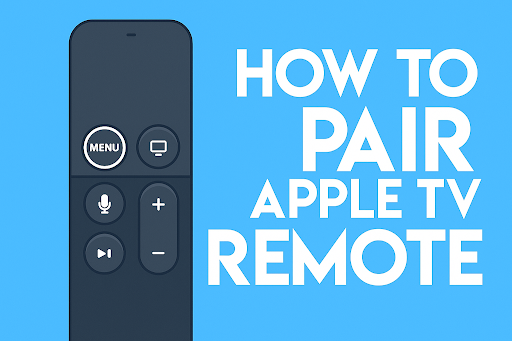
To pair a new Apple TV Remote, first register its hardware ID with the Apple TV and set a BLE control session or IR linkage for basic commands. Here are simple pairing steps:
Here are the steps for pairing steps for Siri remote :
- On the Apple TV, the front LED or TV input shows activity.
- Hold the remote close to the Apple TV unit.
- Press and hold the Back (or Menu) button together with the Volume Up button for two seconds.
- Check the TV for the pairing animation and confirmation text.
Some small tips help you in setting up a new TV remote. Keep the Apple TV and remote close, keep the battery above 30%, and avoid pairing near large metal objects.
Use the Apple TV remote port to rest the controller during pairing if prompts appear. For households with multiple Apple TVs, temporarily disable guest mode on the non-target units to prevent unwanted connections.
How does automatic pairing occur?
Automatic pairing happens when a new remote and a new Apple TV are powered on together during setup.
When both devices power up from the factory state, the Apple TV scans for nearby remotes and accepts the first valid signal. The process takes under a minute and needs no code entry. If the remote arrived separately from the box, automatic pairing won’t start.
How do I pair a Siri Remote by hand?
Place the remote within 3–5 inches (8–13 cm) of the Apple TV and press the Back and Volume Up buttons for 2–5 seconds.
Hold the buttons until an on-screen confirmation appears. If the screen shows a pairing prompt, rest the remote on the Apple TV top to finish the exchange. Check the remote’s connector type before pairing. Because different generations may show different on-screen prompts.
How to reset the remote before pairing attempts?
Hold the TV/Control Center button and Volume Down for 5–10 seconds until the status light blinks, then retry pairing.
This clears temporary faults in the remote’s radio module. After the blink, wait 10 seconds before running the pairing routine. If the remote still fails, test charging cables and swap to a wall adapter rated 5V/1A.
Resetting and Reconnecting Your Remote
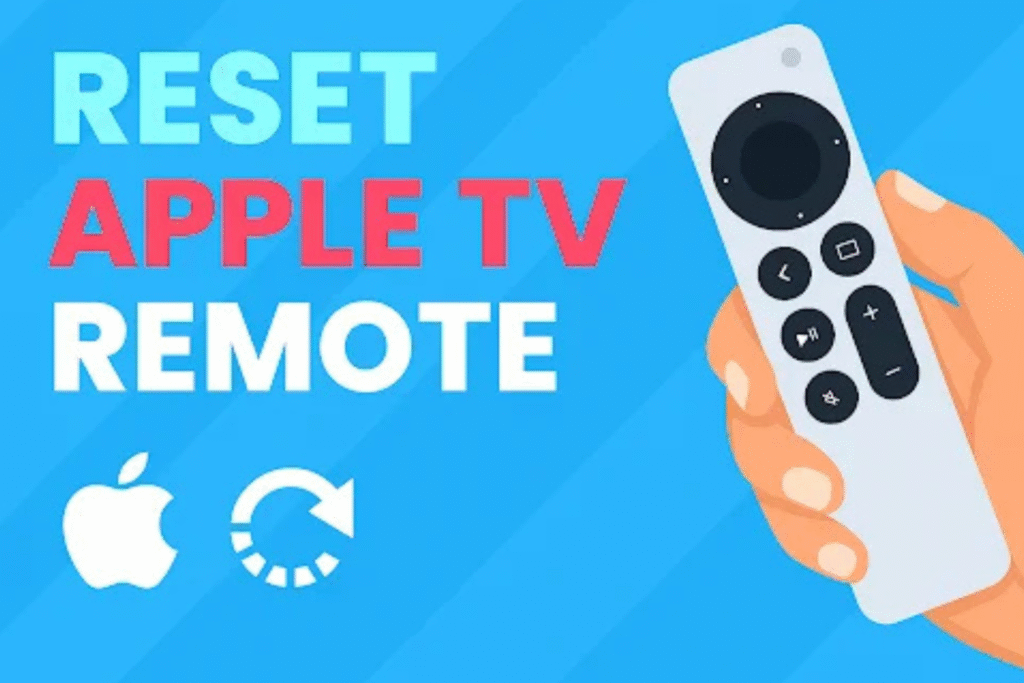
Resetting and reconnecting a remote clears stored pairing data or restarts radio modules so the controller links properly to an Apple TV again. You have to run the right reset based on the problem: soft for glitches, hard for pairing faults, and a full device reset only for deep issues. These actions reset the Apple TV Remote and help establish a clean, reliable connection.
How do I unpair or reset my Siri Remote manually?
Hold Back and Volume Up buttons together for about 8 seconds until the Apple TV shows a disconnection message.
That action removes the link stored on the remote. If the screen asks you to place the remote on the set-top box, do so to complete the cleanup. Use this before handing the remote to another user.
How can I restart Apple TV using the remote?
Press and hold the Menu and Home (the TV icon) buttons for 6 seconds to force a restart.
The screen will go blank and return to the home display after the reboot. Use this when apps freeze or the Apple TV shows a spinning wheel. Wait 20–30 seconds after power cycles before attempting new pair attempts.
How do I factory reset Apple TV without a remote (iPhone)?
Open the Remote in Control Center on an iPhone. Go to Settings → System → Reset. Then click “Erase All Content and Settings.” This removes accounts and stored data. Confirm iCloud backups for any app data you need. The iPhone and Apple TV must be reachable on the same local network during the process.
When should I replace the remote instead of resetting it?
Replace the remote if the battery fails to hold charge after two replacement cycles, buttons are physically broken, or the clickpad hardware stops responding.
A battery that drops under 50% capacity within a few hours signals hardware aging. Physical cracks, corrosion near ports, or repeated failures after resets justify buying a new Siri Remote.
Soft reset vs Hard reset – quick reference table
Soft rest can’t delete your data during a restart. But a hard reset clears all the data. So, use a soft reset for minor troubleshooting issues like freezing. Below is a compact comparison to guide which action to use.
| Action | What it does | When to use |
| Soft reset | Reboots the remote radio and clears minor faults | Apps freeze or experience temporary lag |
| Hard reset | Clears pairing and returns the remote to the factory state | Re-pairing issues; ownership change |
| Apple TV restart | Reboots the Apple TV box | System freeze and app crashes |
| Full Apple TV reset | Erases all settings and accounts | Selling device or firmware errors |
Practical reconnect checklist before trying again
Ensure remote shows at least 25% charge, use the original charging cable if possible, keep the remote within 4–6 inches of the Apple TV, and remove other active remotes from the room.
Small steps like switching the Apple TV to a low-radio environment (turn off nearby Bluetooth speakers) often cut pairing failures in half.
Charging & Battery Care
Every Apple TV Remote has a built-in lithium battery. It’s an internal rechargeable battery. The newer Siri Remote uses a USB-C port, but the older aluminum remotes use a Lightning connector. Both charge in the same way, just their cable is different.
How to charge the Apple TV remote?
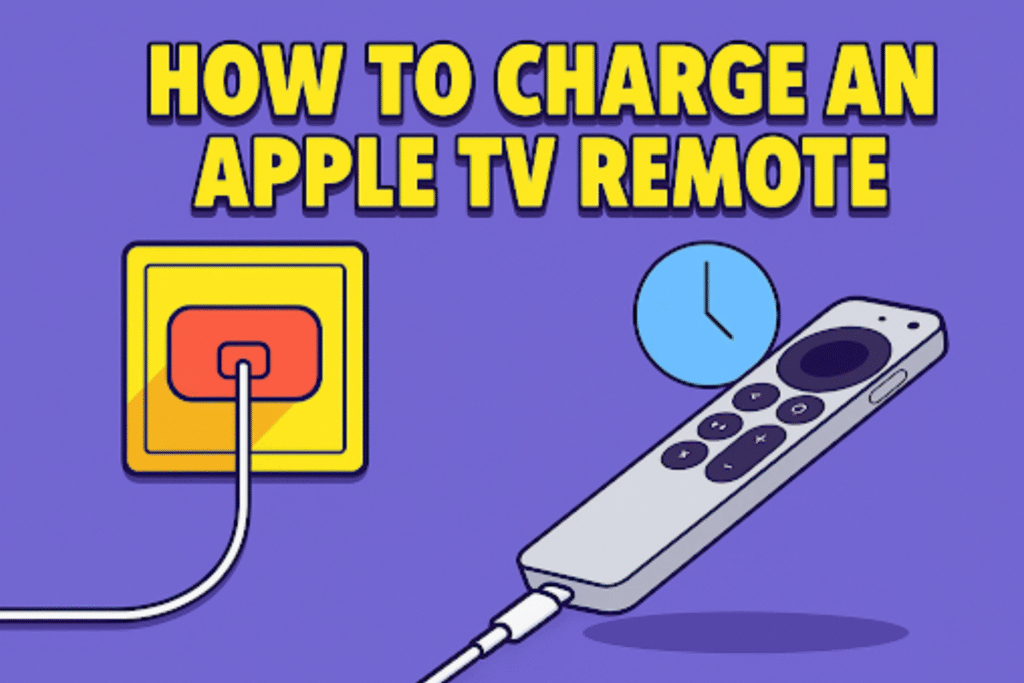
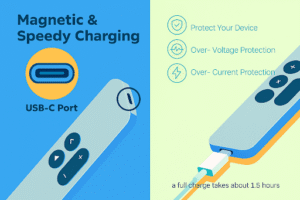
To charge an Apple TV remote, plug the cable into the port at the bottom of the remote, then connect the other end to a power adapter or a TV’s USB port. The wall adapter usually works faster because it gives a continuous power supply. Within half a minute, a small battery icon should appear on your TV screen showing that it’s charging.
A full charge normally takes between an hour and a half and three hours. The USB-C finishes charging faster. Keep the remote away from heat when charging.
Where can I check the battery level?
Open Settings → Remotes and Devices → Remote on Apple TV, or view the Remote tile in iPhone Control Center.
Apple TV shows a percentage or battery icon. The iPhone tile shows the charging level when the phone and Apple TV are on the same network and linked.
Battery Care Tips and Charging Myths
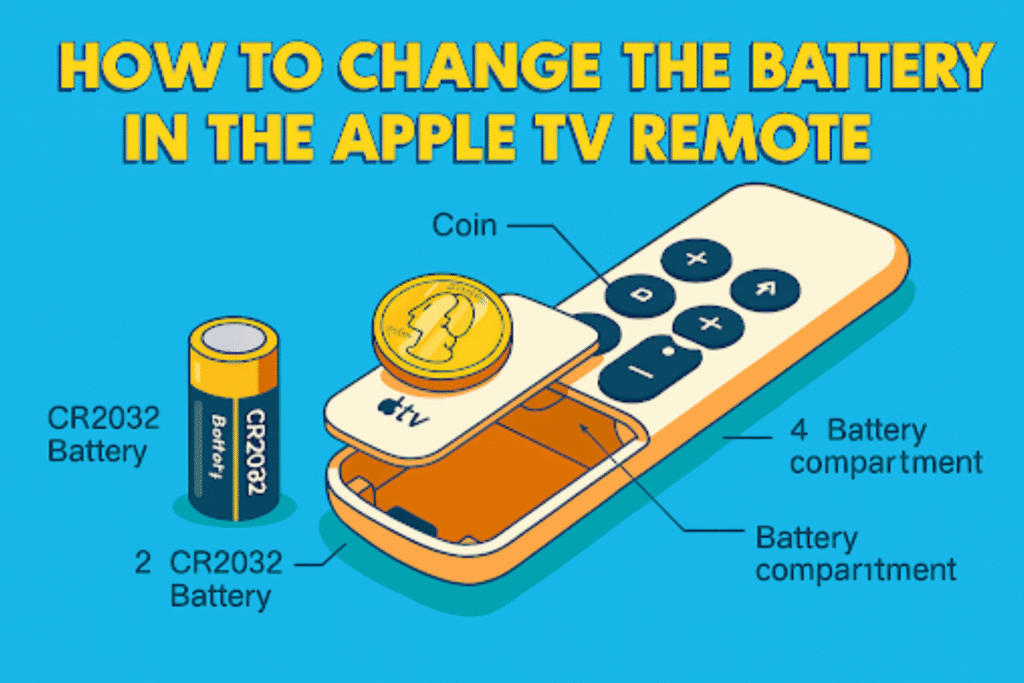
The Apple TV remote uses a small lithium-ion cell, similar to what you’d find in an iPhone or AirPods case. These batteries don’t like extreme heat. Don’t wait for the battery to die before charging it. That old advice came from nickel batteries, not lithium ones. A short charge every few weeks keeps it healthy, even if you haven’t used the remote much. In older model,replace batteries in TV remote.
Many people worry about leaving it plugged in overnight. That’s fine. Once the charge hits full, the remote stops consuming current automatically. Charging near a warm TV box or on top of other devices can cause trouble. Because they release heat. If you use an Apple-made cable and keep the remote away from heat, the built-in cell can stay strong for several years without any issue in performance.TV remote battery replacemen
Here are some common problems and practical fixes for charging issues:
| Symptom | Cause | Action |
| No charging icon | Fault in the cable or a bad adapter | Change cable; use wall adapter ≥5W |
| Very slow charge | Low output source | Use a higher-output adapter or USB-C PD for USB-C remotes |
| Charging stops intermittently | Dirty port or loose plug | Clean port, reseat cable, test another adapter |
| Fast battery loss | Firmware bug or heavy use | Update tvOS, reduce voice/haptic use, retest |
Updating Your Apple TV and Remote
Updating means installing the latest tvOS or remote firmware so the Apple TV and Siri Remote run the current code and fixes. Updates improve stability, fix bugs, and can change remote behavior after installation.
How do I check for tvOS updates?
Open Settings, pick System, then look for available software updates and download any listed file.
Allow the Apple TV to finish installation; large updates may take 10–20 minutes and reboot the box twice.
How does remote firmware get updated?
Remote firmware installs automatically when the paired Apple TV downloads and applies a compatible update.
Keep the remote nearby and charged during system updates so the handset receives its firmware push after the Apple TV reboots.
Troubleshooting Apple TV Remote Issues
Some common problems happen with the Apple TV remote. One major and most common issue is remote is not responding. It mainly happens because of low battery power or any objects between the remote and the Apple TV. To fix this problem, first fix these two common causes and then restart the Apple TV and the remote.
Volume controls fail, but navigation works-cause and fix
Navigation works through Bluetooth signal, but volume works through infrared (IR) or HDMI-CEC. So, the problem starts in the IR configuration or the HDMI-CEC mapping. To fix it, reprogram the remote’s volume control in Settings.
Set the remote to control your TV or receiver again and test with the device volume buttons while standing close to the display.
Siri does not hear or execute voice commands – what to check
Siri does not use voice command because of the remote’s microphone is unobstructed. Check the system language matches Siri, and privacy settings permit voice requests. This will enable voice control on the TV.
A blocked mic, wrong language setting, or restricted microphone access stops voice capture and command processing.
Touchpad or clickpad issues – immediate actions
Clean the surface, then reboot the remote and Apple TV. If the click doesn’t work, test with another app to isolate UI or hardware faults. Oils from fingers and dust cause problems. If problems aren’t solved, the clickpad may need replacement.
When to contact Apple Support or replace the remote
Contact support after trying restarts, re-pairing, charging, if the hardware shows damage, or a clickpad that never registers taps.
Keep your Apple ID and serial numbers simple. Repairs or replacements may require an AppleCare status check.
Here are some Apple TV remote problem and their quick fix:
| Symptom | Probable cause | Recommended action |
| Sudden input lag | Background update or radio noise | Reboot Apple TV, move remote closer |
| No response | Drained battery or bad cable | Charge 30+ minutes, change cable |
| Intermittent disconnects | 2.4 GHz interference | Move box, test on 5 GHz or isolate devices |
| Volume buttons fail | IR mapping or CEC mismatch | Reassign volume control in settings |
| Siri voice commands fails | The microphone is blocked or language mismatch | Clean mic area, verify language |
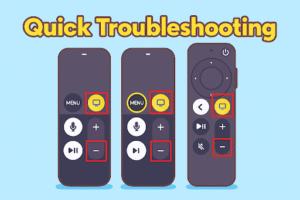
Using iPhone or iPad as an Apple TV Remote
You can use your iPhone or iPad as an Apple TV remote to control playback, type text, and run shortcuts over your local network or Bluetooth. To set up this remote on an iPhone, go to the settings and then control center. Then Tap a listed Apple TV, enter the 4-digit code if shown, and the phone becomes the controller.
Benefits of using the mobile remote
The mobile remote speeds typing, offers a full keyboard, and gives instant access to voice dictation and app text fields.
Entering passwords and search terms takes seconds with a phone keyboard. The touchscreen also supports drag gestures for scrubbing and a numeric keypad for PIN entry.
Troubleshooting the Control Center remote
Restart the iPhone/iPad, reboot the Apple TV, and verify Wi-Fi. Network DHCP changes and OS mismatches often create disconnections. Reboot the router or turn off the Wi-Fi. This can fix the problem in two minutes.
Advanced Tips, Customization, and Shortcuts
You can adjust clickpad sensitivity, enable directional navigation, and turn on VoiceOver or Switch Control under Apple TV → Settings or iPhone Accessibility to improve your user experience. When managing multiple Apple TVs, give each device a unique name in Settings and select the desired device from the Remote list on your iPhone. Assign room names in the Home app for quicker selection and enable access codes in public areas to prevent unwanted control. For audio, select HomePod as the default output in Apple TV settings or choose AirPods from Control Center → Audio, so sound routes to the selected device when Apple TV wakes. Stereo HomePod pairs must be assigned in the Home app before use to ensure proper playback.
How Apple TV Remote interacts with HDMI-CEC and TV power control
When HDMI-CEC is enabled, Apple TV can wake the TV, switch inputs, and forward volume commands through the HDMI chain.
Enable Control TVs and Receivers under Apple TV → Remotes and Devices. If commands fail, check the TV’s CEC setting (brand names differ) and use the volume learning tool to teach commands to Apple TV.
LED indicator meanings
LED behavior tells you the remote’s status at a glance.
Read the list before troubleshooting a non-responsive unit.
- Solid white – Remote is powered and linked to Apple TV.
- Blinking white – Pairing or reconnect attempt in progress.
- No light – Battery likely depleted or hardware fault; charge for 20–30 minutes.
- Amber/orange (rare models or accessory lights) – Charging in progress; not yet full.
- Rapid blink after reset – Factory reset completed; remote ready to pair.
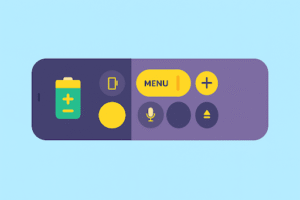
Battery charge icons and what they mean
Battery icons appear in Settings → Remotes and Devices and on iOS Control Center.
- Full bar (100%) – Remote shows maximum available charge.
- Three bars (60–99%) – Healthy charge; normal use expected for days.
- Two bars (30–59%) – Consider a top-up; 10–15 minute charge yields hours of use.
One bar (10–29%) – Low; recharge soon to avoid pairing or command failures. - Empty or red icon – Critical; connect a USB cable immediately and wait 20–30 minutes before using.
FAQs
How can I fix an unresponsive Apple TV remote?
Charge the Siri Remote for 20–30 minutes, restart the Apple TV, then attempt pairing again. If the remote still fails, change the charging cable, clear any objects in front of the TV, and press each button a few times to free stuck contacts. Then try pairing with the remote rested on top of the Apple TV.
Why is my Apple TV remote disconnecting continuously?
Your Apple TV remote is disconnecting because of a low battery, WiFi issue, or mismatched firmware between the remote and Apple TV. Charge the remote above 50%, and install tvOS and iOS updates to align firmware versions before re-pairing.
Can I control Apple TV without the remote?
Yes, you can use your iPhone or iPad Remote from Control Center and use it like you TV remote.
Is there a universal remote that works with Apple TV?
Yes, universal remotes with Bluetooth profiles deliver full navigation and voice features. Infrared remotes handle basic play/pause and navigation. To find the perfect universal remote for Apple TV, check product specifications for “Bluetooth pairing” or explicit Apple TV support. Older models rely on IR only and lack Siri or system-level commands.
How often should I charge my Siri Remote?
Recharge your Siri remote when the battery power is below 30%. Almost 10–15 minute charges help you to use the remote for several hours. Full charges take 30 to 120 minutes.
What fixes a frozen or lagging remote?
Charge the remote for 30–60 minutes, then perform the restart sequence. Low charge, trash under buttons, and temporary radio faults cause sluggish response. A gentle cleaning with a lint-free cloth or microfiber cloth and a timed charge restores normal response in most cases.
Conclusion
The Apple TV remote is the key to controlling your Apple TV. Understanding remote types, pairing methods, charging, and troubleshooting helps you to use your Apple remote like an expert. Proper battery care and continuous updates ensure long-lasting use.
Follow the short charging habits above, reduce radio interference around the Apple TV, and use the pairing and reset routines when connections fail. These small actions restore control quickly and keep your Apple TV Remote working properly.
If you’re a Samsung TV user, check out our Samsung Remote Control Guide for a complete setup, button functions, and compatibility details across all models.