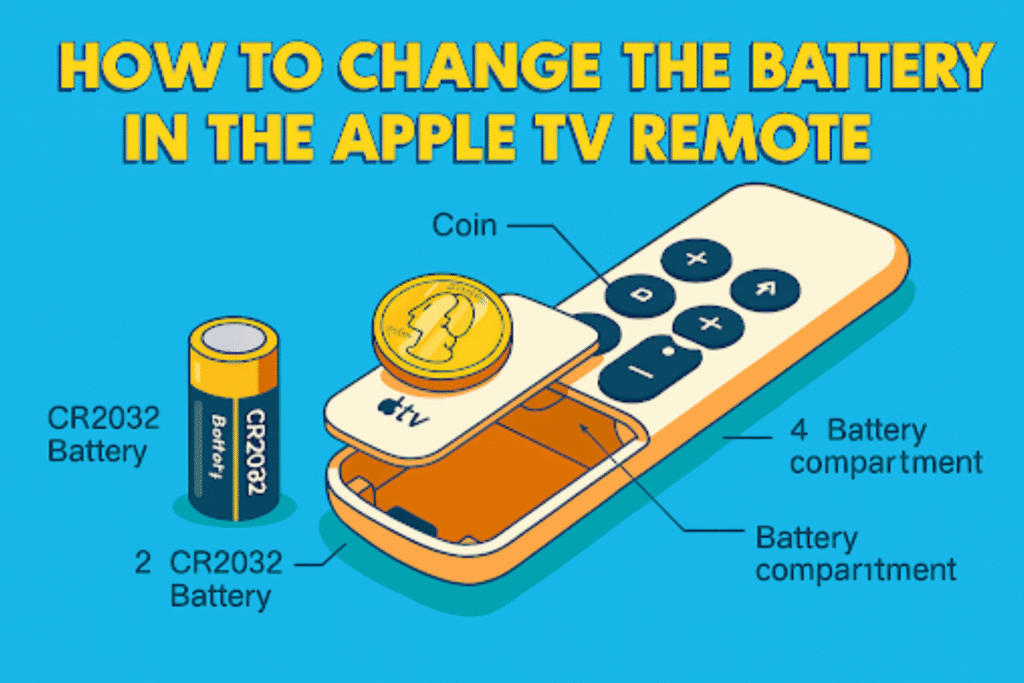
Sometimes your Apple TV remote just stops working. Usually, the battery’s the culprit. The good news is, swapping it out only takes a minute. A battery change for an Apple TV remote means either recharging a built-in lithium-ion battery (Siri Remote) or swapping a removable coin cell (older Apple/IR remotes). Depending on which remote you own, you’ll either pop in a new coin battery or recharge it. In this guide, we will explain how to change the battery in the Apple TV remote and get your remote back in action fast. This page covers quick checks, model ID, and the safe next step.
Quick Checks: Before You Change the Remote Battery
Start with short diagnostics to avoid unnecessary repair or purchase. Confirm the remote model, check the on-screen battery indicator, and try charging first if the remote has a Lightning port.
How to know if the remote needs a battery change?
Check for no response, a low-battery alert on Apple TV, or rapid button failures – any of these indicate a damaged battery.
Go to Settings → Remotes and Devices → Remote for a battery icon or percentage. This shows how much charge is left. If it’s very low or missing entirely, then replace or recharge the battery.
Notice small hints like delayed response, intermittent input, or the “Low Battery” alert on your screen. These are common low-battery symptoms.
Should you try charging first?
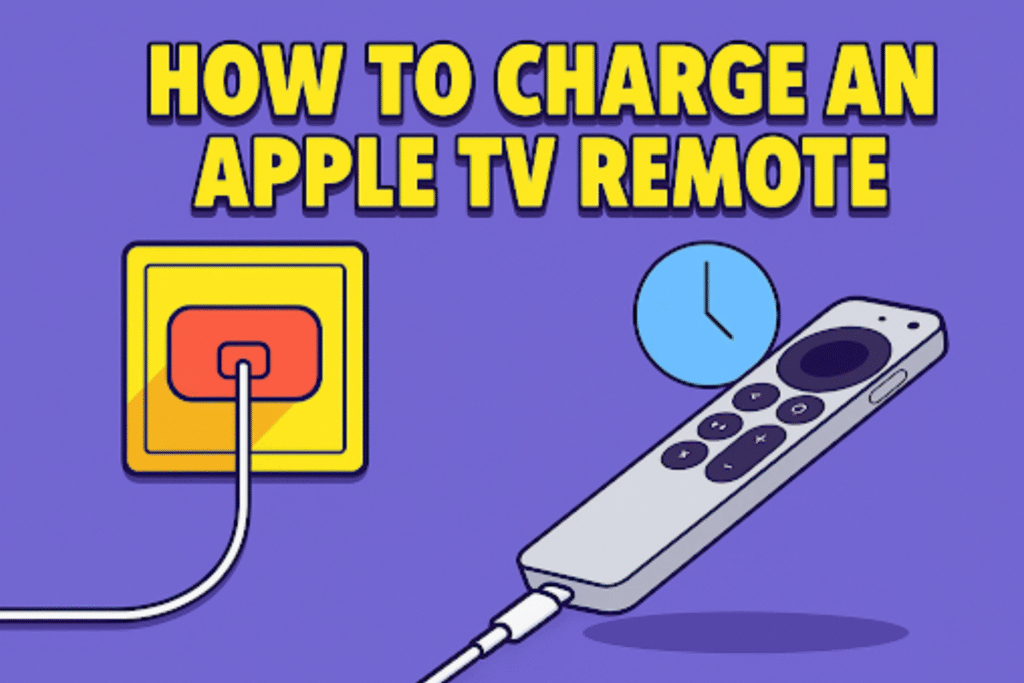
Yes- connect the Siri Remote to a Lightning cable and charge for at least 30 minutes. Usually full charge takes about 2.5–3 hours.
While charging, the remote remains usable. Verify charge level in Settings → Remotes and Devices; a filled battery icon or percentage shows progress.
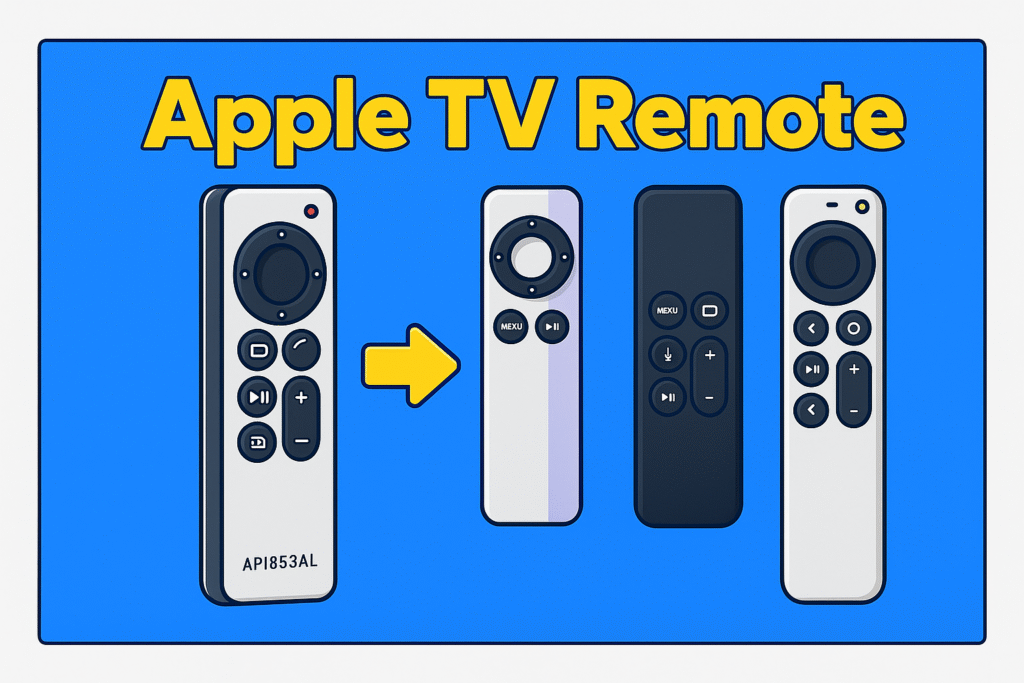
Identify Your Remote model and type
Proper identification of your remote model prevents wrong repairs. Match the physical remote to the model list. Properly identify TV remote control types because every Applw TV remote type has a different battery and changing method.
Check Settings → Remotes and Devices → Remote on the Apple TV for the remote serial and model identifier.
Use the identifier to map to the battery type in the compatibility table. This prevents model mismatches.
Step-by-Step Guide: How to Change the Battery in Your Apple TV Remote
Apple TV remotes come in two types. Some have a battery you can replace or change, like the older aluminum or white remotes. But Newer Siri Remotes charge through a cable, you don’t need to change the battery. Here’s how to change TV remote batteries safely.
For Aluminum or White Remotes
Changing your Apple TV Remote battery means opening the sealed case, swapping the lithium pack, and restoring normal operation. It uses a 3.82 V pack, often model A1513 or A1962, depending on your remote generation.
- Preparing the Remote:
Turn your Apple TV remote so the back side faces up. This is the side without buttons, usually smooth or metallic. Good lighting helps. This makes reassembly faster.
- Opening the Shell;
You will see a small round cover. Put your finger or a small coin under the edge. Push or turn it slowly. You’ll feel it loosen. Don’t rush or force it, or it might scratch. Once it moves, lift the cover off.
- Removing the Old Battery
Remove the old CR2032 battery. Tape the old battery’s terminals and store it in a non-conductive bag.
- Installing the New Battery
Place the new battery in the same spot. Put it with the plus side up. Double-check polarity.
- Testing
Close the cover and press a few buttons to check that it works. Check the battery percentage in Settings → Remotes and Devices → Remote.
A new CR2032 usually lasts about a year. Keep an extra battery nearby. This way, your remote will never stop working unexpectedly.
For Siri Remotes
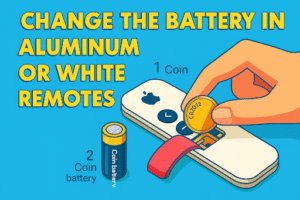
Usually, the Siri remote doesn’t require changing or replacing the battery. Because it has a rechargeable battery. If your Siri remote battery is low, you can simply recharge it. Choose the right cable. Use Lightning for most Siri Remotes, or USB-C for the latest version. Connect cable into the remote and then plug into a wall charger or a USB port on your TV. Charging fully takes around 2 to 3 hours. A short 10 to 15-minute charge gives enough power for a few hours. You can even use the remote while it charges.
But if you need to change the battery in the Siri remote, you can book a visit through the Apple Support app or at a Genius Bar.
Can I replace the Siri Remote battery myself?
No – The Siri Remote battery is sealed inside. You cannot replace it yourself. Only Apple or an authorized service can handle that.
If your Siri remote battery is destroyed, request service through the Apple Support app, or call an Apple Authorized Service Provider.
Advance tips for changing battery in Siri remote: Tools, Parts & Where to Buy
Changing a battery inside an Apple TV Remote is a delicate job. It’s not about force- it’s about using the right tools and mindful work. Each generation of the Siri remote has small differences, but the core tools stay the same.
Tools Needed
You’ll need these tools for changing a battery:
- Small #00 Phillips or T6 Torx screwdriver for the screws under the top shell.
- A plastic opening pick or guitar pick to lift the back panel without scratching it.
- Fine-tip tweezers to handle the small battery connector.
- Spudger or pry stick to lift the cell from its bracket.
- ESD wrist strap or anti-static mat to keep the board safe from static.
Authorized Parts vs Third-Party
Apple’s battery fits perfectly and reads correctly in system logs. Many cheaper cells power on, but charge levels jump or drop suddenly. That’s why choosing authorized parts is important. Here’s the quick comparison between Authorized Parts vs Third-Party:
| Detail | Apple Original Cell | Third-Party Cell |
| Model | A1513 / A1962 | Varies (Pisen, EEMB, etc.) |
| Rated Voltage | 3.82 V | 3.7 V |
| Energy | 1.52 Wh | 1.6–2.0 Wh |
| Lifespan | Around 1,000 cycles | 500–700 cycles |
| Certification | UL 2054, UN38.3 | Depends on seller |
| Fit | Exact connector | May need trimming |
| Warranty | Covered if Apple replaces | Void if user-installed |
| Price Range | $19–$29 (Apple) | $9–$15 (aftermarket) |
Where to Buy
For U.S. buyers, genuine parts are easiest to find through official channels.
- Apple Store or AppleCare: direct replacement with warranty.
- Authorized retailers like Best Buy or B&H Photo carry original Apple accessories.
- Trusted online stores such as iFixit or Adorama often sell small-batch verified parts.
- Amazon listings: only choose ones that say “Ships from and sold by [Brand Name]”.
To avoid counterfeits:
Check the printed voltage (3.82 V) and model number (A1513 or A1962). Look for clear, sharp label text and a small QR code. Real cells weigh about 12 grams; fakes are lighter. Skip anything with a glossy sticker or random brand name.
Every verified U.S. seller follows Department of Transportation (DOT) shipping standards for lithium packs. That means your cell won’t arrive swollen or untested.
Does DIY Replacement Void Apple Warranty?
Yes, opening the remote on your own usually cancels official coverage.
Apple seals the case with adhesive and uses tamper marks around the screw sockets. Once opened, those marks stay. Service teams can see that right away. If your remote is still under AppleCare, do not open it yourself. Ask for a replacement or a paid battery service. That keeps the warranty valid and saves future service trouble.
Note: If you are not a technician or not used to working with this process, then don’t try to change the Siri remote battery. Call an Apple service provider or any authorized service provider.
Troubleshooting After Changing the Battery
When a new battery goes in, the Apple TV Remote should power up and respond right away.
If it doesn’t, check the points below. Each fix targets a problem that appears after a battery change or charging.
Remote disconnects repeatedly (diagnostic flow + causes table)
Check for unstable battery output before assuming Bluetooth issues.
Freshly installed cells sometimes fluctuate in voltage during early charge cycles.
Do this:
- Go to Settings → Remotes and Devices → Remote and check the battery %.
- If it drops or jumps every few seconds, the cell is unstable.
- Recharge through a wall adapter (5 V / 1 A) for one full hour, not through a TV USB port.
| Symptom | Likely Cause | What to Do |
| Disconnects right after battery swap | Connector slightly loose | Open the shell and reseat the plug until it clicks. |
| Works then dies after a few minutes | Low-capacity cell | Replace with 3.82 V / 1.52 Wh genuine pack |
| Random drop-outs during use | Battery not calibrated | Fully charge, then use until 5 %, recharge again. |
A cell that loses power quickly after charging usually comes pre-aged or under-rated. Replace if the behavior repeats after two full charge cycles.
How to force-pair the remote and reset Apple TV (after battery replacement)
Keep the remote near the Apple TV and re-sync once the new cell is stable.
- Ensure battery level is above 20 %.
- Place the remote 3–4 inches from the Apple TV box.
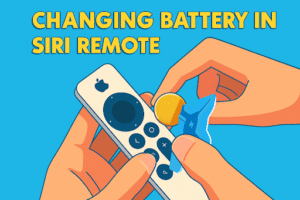
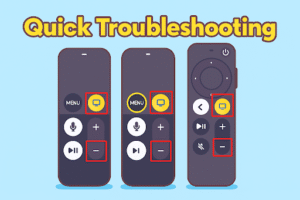
- Hold Volume Up + Back/Menu for 2 seconds.
- Wait for the “Connected” message.
- If pairing fails, restart Apple TV and retry.
Sometimes a new battery resets the remote’s internal clock; pair TV remote right after a full charge restores communication.
Extra Check – Post-Replacement Charging Behavior
After installing a new battery:
- Let it charge to 100 % before first use.
- Note how long it lasts; normal runtime is 3–4 weeks for Siri Remote (2nd Gen) and 5–6 weeks for 3rd Gen.
- Early voltage drift is normal during the first 2–3 cycles.
Most issues after a battery change come from loose connectors, weak aftermarket cells, or poor first charging cycles. A clean port, a correct 3.82 V pack, and a proper first charge restore normal function. Recheck the battery section in Settings to confirm stable levels and smooth pairing. And also install TV software update.
FAQ
How long should the Apple TV remote last on a full charge?
Generally, a Siri Remote runs three to six weeks per charge.
The 2nd-generation remote tends to last about 3–4 weeks under normal use. The 3rd-generation remote can go 5–6 weeks if you don’t use Siri commands heavily. Frequent navigation or video scrubbing drains the battery faster.
Can I use a phone charger or a TV USB port to charge a replaced cell?
Use a wall adapter rated ≥5V/1A; TV USB ports often deliver insufficient current. Low current sources extend charge time and can fail to initiate charging on near-dead cells.
What if the remote shows 100% but dies quickly?
That points to a low-capacity or aged cell with poor real-world capacity. Replace with a new Apple-spec pack and run two full charge cycles to verify.
How many charge cycles do Apple remote batteries handle?
Expect roughly 500–1,000 cycles depending on the exact pack and usage profile. Genuine Apple packs typically quote higher cycle life than many aftermarket cells.
Will replacing the battery affect pairing or Bluetooth range?
A correct pack retains a normal range; mismatched cells or poor connections reduce range. Test navigation at 3–5 meters and compare to iPhone remote performance to confirm.
Conclusion
Replacing the battery in your Apple TV Remote works best when you take it slow and use the right tools. Handle the battery connector carefully. Match the new pack’s voltage exactly. Give it a full charge before testing.
After swapping, press the buttons, check navigation, and watch the battery percentage. A loose connector or low cell can make the remote act unresponsive, so double-check everything. Keep the old battery safely for recycling.
Following these steps restores full remote control, stable operation, and reliable battery life. A little patience now keeps the remote working smoothly for weeks.
If you’re a Samsung TV user, check out our Samsung Remote Control Guide for a complete setup, button functions, and compatibility details across all models.