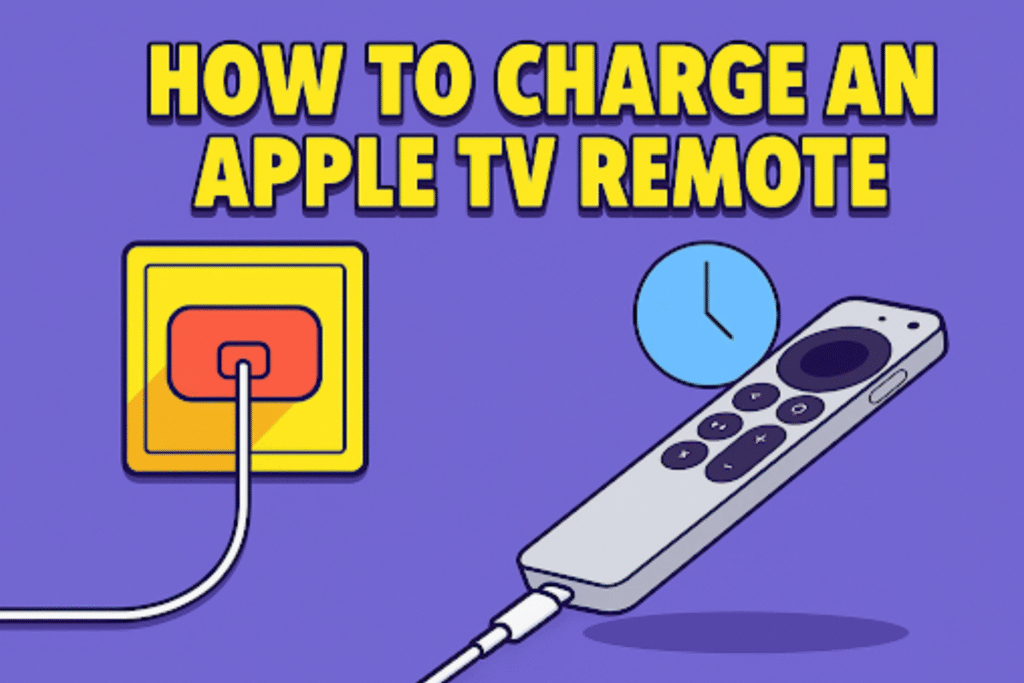
An Apple TV remote runs on a small rechargeable battery built inside the remote controller. You don’t need to change any cells or buy new batteries for charge an Apple TV Remote. You just plug in and let it charge, same as a phone.
Apple made a few types of remotes over time. The new Siri Remote (USB-C) uses a USB-C cable for charging. But the older remote model use a Lightning cable. Both charge the same way, cable to wall adapter or computer port.
A full charge usually takes about three hours. Once done, the remote runs for many weeks. You can use your remote while it’s plugged in. So, watch your TV while charging the remote. No need to pause your show.
This guide explains every simple step on how to charge your Apple TV remote, which cable fits, how long it takes for a full charge, and how to check the battery. All details match the latest Apple TV models and U.S. release specs.
Quick Start: Charge the Remote Now
How do I charge an Apple TV remote?
Plug the remote’s charging cable into the remote and connect to a powered USB port or wall adapter.
Just plug in the cable. The remote recharges its power from any regular USB port that can charge devices.
Step-by-step charging method:
- Identify the port on your remote (USB-C on the newest Siri Remote; Lightning on some older models).
- Use a certified cable.
- Plug the cable into a wall adapter (5W–20W) or a computer USB port.
- Plugged the remote until the charge completes. It takes almost 3 hours for a full charge on rechargeable Siri Remotes.
- Checkthe battery level on Apple TV. Settings → Remotes and Devices → Remote.
Quick facts (table):
| Fact | Detail |
| Full charge time | 3 hours (Apple documentation) |
| Runtime | Several weeks to months, depending on use |
| Usable while charging | Yes, remote work during charge |
How long to charge and how to know it’s full?
A full charge takes about three hours. Check the battery percentage in Apple TV settings to confirm.
There is no LED light, so you can confirm about charging. View charge level in Apple TV → Settings → Remotes and Devices → Remote.
Basic time for charging:
- 0–10 minutes: Enough for basic control
- 30–60 minutes: Several hours of use
- 3 hours: Fully charged (100%)
Model Guide & Compatibility
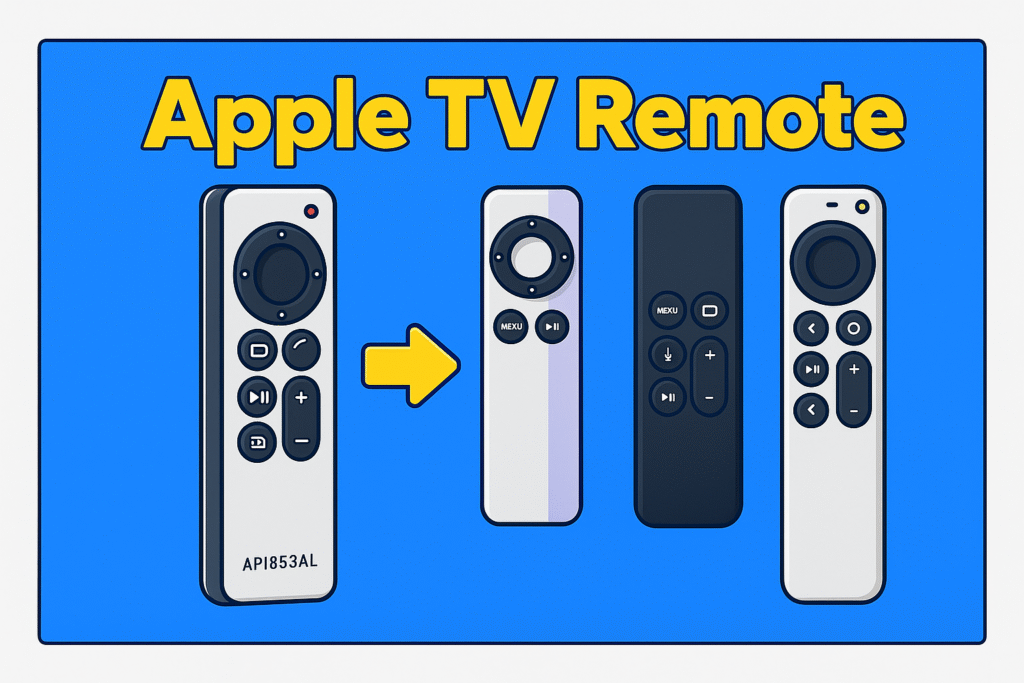
Every Apple TV remote has a different model. So, it’s important to map each Apple TV remote model to its charging port and compatibility. It shows which cable fits which remote, how to identify your remote, and whether a phone cable will work.
Does the 3rd-generation Siri Remote use USB-C?
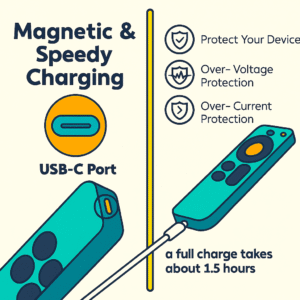
Yeah, it does. Apple switched to USB-C when the Apple TV 4K (2022) was released. You’ll notice the port looks just like the same as the newer iPads and Macs that have USB-C. Apple mentioned the change in their October 2022 update, and you can also see it listed on the official tech specs page. It’s the simple TV remote technology for charging. The nice part? You hardly need to charge it. Most people use months before it runs low.
Does the 2nd-generation Siri Remote use Lightning?
That one still uses Lightning. The 2nd-generation version comes with earlier Apple TV 4K boxes. Apple even gave a Lightning cable in the packaging. If you’re not sure which one you’ve got, then check the model number, that’ll tell you quickly.
How do I identify my Apple TV remote model?
Match the remote’s shape, button layout, and port. USB-C ports mean the newer 3rd-gen and the lightning ports mean older Siri Remote models.
Open Settings → Remotes and Devices on Apple TV to view the remote name. You can also compare the remote to Apple’s identification gallery, which lists visual differences and Bluetooth versions. Apple Support+1
Use this short table to match your remote at a glance.
| Remote Model | Released | Charging connector |
| Siri Remote (3rd gen) | Introduced Oct 18, 2022 | USB-C |
| Siri Remote (2nd gen) / Apple TV Remote (2nd gen) | Earlier 4K/HD shipments | Lightning (often included cable). |
| White/aluminum Apple Remote | Older Apple TV models | Non-rechargeable – uses a coin cell battery. |
Can I use a phone cable to charge the remote?
Yes- you can use any certified USB-C or Lightning cable that fits the remote’s port. Use certified cables to avoid poor connections or slow charging.
Third-party cables can work, but sometimes they create problems in your device. Apple’s support pages advise to pair the TV remote with a standard USB port or Apple power adapter. Because uncertified cables sometimes fail to charge properly.
Troubleshooting Charging Problems
Sometimes, your Apple TV remote does not charge properly. Before thinking the remote is dead, there are a few simple checks that solve most charging problems. Here we discuss real causes and an easy way to fix them.
Apple Remote not charging – what to try first?
Change the cable and power source before assuming the remote is faulty.
Unplug the current cable and use another one that fits your remote’s port; USB-C or Lightning. Try a wall adapter power of around 5 to 20 watts. Plug into a different adapter or try a computer’s USB port to see if it lights up or not. A weak cable or adapter can cause this problem.
Quick checklist:
- Try a different charging cable.
- Use a different adapter with steady output.
- Test a known-good power source.
- Wait at least ten minutes before judging the result.
Remote charges too slowly
A slow charge usually comes from a weak adapter or a dusty connector.
Laptop USB ports often send very low current. Plug into a proper wall charger for faster flow. If the cable tip looks dusty or old, just wipe it gently with a soft brush or cotton swab. Avoid pushing anything sharp into the port.
Remote still dead after charging
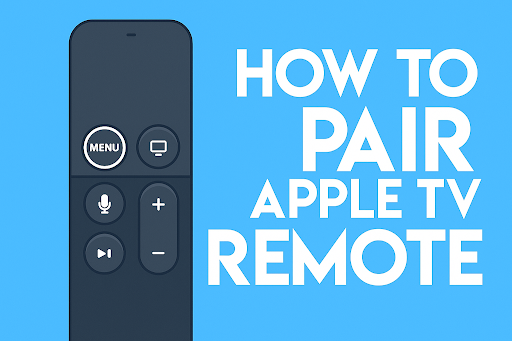
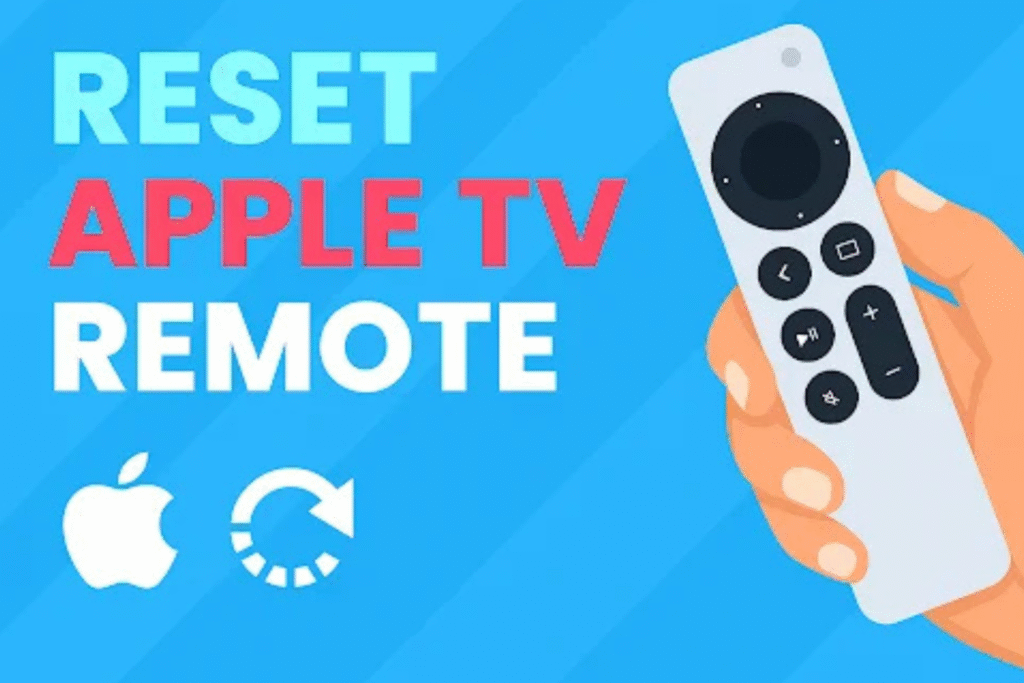
Try to reconnect the remote with your Apple TV. Unplug it, then restart the Apple TV. Hold Back (or Menu) and Volume Up for about five seconds, keeping the remote close to the device. When the pairing notice shows up, wait for it to finish. If nothing changes, charge again for 30 minutes and repeat.
Dirty or damaged charging port
Stop charging if the port feels loose or blocked. Give it a few quick blows of air or brush it gently to clear lint. Sanitize the TV remote and never use liquids or metal tools. If the connector feels loose or the pins look bent, don’t force it; take it to Apple Service instead, pushing harder can make things worse.
When nothing helps
Reach out to Apple Support for a proper check.
Keep your Apple TV’s serial number ready and note how long the issue has lasted. Apple technicians can test the remote’s battery health and confirm whether it needs to replace batteries in TV remote or repair it.
These steps cover every usual reason an Apple TV remote refuses to charge – from cable faults to port wear. Simple swaps and clean checks often bring it back to life.
Battery Care, Safety & Diagnostics
Taking care of your Apple TV remote battery helps it last longer and stay safe. Small habits like gentle charging, keeping the remote clean, and avoiding rough handling can prevent most battery issues. Proper battery care habits and safety limits keep your Apple TV remote working longer and prevent damage.
Best charging habits for battery health
Top habits: keep the remote topped up, use certified USB-C cables, and charge with a stable 5–20W adapter.
Charge your Siri Remote regularly within 2-3 weeks. Never let the battery run completely empty. Use Apple-certified Lightning cables or a standard USB-C cable. Wall adapter (5–20 watts) assures continuous current. But weak USB ports slow charging and increase heat.
Is partial charging bad?
No, partial charges reduce stress on the lithium battery and help extend its lifespan.
Lithium cells do better with frequent small top-ups than repeated deep drains. Charge cycles count toward battery wear; smaller charges consume fewer cycle percentages than full discharges.
Can I leave the remote plugged in overnight?
Yes, leaving a Siri Remote connected overnight is safe. But avoid continuous high-heat charging for long periods.
Modern device charging circuits slow the current near full capacity to limit stress. Still, avoid charging inside hot environments or on soft surfaces that trap heat.
Temperature and storage guidelines
Temperature is an important thing for your Apple TV remote because maintaining proper temperature helps to save your battery life. Operate your TV remote between 0°–35° C (32°–95° F). if you are not using your Apple TV remote, store it at about 50% charge for long-term storage.
Apple lists these exact ranges in Siri Remote specs and battery guidance. For multi-month storage, charge to roughly 50% and check every six months.
Temperature & storage quick table:
| Details | Temperature |
| Operating temp | 0°–35° C (32°–95° F). |
| Non-operating temp | −20°–45° C (−4°–113° F). |
| Long-term storage charge | 50% every 6 months. |
How to check the Siri Remote battery on Apple TV
Open Settings → Remotes and Devices → Remote to view battery level and percentage.
Select Remote on the Apple TV to see a battery icon and percentage. This gives the quickest readout without external tools and helps decide whether to charge now or later
Accessories, Replacements & Workarounds
Best docks and cables – what to choose
Use a good USB-C or MFi Lightning cable with a 10–20W wall charger. You can also use a small dock to keep it organized. braided cables with strong connectors to prevent fraying. For USB-C remotes, use a USB-C PD charger that gives 10–20 watts. For Lightning remotes, use MFi-certified Lightning leads. A simple dock helps keep the remote visible and avoids pocket lint in the port.
Recommended features table
| Feature | Why it matters |
| Braided cable | Resists wear and bending |
| Reinforced connector | Reduces loose contact |
| 10–20W adapter | Faster, steady charging |
| MFi-certified (Lightning) | Compatibility and safety |
When to repair vs replace
Replace if the remote has visible physical damage or fails basic charging checks with multiple cables and adapters; consider repair for bent connectors or loose buttons.
If swapping cables and adapters does not restore charging, and the port or housing shows damage, replacement is often faster. For minor port issues or button faults, Apple Store or an authorized service can inspect and repair.
Temporary replacements: Apple TV Remote app & universal remotes
If your Apple TV remote stops working or is lost, you can use your iPhone or a universal remote. These work until you fix or replace your Siri Remote.
On your iPhone, open Control Center and tap the Remote icon. Then follow the steps to connect it to your Apple TV. Many universal remotes, like Harmony remotes or ones from TV makers, can control Apple TV through IR or HDMI-CEC connection setup. They’re simple backups to keep your Apple TV running.
FAQs
Can I charge the old white Apple Remote?
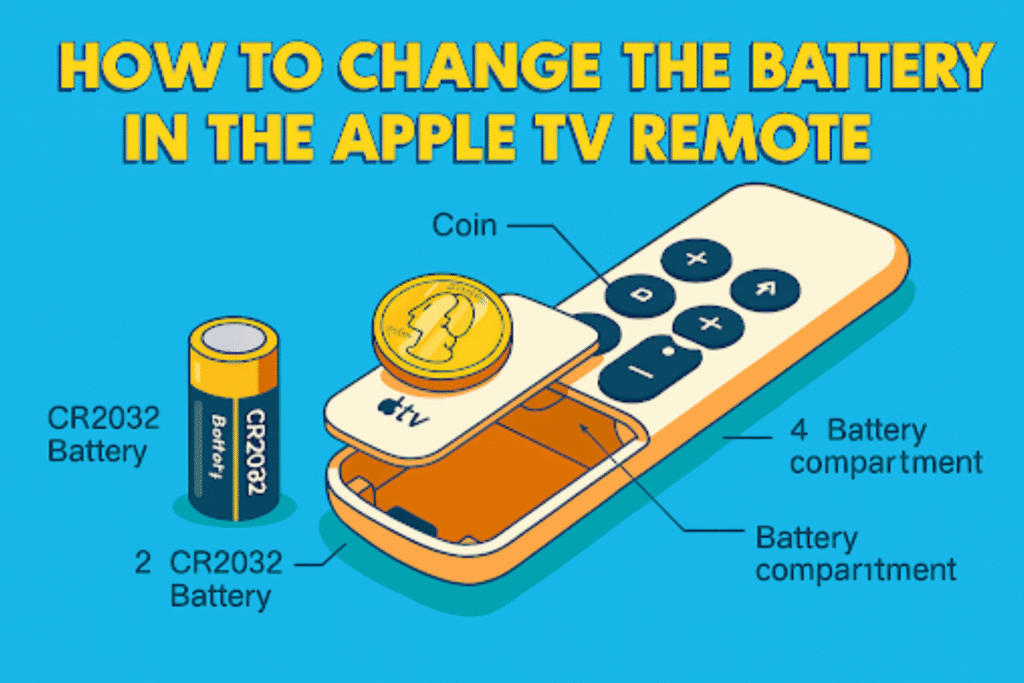
No – the white/aluminum Apple Remote uses a replaceable coin cell, not a rechargeable battery.
Swap the cell at most electronics stores.
Can I replace the battery myself?
No for sealed Siri Remotes – Apple or a certified service should handle internal battery work.
Opening the case voids the warranty and risks damage.
Does wireless charging exist for the Siri Remote?
No – Apple does not support wireless charging for Siri Remotes as of the current models.
Charge via the port only.
Will third-party cables harm the remote?
Yes-low-quality cables can cause slow charging or a loose connection. Use MFi or well-reviewed USB-C leads. Avoid frayed or cheaply made cords.
How long is a typical replacement process at the Apple Store?
Times vary by location; many stores offer same-day replacement if stock exists.
Call ahead or check Apple Support for availability.
Conclusion
Knowing how to charge an Apple TV Remote helps you to use your Apple TV like an expert. And proper charging ensures the long-lasting battery of your Apple TV remote. Choose the correct cable for your Apple TV remote model. Test cables and adapters before replacing your TV remote. And use the Apple TV Remote app as a temporary option.
If you’re a Samsung TV user, check out our Samsung Remote Control Guide for a complete setup, button functions, and compatibility details across all models.