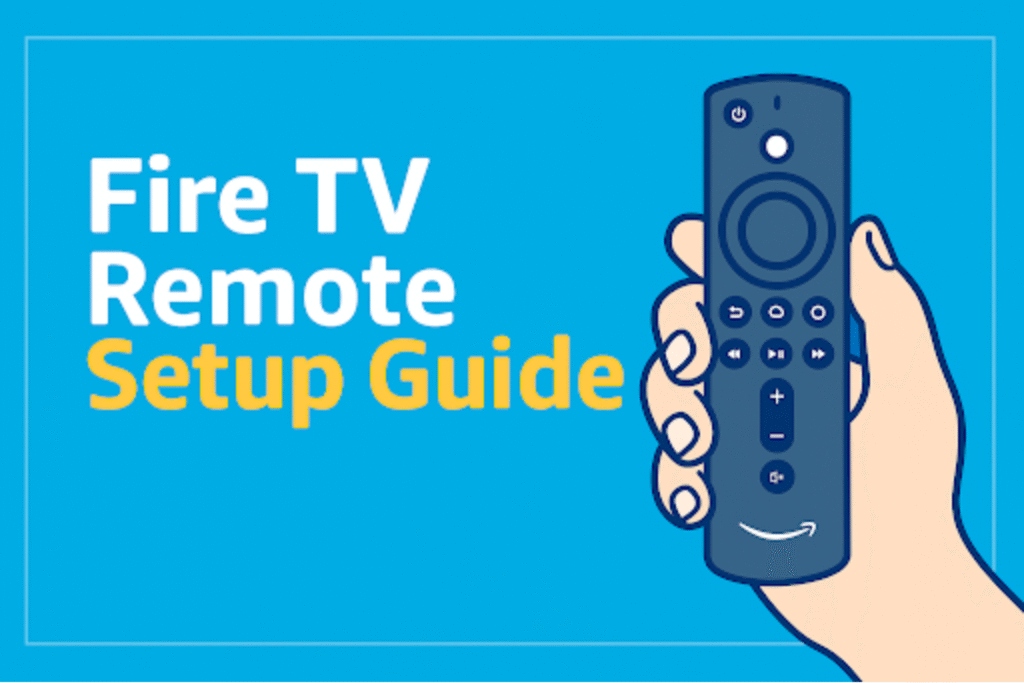
Many people use a Fire TV remote every day but still feel unsure about what some buttons actually do. Its button layout looks simple at first glance, but a few keys can be confusing when you are trying to move fast.
The good news is that once you understand the purpose of each button, the whole Fire TV feels easier to control. You do not have to guess or press the wrong button and you can switch apps or adjust settings.
So, in this guide, we will break down every button in a clear way. We discuss exactly what each key does so that your streaming feels smooth from the start.
Overview of the Amazon Fire TV Remote Family
Amazon makes several remotes for its streaming platform. Some remotes add a microphone button for Alexa, while others add dedicated app shortcuts. The smallest remotes rely on Bluetooth pairing to control a Fire TV Stick or Fire TV Cube. Larger remotes for Fire TV Edition televisions include extra TV control keys.
What is the difference between the Fire TV Remote and the Fire TV Voice Remote?
The Fire TV Remote offers basic navigation and playback buttons. The Fire TV Voice Remote adds a Voice button, and some models have an apps button and a headphone button. Both use Bluetooth for pairing with the streaming device. The Voice variant reduces typing and allows you to speak for search, launch apps, or control playback.
Which Fire devices and TVs work with which remote?
Most Fire TV Sticks and the Fire TV Cube work with both Bluetooth and IR remotes.
Newer Fire TV Stick models pair with Bluetooth for navigation and voice. The Fire TV Cube accepts full voice control and advanced commands. Fire TV Edition televisions come with remotes that also send IR to the TV for volume and power.
Standard Buttons & Navigation Controls
Navigation is the core job of the remote, and most users rely on five control groups. The layout groups navigation, selection, system, playback, and quick apps. Learning the button group cuts scrolling time and prevents accidental app launches. Below you will find the exact function for each primary button. So you can move through Fire OS with intention.
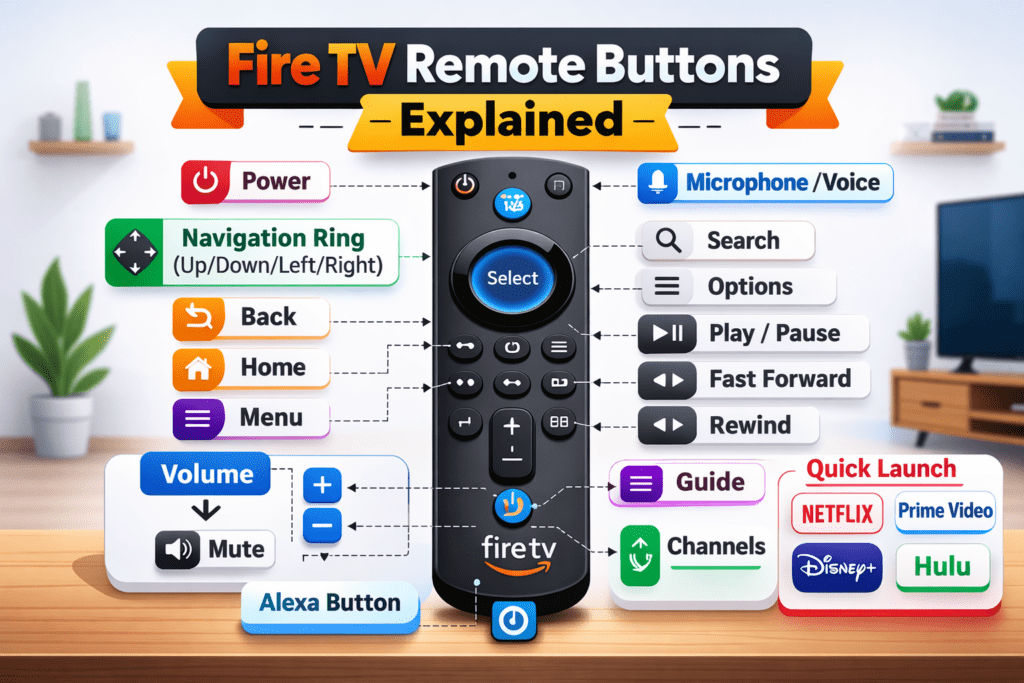
D-Pad (Up / Down / Left / Right) – Navigating Fire OS menus
Press Up or Down to jump between rows on the home screen. Use Left and Right to move inside app grids or media scrubbers. The D-Pad changes the focused element and highlights it visually. When a list supports fast scroll, repeated presses in the D-Pad accelerate movement.
Select (Center) / OK button – Selecting UI elements & confirming actions
The Select button chooses the highlighted item and confirms dialogs or playback choices.
After you move with the D-Pad, press Select to open an app, play a video, or accept a permission. Many apps need a long press on Select to reveal context menus.
Home button – Return to home screen behavior
The Home button always returns you to the Fire TV home screen from any app or setting.
Press Home once to leave an app, and the app keeps running in the background. But pressing Home again from the main screen has no effect. Some models support a long press to open quick actions, but the primary function immediately jumps back to the Fire OS home.
Back button – Return to previous screen / cancel action
The Back button steps back one screen to the previous screen without leaving the current app.
Use Back to dismiss menus, close on-screen keyboards, and undo navigation. It reverses the last navigation state and rarely exits the app unless you press it repeatedly. The Back action is safer than Home when you want to remain inside the app.
Menu (Three-bar) button – Context-specific options & settings
The Menu button opens contextual options related to the current screen or item.
When you see a video, the Menu may show subtitles, audio tracks, or playback speed. But on app tiles, it can reveal settings, pinning, or app information. Its function varies by app because the Menu button sends general options, and apps decide how to respond.
Media Playback Controls
Playback buttons let you watch, pause, and move through video and audio without fumbling with the app controls. They sit near the center of the remote. Learning each playback key saves time when you skip intros, rewind a line, or jump ahead during a movie. Below, I explain the exact function for Play / Pause, Rewind, Fast Forward, and the Skip ±10 seconds actions.
Play and Pause – Basic playback control
Press Play and Pause to start or stop media playback instantly. When you press Play and Pause, it resumes or stops the media. Streaming apps like Prime Video, Netflix, and Disney+ respond to this button within a second. So you can control any video without opening an on-screen control.
Rewind – How to rewind, typical behaviour (skip 10s / long-press)
Press Rewind to jump backward in short steps and press Long to scan backward at increasing speed.
A single Rewind press typically steps back about 10 seconds in many streaming apps. Hold the Rewind button to enter scan mode.
Fast Forward button
A quick Fast Forward press often skips ahead about 10 seconds. Also, a long press on the fast-forward button accelerates playback scanning. Most apps show a time so that you can stop when you reach the desired scene. Games and interactive apps sometimes ignore fast forward and map the button
TV & Device Controls Button
Some remotes control the TV as well as the Fire device. So you do not need multiple remotes. Volume and power keys talk either to the TV via IR or to the Fire TV device via Bluetooth, depending on the model.
Power button – on/off
The Power button simply on and off the TV. On Fire TV Edition remotes, the Power signal often sends IR to the television so the TV reacts instantly.
Volume Up and Down buttons
Volume Up and Volume Down change the audio output level on the TV or soundbar.
Press Volume Up or Volume Down to adjust volume. Some remotes send IR codes directly to the TV or a paired soundbar.
Mute button – Muting/unmuting audio
The Mute button silences the TV or audio system. A single press of Mute sets the audio output level to zero, and the screen often shows a muted icon. Press again to restore the sound.
Channel up and down buttons
The channel up and down buttons move through live TV one channel at a time. You can move one channel to another TV channel without effort. It feels more natural when you just want to browse quickly.
Guide button
The Guide button opens the full live TV grid to see channels, upcoming shows, and program times in one place. It saves you from searching through different menus and keeps all live content visible in a clean layout. Many users rely on it as their main starting point for live TV.
Settings button
The Settings button jumps straight to your Fire TV’s system options. It helps you reach Wi-Fi, display settings, sound controls, and device preferences with a single press.
Recent button
The Recent button shows your last-used apps, channels, and videos. You can return to something you watched or an app you opened earlier without searching the home screen again. It keeps your viewing flow smooth when you switch between apps often.
LED light indicator
The LED light indicator shows when the remote enters a button or enters pairing mode. You see a short blink when everything works normally, and a steady flash appears when the remote tries to connect. It helps you understand the remote’s status without opening any menu.
Voice Control & Smart Features
Voice control gives you a quicker way to search for shows or apps when you do not want to scroll through menus. The Voice button works with Alexa. so you can search, open apps, or ask simple questions. It saves time because the remote handles the command in one step instead of several clicks.
Alexa / Voice button – How to use voice commands
Hold the Voice button and speak the command. Once you press and hold the button, the remote listens to it and sends it straight to Alexa. You can say things like “Play” or “Pause” or open an app by name, such as “Open Netflix”. Search phrases like “action movies” also work because Alexa scans the available apps and brings up a list.
Microphone button
The microphone button lets you speak to Alexa without digging through menus. Just press and hold it, say what you want. It keeps searches simple when you want results faster than typing on the screen.
Headphone button (Voice Remote Pro only)
The headphone button on the Voice Remote Pro opens Bluetooth audio pairing in one step. You tap it, your Fire TV shows the nearby devices, and you choose your earbuds or headphones. It helps when you want quiet, private listening without changing other settings.
Quick-Launch App Buttons & Remote Variants
Quick-launch buttons put your favorite apps and save time when you jump between streaming services. Some remotes include two to four app keys that open Netflix, Prime Video, Disney+, or other services instantly. Remote versions change the button map and the control method. So you should check your remote model before you use the shortcut App button.
What are Quick-Launch / app buttons?
Quick-launch or App buttons open an app directly with a single press. These shortcut buttons sit near the bottom of the remote and map directly to a specific app. If you press a quick-launch key and the app is not installed, the Fire TV usually offers to install or show the store page.
Differences between base, voice, and Fire TV Edition remote layouts & feature sets
Base remotes focus on navigation and playback, while voice remotes add a microphone button, and voice pro has a headphone button.
A standard Fire TV remote includes D-Pad, Select, playback keys, and simple system controls. The Voice variant adds the Voice button for Alexa and sometimes two or three quick-launch app keys. Remotes bundled with Fire TV Edition televisions usually include IR codes or extra TV keys for volume and power to control the TV directly.
Below is a quick comparison table:
| Remote Variant | Quick-launch Keys | Voice / Alexa | TV Control Method |
| Base / Lite remote | 0 to 2 (variable by gen) | No (older versions) / Yes (Lite versions) | Bluetooth only (no TV controls) |
| Voice Remote (3rd Gen+) | 1 to 4+ (variable by gen) | Yes | Bluetooth and full IR (power, volume, mute) |
| Fire TV Edition remote | 2 to 4 | Yes or No (variable) | Bluetooth plus IR for power, volume, input/channel |
| Alexa Voice Remote Pro | 6 total (2 customizable + 4 fixed app keys) | Yes | Bluetooth and IR (power, volume, mute, input) |
FAQs
How do I fix the Down button not responding?
Reboot the Fire TV and run the unpair and re-pair sequence. Hardware issues show up when other remotes work, but yours doesn’t.
Why does my remote lose connection randomly?
The remote loses connection because of the IR path blockage. Keep the remote within 3 meters and remove any metal objects blocking Bluetooth. A device restart helps stabilize the link.
Why are my button presses delayed?
Weak batteries slow response time, so replace them first. A quick Fire TV restart improves speed when the system hangs.
What to do if the remote buttons stop responding?
Replace the batteries, try the Fire TV app, and run the remote pairing sequence before assuming hardware failure.
Start with fresh batteries and test basic presses. Next, use the Fire TV smartphone app to verify device responsiveness.
Conclusion
Now you know how each key on the Fire TV Remote acts in Fire OS. The D-Pad, Select, Home, Back, and playback keys let you navigate and control media precisely. The Voice button speeds searches and launches apps with a single command. Also, the TV control keys manage power and volume when paired correctly. For quick fixes, start with fresh batteries, check HDMI-CEC and IR routes, and use the Fire TV app as a reliable fallback.