Programming a DIRECTV Remote allows you to use one remote for both DIRECTV and a Samsung TV. You can control everything: power, volume, and input with a single remote. This is a convenient way to reduce clutter and speed up daily use. But, many users struggle when they don’t know how to program a DirecTV or their DIRECTV Remote changes channels on the receiver but refuses to adjust the Samsung TV’s power or volume.
People suffer from these problems because DirecTV has multiple remote models, and each one pairs differently. So, to program the remote correctly, you need to know your remote family. Like the Genie, Universal, and RC-series models use their own key patterns, and common units like RC73, RC72, RC66, and RC65 work in IR or RF mode, which affects the steps. Also, Samsung TVs use specific infrared codes, and newer Tizen models often need extra menu changes before they accept control.
That’s why people think the setup process is so complicated. But the good news is, this guide gives tested steps with exact codes and button flows so that the setup finishes in under ten minutes. So, are you ready to ditch the remote clutter and gain control? Let’s get started!
What You Need Before Programming a DIRECTV Remote to a Samsung TV?
Start with a few simple checks so setup goes smoothly, and you avoid repeated attempts. First, you need fresh AA or AAA batteries installed and place the DIRECTV Remote within 3 meters of the Samsung TV. You may also need a compatible DIRECTV remote with a Samsung TV with the exact Samsung code. So, here is the main thing you need to know:
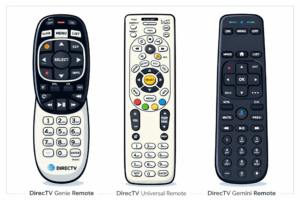
Compatible DIRECTV Remote Models With Samsung TV
- Genie RC73, RC72, and RC71 are fully capable of programming to control Samsung TVs using either auto-search or manual code entry.
- Universal RC66 and RC65 support most Samsung models and provide standard code-entry and on-screen programming options.
- Older RC-series remotes may require switching to IR mode to control the TV directly.
Compatible Samsung TV Models
- Most Samsung LCD, LED, QLED, and Neo QLED TVs respond to standard infrared codes used by DIRECTV remotes.
- Samsung Smart TV running Tizen will accept code, but may need HDMI-CEC disabled for full remote control in rare cases.
- Very old Samsung CRT sets may use legacy codes and need a different code set than modern models.
Common Samsung Remote Codes Table
Below is a short table of commonly successful Samsung codes used with DIRECTV remotes. Try them in order and use the DIRECTV code lookup if none work. The codes are five digits in many DIRECTV guides, and some older lists show 3 or 4-digit alternatives, so try both types if your remote accepts them.
| Samsung TV type | Example DIRECTV code | Notes |
| Samsung Smart TV Tizen | 10812, 11178, | Start with this code for 2016–2025 models |
| Samsung QLED / Neo QLED | 12051, 12071 | Works for many QLED series |
| Samsung UHD 4K | 10706 | Use when the QLED code fails |
| Older Samsung LCD | 10060, 10178, 10687, 10030 | Try sequential codes if one fails |
How to Program a DIRECTV Remote to a Samsung TV (Automatic Method)?
You can set up a DIRECTV remote with a Samsung TV by letting the remote run its auto-search routine. It basically tries different Samsung codes on its own and stops once the TV reacts to a power or volume press.
Here’s the step for auto-programming :
Step-by-Step
- Turn on the Samsung TV and the DIRECTV receiver then point the DIRECTV Remote at the TV while standing 1 to 3 meters away.
- Press and hold MUTE and SELECT together until the green light blinks twice and then release the buttons.
- Press 9 9 1 then wait for the green light to blink twice to confirm the remote entered code search mode.
- Press 1 to start the auto-search phase then watch the TV for a power cycle or volume change.
- If the TV responds press SELECT immediately to lock the code and stop the search.
- After a successful lock test power, volume, and input keys to confirm IR control works reliably.
- If volume controls change the receiver instead of the TV switch the remote to TV mode and repeat the lock process with a different Samsung code candidate.
- Finish by replacing batteries if the response is weak, and then re-test from 3 to 5 meters to confirm line-of-sight reliability.
How to Program DIRECTV Remote Manually Using Samsung Codes
Manual programming gives precise control when auto-search fails and it often locks power and volume on the first correct code. The steps use two buttons, a five digit code, and a confirmation blink to store the code.
Entering Manual Codes (Mute + Select + Code Entry)
- Turn on the Samsung TV and the DIRECTV receiver then slide the remote mode switch to TV.
- Aim the remote at the TV and hold Mute and Select together until the green light blinks twice to enter programming mode.
- Enter 9 9 1 then wait for two green blinks so the remote goes into code entry ready state.
- Type the five-digit code 54000 then press Select once to lock the code if the TV responds.
- Press the Power button to test the TV and press Volume Up to verify volume control changes the TV not the receiver.
- If the TV does not respond repeat steps 2 and 3 then enter 10060 and press Select to test again.
- If control still fails repeat the sequence and enter 10812 then press Select to lock and test power and input.
- If none of these codes work run the DIRECTV code lookup with your exact Samsung model number and your remote model, and then enter the returned code following steps 2 to 5.
How to Program DIRECTV Genie Remote to Samsung TV
Genie remotes use the receiver to guide many steps and the on-screen prompts speed the process. The remote still uses IR to control the TV while the receiver uses RF for its link, and a quick reset often improves success. Keep the Genie remote and the Samsung TV in the same room and follow the exact on-screen confirmations.
RC73 Programming Steps
- Turn on the Samsung TV and the DIRECTV Genie receiver then point the RC73 at the TV.Press and hold Mute and Enter until the receiver shows the pairing prompt on screen.
- Use the receiver menu to select TV Brands then pick Samsung from the list and confirm.
- Let the receiver send test power and volume commands and watch the TV for a response.
- When the TV reacts press Select on the remote to lock the code and finish pairing.
- If the TV ignores the test, reset the remote by holding Mute and Select until two green blinks then repeat steps 2 to 5.
- After a successful lock test Power, Volume, and Input from 3 to 5 meters to confirm reliable IR control.
RC72 / RC71 Instructions
- Power on the Samsung TV and the Genie receiver then aim the RC72 or RC71 at the TV.
- Hold Mute and Enter until the on-screen wizard appears then choose Samsung in the brand selector.
- Allow the receiver to run its test sequence and look for TV power or volume changes.
- When the TV responds press Select to store the matched code into the remote profile.
- If the test fails perform a remote reset by holding Mute and Select until the green light blinks twice and then repeat the on-screen routine.
- Confirm final control by testing Power, Volume, and Input and replace batteries if signals seem weak.
How to Program a DIRECTV Universal Remote to a Samsung TV
A DIRECTV Universal Remote uses infrared control to manage power, volume, and input on a Samsung TV once the right code is stored. The process depends on the remote model because each one uses its own pattern. Many homes still use RC66 and RC65, and these models respond well to manual or automatic routines. If the TV responds during the first test the code stays locked and works reliably.
RC66 Manual Programming
- Turn on the Samsung TV and keep the RC66 pointed at the IR window.
- Slide the mode switch to TV then hold Mute and Select until the green light blinks two times.
- Enter 9 9 1 and wait for two green blinks so the remote enters ready mode.
- Type 10060 and press Select once while keeping the remote pointed at the TV.
- Test power and volume and confirm that the TV reacts without delay.
- If the TV does not respond repeat the process and enter 10812 or 11178 as the next options.
- After a working code test Input to confirm full control.
RC65 Auto Programming
RC65 works with the auto-search method. Just press and hold MUTE and SELECT until the green light blinks twice. Enter 9 9 1 and press 1 to begin the auto-search. Watch your TV for a response, then immediately press SELECT to lock the code.
Troubleshooting When the DIRECTV Remote Won’t Work With the Samsung TV
A DIRECTV remote often fails because of blocked IR, wrong codes, weak batteries or HDMI-CEC interference. These issues appear more often with older RC models or Samsung Tizen TVs. A structured test sequence helps isolate the fault and restores control in minutes. Each symptom points to a specific cause, so fixing it depends on clear testing.
Why Is the Volume Not Working When I Use My DIRECTV Remote on a Samsung TV?
The volume fails because the remote controls the receiver instead of the TV or the Samsung TV blocks external audio commands.
This issue appears when the remote stores the wrong TV code or the sound output uses an external speaker. Reprogramming the TV code often fixes it and switching the TV audio output to TV Speaker restores direct volume control.
When Should I Reset My DIRECTV Remote (and What Are the Exact Reset Steps)?
Reset the remote when code changes fail or the remote stops sending a clean IR signal.
A reset clears old profiles and starts fresh pairing. Hold Mute and Select until two green blinks then enter 9 8 1 and wait for the final blinking sequence. After the reset the remote returns to factory state and needs new programming.
How Do I Fix IR Signal Issues on My DIRECTV Remote?
IR issues improve when you remove sensor obstructions and test the remote with a phone camera.
Weak batteries reduce IR strength so replacing them restores range. Furniture, soundbars, and bright windows block direct IR paths so clearing the line of sight helps. If the TV responds only from close range place the remote 1 to 3 meters from the IR sensor and retest.
Samsung TV & DIRECTV Remote Compatibility Chart
Samsung televisions work smoothly with the main DIRECTV remote families because each remote follows a fixed set of IR and RF control standards. The newer Samsung screens respond faster to the RC72 and RC73 signals, while older models accept IR-only commands from the standard DIRECTV remote. This chart helps you quickly see which remote works with which Samsung model. It also removes guesswork when you match a DIRECTV receiver, a Samsung TV series and a manual code.
Below is the compatibility chart with the Samsung model groups and the DIRECTV remote types.
Samsung TV × DIRECTV Remote Compatibility Table
| Samsung TV Series | RC73 (Genie) | RC72 | RC71 | Standard IR DIRECTV Remote | Notes |
| Samsung Series 4 (HD) | Yes | Yes | Yes | Yes | Works best with IR mode |
| Samsung Series 5 (HD/Full HD) | Yes | Yes | Yes | Yes | Accepts multiple Samsung IR code sets |
| Samsung Series 6 (FHD/early UHD) | Yes | Yes | Yes | Yes | Quick pairing with Genie receivers |
| Samsung Series 7 (UHD) | Yes | Yes | Yes | Yes | Stable IR control with updated firmware |
| Samsung Series 8 (UHD) | Yes | Yes | Yes | Yes | Supports both basic and advanced DIRECTV commands |
| Samsung Series 9 (Premium UHD) | Yes | Yes | Yes | Yes | Fast response to RC73 RF setup |
| Samsung QLED (Q60–Q90) | Yes | Yes | Yes | Yes | Strong RF range and reliable IR fallback |
| Samsung Frame TV | Yes | Yes | Yes | Yes | IR pairing works well on wall-mounted units |
| Samsung Crystal UHD | Yes | Yes | Yes | Yes | Stable commands for volume and input |
| Samsung OLED (S90C/S95C) | Yes | Yes | Yes | Works best with RC73 for RF control |
FAQs
What is the Samsung code for a DIRECTV remote?
The main Samsung code for a DIRECTV remote is 54000.
Samsung televisions respond to 54000 because DIRECTV assigns it as the primary IR control set. Older screens may use alternate codes such as 12051 when the main code does not register.
Does DIRECTV support Samsung Frame TV?
Yes, DIRECTV remotes work with Samsung Frame TV through IR and RF links.
The Frame TV accepts the common Samsung IR pulses, and the RC73 provides long-range commands when you use a Genie receiver.
Does the DIRECTV remote work with the Samsung Soundbar?
Yes, but the soundbar requires a separate code entry.
The Samsung soundbar uses different IR commands than the television. You must add the soundbar code after completing TV programming.
Does DIRECTV remote work with Samsung hospitality TVs?
Most Samsung hospitality TVs accept DIRECTV IR codes.
However, some units lock local controls and require hotel menu access to enable IR inputs.
Conclusion
Samsung televisions maintain strong compatibility with DIRECTV remote families because Samsung preserves a consistent IR command structure across its model lines. The DIRECTV RC73, RC72 and RC71 operate reliably with Samsung UHD, QLED, Crystal UHD and OLED screens. This steady compatibility gives stable volume, power and input control even when devices update their software.