
An LG TV remote is a handheld device that allows you to control your television easily. LG TVs are known for their smart features and fast interface. Its simple remote pairing process also makes it popular. Yet many users face confusion when they set up a new LG TV remote- or the remote stops responding or fails to connect after battery replacement. Understanding how to pair, reset, or replace an LG TV remote saves time and avoids repeated setup errors.
This guide explains every step from identifying your LG Magic Remote model to connecting it through Bluetooth or infrared modes. It also covers real compatibility details, pairing times, replacement options, and pricing facts.
What Is an LG TV Remote and How Does It Work?
An LG TV remote is a wireless device. It controls your TV with Bluetooth or infrared signals. The Magic Remote sends encrypted Bluetooth packets for pairing and supports pointer motion and voice. The Standard IR remote transmits infrared light pulses. The TV decodes those pulses into commands.
What is a Magic Remote?
A Magic Remote is a Bluetooth remote (AN-MR series) with pointer control, voice input, and on-screen pairing.
The Magic Remote uses Bluetooth LE for two-way communication. Pairing happens through the TV’s Settings- then the Remotes menu. Bluetooth pairing uses a handshake that lets the TV show pointer calibration and voice setup options.
What is a Standard remote?
A standard remote works with infrared (IR) light which needs a clear view of the TV’s sensor. It sends signals to the TV. No pairing is required. Distance usually ranges up to 10 feet -but walls or objects block the signal.
Magic Remote vs Standard Remote
| Feature | Magic Remote (Bluetooth) | Standard Remote (IR) |
| Signal type | Bluetooth LE | Infrared (IR) |
| Pairing | Required via TV menu | Not required |
| Pointer/cursor | Yes | No |
| Voice input | Supported (microphone built-in) | Not supported |
| Line of sight | Not required | Required (direct aim) |
| Typical range | Up to 30 ft | Up to 10 ft |
Quick Checklist Before You Start
1) Replace batteries: Use fresh alkaline or NiMH batteries. Follow proper battery installation in the TV remote to ensure correct polarity and voltage.
2) Ensure TV power is on: Verify TV shows the boot logo
3) Remove obstructions: Clear objects between the remote and the sensor
4) Confirm remote model: Read the model number inside the remote battery door.
5) Update TV firmware: Update firmware via Settings → All Settings → Support → Software Update.
6) Stay within 10 ft for IR.
7) Restart TV: Power-cycle the TV (unplug for 10 seconds, replug).
What tools & materials should I have ready?
Batteries, remote model number, TV model number, internet connection, and a phone torch (for IR test).
Batteries ensure correct voltage. Model numbers help support agents and firmware checks. The Internet enables firmware downloads. A phone torch helps confirm IR LEDs (see expansion).
| Item | Why it matters |
| Fresh AA/AAA batteries | Ensures correct voltage and current for remote functions |
| Remote model number | Needed for pairing instructions and compatibility checks |
| TV model number | Required for firmware and support lookup |
| Internet connection | Allows firmware updates and on-screen pairing steps |
| Phone with a torch | Use a torch to view the IR LED flashes during the button press test |
Point the remote at a phone camera and press any button. If the camera shows a pulsing light at the remote tip, the IR LED emits pulses. No light indicates battery or hardware failure.
How to Pair an LG TV Remote for the First Time
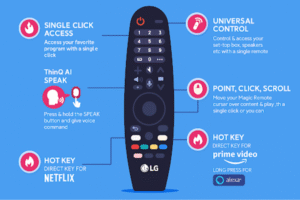
Press and hold HOME + Wheel (OK) for 5 seconds. Wait for the TV pairing prompt. Then accept on-screen.
Most AN-MR series remotes use that combo on webOS TVs sold from 2015 to 2025. Their LED behavior is three quick flashes means a pairing request is sent. A steady blink means awaiting confirmation. If the TV shows Registering Magic Remote, stop pressing buttons and confirm with the on-screen Accept button. Test the pointer, voice key, and scroll wheel after pairing.
Step-by-Step
Follow these steps to connect your LG TV remote for the first time.
1) Turn on the TV.
2) Point the remote within 6–10 feet.
3) Hold Home + Wheel (OK) for 5 seconds.
4) LED flashes 3 times → pairing complete.
5) Accept pairing on-screen and test the pointer.
Notes:
- Pairing a new TV remote usually takes 3 to 10 seconds, depending on the TV model and its firmware version
- Voice-enabled Magic Remotes register through Bluetooth and webOS pairing.
How do I re-pair a Magic Remote?
For repairing a magic remote – first you have to unpair it. You can unpair the remote by holding HOME + BACK for 5 seconds. Then re-pair with HOME + Wheel (OK). Unpairing removes the remote from the TV. After unpairing, turn off the TV and unplug it for 10 seconds. Then perform the standard pairing steps. If the remote LED shows no light after battery swap, check battery polarity and voltage (alkaline ≥1.5V).
For 2021 and Newer Magic Remotes
- Hold the HOME and SETTINGS buttons together for about 5 seconds.
- When the small light on the remote blinks three times and stays on, let go.
- Press the Wheel (OK) button once to finish pairing.
- The remote reconnects through Bluetooth in a few seconds.
For Older Magic Remotes (Before 2021)
- Hold the HOME and BACK buttons for 5 seconds to remove the old link.
- When the light blinks three times, press the Wheel (OK) button again to link it back.
- You’ll see “Registration complete” appear on the TV once pairing is done.
Button combo table (quick reference)
| Action | 2015–2020 (older) | 2021+ (newer) |
| Pair | HOME + Wheel (OK) (5s) | HOME + Wheel (OK) (5s) |
| Re-pair / Unpair | HOME + BACK (5s) | HOME + SETTINGS (5s) |
How do I pair a Standard IR remote?
Insert fresh batteries, point at the TV IR sensor, and press Power. No pairing required.
IR remotes send one-way pulses to the TV IR receiver. Make sure nothing is blocking the TV’s IR sensor. Even a thin layer of glass, cloth, or plastic can stop the signal. If the TV still doesn’t respond, try a quick test using your phone’s camera.
Point the camera at the front tip of the remote and press any button. Watch the screen. If you see a small blinking light, the remote’s IR signal is working fine. If you don’t see any flash, the batteries might be weak or the remote needs a reset.
How to Set Up and Program Universal Control on Your LG TV Magic Remote
Universal remote setup control external devices and use LG’s Universal Control features. Keep the TV firmware current and confirm device compatibility before programming. You can control all your devices with one remote using HDMI-CEC or LG’s Universal Control for easy home entertainment.
How do I enable Universal Control on an LG TV?
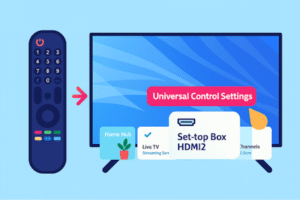
Press the Settings button, go to All Settings, then open General → External Devices → Universal Control Settings.
Choose your device and service provider, follow the steps on-screen, and test the buttons. When everything works, select Finish.
The TV runs an auto-search that sends power and input commands to connected devices. Auto-detect tests up to 250 device codes per category. Allow 60–90 seconds for the sequence. If the TV fails to detect, proceed to manual code entry or IR learning.
Pairing After Updates, Unpair & Replacements
How does IR learning work for unsupported devices?
Use Remote Learning in Universal Control, press the source remote’s button toward the TV IR sensor, and map each function.
Learning captures IR pulse patterns into TV memory. Map at least Power, Volume Up/Down, and Input. Save the learned profile and test all mapped buttons before exiting.
How to pair the remote after a firmware update or power outage?
Restart the TV, update software if available, then retry pairing within 60 seconds of reboot.
Software Update path: Settings → Support → Software Update. Firmware builds fixed pairing bugs in webOS versions; check update notes for Magic Remote compatibility.
How to unpair a Magic Remote so it can connect to another TV?
Run the Unpair function in Settings or hold the remote’s unpair combo (Home + Settings or Back) until the LED blinks, then confirm on-screen.
Unpairing clears the TV’s stored remote ID. After unpair, pair the remote to the new TV using the standard registration steps. For shops or resale, always unpair to avoid accidental control.
When should I replace a remote versus call LG Support?
Replace the remote if LEDs stay dark or buttons fail after fresh batteries; contact support if the TV does not detect Bluetooth signals after resets.
Replace when the IR emitter or Bluetooth radio shows no activity. Contact LG Support for hardware-level Bluetooth faults, TV Bluetooth module replacement, or warranty service. Keep the TV model number and purchase date ready for support.
Troubleshooting: Top LG Remote Problems and Fixes
There are simple fixes for common failures for the LG Magic Remote, standard IR remotes, and universal remotes. Use the checklist and pairing steps from earlier parts before trying fixes. Reiterate core goals: restore pairing, recover pointer, and verify voice control.
Why are voice commands not recognized?
Microphone permission, firmware mismatch, or incorrect voice assistant link blocks voice input.
Open Settings → All Settings → General → Accessibility → Voice recognition to confirm the microphone is enabled. Update webOS via Settings → Support → Software Update. Re-link the LG ThinQ account or the chosen voice assistant.
What causes universal remote programming to fail?
An incorrect device code, an unsupported device, or a wrong input type prevents programming.
Use Auto-Search first; allow up to 90 seconds. If auto-search finds no code, try three alternative manual codes from LG’s code list. If the learning mode fails, check the source remote’s IR emitter with a phone camera to confirm it transmits.
When should I replace the remote versus seek LG warranty service?
Replace if LEDs stay dark or buttons fail after fresh batteries; contact LG if the TV does not detect Bluetooth radios after resets.
Buy a verified replacement remote when the battery compartment shows corrosion or the IR emitter fails. Contact LG support for TV-side Bluetooth faults, firmware rollbacks, or if the TV’s Bluetooth module requires repair under warranty.
How do I reduce future pairing problems?
Keep firmware current, rotate batteries annually, and avoid placing routers directly behind the remote charging area.
Schedule software updates monthly. Use fresh batteries once per year in heavy-use households. Store spare remotes away from heat sources and avoid stacking remotes atop Wi-Fi routers.
Troubleshooting quick table (symptom → cause → fix → escalate)
| Symptom | Probable cause | Fix (steps) | Escalate when |
| No pairing prompt | Dead/low batteries | Replace batteries; reboot TV; retry pairing | Still no prompt after reset |
| LED blinks, no connection | Interference or update bug | Move remote 0.5 m from routers; update webOS | TV never shows registration UI |
| Cursor jitters | Bluetooth noise or a weak battery | Swap batteries; re-pair the remote | Persistent lag after re-pair |
| Voice not detected | Mic permission or unlink | Enable mic in Settings; re-link assistant | The assistant refuses to link |
| Button failure | Debris or membrane wear | Clean; press 10×; replace remote | Buttons are dead after replacement |
FAQ
How long does pairing usually take?
Pairing completes within 30–90 seconds on most webOS LG TVs.
Allow the TV to boot fully before starting. If no prompt appears, update firmware and retry within one minute of reboot.
Will a universal remote work with webOS pointer features?
No. Universal remotes control power and volume, but do not provide the Magic Remote pointer or voice.
Use universal remotes only for basic functions; buy an LG Magic Remote for full webOS interaction.
Where should I buy an official LG replacement remote?
Buy from LG’s official store or major US retailers: Amazon, Best Buy, and Walmart.
Order the exact AN-MR model that matches your TV model number. Check the seller’s warranty and confirm the product listing mentions “for LG” and lists compatible models. Use the TV model found at Settings → General → About this TV to verify.
Should I choose original or aftermarket remotes?
Choose original LG remotes for pointer and voice; aftermarket for cheap basic controls.
Original remotes preserve Bluetooth pairing and webOS features. Aftermarket remotes usually provide IR-only power and volume. If you need a pointer, a microphone, or firmware sync, buy an LG AN-MR series remote.
Conclusion:
Check compatibility, use fresh batteries, confirm model numbers, and update webOS before pairing. This will help you maintain your TV remote.
Save your TV model and remote SKU for faster support. If pairing still fails after these steps, contact retailer support or LG service with your TV model and purchase date.