Pairing an Apple TV Remote is the first step to control playback, volume, and navigation across the tvOS interface. Every Apple TV generation works with a specific remote model. Through pairing remote work perfectly over Bluetooth or infrared. A properly paired remote reduces lag and maintains signal reliability. This also unlocks full Siri voice control when supported.
The current Siri Remote (3rd generation) connects through Bluetooth Low Energy, while older versions rely on classic Bluetooth and IR fallback. Some new models also include a USB-C charging port and faster response calibration under tvOS 18.
So, this guide explains how to pair, re-pair, and troubleshoot your Apple TV Remote using the latest methods verified under tvOS 18. All steps are based on Apple’s current documentation and tested across compatible hardware models for 2025.
Understanding Apple TV Remote Pairing: The Basics
What “pairing” means -Bluetooth, IR, and fallback modes
Pairing is the process that connects a specific Apple TV Remote to an Apple TV through Bluetooth Low Energy, while infrared acts as a fallback for basic commands.
This link allows tvOS to identify the remote, exchange secure control data, and maintain quick signal response. Bluetooth remote control manages all navigation and Siri actions, while IR handles power and volume when Bluetooth is unavailable or the TV lacks HDMI-CEC support.
Bluetooth Low Energy link vs classic Bluetooth
Bluetooth Low Energy pairs faster and uses less energy. It reduces input delay than classic Bluetooth.
BLE also keeps a continuous connection between reboots and firmware updates. Apple adopted BLE to cut latency below 20 milliseconds, improving menu scrolling and voice-command response in tvOS 18.
Heres the comparison between Bluetooth Low Energy vs classic Bluetooth:
| Feature | Bluetooth Low Energy (BLE) | Classic Bluetooth |
| Typical use | Siri Remote 2nd–3rd gen | Early Apple Remotes |
| Average pairing time | 1–3 seconds | 5–10 seconds |
| Power consumption | Minimal | Higher |
| Input delay | ≤ 20 ms average | > 30 ms average |
| Encryption | Secure BLE pairing | Variable profiles |
IR fallback and when it’s used
Infrared fallback activates when Bluetooth is out of range, disabled, or blocked.
It sends one-way signals to control volume and power through a TV’s IR receiver. IR functions even during initial setup or if the remote battery runs low, provided the sensor line remains unobstructed.
Different Apple remote models and compatibility
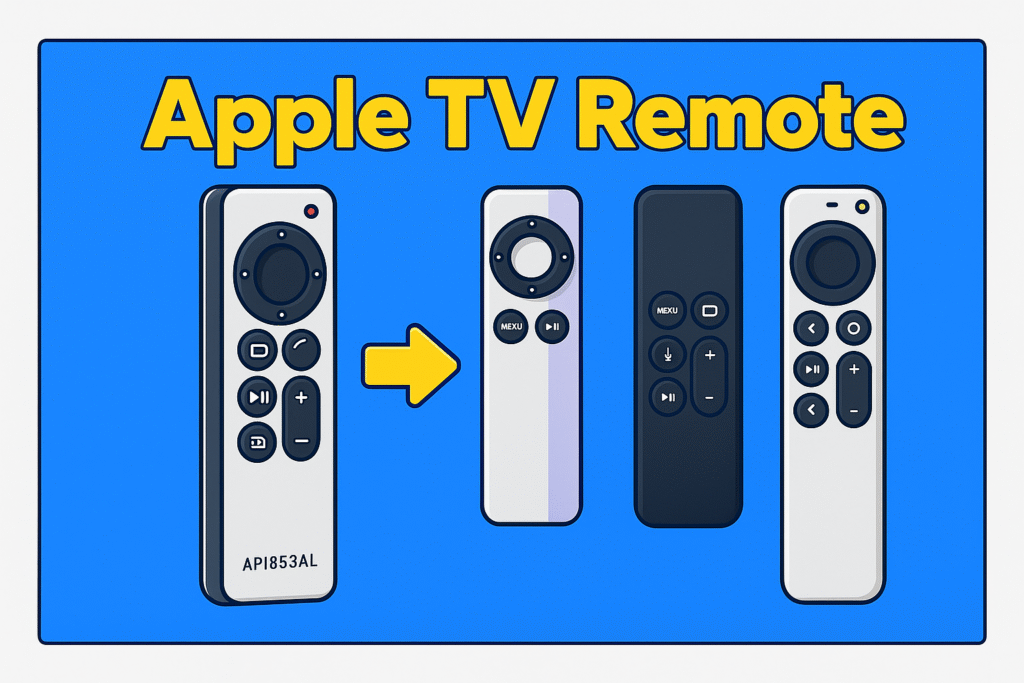
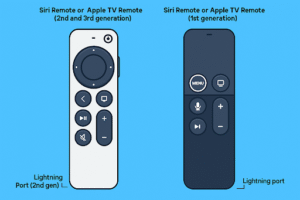
Apple offers Siri Remote (1st, 2nd, and 3rd generation) and a basic Apple Remote. Every remote works with specific Apple TV models.
The 1st gen Lightning remote introduced glass touch navigation. The 2nd gen switched to USB-C charging and added a tactile click pad. The 3rd gen refined BLE connectivity and shortened response time.
Siri Remote (1st, 2nd, 3rd gen) overview
Each generation improved materials, battery type, and signal stability. The 1st gen siri remote featured aluminum housing. The 2nd gen used upgraded buttons and haptics and the 3rd gen added new BLE firmware and faster wake-from-sleep performance.
Button remote and replacement options
Button remotes rely only on IR or limited Bluetooth profiles, suitable for older Apple TV HD units or as spare controllers.
Third-party models often support HDMI-CEC pass-through. Compatibility depends on Apple TV hardware revision and IR code set.
Model compatibility with older Apple TVs
Later Siri Remotes work fully with Apple TV 4K (2017 and newer) and partially with Apple TV HD.
On older units, Bluetooth pairing may function but microphone or click pad gestures can be restricted. Check Apple’s support list before purchasing replacements.
Requirements and preconditions before pairing
Before starting the TV remote control pairing method, there are some requirements and preconditions. Apple TV must be powered, running tvOS 18 or later, with a charged remote placed within 3–4 inches (8–10 cm).
Keep the path clear between the remote and the set-top box. Remove any metal or reflective objects near the receiver.
Checklist before pairing:
- Apple TV power light on and connected to HDMI.
- tvOS version 18 or later confirmed in Settings → System → Software Updates.
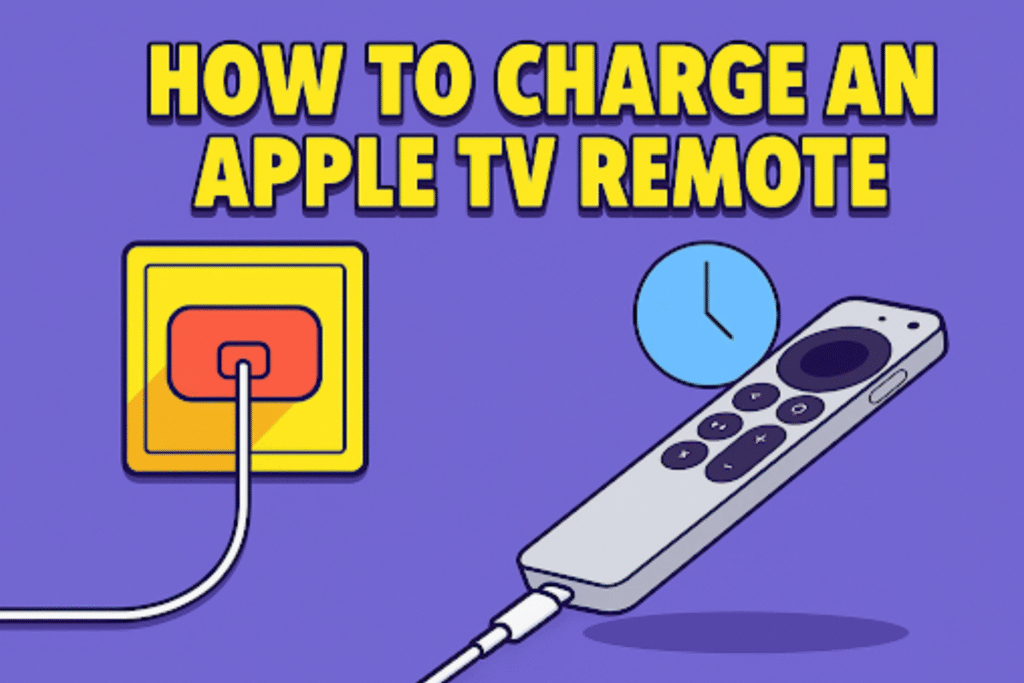
- Remote battery above 20 percent; charge with USB-C or Lightning cable.
- Maintain a distance of 8–10 cm for initial pairing.
- Make sure that Wi-Fi routers or soundbars are moved away from the remote.
How to Pair a New Apple TV Remote
To pair a new Apple TV Remote, first register its hardware ID with the Apple TV and set a BLE control session or IR linkage for basic commands.
This section gives simple pairing steps for Siri Remote models and replacement remotes. Plus an alternate setup to pair new TV remote using an iPhone.
Basic pairing process (for most Siri Remotes)
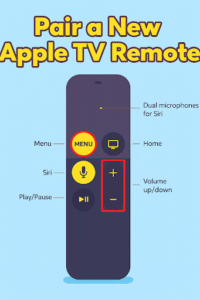
Place the Siri Remote within 3–4 inches (8–10 cm) of the Apple TV. Then press and hold the Back (or Menu) and Volume Up buttons until an on-screen confirmation appears.
Heres the steps for pairing steps for Siri remote :
- Wake the Apple TV from standby; the front LED or TV input should show activity.
- Hold the remote close to the Apple TV unit.
- Press and hold the Back (or Menu) button together with the Volume Up button for two seconds.
- Check the TV for the pairing animation and confirmation text.
- Test navigation and Siri by pressing the touch surface or Speak button.
Example: a 3rd-generation Siri Remote typically pairs in under three seconds on tvOS 18.
How to pair a replacement remote if original is lost
To pair a replacement Apple TV Remote, hold the Back (or Menu) and Volume Up buttons together near the Apple TV. hold the button until a connection message appears. If pairing fails, unpair previous remotes from Settings.
Ifyour Apple TV connects with multiple remotes, remove paired remotes to free up device slots. Replacement remotes from Apple will pair directly. But third-party universal remotes often require IR learning or HDMI-CEC setup.
Note: replacing a Siri Remote with an older button remote limits voice and motion features.
How to pair Apple TV remote via iPhone / Control Center
To pair the Apple TV remote via iPhone, open Control Center in iPhone with iOS 17 or later. Then tap the Apple TV Remote icon and select the target Apple TV. And last enter the four-digit cod.
Use this method when the physical remote is unavailable or damage. It allow you to operate TV without remote.
Step-1: add Remote to Control Center (Settings → Control Center → Add)
Step -2: Ensure iPhone and Apple TV are on the same Wi-Fi network.
Step 3: Then select the Apple TV from the list. This pairs a virtual remote. It supports navigation, keyboard input, and basic playback controls.
Reconnecting / Re-Pairing an Existing Remote
Re-pairing renew the secure link between an Apple TV and a previously paired remote after a disconnect, update, or reset.
Re-pairing restores command delivery, authorizes voice input for Siri Remote, and activates control profiles on tvOS.
When re-pairing is needed
Re-pairing is required after a software update, factory reset, long-time disconnection, or when the remote stops responding.
Sometimes an Apple TV remote also stops responding for a short Bluetooth drop. In this type of situation, the remote simply loses its link and needs to reconnect.
The pairing refreshes, builds a new Bluetooth Low Energy link so commands reach the receiver without delay. It also clears any temporary cache that blocks signal exchange between the two devices.
How to re-pair your remote
Restart the Apple TV, place the remote near the TV, then press and hold the Back (or Menu) and Volume Up buttons until the onscreen pairing notice appears.
Step sequence:
- Reboot Apple TV via Settings → System → Restart.
- Position the remote within 2–4 cm of the Apple TV IR/BLE sensor.
- Press and hold Back (or Menu) + Volume Up for 2 seconds.
- Confirm the device name when the pairing prompt appears.
If nothing shows, remove old remotes: Settings → Remotes & Devices → Unpair Remote. Then repeat the steps.
Common messages and real fixes
You might see “Bring the remote closer” or “Pairing failed” on screen. That usually means weak Bluetooth range or a drained battery. A quick recharge and retry solve most cases.
Before repeating the pairing, unplug the Apple TV for a minute and power it back. Keep away from 2.4 GHz routers or controllers that share the same signal band.
Many users report success after doing a short reset of both devices, holding them side by side until the pairing alert appears.
Troubleshooting Common Pairing Issues
This section lists the frequent pairing failures, on-screen alerts, and practical fixes for Apple TV controllers. Each item targets a specific fault—connectivity, control mapping, response lag, or hardware wear—so you can isolate and resolve the problem quickly.
Why Remote won’t pair and how to fix it ?
A drained battery, old firmware, or Bluetooth blockage usually stops remote pairing. To fix remote pairing, recharge the remote, update tvOS, and bring it within about 8 cm of the Apple TV to start pairing again.
Follow these steps to fix apple TV remote pairing problem :
- Charge the Siri Remote for 15 minutes
- Confirm tvOS under Settings → System → Software Updates
- Remove nearby active Bluetooth devices
- Restart the Apple TV
- Then hold Back (or Menu) + Volume Up to attempt pairing.
- If the Apple TV shows multiple paired remotes, unpair all before retrying.
Why does the screen say “Bring the remote closer”?
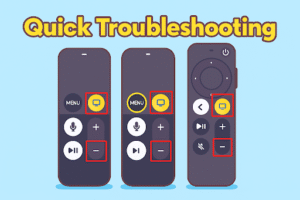
Your screen say “Bring the remote closer” because the Bluetooth connection failed due to distance, obstruction, or low battery. Set the remote within 8–10 cm and this will fix this problem.
Remove phone cases or metal attachments from the remote. Move the remote directly in front of the Apple TV sensor. If the prompt persists, charge the remote and reboot the Apple TV to clear stalled BLE sessions.
Volume or TV power control not working — what to check
Verify the Apple TV’s Volume Control setting (Auto, HDMI, IR, Off) and confirm the TV or receiver enables HDMI-CEC on TV or accepts IR codes.
To check: open Settings → Remotes & Devices → Volume Control. Choose HDMI if the display supports CEC; choose IR if using line-of-sight codes. On the TV or receiver, enable CEC (often labeled Anynet+, Bravia Sync, or Simplink). For IR learning, follow Settings → Remotes & Devices → Learn New Device and aim the remote at the TV’s IR sensor.
Use this quick reference table for control modes.
| Mode | When to use | Result |
| HDMI | TV and receiver support CEC | Volume via HDMI-CEC |
| IR | TV lacks CEC or HDMI path blocked | Direct IR codes for volume/power |
| Auto | Default selection | System picks best available method |
| Off | User wants no TV control | Remote only handles Apple TV functions |
Remote lag or intermittent connection — how to troubleshoot
Lag often appears when the 2.4 GHz band is crowded or a charger, speaker, or USB cable is sitting too close to the Apple TV. Move them aside and update both devices.
Move Wi-Fi routers or cordless devices at least 30 cm from the Apple TV box. Switch the router to 5 GHz where possible. Unplug USB which are attached to the TV or receiver. If issues can’t solve, unpair and then re-pair the remote, and check for remote firmware updates. That refresh clears cached Bluetooth data and restores response speed.
Hardware faults and replacement guidance
If the buttons stop working, the battery can’t be charged, or the remote is physically damaged, check the battery status under Settings before booking service.
For Siri Remote models with USB-C or Lightning ports, try a verified cable for charging. If you find a consistent problem, request service through Apple Support or schedule an appointment at an Apple Store or authorized repair shop.
Frequently Asked Questions (FAQ)
Why does pairing fail repeatedly?
Repeated failures usually occur because of outdated tvOS, multiple paired devices occupying slots, or corrupted Bluetooth caches.
Update the Apple TV. Follow these steps to update: Settings → System → Software Updates. Remove unused remotes under Remotes & Devices.
Can I pair the remote without pressing buttons?
No; initial pairing requires physical button input on the Siri Remote or confirmation via an iPhone’s Apple TV Remote.
The iPhone method uses Control Center (iOS 17+) to authenticate and may ask for a four-digit code shown on the TV. This is a backup for button presses when the remote is lost.
Will remote pairing improve in future TVOS updates?
Maybe. Apple periodically refines Bluetooth and firmware updates in tvOS. Updates can reduce pairing time and increase stability.
Check release notes for each tvOS build foR update remote or Bluetooth fixes. Apply updates when available to benefit from protocol improvements.
Can gesture or voice replace pairing altogether?
Voice commands via Siri require a paired Siri Remote or a networked device; gestures do not eliminate the need for a paired controller.
Voice functions depend on the remote’s microphone or on linked HomePod/HomeKit devices that forward commands. Gestural control is not a substitute for the BLE link that handles navigation and authorization.
Conclusion
Use the exact pairing steps and checks above to restore command control and reliable input. Reconfirm the tvOS version, verify the remote charge level, and keep the unit within close range during the pairing. This ensures a stable pair Apple TV remote connections and full Siri Remote functionality.
If you’re a Samsung TV user, check out our Samsung Remote Control Guide for a complete setup walkthrough, button functions, and compatibility details across all models.