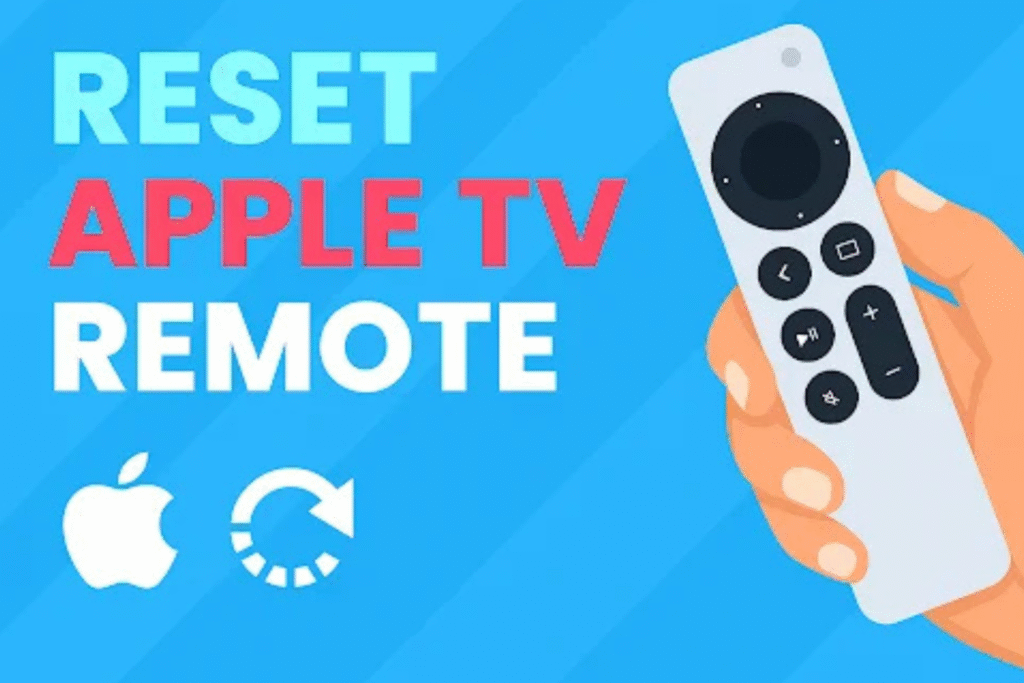
Resetting an Apple TV remote restores its connection to the Apple TV. Resetting helps when pairing fails or buttons stop working. This action clears the stored link. So the remote and device reconnect as if new. Resetting helps to fix issues like lag, signal issues, or pairing problems after a software update.
Every Apple TV mode needs a specific remote. These remotes work through Bluetooth or infrared. Understanding the remote type and reset process prevents unnecessary replacements or extra service. This guide explains how each remote resets, when to use it, and what happens during the process.
Understanding Apple TV Remotes and Reset Basics
Apple has released several remote generations since the first Apple TV. Each version connects differently and follows a unique reset method. Before pressing any buttons, it’s important to identify your remote type. Because every version has some unique features, the wrong button combination won’t trigger a reset and may cause confusion.
Resetting doesn’t delete your Apple TV data or apps. It only restores communication between the remote and the device. The process takes less than ten seconds in most cases and can solve 90% of remote response problems.
Types of Apple TV Remotes
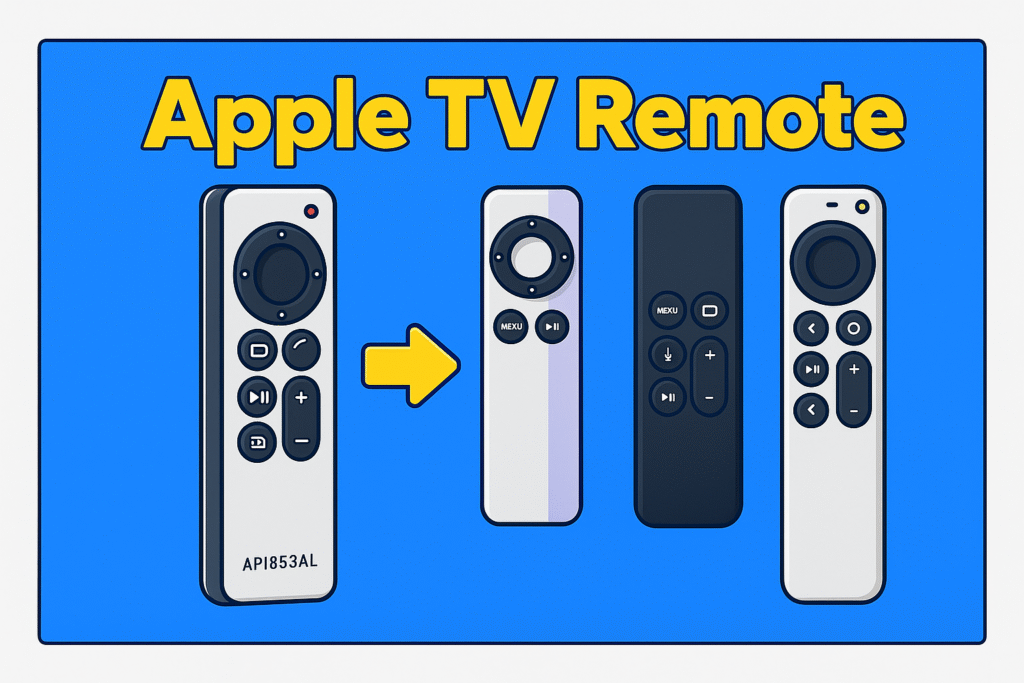
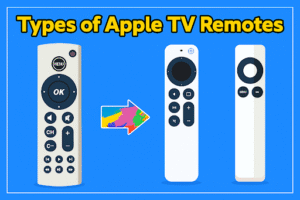
Apple currently offers three main remotes: Siri Remote (1st generation with touch surface), Siri Remote (2nd/3rd generation with clickpad), and the aluminum or white Apple Remote that uses infrared. Here’s a short overview of all Apple TV remotes :
| Model | Connectivity Type | Charging Type |
| Siri Remote (1st gen) | Bluetooth LE | Rechargeable via Lightning |
| Siri Remote (2nd / 3rd gen) | Bluetooth LE | USB-C (newer) or Lightning |
| Apple IR Remote (aluminum/white) | Infrared | coin cell battery |
This quick table helps you to understand TV remote control types. Bluetooth remotes work within about 10 meters of range. But the IR remote must have a clear path. Each generation uses different hardware chips and firmware updates.
What Does “Resetting an Apple TV Remote” Actually Mean?
Resetting means removing the saved pairing record, connecting a new Bluetooth or IR connection between the remote and the Apple TV to fix some remote issues.
It refreshes the communication protocol and clears firmware link data without affecting tvOS apps or settings. After a reset, the Apple TV recognizes the remote as a new device and pairs easily.
When and Why You Might Need to Reset
You may need to reset your Apple TV remote if it stops responding, freezes during use, or won’t pair after an update.
These problems happen when the battery is low, the signal is blocked by a nearby router, or the firmware doesn’t match the tvOS version. A quick reset fixes all these problems in the Apple TV remote.
How to Reset Your Apple TV Remote
Resetting the Apple TV Remote helps when buttons stop working or the remote is not working. Resetting is not hard, but the steps depend on your TV model. The Siri Remote resetting process is different from the older infrared remote. A reset clears the old pairing and builds a proper connection again. Once it’s done, your Apple TV Remote responds smoothly without lag or connection problems.
Resetting the Siri Remote (2nd or 3rd Generation)
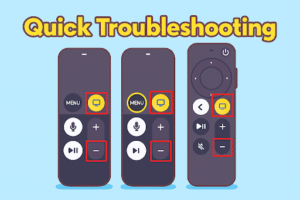
Hold the TV and Volume Down buttons for five seconds. You’ll see the Apple TV light go off and then blink again. That’s the sign it restarted. Wait for ten seconds. When it comes back on, your Siri remote should reconnect.
Keep the remote within 4 inches of the Apple TV. If the TV is not responding, unplug the box, wait a few seconds, and plug it in again. Sometimes that quick power cycle helps. Also, check the remote’s charge; low power can block pairing.
How to reset a Siri Remote (1st Generation)
Press Menu and Volume Up together for five seconds. Do this while pointing it at the Apple TV. When it pairs, the screen responds instantly. If the remote is not resetting, charge the remote for twenty minutes, then try again.
This one uses Bluetooth, so stay within ten centimeters of the box. Without this, it won’t catch the signal.
Reset the Aluminum or White Apple Remote (Infrared)
Press Menu and Left for five seconds to unpair, then Menu and Right to pair again.
These remotes work through infrared. So they need a direct path. No walls, no cabinet doors in between.
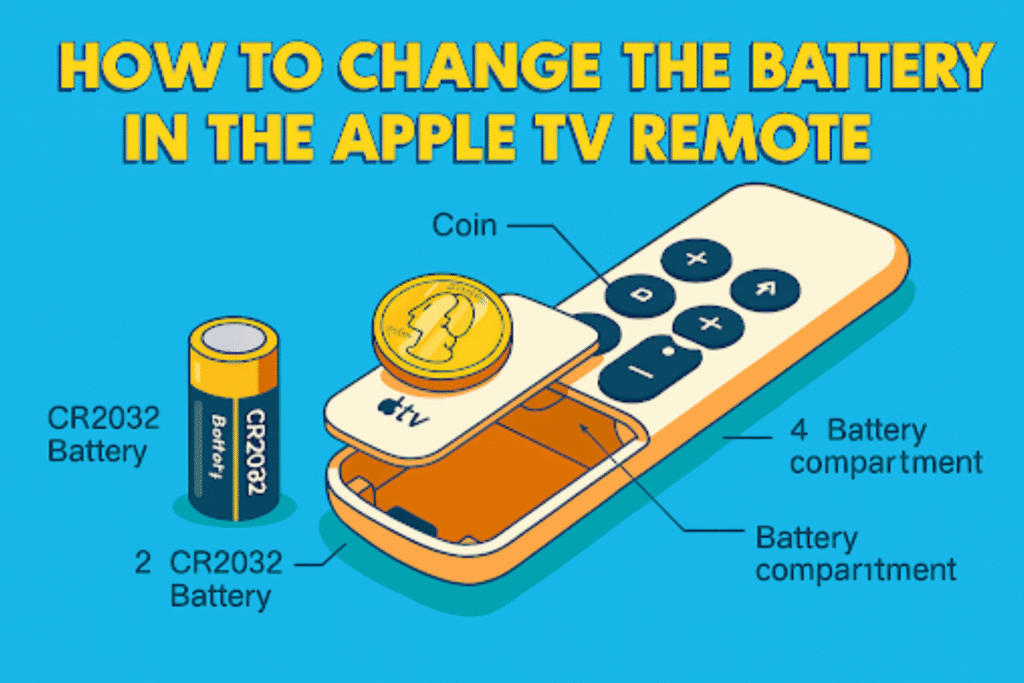
IR range typically reaches 5–10 meters in open sight. If it still doesn’t work, open the remote and change the coin battery (CR2032). Then repeat the same process.
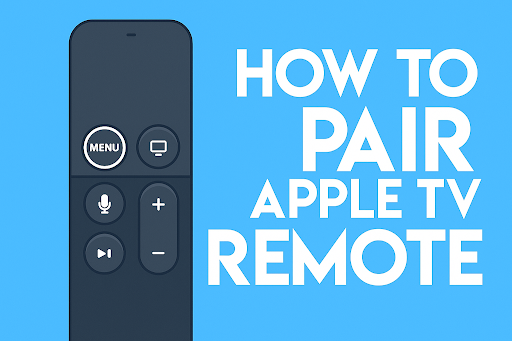
How to reconnect or pair after a reset?
Hold Back (or Menu) and Volume Up for five seconds near the Apple TV. Wait for “Remote Connected” to appear on the screen. Once done, open Settings → Remotes and Devices to confirm the battery and signal. This process helps you to pair the TV remote.
If it says “Remote Not Found,” just repeat once more, keeping the remote right on top of the box. Sometimes it needs that close contact to lock in the link.
Reset Without the Remote
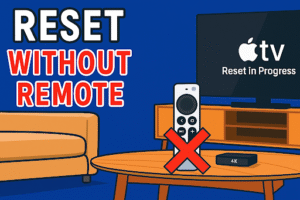
Resetting without the remote is possible through iPhone or iPad. Your iPhone helps you to watch TV withouta remote. You can use your iPhone or iPad as a remote through the Control Center.
Open Settings → Remotes and Devices → Bluetooth, pick your old remote, and choose Forget This Device. Then, pair again as a new one. This only works when both devices are under the same Wi-Fi. If you don’t have an iPhone nearby, plug in a Bluetooth keyboard to reach the same setting.
Factory reset Apple TV – last resort
Factory reset erases apps, data, and all remote pairings; use Settings → System → Reset only when repairs fail. Choose “Reset and Update” to reinstall the latest tvOS. After reset, re-pair the remote using the specific button combos for the Siri Remote or the IR remote. Back up any important Apple TV settings before doing this.
Troubleshooting After Reset
Sometimes, even after resetting, the Apple TV remote may still not work. It happens not because of a pairing issue, skipping commands, or losing signal. These problems usually come from a weak Bluetooth range, a drained battery, or a small software glitch inside tvOS. Before you assume the remote is damaged, go through a few simple checks. Charge it fully, remove other Bluetooth devices nearby, and restart the Apple TV once.
This section lists common failure causes and tested fixes. Work from simple checks (battery, distance, line-of-sight) to deeper steps(update TV firmware using remote and recovery).
Why won’t my Apple TV remote pair or respond?
Pairing fails when the remote has low power, is out of Bluetooth range, or when tvOS and remote firmware mismatch.
Check battery level shown in Settings → Remotes and Devices. For Bluetooth remotes, stay within 3–4 inches during pairing. For IR remotes, ensure direct line-of-sight and no cabinet or doors. If tvOS shows an update, install it before retrying.
Move the Apple TV at least 20 cm from metal objects and place the Wi-Fi router 0.5-1 meter away to reduce interference. Bluetooth uses 2.4 GHz. Crowding near routers or microwave ovens raises packet loss. Shift the Apple TV to an open shelf. Test pairing with only one Bluetooth device active to reduce distraction.
Battery and power problems
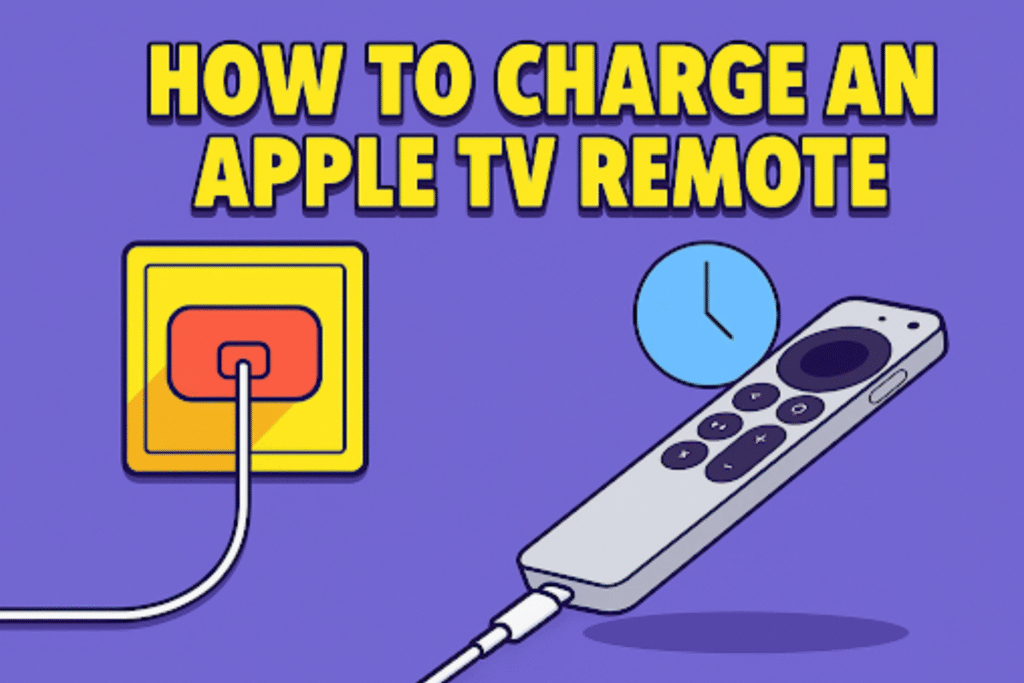
Siri Remote requires charging. Newer units use USB-C or Lightning to charge. IR remotes use a CR2032 coin cell at 3.0 volts.
If a Siri Remote shows low charge, plug it in for 20–30 minutes. For IR remotes, change the remote control batteries. Avoid third-party cables for charging; use Apple-certified Lightning or USB-C cords.
What if the reset steps don’t work?
Try a soft restart of Apple TV, use an iPhone Control Center remote to Forget Device, then attempt re-pairing
Soft restart: Settings → System → Restart. If the remote still fails, connect the Apple TV to a Mac. Use Apple Configurator to restore firmware.
FAQs
Can voice assistants reset the remote?
No. Voice commands cannot reset or re-pair a remote. Button presses or iPhone Control Center are required for resetting.
Why does my Remote volume work, but navigation doesn’t?
Bluetooth navigation doesn’t work because of dirty components under the navigation button. Volume may route through the TV via IR or HDMI-CEC..
Does resetting the remote delete Apple TV settings?
No. Reset clears only pairing records. Apple TV apps and Wi-Fi will remain the same after the reset.
Can I use my iPhone permanently instead of the remote?
Yes. The iPhone Control Center Remote functions as a permanent controller if it stays on the same Wi-Fi network as the Apple TV.
Open Control Center, tap Remote, and pin the Apple TV. The app shows a touch surface, keyboard, and playback controls.
Can I reset an Apple TV remote without the Apple TV powered on?
No. Full pairing and resetting require the Apple TV to be powered and on the same network. You can turn on your TV without a remote. But for resetting, use iPhone Control Center to access Remote → Settings and Forget Device when both devices share Wi-Fi. If the Apple TV will not power on, repair the Apple TV hardware first.
Conclusion
A quick reset solve several problems of your Apple TV remote. Understanding resting methods, charging, and troubleshooting helps you to use your Apple remote like an expert. If resetting won’t helps you, don’t worry. You can still control your Apple TV with your iPhone until you sort it out. For deeper problems, Apple Configurator on a Mac or a visit to an Apple Store can bring everything back to normal.
Small habits like keeping tvOS updated and avoiding signal blocks help you to prevent future connection issues. Take a minute to reset things right, and your Apple TV setup will keep running smoothly for a long time.
If you’re a Samsung TV user, check out our Samsung Remote Control Guide for a complete setup, button functions, and compatibility details across all models.