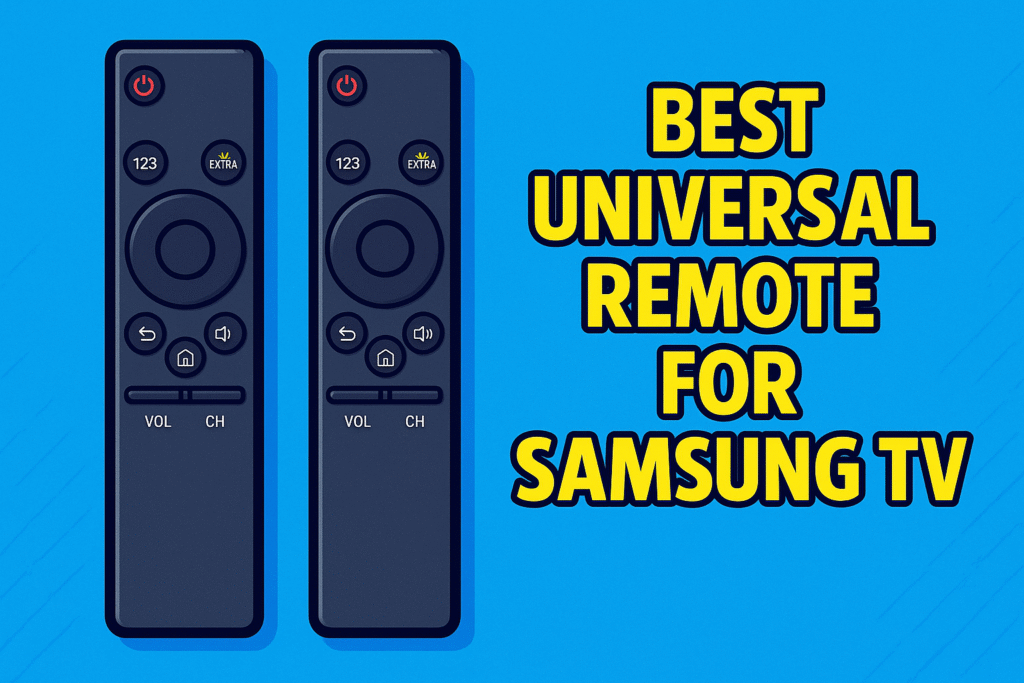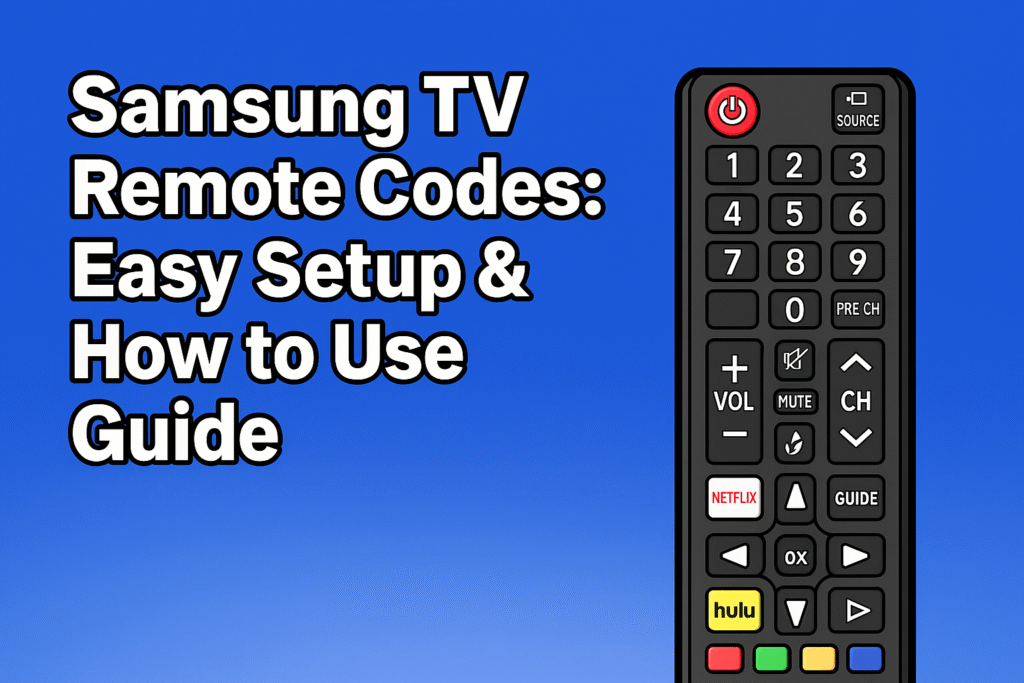
Every TV comes with a remote. But sometimes the original Samsung remote gets lost or stops working. In that case, people often use a universal remote. If you program it perfectly, all these remotes can work with various types of devices.
To connect your TV with the remote, you have to enter special Samsung TV Remote Codes . All these are numbers like 3,4,5, or 5 digits. If you type the right code, the remote will “talk” to the TV properly. Without entering the exact code, your Samsung TV Remote will not work, so make sure you are giving the right code.
Codes are like passwords, because without these codes, your Samsung TV will not work. You can’t control any basic things like volume, channels, or you can’t control your TV functions. So all you can say is that code is mandatory.
In this content, you will know about what a Samsung TV remote code is, the types of codes, and a list of different types of codes, Guideline, and Troubleshooting tips if the remote is not supported.
For a complete overview of different remote types, visit the TV Remote Controls Guide.
What Are Samsung TV Remote Codes?
A remote code is like a password between the remote and the TV. Each brand of TV uses a different type of signal. By entering the right code, you are telling the remote which signal to use.
Samsung uses a common type of IR (infrared) signal. But not all universal remotes use the same number. That is why there are several possible codes for Samsung TVs.
There are mainly three types of codes used for Samsung TVs:
- 3-digit codes (simple, older models)
- 4-digit codes (most common for universal remotes)
- 5-digit codes (for advanced universal remotes and Smart TVs)
If your Samsung TV remote is giving problems, read more here:Samsung TV Remote Not Working.
List of Common Samsung TV Remote Codes
Here are some of the most popular universal remote codes for Samsung TV:
3 Digit Code for Samsung TV Universal Remote
Commonly used for older GE, One For All, and some cable box remotes.
New Codes: 004, 005, 009, 015, 017, 040, 043, 070, 076, 104, 105, 106, 109, 238, 306, 307, 393, 408, 412, 423.
4 Digit Code for Samsung TV Universal Remote
Most modern universal remotes from brands like GE, RCA, Philips, and Jumbo require a 4-digit code to sync with your Samsung TV. Because different remote manufacturers use different software libraries, you may need to try a few before finding the one that controls all your TV’s functions (volume, menu, and source).
Most Successful 4-Digit Codes
Try these “universal” favorites first, as they work for over 90% of Samsung models:
New Codes: 0060, 0101, 0178, 0030, 0556, 0618, 0644, 1004, 1009, 1011, 1069, 1078, 1082, 1102, 1104, 1205, 1235, 1312, 1395, 2051, 3008, 4224.
5 digit code for samsung tv universal remote
If you are using a modern cable box remote or a premium universal controller, you will likely need a five digit code for samsung tv to complete your setup. These codes are specifically designed for the Xfinity XR series, DirecTV, and high-end brands like One For All.
New Codes: 10060, 10812, 10702, 10178, 11959, 13993, 10037, 10556, 10650, 11060, 11632, 12051, 13131, 13382.

Brand-Specific Samsung tv remote codes list
Different universal remotes use different codes. Here are the most popular lists:
| Remotes | 4-Digit Codes for Samsung TV | Source |
| GE Universal Remote Codes | 3301, 3471, 3561, 0251, 5471, 5521, 5791, 5801, 2071, 2141, 2721, 2741, 2961, 0001, 0101, 0261, 0331, 0351, 0531, 0571, 0711, 0781, 1191, 3321, 1221, 1311, 1501, 1911, 4961, 4011, 4941,0060, 0105, 0178, 1170, 1208, 0706, 0812 | Link |
| RCA Universal Remote | 1004, 1046, 1056,1065, 1069, 1078, 1083, 1207, 1009, 1012, 1013, 1014, 1015, 1025, 1102, 1103, 1104, 1123, 1124, 1194, 1205 | Link |
| Philips Universal Remote | 0609, 0102, 5801, 5791, 3301, 0110, 0437, 0309, 0209, 0512, 0302, 0502, 0112, 0818 0895, 0002, 0802, 0103, 0012, 0212 | Link |
| ADB STB Remote Code | 0019, 0009, 0702, 00150, 0092, 0072, 0179, 0208, 0519, 0156, 0163, 0625, 0226, 0812, 0817, 0821, 1060, 0618, 0644, 0056, 0060, 0587, 0037, 0178, 0030, 0556, 774, 0093, 0217, 0448, 0329, 0090, 0032, 0216, 0290, 0154, 0747, 0482, 0370, 0264 | Link |
| One For All Remote | 0587, 0644, 0747, 0812 | Link |
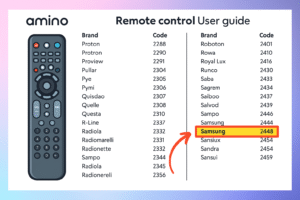
| Amino Remote | 2448 | Link |
Why Use Samsung TV Remote Codes?
- To replace a lost or broken remote
- To use one universal remote for multiple devices (TV, DVD, soundbar, streaming box)
- To avoid buying expensive original Samsung remotes
- For quick setup and easy control of your Samsung Smart TV
Troubleshooting Samsung Smart Tv Universal Remote Codes
| Problem | Reason | Fix |
| TV does not respond | Wrong code | Try next code from the list |
| Some buttons work, some don’t | Partial match | Use another code |
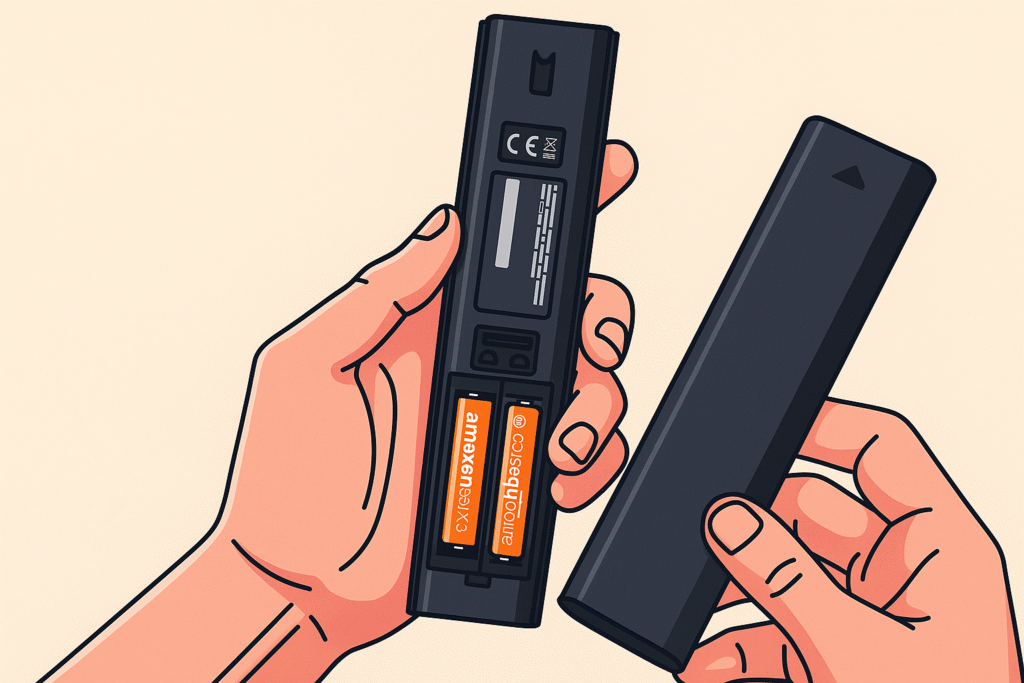
| Remote light doesn’t stay on | Setup not entered or dead batteries | Replace batteries, hold Setup again |
| Remote resets | Batteries loose | Reinsert or tape cover properly |
| Nothing works at all | Remote doesn’t support Samsung TVs | Check if your remote model is compatible |
Samsung Smart TV Remote Codes
If you have a Samsung Smart TV, you may need 5-digit codes for advanced universal remotes. Some common ones are:
- 10060
- 10812
- 11959
- 13993
These work with many smart remotes that support voice commands, backlit buttons, and multiple device control.
Easy Guide to Samsung Smart TV Pairing (Step-by-Step)
Method 1: Programming with a Code
-
Turn on your Samsung TV manually.
-
Enter Setup Mode: Press and hold the [Setup] or [Code Search] button on the remote until the indicator light stays on.
-
Select Device: Press the [TV] button once.
-
Enter the Code: Type in your chosen 4 digit code for samsung tv universal remote.
-
Save & Test: Point the remote at the TV and press [Power]. If the TV turns off, you’re done!
Method 2: Setup Without a Code (Auto-Search)
If you don’t have a code list, you can use the Auto-Code Search method:
-
Turn on the TV.
-
Hold [Setup] until the light stays on, then press the [TV] button.
-
Point the remote at the TV and press the [Power] button repeatedly (every 2 seconds).
-
As soon as the TV turns off, immediately press [Enter] or [Save] to lock in the signal
Troubleshooting & Common Issues
| Problem | Cause | Solution |
| Red Light Blinking | Low power or pairing loss | Replace batteries and re-pair. |
| Buttons Not Responding | Partial code match | Try the next code in the list. |
| Setup Fails | Incorrect Setup mode | Hold the [Setup] button longer (approx. 5s). |
| Lost Original Remote | Physical damage/Loss | Buy a BN59 Samsung Remote replacement. |
Expert Recommendations for 2026-2027
If your universal remote setup isn’t providing the full smart experience (like voice search or the Netflix button), consider getting a replacement samsung remote.
Models like the BN59-01312A or the solar-powered BN59-01385A are the most reliable tv remote control 2026 picks. They offer seamless samsung smart tv remote setup without needing complex codes. You can check our full Samsung Remote Buying Guide for pricing and reviews.
Conclusion
Samsung TV remote codes are the key to making a universal remote work with your TV. They are short numbers that act like a bridge between the remote and the TV.
From official PDFs and reliable websites. We know Samsung codes include 0556, 0178, 1000, 0812, 1619, 10030, 3301, 5471, and many more. Programming is easy: enter setup mode, choose TV, type the code, test it, and save it.
If a code goes wrong, try the next one. When you find the correct code, collect it for your future use.
FAQs – Samsung TV Remote Codes
- How to connect a universal remote to a samsung tv?
Step 1: Enter Setup Mode Turn on your TV. Press and hold the Setup (or Code Search) button on your remote until the indicator light stays on.Step 2: Select Device Press the TV button. The light will blink once and remain steady.Step 3: Enter Samsung Code Type in a 4 or 5-digit code (common codes: 0101, 10812, or 10060). The light will turn off if the code is accepted.Step 4: Test Point the remote at the TV and press Power. If the TV turns off, the pairing is successful. If not, repeat with the next code.
- What is the 4-digit Samsung TV code of mine?
There is a default pin. 0000 is the default pin; you can change the pin, or you can reset it. But if you are facing any problem with your Samsung Smart TV, then check the software updates to fix the problem.
- How to find the remote code for a Samsung TV?
To find the remote code for your Samsung TV, you can try the auto search function. For universal remotes, it will detect your code automatically. For other models, check the TV manual setting.
- What to do to find my TV’s 4-digit code?
Check the manual instructions of your universal remote to find the TV code. Some TV shows the pairing code on the TV screen when you try to connect your device. Also, another way to fine code is the autoscarch method.
- What is the purpose of using the Samsung TV code?
To connect the universal remote to your Samsung TV is the main purpose. A Samsung TV code acts as a “ password “that helps the remote saty connected with the Samsung TV. A remote can’t work basic things like changing channels or controlling volume without the right code.
- Can a universal remote work with any Samsung TV?
Most universal remotes will work with your Samsung TV or projector as well, such as those found on Amazon or possibly even the remote that was included with your cable or satellite box.
- How to setup universal remote for samsung tv without code?
If you don’t have a code list, you can use the Auto-Code Search method. This allows the remote to scan its internal database and find the correct signal for your Samsung TV automatically.
Step-by-Step Instructions:
Turn on your Samsung TV manually.
Activate Search Mode: Press and hold the Setup (or Code Search) button on your universal remote until the indicator light stays on.
Select the Device: Press and release the TV button once.
Start the Scan: Point the remote at the TV and press the Power button repeatedly (once every 2 seconds). The remote will send a different code with each press.
Save the Code: As soon as the TV turns off, immediately press the Enter or Save button to lock in the code.
Verify: Turn the TV back on using the remote and test the volume and menu buttons to ensure full compatibility.
Pro Tip: If you have a Samsung Smart Remote, you can also use the MBR (Multi-Brand Remote) feature found in your TV’s settings under Source > Universal Remote to set up external devices without needing manual codes.