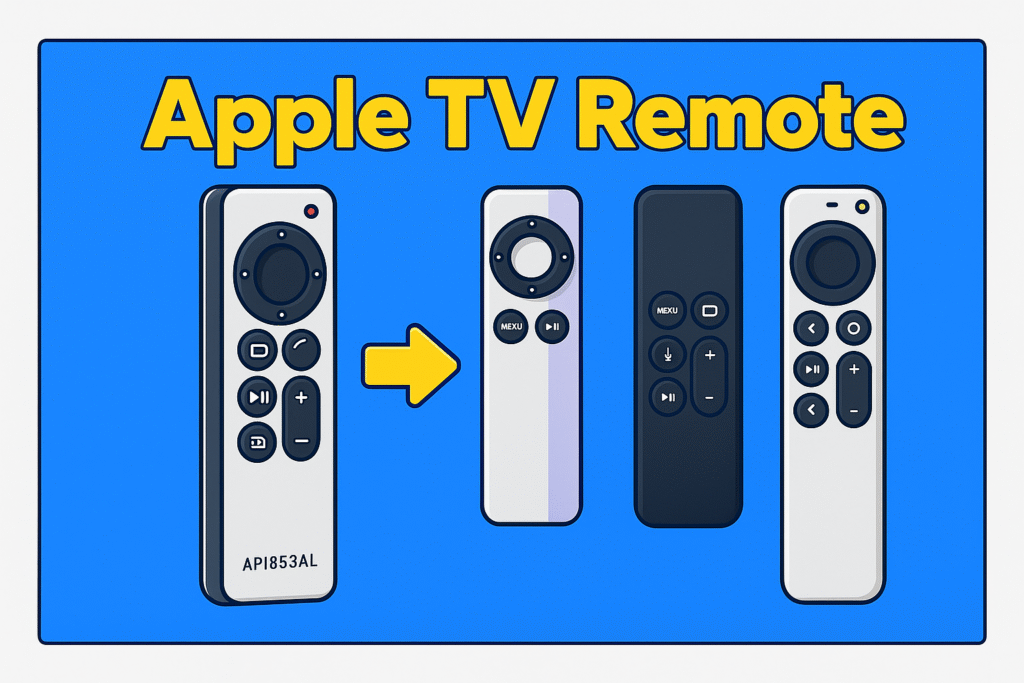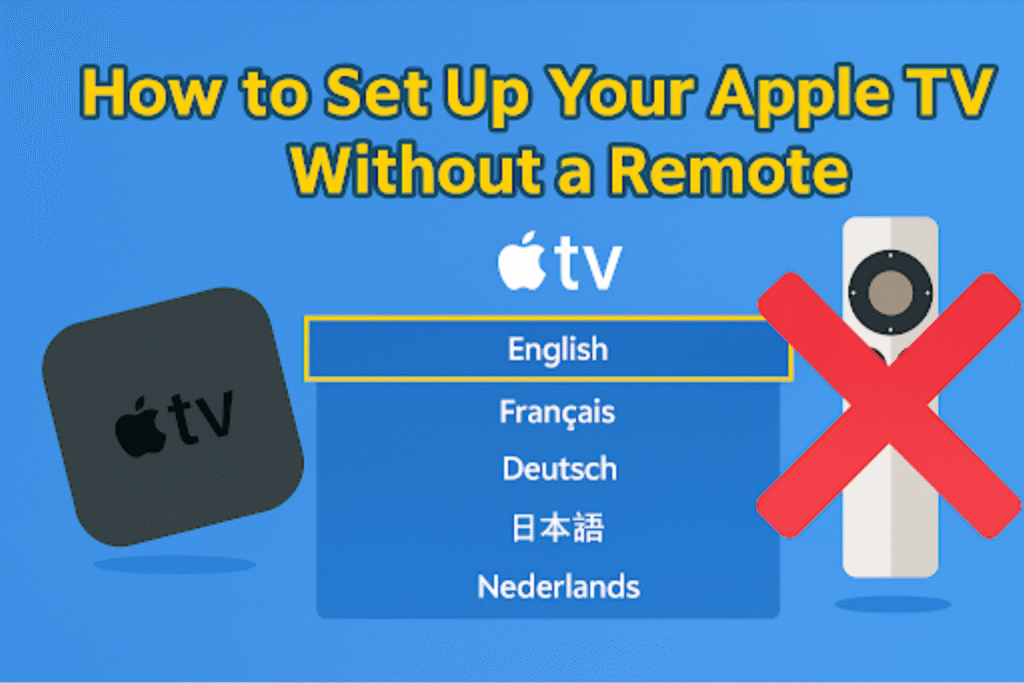
Most people don’t think about the Apple TV remote until the moment it disappears. It happens at the worst possible time – a movie night is ready, the popcorn is done, and suddenly everyone is looking under cushions like detectives. In 2025, this is extremely common because more homes run Apple TV as the main streaming brain… and the remote stays the single point of failure.
I started collecting ways to solve this in my own house first. Then I realized the solution set is actually bigger, more reliable, and more practical than most support pages explain.
This guide walks through those real-life, modern, remote-less paths: how to set up an Apple TV with no physical remote at all, which devices can take over, what models behave differently, and what future Apple is signaling going forward.
How does the Apple TV setup + remote ecosystem work?
Apple TV runs tvOS and accepts input by Bluetooth, IR, or a networked remote control in Control Center. Newer Siri Remote models use Bluetooth 5.0 and a touch clickpad. Many setup steps require initial input to choose a language, Wi-Fi, and sign in with an Apple ID. The available input methods depend on model year and hardware ports.
Why does not have a remote block initial setup?
Initial setup requires directional input and secure pairing for Wi-Fi entry and Apple ID sign-in; those steps require a paired input device.
Setup screens require language choice, Wi-Fi SSID selection, and passphrase entry. Apple TV locks the user interface until a paired Bluetooth or network remote becomes available. So, a physical remote is needed when setting up a new TV remote. iPhone Remote app needs Apple TV on the same Wi-Fi or prior pairing to operate.
How does this impact the Apple ecosystem (Home Sharing, Apple ID, iPhone pairing)?
Apple ecosystem features rely on a successful initial setup. Home Sharing, using Apple ID for purchases, and iPhone pairing require a completed sign-in on Apple TV. A completed TV remote setup makes Apple TV a Home Hub and enables AirPlay and device syncing.
Note: one Apple ID controls purchases across up to 10 devices in the user’s account.
Pre-Setup Checklist: What You’ll Need Without the Remote
Before you start setting things up, take a moment to prepare properly — this is where most people go wrong. Right — Most failed attempts happen here. The idea is simple: gather the parts, confirm the modelBefore you start touching settings or trying pairing tricks – make sure your basics are , confirm power + display, choose one fallback method, and make sure your home network won’t block discovery.
Confirm your Apple TV model and software version
Flip the Apple TV over and look at the small print on the bottom plate. The model code is stamped right there. Some people instead check the sticker on the original retail box because it is easier to read. If the unit actually boots to the menu, go to Settings → About and grab the tvOS version while you’re there.
Newer 4K Apple TV units normally have Wi-Fi 6 and Ethernet built in. Older HD models only run 802.11ac. If you know the SoC (A10X / A12 / A15), it helps you understand what limitations you might hit later.
Ensure you have a working HDMI & power connection
Plug the HDMI into your TV first – then plug the Apple TV into power. Select the correct HDMI input using the TV’s own remote or the input button on the side/underside of the TV.
Choose your fallback: iPhone/iPad, Ethernet cable, Bluetooth keyboard, third-party remote
You only need ONE primary method. iPhone or iPad is usually the easiest if you run iOS/iPadOS 15 or newer.
Ethernet is the trick when Wi-Fi setup is impossible at first boot.
If you’re using a keyboard, go Bluetooth and make sure it supports the HID profile.
If you’re using an IR remote, only older Apple TV models accept IR – so check your model number first before wasting time.
Prepare your Wi-Fi network (same network as iPhone)
Put your iPhone on the exact same SSID that you plan to use on the Apple TV. Make sure it is not the guest network.
How Do You Actually Set Up Apple TV Without a Remote? (Step-by-Step)
People panic at this point – because everything stops dead when the original remote is gone. The good news is that there are three simple ways to control your TV without a remote. And all three already exist in normal homes.
Method 1 – Using an iPhone or iPad (when Wi-Fi is already active)
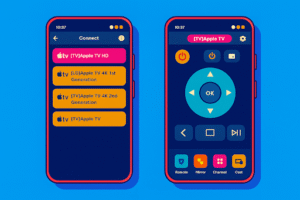
Pull down Control Center, open the Remote tile, choose the Apple TV, and enter the short code shown on the screen.
Steps you actually follow:
- Enter Settings on the iPhone → Control Center → add “Apple TV Remote”
- Confirm that the iPhone and Apple TV sit on the same Wi-Fi
- Power on the Apple TV and wait for the pairing code to appear
- Pick Apple TV in Control Center and enter the four digits on the phone
From here, the Control Center Remote lets you finish language, region, Apple ID, and everything.
Note: iOS 15 or newer normally feels smoother.
Method 2 – Using Ethernet first, then moving to Wi-Fi later
Plug a cable from the router to → Apple TV. This forces the Apple TV online even though you never typed Wi-Fi credentials.
Steps you actually follow:
- Connect Cat5e/Cat6 from router to Apple TV
- Use the iPhone Remote to finish setup
- Go to Settings → Network → Wi-Fi and join the correct SSID
- Remove Ethernet later if you don’t want that wire living there
This works because Ethernet immediately puts the Apple TV in the same network -the iPhone can see.
Method 3 – Using a Bluetooth Keyboard or certain third-party remotes
This is the route people forget exists.
Steps you actually follow:
- Put the keyboard into pairing mode
- Apple TV → Settings → Remotes and Devices → Bluetooth
- Choose the keyboard and enter whatever PIN shows on screen
For third-party remotes: IR and Bluetooth behave differently across Apple TV generations. Always check that the remote supports the exact model you own – the spec label matters a lot more than it looks.
Flowchart & Quick Comparison of Methods
Here’s a compact decision table and clear pairing tips. Use this to pick the fastest method for your situation. Each row names required items and expected outcomes.
| Method | When to use | Pros | Cons | Required items |
| iPhone/iPad Remote (Control Center) | Phone on the same Wi-Fi as the Apple TV | Fast pairing; full navigation; supports Apple ID sign-in | Needs the same network and iOS 15+ | iPhone/iPad, Wi-Fi SSID & password |
| Ethernet | Wi-Fi not set or unknown password | Forces network connection; works with Control Center | Requires cable and router access | Cat5e/Cat6 cable, router port |
| Bluetooth keyboard | Physical typing needed (passwords) | Text entry speeds up sign-in | Pairing requires menu access or another remote | Bluetooth keyboard (HID), Apple TV Bluetooth |
| Third-party remote (IR/Bluetooth) | No iPhone available | Immediate physical control; low-cost options | Compatibility varies by model and protocol | Confirm IR/Bluetooth support for your model |
Tips for smoother pairing (quick real-world checklist)
- Keep the Apple TV and your iPhone close for the first connection… roughly an arm’s reach is usually enough ( 3 meters ).
- If the TV remote app can’t see it at all, reboot or reset both the Apple TV + the router once. That alone fixes half of the weird discovery problems.
- Make sure guest network isolation is OFF. A lot of routers silently block device-to-device talk, and you don’t realise it.
- Double-check the Wi-Fi name exactly as typed. SSID is case sensitive.
- Running newer iOS (15 or newer) + newer tvOS helps avoid stubborn pairing bugs.
- If the Ethernet link shows nothing, try another port on the router or a small switch. Sometimes the port itself is the problem.
How to Connect Apple TV to Wi-Fi Without a Remote?
The easiest way to break the “no remote / no Wi-Fi input” loop is to put the Apple TV on Ethernet first. Once it’s online through a cable, your iPhone Remote instantly sees it. After that, you can switch the Apple TV to your real Wi-Fi in settings.
How to do it:
- Plug a Cat5e/Cat6 cable from the router to → Apple TV Ethernet port.
- Power Apple TV → open Control Center on iPhone → tap Apple TV Remote.
- Pick the Apple TV → enter the 4-digit code shown on the TV screen.
- Now in Apple TV Settings → Network → choose Wi-Fi → enter SSID + password from your phone.
How Do You Fix or Troubleshoot Common Problems
When You Don’t Have the Apple TV Remote?
When something breaks here… It’s almost always discovery, input, or network isolation. The best way to approach this is in tiny controlled resets – not panic. Do one fix at a time and check if the Apple TV boots clean (Apple logo on screen) before trying the next thing.
Why won’t the iPhone Remote app see the Apple TV and how do you fix it?
Most of the time, the phone and Apple TV are technically “in the same house” but not actually on the same subnet. Or Bluetooth is off on the phone.
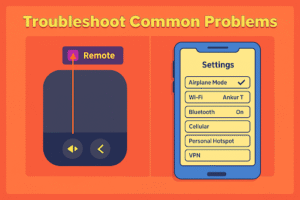
Make sure the SSID matches exactly – same network, not guest. Turn Bluetooth ON. Reboot both the router and Apple TV once. If it still refuses to show up, plug the Apple TV into Ethernet. The moment it gets a wired IP, the iPhone usually finds it instantly through Control Center → Remote.
What if you’re stuck on the “Connect Remote” screen?
This one feels like a brick wall until you remember you don’t need the Siri Remote physically to get past it.
Plug in Ethernet. Once Apple TV comes online, open the Remote in Control Center and type the code that shows up.
If the iPhone is not available at all, pair a Bluetooth keyboard after reboot – that at least gets you back into menus to finish setup.
Why does Wi-Fi setup fail or the network not appear at all?
This happens a lot with mesh routers and hotel-style captive portals. The TV is alive, but discovery traffic is being blocked.
Turn off guest isolation in the router. Make sure multicast / Bonjour is allowed.
If you’re stuck behind a captive page, make a temporary hotspot from your iPhone with a simple SSID + password, connect the Apple TV to that first, finish sign-in, then move it to your normal home Wi-Fi afterward. You can use this exact method when the Samsung TV pairing is not working.
Why isn’t a Bluetooth keyboard recognised, or a third-party remote compatible?
Pairing fails when the keyboard or remote uses a non-HID profile or when the Apple TV model lacks the required receiver profile.
Verify the keyboard supports the HID profile and enters pairing mode. For third-party remotes, confirm protocol: IR only works on legacy Apple TV models; Bluetooth remotes require an HID or compatible AVRCP profile listed by the vendor.
What Are Advanced Use-Cases Without a Remote in 2025 and Beyond?
There are situations now where you never touch a physical remote at all – and day-to-day life still works. Apple is already designing the ecosystem to function more fluidly through other devices. Below are a few real examples where this makes sense in the real world.
Can you use an Apple Watch as a remote for Apple TV? (watchOS 11)
Yes. The Remote app on Apple Watch still gives you directional navigation, play/pause, and basic text entry. It just needs the iPhone to be on the same Wi-Fi first so the watch can find the Apple TV.
Open the Remote app on the watch → tap Add → type the 4-digit code that shows on the television. After that point, it behaves exactly like a very tiny remote strapped to your wrist.
Will Apple eventually eliminate physical remotes entirely?
It’s too soon to say.
Every current Apple TV model still ships with a Siri Remote in the box, and Apple clearly still values physical directional input and microphone-based voice control.
Phone and watch remotes just feel like “parallel control paths” rather than a true replacement. Apple tends not to kill hardware abruptly — they slowly retire hardware when user behaviour naturally moves away from it.
FAQ
Which models support the iPhone Control Center remote?
Apple TV 4K, Apple TV HD, and Apple TV (3rd gen).
Can I use an Android phone as the remote?
Possibly, but not guaranteed. Some Android apps fake it through network discovery or IR blasters — results vary wildly.
What if the Apple TV keeps asking for a pairing code, but no input works?
Force restart the Apple TV; when the 4-digit code appears, type it using iPhone → Control Center → Remote.
Does Apple Watch pairing require the iPhone to connect first?
Yes – the iPhone must connect to that same Wi-Fi before the watch handshake will succeed.
Does a universal IR remote work with Apple TV 4K?
No. IR support is legacy. Siri Remote features (touch + voice) are Bluetooth-based.
Should I buy a second-hand Apple TV that doesn’t include the remote?
YES- You can — but don’t skip verification steps.
Check the model ID on the bottom (A2347, A2687, etc.), ask the seller to remove it from their Apple ID, and ask them to factory erase it first.
Older tvOS builds might not support certain Bluetooth pairing methods or modern remote protocols — so go in expecting some limitations if it’s an older generation box.
Conclusion
Remote-less Apple TV setup is more normal than people think.
Between the iPhone Remote, Ethernet fallbacks, Bluetooth keyboards, and Apple Watch control- you’re not stuck just because a tiny silver remote vanished. The real unlock is understanding how to get the Apple TV onto your network first… after that, everything else becomes a normal TVOS experience.