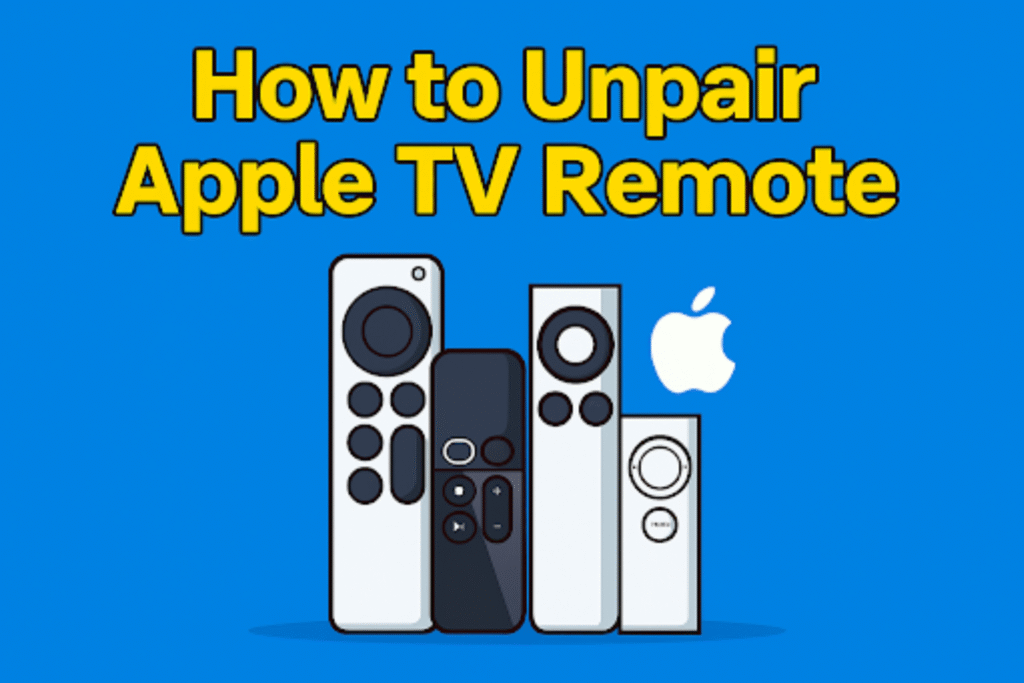
Unpairing an Apple TV remote removes its control from the Apple TV device. This breaks Bluetooth or IR bindings. So the remote no longer sends commands to that Apple TV. Unpair is needed for selling, troubleshooting, or switching remotes.
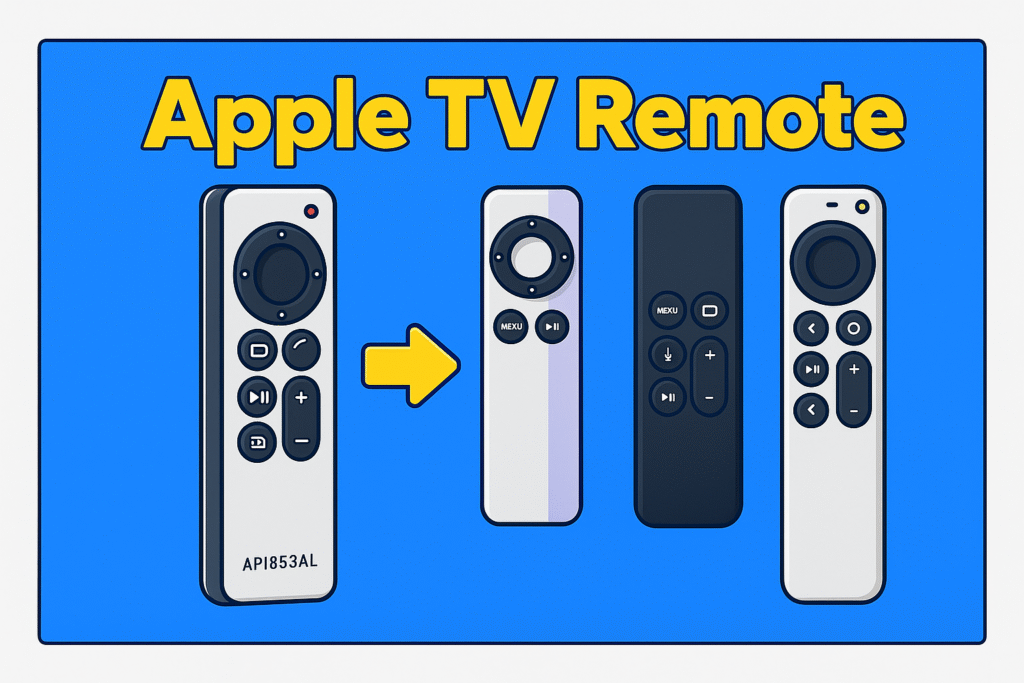
Apple TVs use two main types of remotes. The newer Siri Remote (Bluetooth, 4th generation and later) disconnects through the Bluetooth menu, while older aluminum or white plastic IR remotes (1st to 3rd generation) are unlinked by pressing a few buttons near the TV’s sensor.
This guide shows every available option to uprair Siri remotes and other Apple remote models. After unpairing the old remote, your Apple TV will respond only to the remote you choose.
Which Apple TV remote do you have? (identify model & why it matters)
Why the model matters for unpairing
Siri Remote uses Bluetooth; older IR remotes use physical button combos and have no Bluetooth.
Bluetooth remotes can’t unpair with physical button combos. But the IR unpair uses the button and remote should be placed near the Apple TV IR receiver, and shows a broken-link icon on the screen. Use the correct method to avoid a false troubleshooting step. Understanding the difference in remote control signal types is important.
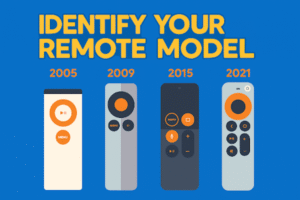
How to identify Siri Remote vs Aluminum / IR remote
Use this table to match appearance, model, and unpair method.
| Remote name | Model / Gen | Visual features | Unpair method |
| Siri Remote (black/white) | 4th gen & newer | Touch surface or circular clickpad; microphone hole for Siri | Pair a new remote-this will automatically unpair the older remote. |
| Apple TV Remote (aluminum) | 2nd & 3rd gen | Metal body, no microphone, play/pause keys | Hold Menu + Left Arrow 6 sec (IR) |
| Apple Remote (white plastic) | 1st gen | White plastic, simple buttons, IR emitter | Hold Menu + Rewind 6 sec (IR) |
Step-by-Step Unpairing Methods for Apple TV remote
Apple has different unpairing methods for different remote models. The Siri remote unpairing method is totally different from the IR remote.
How to unpair a Siri Remote from an Apple TV
Apple does not provide a direct “unpair” option for the Siri Remote. The only reliable ways to stop a remote from controlling an Apple TV are pairing it with a new device, using a new remote, or resetting the Apple TV.
Siri Remotes are connected to Apple TVs through Bluetooth, but tvOS does not offer a simple “unpair” button. Official Apple instructions focus on pairing and transferring remotes. To fully remove the old remote, follow one of the methods below.
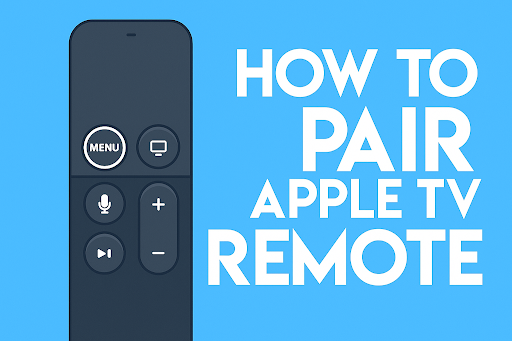
Method A – Pair a New Remote or Move the Siri Remote to Another Apple TV
If you want to disconnect or unpair your old Siri Remote, the easiest trick is to pair it with another Apple TV or set up a new remote. Once your Apple TV connects to a new one, the old link automatically drops- because the Siri Remote can only stay paired with one Apple TV at a time.
Try this if you want to connect a new remote to your Apple TV:
- Turn on your Apple TV and update to the tvOS, if possible.
- Place the new remote near the Apple TV.
- Hold Back (or Menu) and Volume Up together for about five seconds.
- In this way, your previous remote will automatically disconnect, and you can control your TV with the new remote.
Or you can connect the Siri remote with another Apple TV. This will also unpair Siri Remote from your old Apple TV.
Try this :
- Turn off or unplug your current Apple TV
- Aim your Siri Remote at the new Apple TV.
- Hold down Back (or Menu) and Volume Up together for around five seconds.
- When the screen tells you, just place the remote on top of the Apple TV to finish the setup.
- Check that only the new Apple TV reacts. The old one should stay quiet — that means it’s unpaired.
Note: This is the most reliable method because tvOS does not include a standalone unpair function for Siri Remotes.
Method B – Use an iPhone to remove remote access
An iPhone on the same Apple ID and Wi-Fi network can control the Apple TV. You can remove remote pairings or reset the device using the iPhone.
Steps:
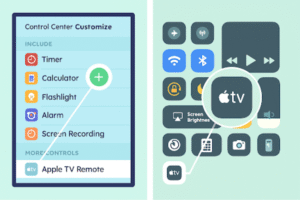
- Open Control Center on your iPhone.
- Tap the Apple TV Remote and connect to the correct Apple TV.
- Go to Settings → System → Reset.
When Settings are not accessible (safe fallback)
Answer: If Settings are unreachable, unplug Apple TV for 10 seconds, plug back in, then try the Settings method or use iPhone Control Center; last resort: Reset All Settings.
Fallback sequence:
- Only use System → Reset → Reset All Settings if other attempts fail; this preserves media but clears pairings.
How to unpair older Apple TV Remote (2nd and 3rd generation)
Point the remote straight at your Apple TV. Hold Menu and the Left Arrow (◀) together for around six seconds.
Steps:
- Stand within 3-4 inches of the Apple TV IR receiver.
- Press Menu + Left Arrow on the aluminum remote.
- Hold for six seconds.
- Watch the TV screen for the broken chain link icon.
- Release buttons once the icon appears.
Example: A 2nd generation aluminum remote on Apple TV HD successfully unpaired after holding buttons for six seconds. The broken link icon disappears within three seconds, showing that the remote no longer controls the device.
How to unpair Apple Remote (1st generation, white plastic)
Press and hold the Menu and Rewind (⏪) buttons for six seconds; a broken chain icon indicates the remote is unpaired.
Steps:
- Stand 3-4 inches from the Apple TV IR sensor.
- Hold Menu + Rewind buttons together.
- Maintain hold for six seconds.
- Watch the screen for a broken chain link icon.
- Release buttons when the icon appears.
Tip: First-generation remotes use IR transmission. Proper alignment with the front sensor is essential. Misalignment can delay the icon display or prevent unpairing.
How to unpair an IR remote (Aluminum or third-party)
Use the same button hold method specific to your remote; ensure the remote faces the Apple TV front panel.
Steps:
- Identify the remote type (aluminum or compatible third-party IR remote).
- Hold the specific combination (Menu + Left Arrow for aluminum; Menu + Rewind for first-gen white).
- Keep buttons pressed for six seconds.
- Confirm the broken chain icon on the Apple TV screen.
- Test by pressing a function key; the device should not respond.
Note: Third-party IR remotes can replicate Apple button layout. Using the correct combination is crucial for unpairing. If you can’t unpair check your remote battery and insert batteries in TV remote correctly
Troubleshooting Common Issues
Remote shows “connected” but doesn’t control the Apple TV
Check battery level, distance from Apple TV, and restart the device; then attempt unpairing again.
Steps:
- Confirm the remote battery is charged above 20 percent.
- Maintain distance within 10 meters for Bluetooth remotes or 3-4 inches for IR remotes.
- Restart Apple TV using System → Restart.
- Reattempt unpairing via Settings or button combination.
Example: A 4th-generation Siri Remote on Apple TV 4K remained listed as connected after 2 hours. Charging to 80 percent and restarting the Apple TV cleared the issue.
Unpair and re-pair procedure
After troubleshooting, hold the appropriate buttons (Menu + Left Arrow for aluminum, Menu + Rewind for first-gen) to remove and re-pair the remote.
Steps:
- Perform the button hold for IR remotes or Forget Device for Siri Remotes.
- Re-pair the remote by pressing Menu + Right Arrow (aluminum) or reconnect via Settings for Siri Remotes.
- Test all remote buttons to ensure functionality.
If you use different remotes across several TVs, it’s helpful to review a Complete TV remote manual
“Unpair failed” or options greyed out
This occurs due to restricted permissions, device management profiles, or outdated tvOS.
Steps to resolve:
- Check for Mobile Device Management (MDM) or restriction profiles under Settings → General → Profiles.
- Update tvOS to the latest version using Settings → System → Software Updates.
- Retry the unpair or IR button combination after updates.
Example: Apple TV HD with tvOS 17.1 displayed greyed-out Forget Device. Installing tvOS 18.0 restored Settings control, allowing unpair. If IR unpairing fails- test or program a Samsung universal remote.
Remote still controls the TV after unpairing
Disable HDMI-CEC on both TV and Apple TV; check other paired devices or HomeKit scenes.
Steps:
- Open TV settings and turn off HDMI-CEC (may be labeled Anynet+, Bravia Sync, or Simplink).
- Open Apple TV Settings → Remotes and Devices → Control TVs and Receivers → Off.
- Remove other paired remotes or HomeKit scenes that may send commands.
Tip: HDMI-CEC can relay remote signals even after unpairing. Disabling it ensures only the intended remote controls for Apple TV.
Unpair vs. Factory Reset
Apple TV gives you two options – you can just unpair one remote or do a full factory reset. The main difference is that unpairing only disconnects that single remote. But a factory reset clears everything and takes your Apple TV back to its original setup. Which one you go for really depends on what issue you’re trying to fix.
When unpairing is enough
If you’re just trying to remove one remote, lend it to another Apple TV, or fix a minor connection issue- unpairing is all you need.
Why is it the better move sometimes:
- It only disconnects the remote you select.
- Your Wi-Fi, apps, and media stay exactly how they were.
- Great for homes where more than one Apple TV or remote is in use.
Example: Suppose you sold your Apple TV but still want to keep using the iPhone remote feature for another one – just unpair the Siri Remote and you’re done.
When to go for a factory reset
Factory reset is for bigger problems – like when several remotes won’t unpair, your Apple TV keeps freezing, or you’re giving it to someone else.
Factory reset deletes everything – apps, accounts, media, and remote pairings. Back up or note down what you need before doing it.
Example: One user couldn’t unpair any of their remotes. After a factory reset, all issues were gone and pairing worked like new.
FAQs
Can I unpair a remote without having it nearby?
Yes. Just use your iPhone’s Control Center remote on the same Apple ID and Wi-Fi network.
How long does unpairing take?
Only a few seconds – around 6–10 for IR remotes, and 3–5 if you’re doing it from Settings.
Will unpairing delete my apps or data?
No. It only removes the remote connection – all apps, accounts, and media stay safe.
Can I unpair multiple remotes at once?
Not exactly at once, but you can unpair them one by one. For Siri Remotes, just use “Forget Device.”
Why does the remote still work after I unpair it?
It’s probably HDMI-CEC letting another device send commands. Turn off HDMI-CEC and check your HomeKit scenes.
Does a factory reset erase everything?
Yes. It clears all data, remotes, and accounts. Only do it when you want a completely clean start.
Conclusion
Unpairing an Apple TV remote removes individual control links while preserving system settings. IR and Siri Remotes require distinct methods: button holds or Bluetooth Forget Device. If the unpair doesn’t respond instantly, it’s usually not a tvOS fault – it’s a sensor alignment or signal issue, very similar to what happens when the Samsung TV remote sensor not working problem appears on regular smart TVs. Factory reset should only be used for persistent issues or preparing the Apple TV for another user. Following the correct unpairing steps ensures reliable remote control management.