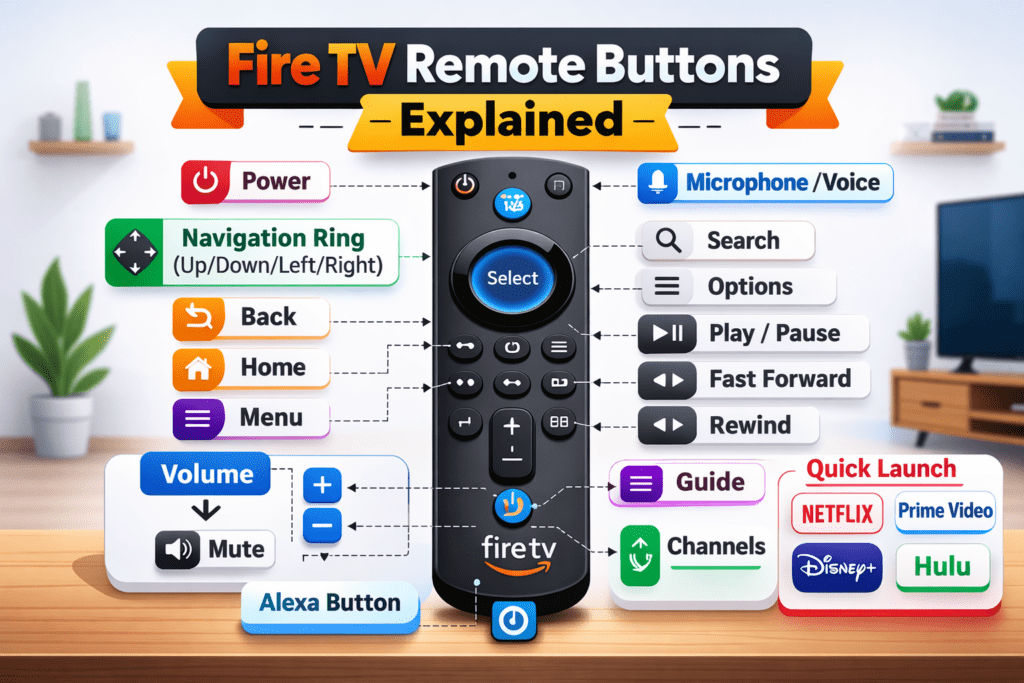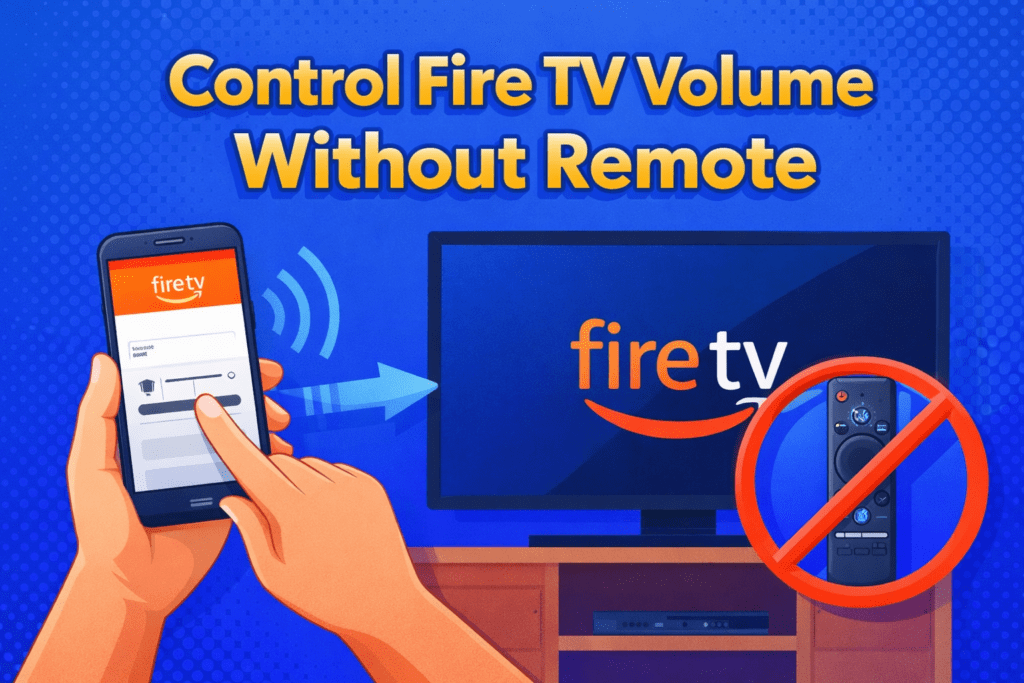
When the Fire TV refuses to respond to volume buttons, it feels like the whole setup is ruined. Broken Fire TV remotes are a common reason for this problem. But the Fire TV app on Android and iPhone converts your phone into a mobile remote with a volume slider that raises or lowers sound.
However, when the slider adjusts only the Fire TV device volume, enable HDMI-CEC on the TV or pair an Echo or soundbar to control master audio. For this, you have to follow several steps.
So, in this guide, we will discover which method fits best for your volume control, why the app sometimes can’t control the volume, and the compatibility between them. Let’s get started.
What changes when you control volume from the Fire TV app
Control Fire TV volume without remote app often changes the Fire TV device output, not the TV master volume. So you may need HDMI-CEC or a paired audio device to alter the TV or AVR master level.
Controlling volume from a phone can affect different hardware layers. The Fire TV app usually sends local commands to the Fire TV Stick or Fire TV Cube. But TVs and receivers can intercept or ignore those commands depending on HDMI-CEC and ARC settings. Network discovery and app permissions also control what the app can do.
Difference between device volume and TV master volume
Device volume controls only the Fire TV unit output, while TV master volume controls the speakers or external AVR and affects all inputs.
Device volume applies to the Fire TV device and affects how the stick or box outputs audio to the TV. But the master volume controls the full sound system.
How to control Fire TV volume without the remote?
Control Fire TV volume without the remote by adjusting the sound through the Fire TV app on your phone. You can also ask a paired Alexa Echo to raise or lower the volume, or rely on HDMI-CEC.
Each option works best in a different moment, so choose the method that fits your setup. The app gives you quick tweaks when you only need basic control, while HDMI-CEC handles the TV speakers through the same remote you already use. A nearby Echo also helps once it’s linked to Fire TV. And when a soundbar or an AV receiver is in play, ARC or eARC keeps every device in step. These are the same steps I turn to whenever the remote goes missing.
Method A: Use the Fire TV app
The Fire TV app lets your phone act like the original remote once both devices connect through your home Wi-Fi.
Step 1: Ensure the phone and Fire TV use the same Wi-Fi
Your phone must use the same network name. The Fire TV Stick or Fire TV Cube shows the network name in its settings. Also, check the SSID inside the Network menu, and allow location or local network access on your Android or iPhone when the app prompts you.
Step 2: Connect the Fire TV
Install the Fire TV app and choose your device from the list inside the Devices tab. If it refuses to appear, restart the Fire TV, refresh the app screen, and try again.
Step 3: Use the volume slider, note possible limits
Drag the volume slider to change the output. If the slider moves only the device sound and not the TV master volume, try HDMI-CEC or a paired audio device.
Method B: Voice control with Alexa
Linking Alexa gives hands-free volume control for Fire TV and TV when mapping exists.
Step 1: Link Fire TV in the Alexa app
Open Alexa, go to Devices, and add your Fire TV under the TV & Video section. And then grant control permissions. Check that the Echo and Fire TV use the same Amazon account.
Step 2: Command the Alexa
Speak clear phrases to an Echo or Echo Show. Use exact short commands for best results. Below is an exact command you can try.
| Command | Expected response | Notes |
| “Alexa, volume down on Fire TV.” | Alexa says volume lowered, and the player reduces volume | Works when Fire TV is linked |
| “Alexa, set Fire TV volume to 20.” | Alexa sets the numeric level if supported by the device | Use 0 to 100 for numeric levels |
| “Alexa, mute Fire TV.” | Alexa confirms mute state | Mute toggles device audio only if a mapping exists |
Method C: Use the TV remote via HDMI-CEC
Enable HDMI-CEC in your TV menu and set CEC to allow volume control.
Steps to enable CEC on Fire TV / Firestick:
- Go to Settings
From your Fire TV home screen, go to settings.
- Open Display & Audio.
Scroll down and select Display & Audio.
- Select HDMI CEC Device Control.
Find the option HDMI CEC Device Control and click it to turn it ON.
- Confirm the Option Is Enabled
Once switched on, your TV should detect CEC-supported devices automatically.
Troubleshooting CEC conflicts:
- Verify the HDMI cable supports ARC if using a soundbar.
- Turn off other HDMI devices.
- Update TV firmware when CEC options are missing.
- Reboot the Fire TV device and TV after enabling CEC.
When the Fire TV app can’t change TV volume – advanced workarounds
If the Fire TV app cannot change the TV master volume, use ARC or eARC with a soundbar, swap to a universal remote or IR remote, or create a mobile hotspot to link phone and Fire TV for control.
Sometimes the app only alters the Fire TV device output and not the TV speakers. In that case, you need a path for volume commands to reach the TV or AVR. ARC and eARC send audio and can allow volume when the TV and soundbar support it. Also, a universal remote or IR repeater works with legacy sets that lack HDMI-CEC.
Troubleshooting common volume problems on the Fire TV app
You will see a few recurring failures when the Fire TV app or Alexa cannot change volume. Read the short checks below and check them in order.
What to do if the Fire TV app volume slider is missing?
Update the Fire TV app, on local network and microphone permissions. And then reboot the phone and Fire TV device.
Update the app in Google Play or App Store. On your iPhone, open Settings and then the Fire TV app and enable Local Network. In your Android, enable Location and Nearby Devices if required. You can also reboot the Fire TV from Settings. If the slider continues to remain greyed, clear the app cache or reinstall.
App connects, but the volume is not changing
When the app is connected, but volume is not changing, verify whether the app changes the Fire TV device output. And also confirm TV or AVR mapping via HDMI-CEC, ARC settings, or a soundbar connection. Play an audio or video clip and watch the Fire TV volume overlay.
Volume is laggy or jumpy (network and firmware checks)
Lag or jumps often come from Wi-Fi congestion or outdated firmware. So test wired Ethernet where possible and update Fire TV, TV, and soundbar firmware.
Check router load and move the Fire TV to a less crowded 5 GHz WiF. If the Fire TV has an Ethernet port, use an adapter for stable streaming.
Here’s a quick troubleshooting table to fix the maximum Fire TV app volume problem
| Symptom | Likely cause | Quick fix | When to escalate |
| Slider absent | App permission or an outdated app | Update the app and enable Local Network | Contact Amazon support if it persists |
| App moves overlay only | No CEC or ARC mapping | Enable HDMI-CEC or use soundbar ARC | Contact the TV or soundbar vendor |
| Alexa ignores commands | Account link or permission | Re-link Fire TV to Alexa and grant control | Ask Amazon support for account issues |
| Volume lag | Wi-Fi congestion or firmware | Switch to 5 GHz or update firmware | Test with Ethernet and contact the ISP if needed |
FAQs
How do I use Alexa to change Fire TV volume?
You can use Alexa to control Fire TV volume with the same Amazon account for the Alexa app and Fire TV. And also, place the Echo within three meters for the best voice pickup.
Does the Fire TV app control TV volume or just the stick?
The Fire TV app usually controls the Fire TV device output and not the TV master volume unless HDMI-CEC or ARC mapping links the devices.
Can multiple phones control one Fire TV at the same time?
Yes, multiple phones can pair, but simultaneous commands can create conflict. Each paired phone appears in the Devices list of the Fire TV app. When two phones send commands at the same time, volume changes can jump. So, for stable control, set one phone as primary or use an Echo to centralize commands.
Conclusion
You now have three fast controls using the Fire TV app, Alexa, and HDMI-CEC, plus two fallback hardware paths using a soundbar with ARC or a universal remote. Test the volume slider first, then enable HDMI-CEC when you want the TV master volume to respond.